How to Share a Video Walkthrough Without Requiring a Client Login
Forcing clients to create an account just to view a project demo creates immediate friction. Learn how to share video walkthroughs with zero-barrier public access, interactive AI search, and enterprise security controls.
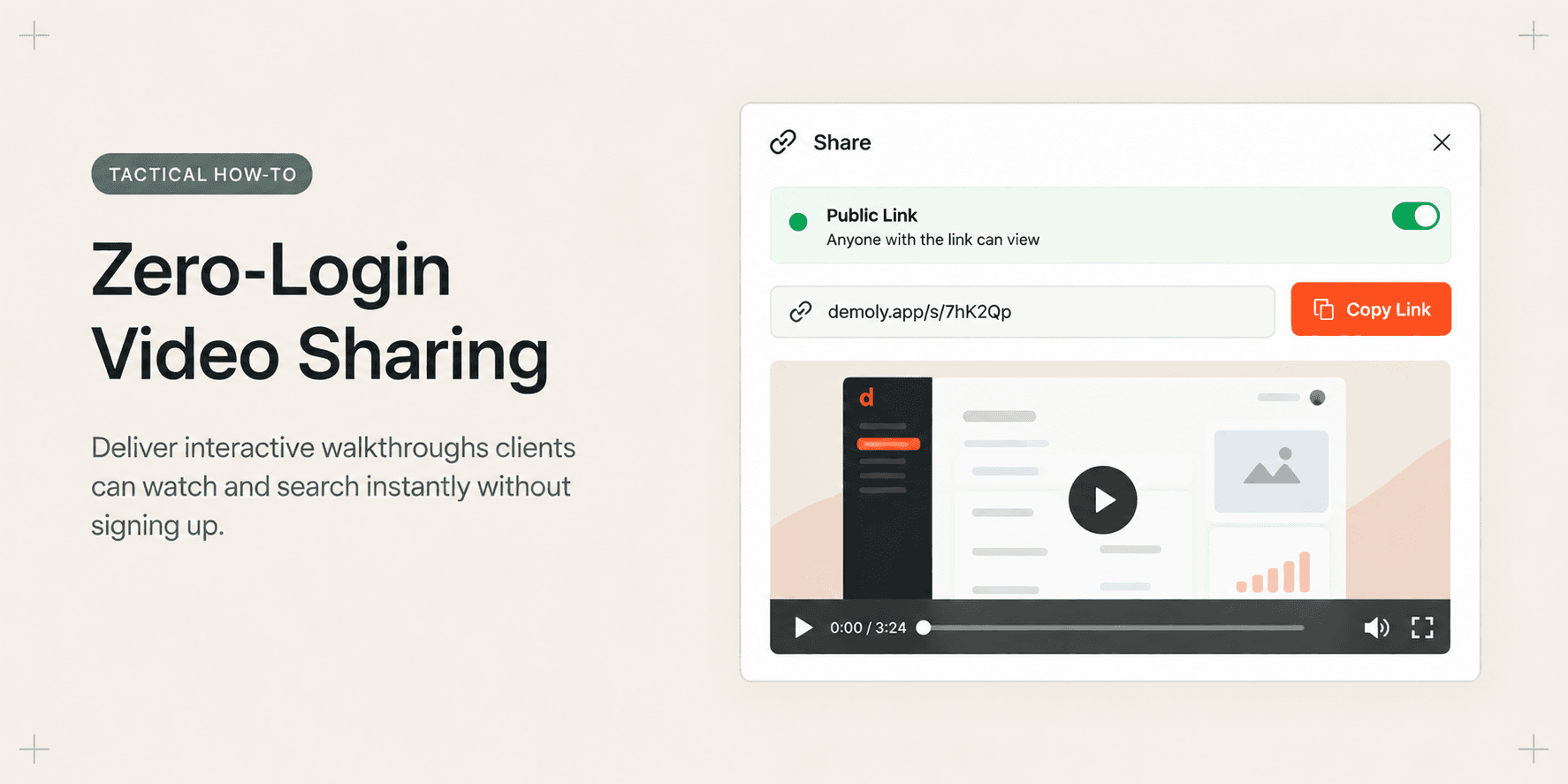
How to Share a Video Walkthrough Without Requiring a Client Login
You spend thirty minutes recording a comprehensive product walkthrough for your client, only for them to reply: "The link says I need to create an account or request access to watch this."
Forcing non-technical clients, executive stakeholders, or external partners to register an account, remember a password, or download desktop software just to view a demonstration video introduces immediate friction. When access barriers stall review cycles, clients abandon asynchronous video and revert to requesting live meetings.
This operational guide shows you how to share interactive web app walkthroughs using a frictionless, zero-login viewing model. Your recipients can watch the recording in any browser, interact with visual AI search, and review features instantly without creating an account or paying seat license fees.
Quick Steps
- Open the recording: Open your completed walkthrough in the Demoly web editor workspace.
- Access permission controls: Click the Share button in the top-right toolbar to launch the access configuration modal.
- Select public link access: Toggle the permission setting to Public - Anyone with the link can view.
- Copy the share URL: Click Copy Link to place the direct zero-login playback link onto your clipboard.
- Deliver to stakeholders: Paste the link into your client email, Slack channel, or project management ticket for instant playback.
The True Cost of Client Login Walls
Requiring viewers to authenticate before watching a project update creates operational drag across multiple touchpoints:
Delivery Barrier | Impact on Clients | Agency Consequence |
|---|---|---|
Mandatory Sign-Up | Clients must create passwords and verify work emails. | Review delays and postponed sign-offs. |
Viewer Seat Taxes | Traditional platforms charge per viewing seat or team member. | Ballooning SaaS subscription overhead. |
Software Downloads | Heavy files require native media players or local storage. | Mobile and non-technical stakeholders cannot view updates. |
Passive Playback | Viewers must watch entire timelines to find single answers. | Repetitive live support calls to clarify demonstrated features. |
Adopting a zero-login distribution standard removes these bottlenecks while preserving your ability to control access and protect proprietary data.
Before You Start
- Ensure your walkthrough has finished recording in the Demoly Chrome extension and loaded into the browser editor.
- If you have not captured your recording yet, review How to Record a Web App Walkthrough Your Client Can Actually Search to ensure all DOM elements and UI actions index properly.
- Check that sensitive staging secrets or private credentials have been redacted using the in-browser canvas editor before generating your public link.
Step-by-Step Instructions
Follow these five chronological steps to configure and distribute your walkthrough without viewer authentication requirements.
Step 1: Open Your Walkthrough in the Demoly Web Editor
Navigate to your Demoly workspace dashboard and select the walkthrough video you want to distribute.
The video loads inside the Demoly browser-based editor canvas. The main viewport displays your recorded web app actions, the bottom timeline shows audio waveforms and cut markers, and the right drawer houses the interactive search interface.
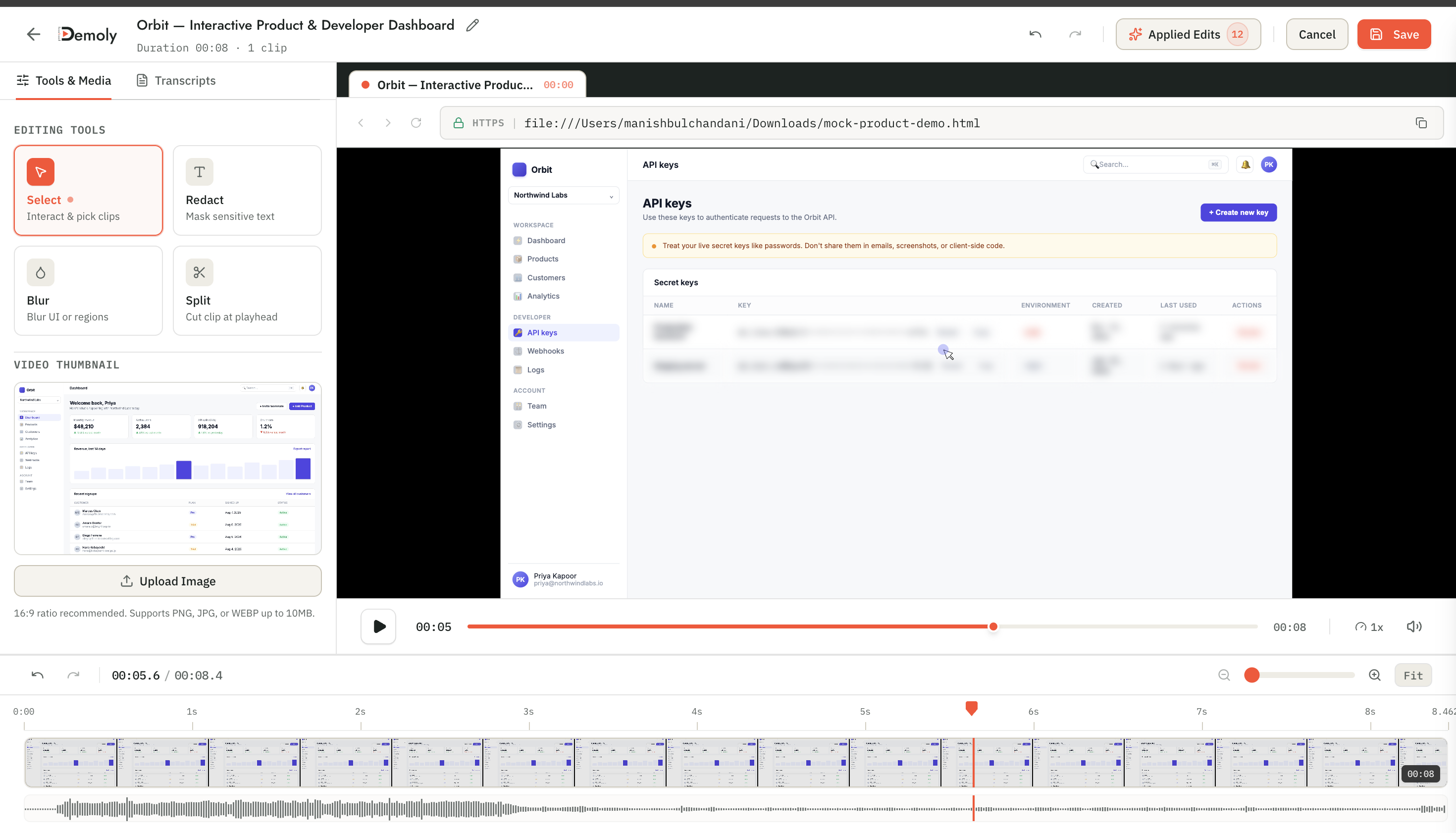
Verify that your audio levels sound balanced and that any unneeded setup pauses or misclicks have been trimmed from the timeline. Because Demoly uses non-destructive editing, any cuts you make here update the playback stream without requiring an export or re-upload.
Step 2: Open the Share Modal and Configure Zero-Login Access
Locate the Share button positioned in the top-right corner of the editor canvas header. Click it to open the permission settings modal.
The modal displays three access tiers:
- Public: Anyone with the direct URL can view the recording, search its visual timeline, and leave comments without logging in.
- Private Workspace: Restricts viewing strictly to authenticated team members within your Demoly workspace organization.
- Restricted Email: Restricts viewing to specific invited email addresses who authenticate upon arrival.
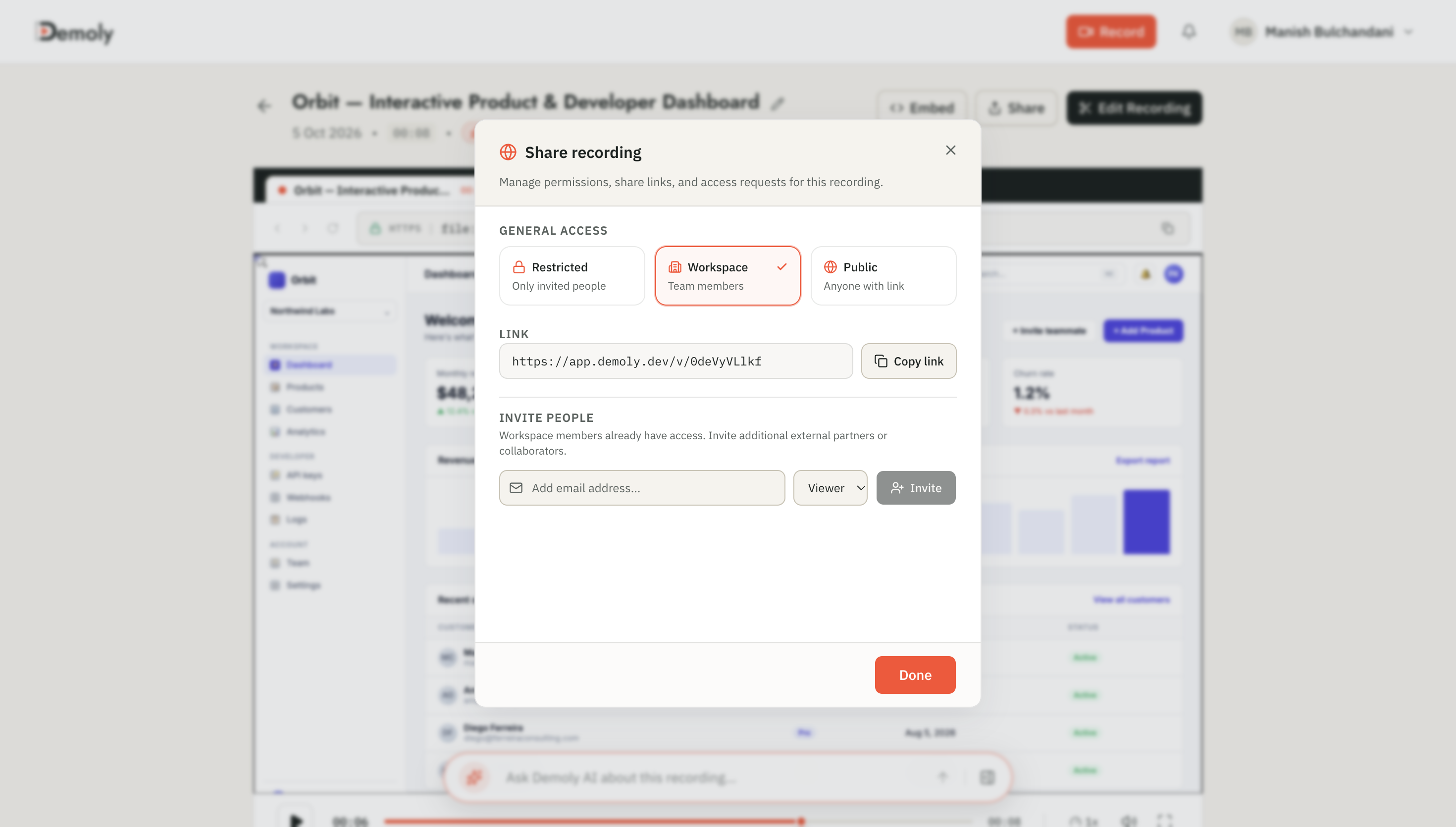
Select Public - Anyone with the link can view. This unlocks unrestricted browser access for your external clients while preserving full playback functionality.
Step 3: Copy the Public Video Link
With the Public option active, click the Copy Link button next to the generated URL field.
A brief confirmation checkmark confirms the direct URL is copied to your clipboard. This link routes directly to Demoly’s optimized cloud playback engine. Viewers do not need Chrome extensions, desktop utilities, or video codecs to stream the content.
Step 4: Bundle Walkthroughs into Project Folders (Optional)
If your client handover involves multiple recordings—such as separate walkthroughs for admin configuration, user management, and checkout flows—do not send ten disjointed links across email threads.
Group your walkthroughs into a unified Demoly Project Folder:
- Navigate back to your Demoly workspace dashboard.
- Select your client’s designated project directory (for instance, Acme Corp Staging Handover).
- Move all relevant walkthrough videos into this project container.
- Click Share Project at the folder level and select Public Access.
Sharing the folder URL allows your client to access the entire library of demonstration videos through a single bookmarkable portal, standardizing the workflow outlined in The Complete Client Handover Checklist for Web Agencies.
Step 5: Deliver the Walkthrough to External Stakeholders
Paste the copied URL into your client communication channel:
Hi Sarah,

Here is the completed walkthrough demonstrating the newly launched billing portal:
https://app.demoly.dev/share/acme-billing-walkthrough

You do not need to create an account or log in to view this. You can watch it directly in your browser or type any question into the search bar on the right to jump straight to specific settings.
When comparing workflow ergonomics against legacy screen capture tools, as detailed in our Loom vs Demoly: Which Is Better for Client Handovers? analysis, eliminating the recipient sign-up step immediately cuts client friction and accelerates milestone sign-offs.
How to Verify It Worked
Before sending the link to high-priority clients, verify that zero-login access behaves as expected:
- Open a new Incognito or Private Browsing window in your browser (ensuring no active Demoly session cookies exist).
- Paste your copied share URL into the address bar and press Enter.
- Confirm that the video player loads immediately:
- Playback begins on click without presenting a login modal or registration prompt.
- The Ask Demoly AI search drawer is visible and fully functional on the right.
- The comment submission field is accessible without forcing an account creation flow.
If the incognito tab prompts you for an email login, return to your editor workspace and verify that the share setting is toggled to Public rather than Private Workspace.
What the Client Experiences: Frictionless Interactive Playback
When your client clicks your shared link, they receive an interactive viewer experience engineered for fast knowledge retrieval:
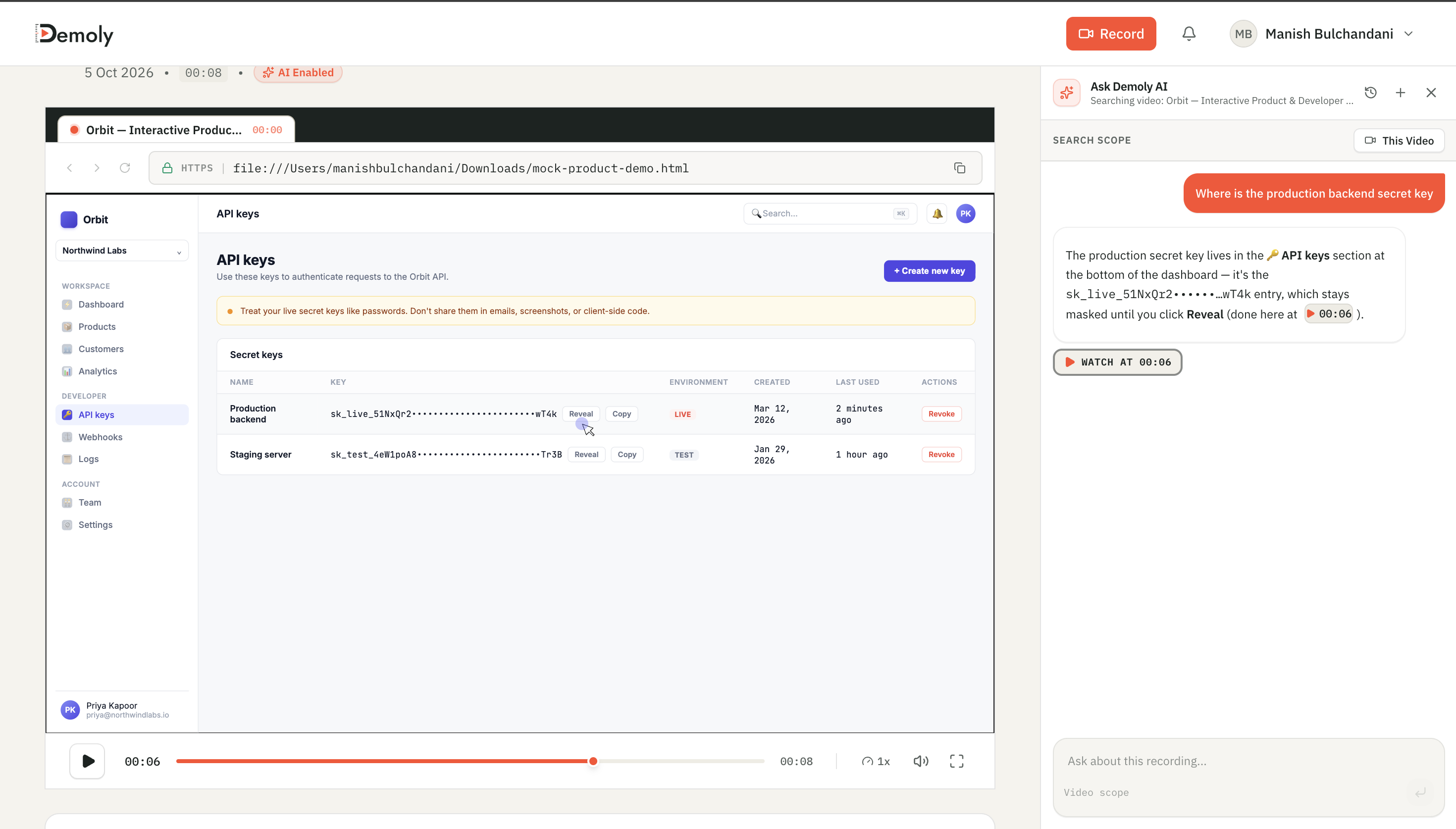
- Instant Streaming: The recording buffers instantly in standard HTML5 video across desktop, tablet, and mobile browsers without requiring software installation.
- Conversational AI Retrieval: Clients who need a specific setting do not have to scrub through a twenty-minute video. They can type natural language queries into the search drawer (e.g., "Where do I configure custom webhook endpoints?"). The player returns a direct answer with a clickable timestamp chip (
▶ WATCH AT 00:06). - Element-Anchored Comments: Clients can pause the video and drop contextual feedback pins directly onto visual buttons or UI containers, enabling precise asynchronous collaboration without back-and-forth email confusion.
Important Notes & Edge Cases
- Post-Publishing Edits: If you trim out an audio pause or mask a newly discovered sensitive field after sharing the link, your changes reflect immediately on the original URL. You never need to re-generate or re-send the share link.
- Permanent Data Redaction: Ensure all client PII, staging passwords, and API secrets are masked using the canvas blur tool before sharing. Demoly burns redaction overlays directly into the delivered video layer, preventing clients or third parties from uncovering obscured data in browser developer tools.
- Revoking Access: If project circumstances change or contract phases conclude, you can convert a public link to Private Workspace with a single click. Any external viewer attempting to reload the link immediately receives an unauthorized access notice.
- Search Indexing Time: Video playback is ready within seconds of capture. The interactive AI search drawer finishes processing DOM elements and transcript data within 30 to 60 seconds after recording stops.
Troubleshooting
Issue: Client reports an "Unauthorized" or "Sign In Required" screen
- Cause: The video permission was inadvertently left set to Private Workspace or Restricted Email.
- Fix: Open the video in your Demoly workspace, click Share, select Public - Anyone with the link can view, and confirm the update. The client can refresh their browser to watch immediately.
Issue: The AI search drawer displays an "Indexing in Progress" indicator
- Cause: The client opened the link immediately after you clicked stop on a lengthy walkthrough before background semantic processing completed.
- Fix: The base video streams immediately. Background indexing completes within 60 seconds; refreshing the page restores full natural language search and timestamp citations.
Conclusion
Client handovers should accelerate project milestones, not introduce administrative friction. By replacing mandatory account registration walls with zero-login public sharing, agencies preserve momentum, delight stakeholders, and eliminate repetitive follow-up meetings.
Demoly includes unlimited recordings, automated visual DOM indexing, and zero-login link sharing on its free plan ($0 forever, no credit card required).
Frequently asked questions
Commonly asked questions about this article.
01•Does my client need a Demoly account to search the video?
No. Anyone opening a public Demoly link can watch the video, query the search drawer using conversational AI, and click timestamp citation chips without creating an account or logging in.
02•Can anyone on the internet find my client's walkthrough video?
Public links use unguessable, secure randomized URLs shared exclusively with recipients you choose. If your walkthrough contains sensitive internal architectures, you can switch access to restricted email invitations at any time.
03•What happens if I edit the walkthrough after sending the link?
Your edits update automatically on the existing share link. Demoly’s non-destructive editing updates the video stream and realigns AI search timestamps without requiring you to redistribute a new URL.
04•Can clients leave timestamped comments without logging in?
Yes. Clients can pause the video at any timestamp, type their feedback, and leave their name to submit contextual comments directly on the timeline without setting up a password.
05•Does Demoly limit how many people can view the shared link?
No. Demoly does not impose viewer seat taxes or concurrent viewer caps. Whether your walkthrough is viewed by one stakeholder or shared across an entire executive board, playback remains unrestricted.
Demoly Team
Contributor
Related Dispatches
View all dispatches →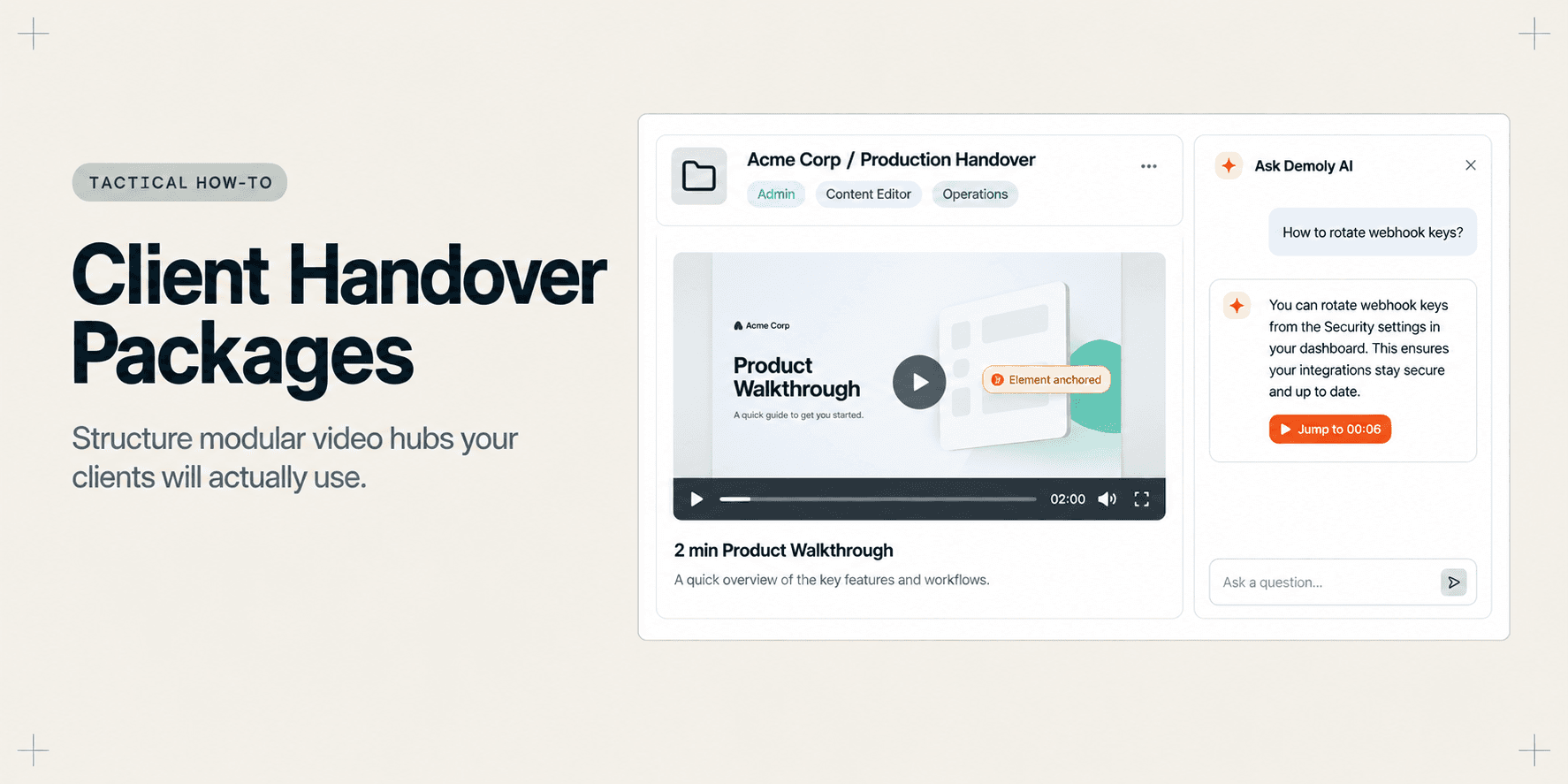
How to Structure a Project Handover Package Clients Will Actually Use
Dumping 40-page manuals or unwatched 45-minute recordings on clients causes endless support friction. Learn how to structure a modular, searchable project handover package that clients actually use.
Best Screen Studio Alternatives for Windows and Linux
Looking for Screen Studio alternatives on Windows or Linux? Compare top cross-platform tools for auto-zoom effects, AI-searchable walkthroughs, and screen recording.
Guidde Pricing: Complete Cost Breakdown and Alternatives
An independent pricing audit of Guidde plans, creator seat costs, Free vs Pro vs Business limits, AI voice tiers, and whether upgrading delivers real ROI.
Try Demoly for your team
Create branchable, interactive demo recordings and deliverables in minutes with zero friction.