How to Structure a Project Handover Package Clients Will Actually Use
Dumping 40-page manuals or unwatched 45-minute recordings on clients causes endless support friction. Learn how to structure a modular, searchable project handover package that clients actually use.
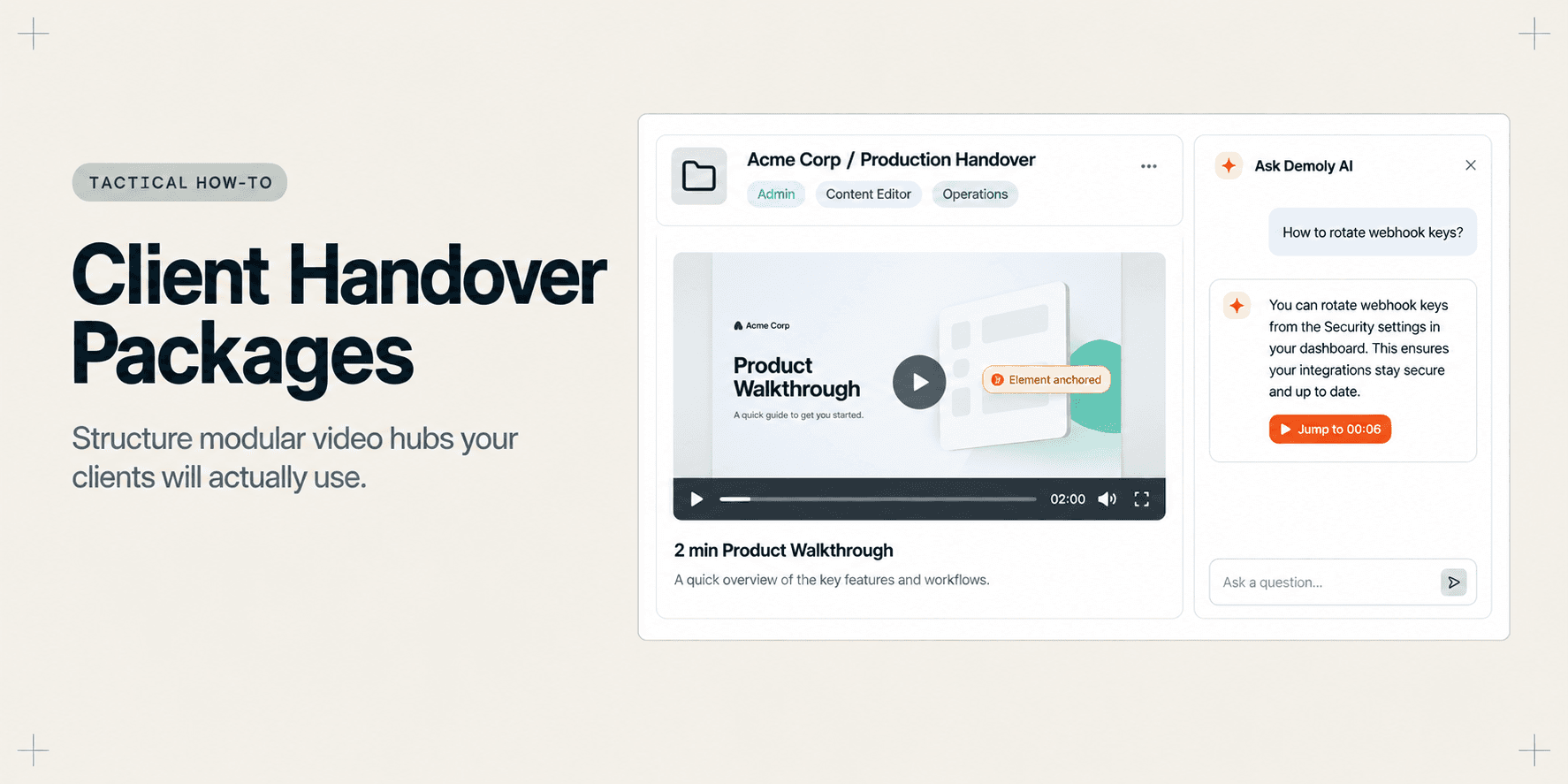
How to Structure a Project Handover Package Clients Will Actually Use
You deliver a custom web application or redesign, send over a 40-page Notion document and a folder of 45-minute walkthrough recordings, and mark the milestone complete. Two weeks later, the client emails your project manager asking basic operational questions: "How do we update product inventory?" and "Where do we rotate our webhook keys?"
Clients do not read encyclopedic documentation, and they rarely watch monolithic 45-minute screen recordings to find a single 20-second answer. When documentation fails, clients default to scheduling emergency support calls, eroding agency profit margins and stalling team productivity.
This operational guide shows you how to structure a modular, searchable handover package. By combining concise role-based walkthroughs, element-anchored security masking, and interactive visual AI search, you create a delivery asset that client teams reference independently on day one.
Quick Steps
- Segment deliverables into micro-walkthroughs: Record targeted 2–4 minute modular walkthroughs mapped to specific user roles rather than a single monolithic screen recording.
- Scrub production secrets and credentials: Use in-browser canvas masking to permanently redact staging passwords, private API keys, and sensitive database configurations.
- Index visual actions with conversational AI search: Process recordings through browser DOM and visual capture so clients can query features directly using natural language.
- Organize assets in a zero-login central handover manifest: Package walkthrough links, environment credentials, and scope sign-offs into a single browser-accessible hub with public viewer permissions.
Traditional Handover Dumps vs. Searchable Modular Packages
The difference between chronic post-launch support tickets and a clean agency exit lies in deliverable architecture:
Handover Component | Traditional Handover Dump | Searchable Modular Package |
|---|---|---|
Video Format | Monolithic 45–60 minute recordings. | Modular 2–4 minute role-specific tracks. |
Searchability | None or audio-only transcript search. | Visual and transcript AI search with clickable timestamp chips. |
Security & Privacy | Staging keys exposed in raw footage. | Permanent canvas-layer redaction of production credentials. |
Client Access | Paid per-seat accounts or local ZIP downloads. | Zero-login browser links accessible to all client staff. |
Client Adoption | Low; ignored in favor of live support calls. | High; self-serve answers retrieved in seconds. |
Adopting a structured package model eliminates repetitive handoff meetings and anchors long-term client confidence.
Before You Start
- Confirm all deployment environments (staging, production, CMS admin, DNS records) are active and functional.
- Outline the core non-technical workflows the client team must perform independently (e.g., publishing blog posts, managing customer orders, configuring notification webhooks).
- Verify that you have The Complete Client Handover Checklist for Web Agencies open to track required asset components.
Step 1: Divide Workflows into Modular Role-Based Tracks
Avoid recording a single continuous tour of your application. When an executive or marketing editor needs to update a banner image, forcing them to scrub through database configuration walkthroughs guarantees they will abandon the recording.
Create a dedicated Demoly project folder for the client engagement and segment your video walkthroughs into three distinct operational tracks:
- The Executive & Stakeholder Track: A high-level 3-minute architectural overview showing core platform capabilities, KPI dashboards, and system boundaries.
- The Content Editor & Marketing Track: Step-by-step 2-minute walkthroughs demonstrating daily tasks: publishing pages, updating navigation items, and editing copy.
- The Technical Administrator Track: Concise recordings covering environment variable rotation, user role assignments, webhook monitoring, and transactional email setup.
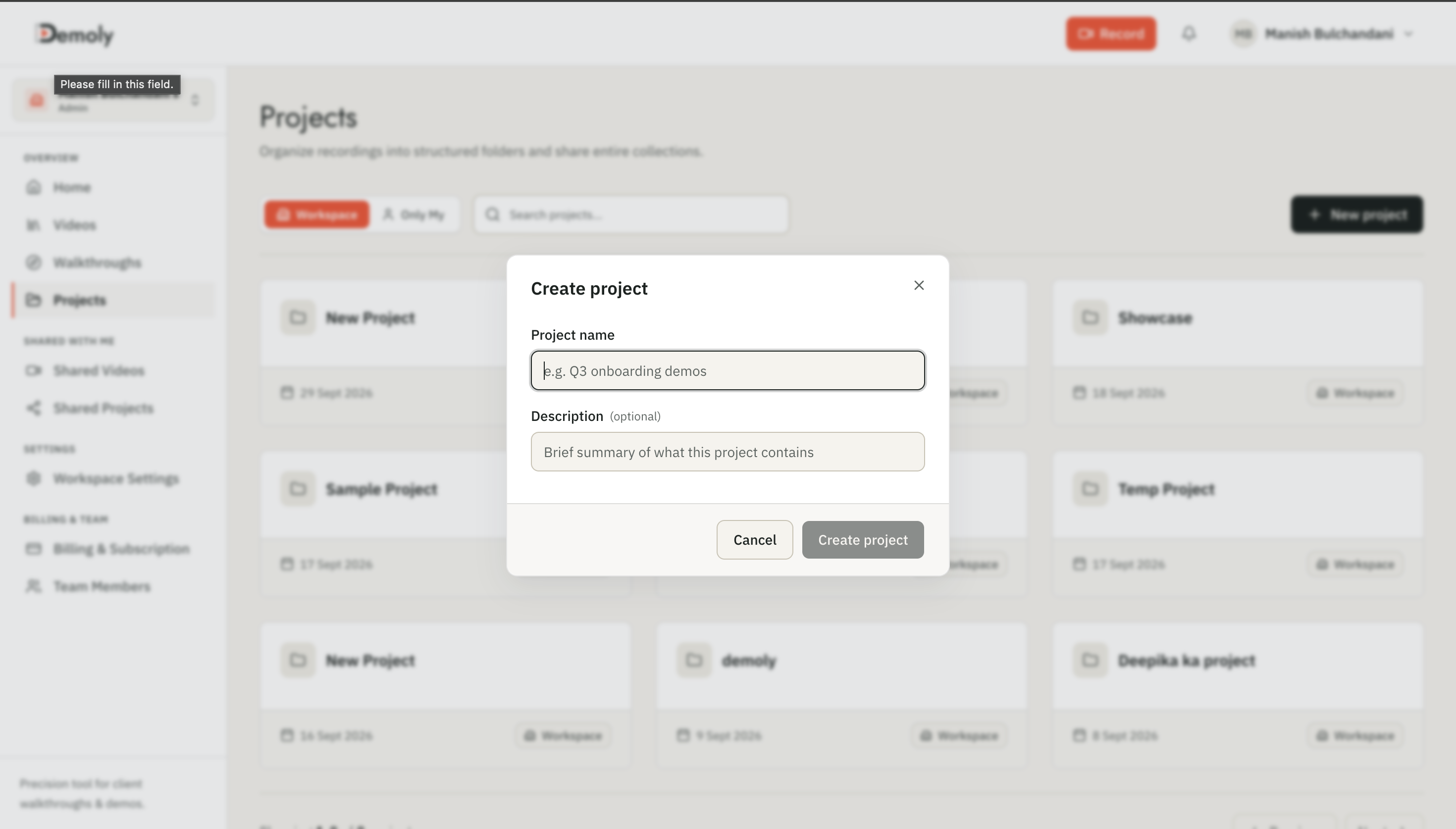
Label each recording with an intuitive, action-oriented title such as [Marketing] Updating Product Pricing or [Admin] Inviting New Staff Members.
Step 2: Redact Sensitive Credentials and Production Secrets
Project handovers frequently involve demonstrating settings screens, payment gateways, or API integration dashboards. Leaving production keys, webhook tokens, or customer personal data visible in unedited video creates compliance vulnerabilities and prevents clients from distributing videos across their internal teams.
Standard video blurs or CSS overlays can shift during dynamic page scrolling or fail to hide underlying frame buffers. Use Demoly's in-browser editor to permanently redact sensitive data:
- Open the recorded walkthrough in the Demoly web editor workspace.
- Select the Blur / Redact tool from the left toolbar.
- Drag a bounding box directly over secret keys, environment tokens, or customer records.
- Adjust the timeline duration handles to lock the redaction mask across the entire exposure window.
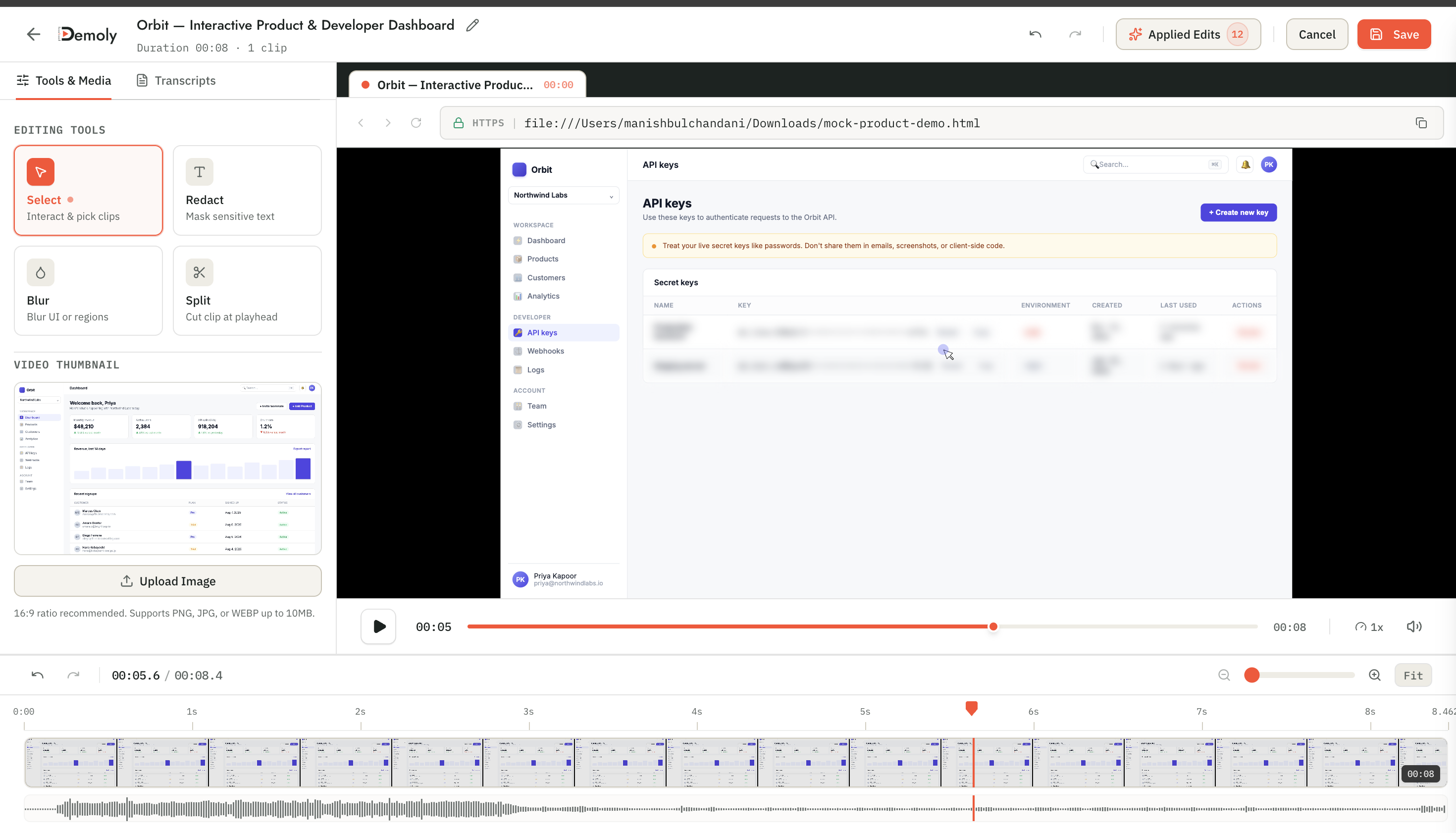
Demoly bakes the mask directly into the video canvas layer. This guarantees credentials cannot be retrieved through browser developer tools or playback inspection.
Step 3: Enable Visual and Timestamped Video Search
The primary reason client teams abandon recorded handovers is the friction of finding specific steps. When searching for how to configure a third-party checkout webhook, reviewing a 10-minute video timeline manually wastes valuable time.
Traditional video tools rely exclusively on spoken audio transcripts. If a developer demonstrated an administrative toggle or clicked a secondary menu item without narrating the exact technical keyword aloud, the search fails to index the moment.
Demoly continuously captures Document Object Model (DOM) event changes and visual canvas state alongside audio:
- Open the playback view of your client walkthrough.
- Confirm the synchronized clickable transcript generated automatically during capture.
- Open the Ask Demoly AI drawer located on the right side of the screen.
- Verify that natural-language queries (e.g., "Where do I find the webhook secret?") instantly generate an answer accompanied by an interactive timestamp chip (
▶ WATCH AT 00:06).
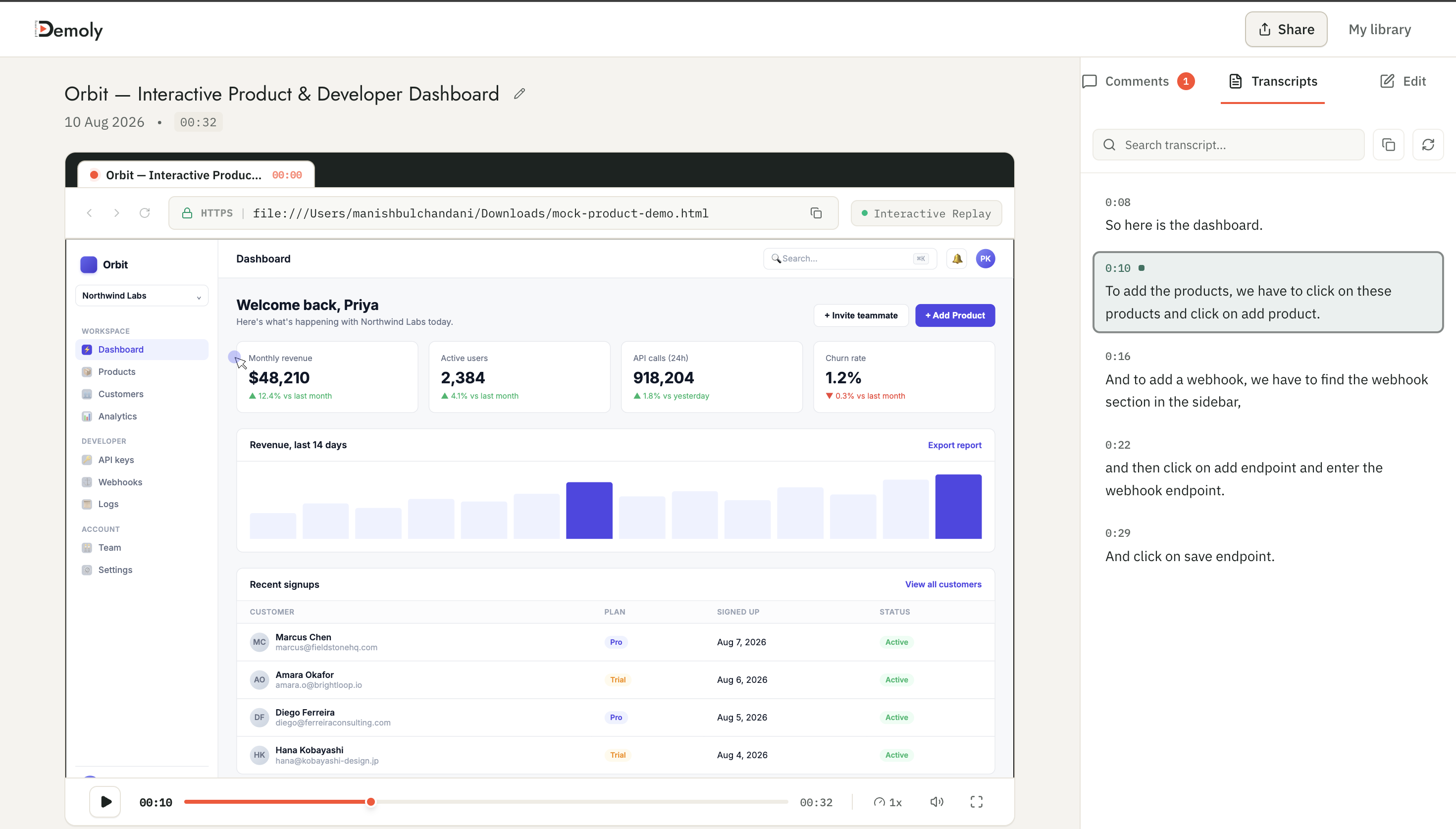
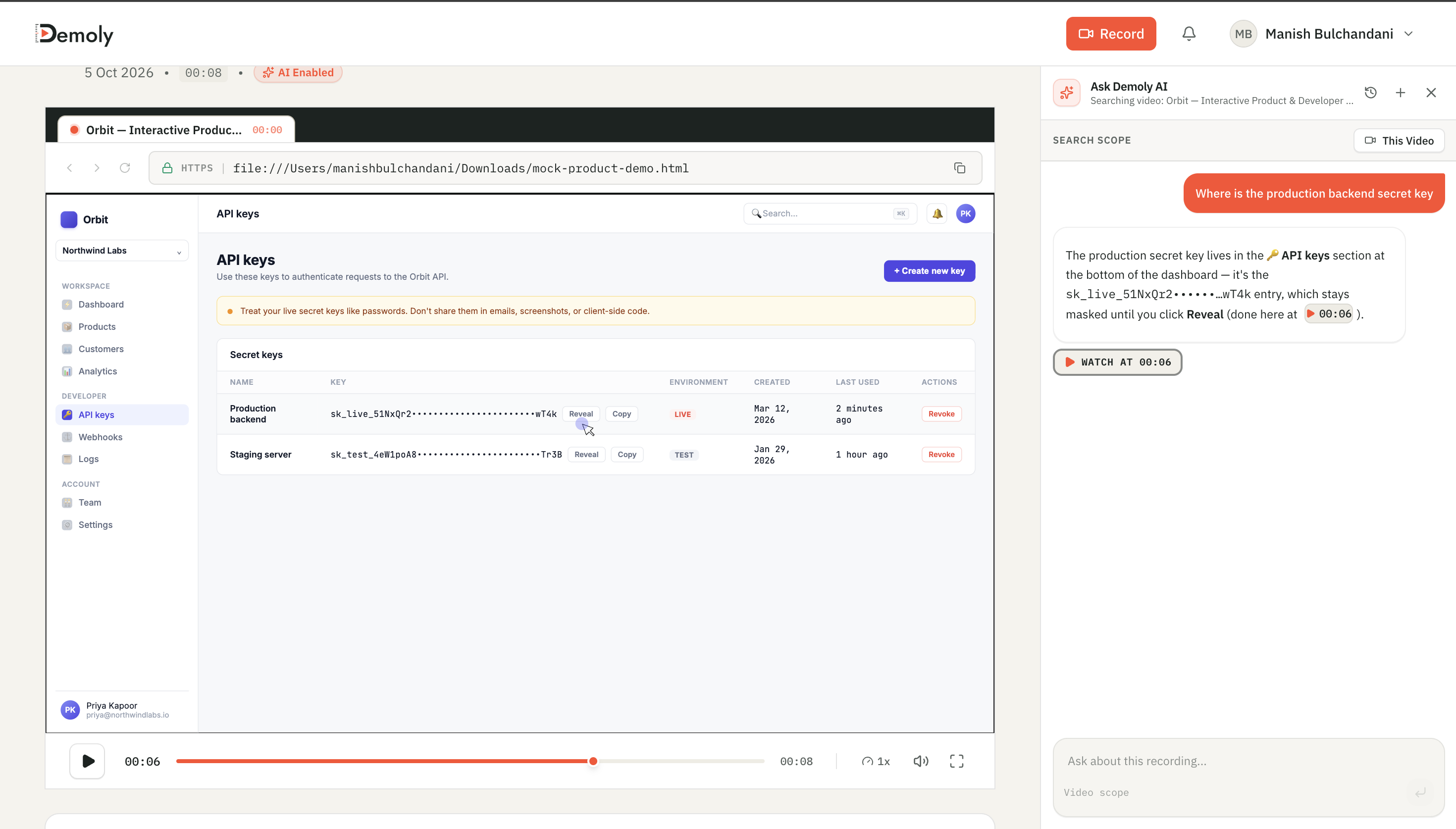
Clicking the timestamp citation instantly jumps the viewer to the exact frame where the action occurs, allowing clients to resolve operational hurdles without scheduling support meetings.
Step 4: Configure Zero-Friction Public Access Controls
Requiring client executives, external contractors, or incoming internal developers to create individual platform accounts, remember passwords, or download proprietary desktop apps causes immediate access drop-off. Furthermore, legacy tools charge agencies per-seat viewer taxes just to grant external access.
Configure frictionless viewing permissions for your project bundle:
- Click the Share button in the top-right toolbar of your Demoly project or video view.
- Set the access permission dropdown to Public - Anyone with the link can view.
- Confirm that viewer-only permissions are active to prevent unauthorized edits to your project assets.
- Click Copy Link to save the zero-login playback link to your clipboard.
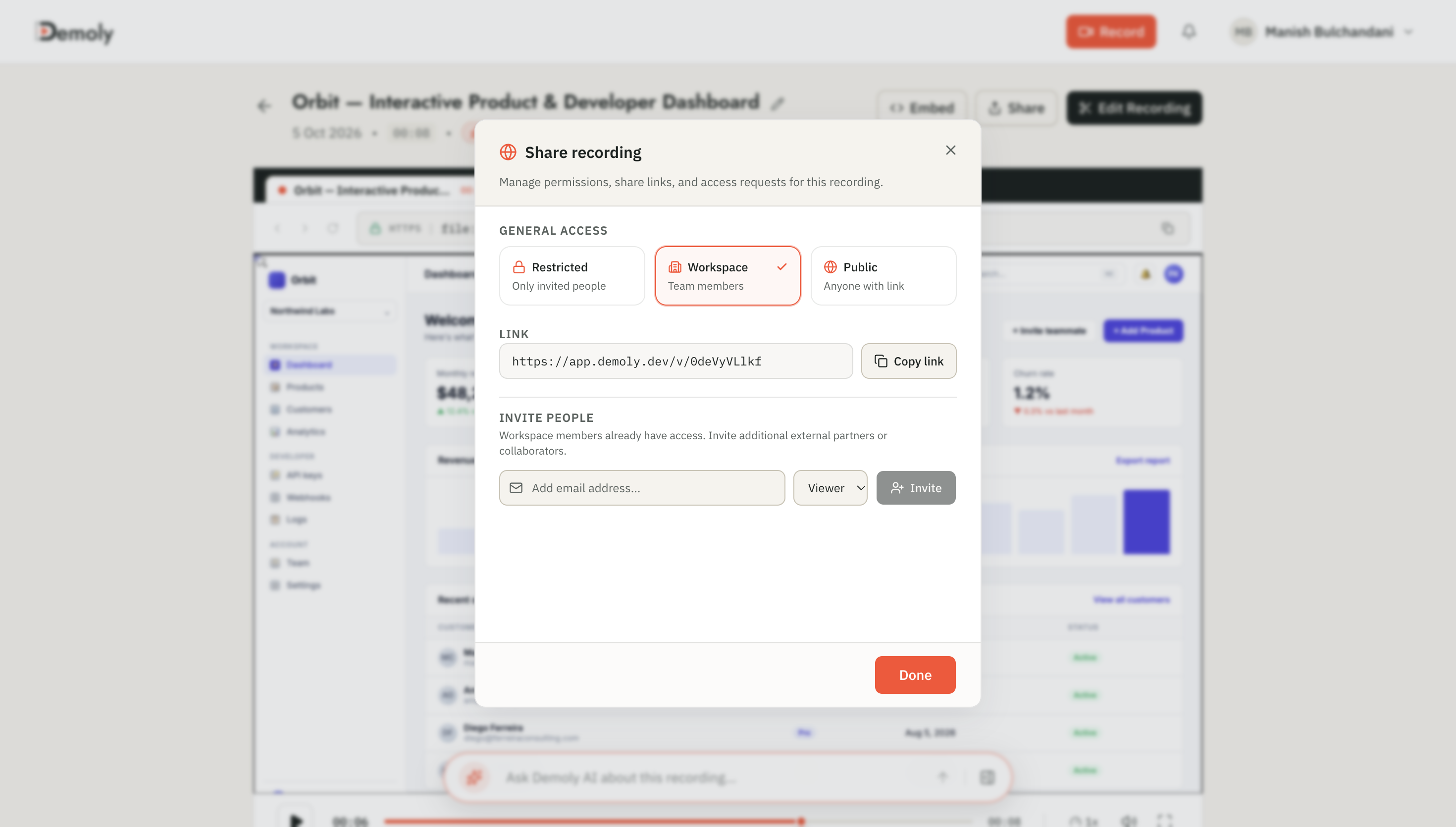
Viewers can open the URL in any modern browser on desktop or mobile, search the walkthrough using Ask Demoly AI, and review procedural steps without creating an account or paying subscription fees.
Step 5: Assemble Deliverables in an Executive Handover Manifest
Bring your deliverables together in a single, scannable central document (such as a clean Markdown file, Notion page, or dedicated web portal). A client-ready handover manifest contains four clean sections:
1. Essential System Access & URLs
- Production Application URL
- Staging & Preview Environment URL
- Primary Administrative Portal / CMS Login
- Domain Registrar & DNS Provider Records
2. Interactive Searchable Video Hub
- Workspace Overview: 3-minute orientation tour covering system architecture.
- Role-Specific Modules: Direct zero-login links to modular Demoly recordings grouped by operational department (Marketing, Support, Technical Admin).
- AI Search Directive: Explicit guidance informing client staff they can type natural language questions into the Ask Demoly drawer to locate specific features instantly.
3. Critical Production Runbook
- Emergency server restart and rollback procedures.
- Third-party subscription management (hosting, transactional mailers, payment processors).
- Data backup schedule and automated restore verification steps.
4. Milestone Sign-Off & Warranty Boundaries
- Defined scope completion boundaries.
- Post-launch warranty support terms (e.g., 30-day bug fix window vs. billable change requests).
- Escalation paths and ticketing procedures for ongoing maintenance.
For teams selecting dedicated tooling to support this delivery workflow, review our comprehensive breakdown of the Best Tool for Client Project Handovers.
How to Verify It Worked
Perform an independent audit before sending the package to client leadership:
- Run an Incognito Link Audit: Open your central handover manifest in an incognito browser window. Click each embedded walkthrough URL and verify that video playback loads immediately without login walls, password prompts, or download gates.
- Execute a Test AI Query: Launch the Ask Demoly AI drawer on your core admin walkthrough and submit a non-verbal workflow query (such as "Where is the invite team member button?"). Verify that the AI returns an accurate summary and an interactive timestamp chip that seeks the video directly to the target frame.
- Inspect Redacted Boundaries: Scrub across redacted segments to confirm all API credentials, billing details, and personal data remain fully masked behind permanent canvas blurs.
Important Notes & Edge Cases
- Avoid Hosting Video Files in Cloud Storage Drives: Storing raw MP4 files in Google Drive or Dropbox forces clients to download gigabytes of video to their local hard drives before watching. Browser streaming often degrades or fails on large files, and cloud storage provides no in-video visual search.
- Manage Team Access Transitions: Advise the client sponsor during delivery to assign a primary internal administrator who owns master credentials. Transition super-admin privileges immediately after contract sign-off to maintain clear security demarcation.
- Keep Micro-Walkthroughs Focused: Restrict each recording to a single mechanical task under 4 minutes. If an explanation requires more than 5 minutes, split it into two distinct modules to keep AI search indexing sharp and viewer engagement high.
Troubleshooting
- Problem: Client team members report they cannot view embedded walkthrough links on mobile devices.
Fix: Ensure your project sharing permission is set to Public - Anyone with the link can view. Verify that viewer authentication gates are disabled so links resolve natively in all standard mobile browsers without proprietary app installs.
- Problem: Sensitive dashboard credentials shift out of the blur bounding box during dynamic page scrolling.
Fix: Return to the Demoly visual editor, select the redaction layer, and anchor the mask coordinates across the exact scroll timeline segment, or apply separate static blur boxes across distinct keyframe positions.
Practical Next Steps
You now have a structured, modular project handover package designed for high client adoption and zero-friction navigation. Demoly provides full screen recording, automated DOM and visual indexing, and zero-login link sharing on its free plan ($0 forever, no credit card required).
Frequently asked questions
Commonly asked questions about this article.
01•Why do clients ignore traditional 45-minute handover recordings?
Long recordings force busy clients to scrub manually through timelines to find single answers. When finding information takes more than two minutes, clients abandon the video and email the agency directly.
02•Do clients need a Demoly account to query the video AI?
No. Demoly links shared with public viewer permissions allow clients to play videos, read synchronized transcripts, and query Ask Demoly AI without registering an account or paying seat fees.
03•Can clients inspect the browser source code to reveal redacted API keys?
No. Demoly executes redactions directly on the video canvas layer before rendering. The sensitive data is permanently excised from the pixel buffer and cannot be recovered via browser developer tools.
04•What is the ideal video length for individual handover modules?
Each module should focus on a single operational task and run between 90 seconds and 3 minutes. Short recordings maximize scannability and allow AI search to pinpoint exact solutions instantly.
05•How does Demoly's AI search differ from standard transcript search?
Transcript search only finds words spoken aloud into the microphone. Demoly indexes on-screen visual elements and DOM changes, allowing users to find buttons, settings, and fields even if unmentioned in voiceover.
Demoly Team
Contributor
Related Dispatches
View all dispatches →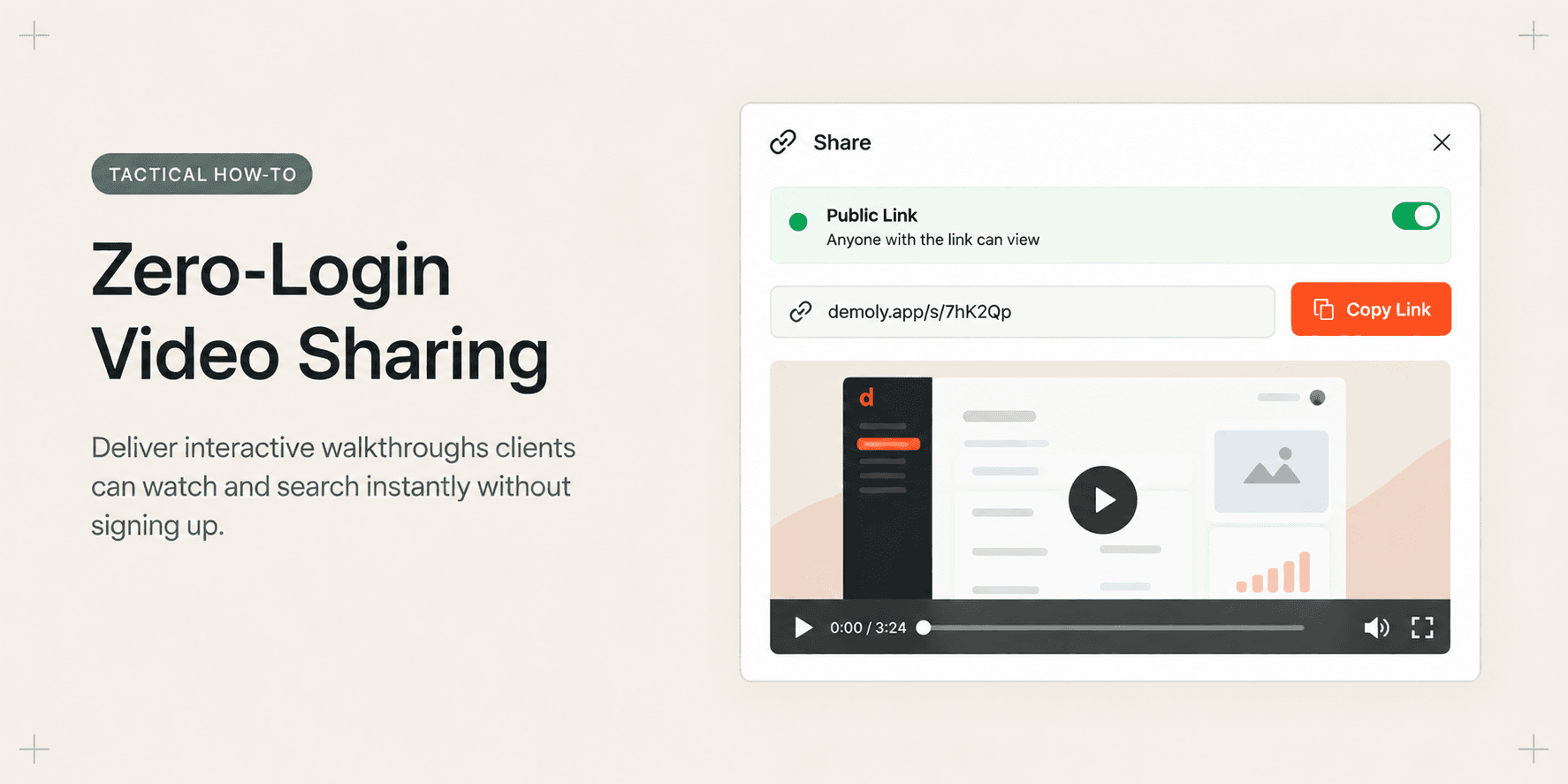
How to Share a Video Walkthrough Without Requiring a Client Login
Forcing clients to create an account just to view a project demo creates immediate friction. Learn how to share video walkthroughs with zero-barrier public access, interactive AI search, and enterprise security controls.
Best Screen Studio Alternatives for Windows and Linux
Looking for Screen Studio alternatives on Windows or Linux? Compare top cross-platform tools for auto-zoom effects, AI-searchable walkthroughs, and screen recording.
Guidde Pricing: Complete Cost Breakdown and Alternatives
An independent pricing audit of Guidde plans, creator seat costs, Free vs Pro vs Business limits, AI voice tiers, and whether upgrading delivers real ROI.
Try Demoly for your team
Create branchable, interactive demo recordings and deliverables in minutes with zero friction.