The Complete Client Handover Checklist for Web Agencies
A comprehensive checklist for web agencies to conduct frictionless client handovers, transfer credentials, establish support boundaries, and eliminate unbilled scope creep.

The Complete Client Handover Checklist for Web Agencies
The site is built, testing is complete, and the DNS records point to production. The final hurdle is handing the project over so the client can manage their website without pulling your team into weeks of unbilled support calls.
Live training meetings cover too much ground, and dense written manuals rarely get read. When clients cannot quickly find how to update content or manage integrations, they default to emailing your developers.
Use this checklist to run a clean, structured handover that transfers full ownership, sets clear scope boundaries, and leaves the client self-sufficient.
What a Good Client Handover Must Cover
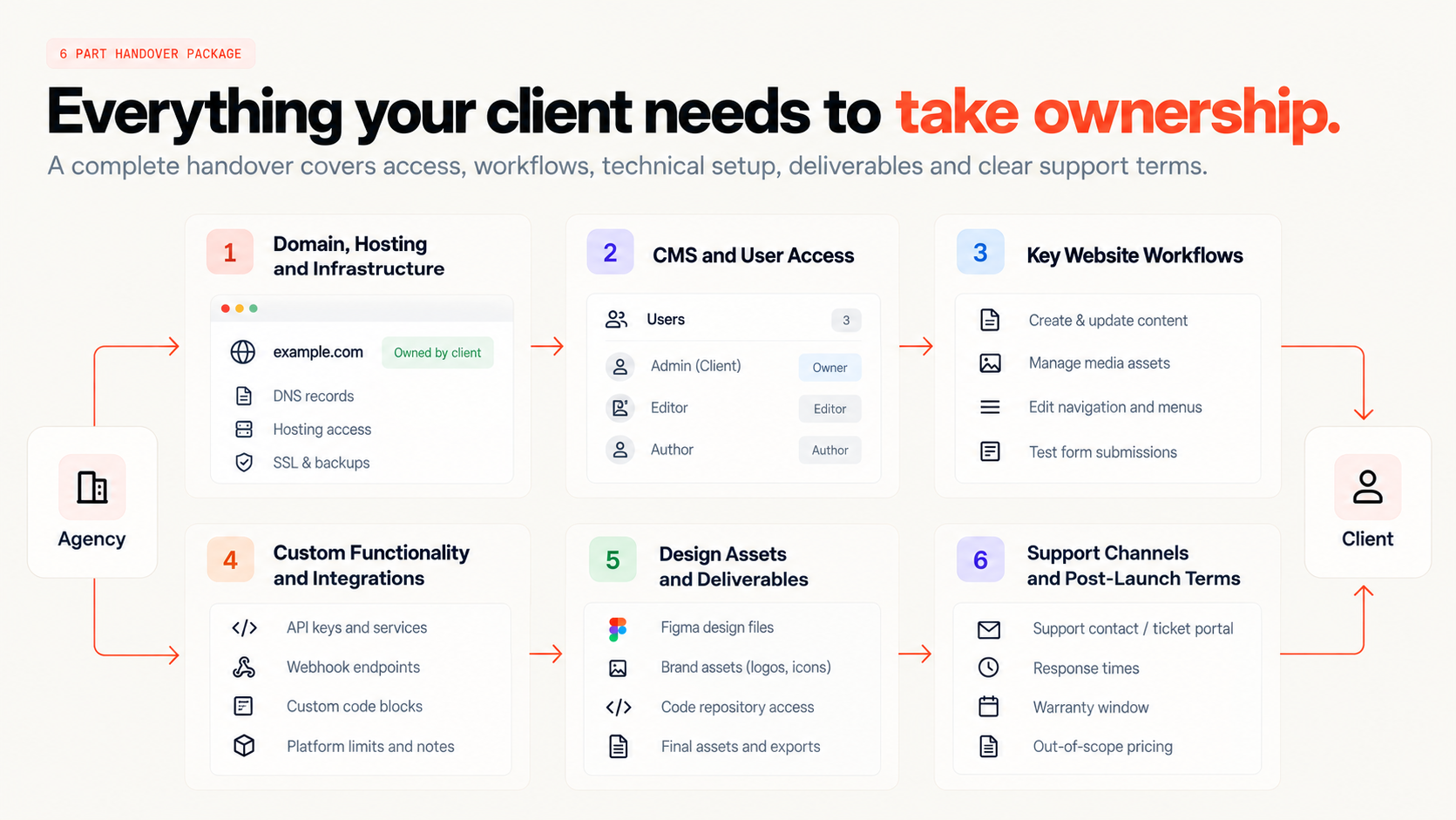
A complete handover is not just sending an admin login. To protect your agency margin and prevent post-launch confusion, every handover needs to address four operational layers:
Asset and Access Ownership: The client must hold primary ownership of all domains, hosting accounts, third-party licenses, and CMS workspaces.
Day-to-Day Operations: Editors must know how to perform routine content tasks without contacting a developer.
Technical Safeguards: Third-party API keys, environment variables, and webhook endpoints must be documented, secured, and properly transferred.
Support Boundaries: The client must know exactly what is included under post-launch warranty and what requires a new scope or retainer.
The Complete Web Agency Client Handover Checklist
Work through these items before sending the final delivery package:
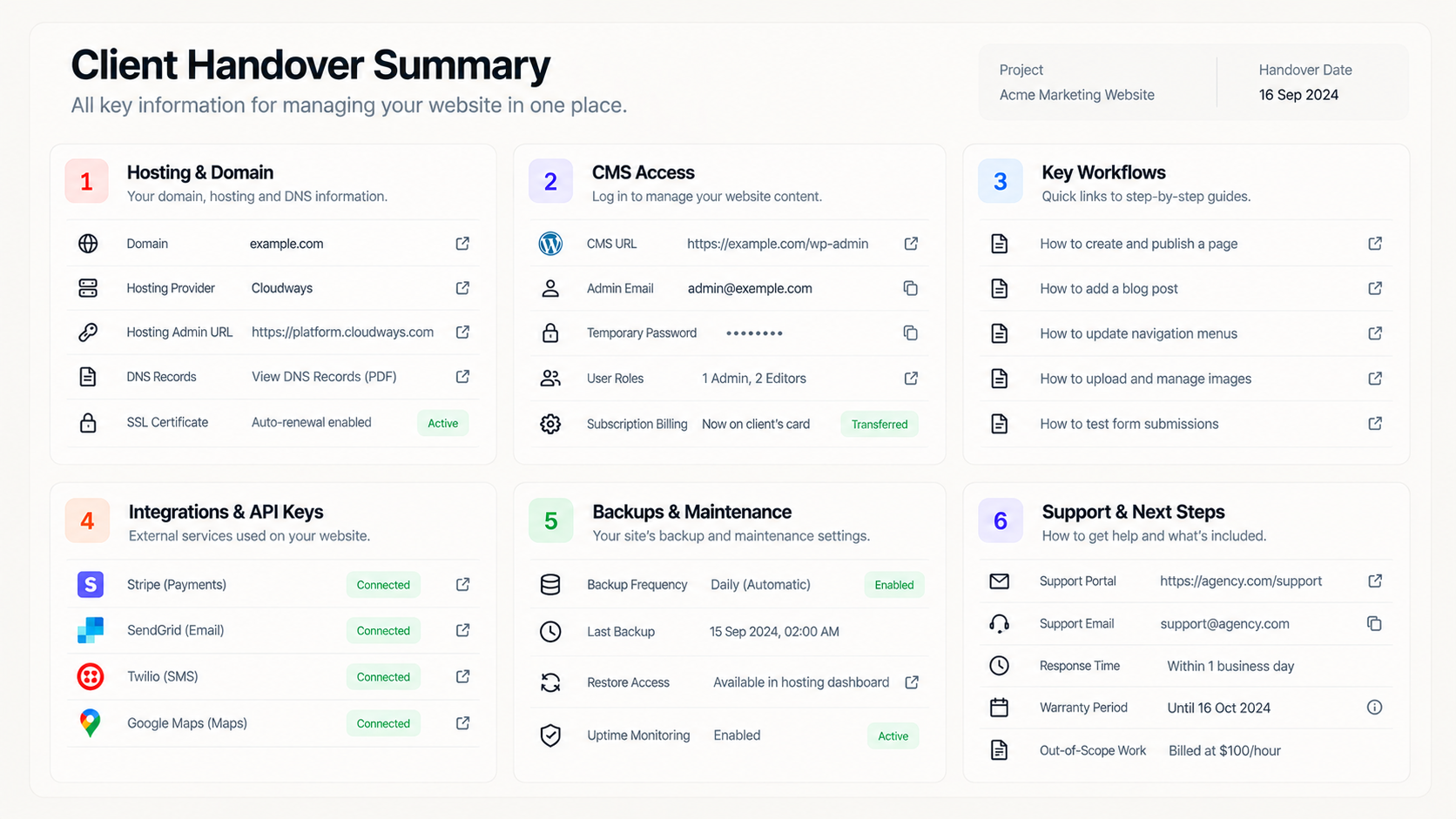
1. Domain, Hosting, and Infrastructure
[ ] Transfer Domain Ownership: Ensure the client owns the domain registration account and that renewal billing is tied to their credit card.
[ ] Document DNS Records: Provide an export or table of all active DNS records, including A records, CNAMEs, MX mail records, and SPF/DKIM verification tags.
[ ] Verify Production Hosting Access: Transfer primary ownership of the hosting environment or cloud server to the client's billing account.
[ ] Confirm SSL Certificate Status: Check that automatic SSL renewal is active on the production domain and all primary subdomains.
[ ] Set Up Automated Backups: Configure daily or weekly automated backups and test that a restore point can be generated.
2. CMS and User Access
[ ] Provision Client Admin Roles: Create the client's primary administrative account and verify they can log in without agency intervention.
[ ] Assign Role-Based Permissions: Set up appropriate editor or author permissions for the client's non-technical team members.
[ ] Remove Staging and Temp Accounts: Delete or deactivate development seats, contractor accounts, and placeholder user profiles.
[ ] Transfer CMS Workspace Billing: Move the CMS workspace or subscription plan directly to the client's payment method.
3. Key Website Workflows
[ ] Record Publishing Procedures: Walk through creating, updating, scheduling, and unpublishing a standard page or blog post.
[ ] Explain Media Asset Guidelines: Specify required image dimensions, file formats, and file-size limits to prevent performance drops.
[ ] Show Navigation and Menu Edits: Demonstrate where header menus, footer columns, and mobile navigation items are modified.
[ ] Test Form Submissions and Routing: Walk through an active form submission, show where the notification email lands, and verify where entries are stored in the database.
4. Custom Functionality and Integrations
[ ] Document Third-Party API Keys: List all external services in use, such as Stripe, SendGrid, Twilio, or Google Maps.
[ ] Transfer Webhook Endpoints: Verify that live webhook listeners are pointed to production URLs rather than staging routes.
[ ] Explain Custom Code Blocks: Note the exact location and purpose of any custom scripts placed in site headers, footers, or embedded HTML blocks.
[ ] Document Known Constraints: Clearly note external platform limits, such as API rate limits or third-party plugin restrictions.
5. Design Assets and Deliverables
[ ] Deliver Figma/Design Files: Share the final, cleaned design system, component libraries, and page mockups.
[ ] Package Brand Assets: Provide high-resolution vector logos, custom iconography, and licensed typography files.
[ ] Provide Code Repository Access: For custom builds, transfer the production Git repository or confirm access rights for the client's internal team.
6. Support Channels and Post-Launch Terms
[ ] Define Support Contacts: Provide a single support email or ticket portal link, rather than individual developer contact details.
[ ] Specify Response Times: Reiterate agreed response windows for standard requests versus emergency outages.
[ ] State Warranty Window: Clearly identify the end date of the complimentary post-launch bug-fix period.
[ ] Outline Out-of-Scope Pricing: Provide the agency's hourly rate or monthly maintenance retainer options for new feature requests.
Common Handover Mistakes to Avoid
Leaving Agency Credit Cards on Hosting: Failing to transfer billing before launch leaves your agency paying recurring hosting or third-party plugin fees.
Sending Long, Uncut Video Recordings: Sending a 45-minute recording of an unstructured call forces clients to scrub back and forth to find basic settings.
Exposing Live API Secrets: Sharing recordings or documents containing plain-text production API keys or payment secrets creates an immediate security risk.
Leaving Scope Boundaries Unstated: Without a defined post-launch warranty window, clients treat normal feature requests as free project revisions.
Quality Check: Handover Readiness
Before marking the project closed and issuing the final invoice, confirm that the client can complete these tasks unassisted:
1. Log into the CMS and publish a new content page.
2. Access domain DNS and production hosting settings directly.
3. Submit a website form and receive the automated notification.
4. Find self-serve instructions for updating site menus and global blocks.
5. Submit a formal support ticket using the designated agency channel.
Using Demoly for Client Walkthroughs
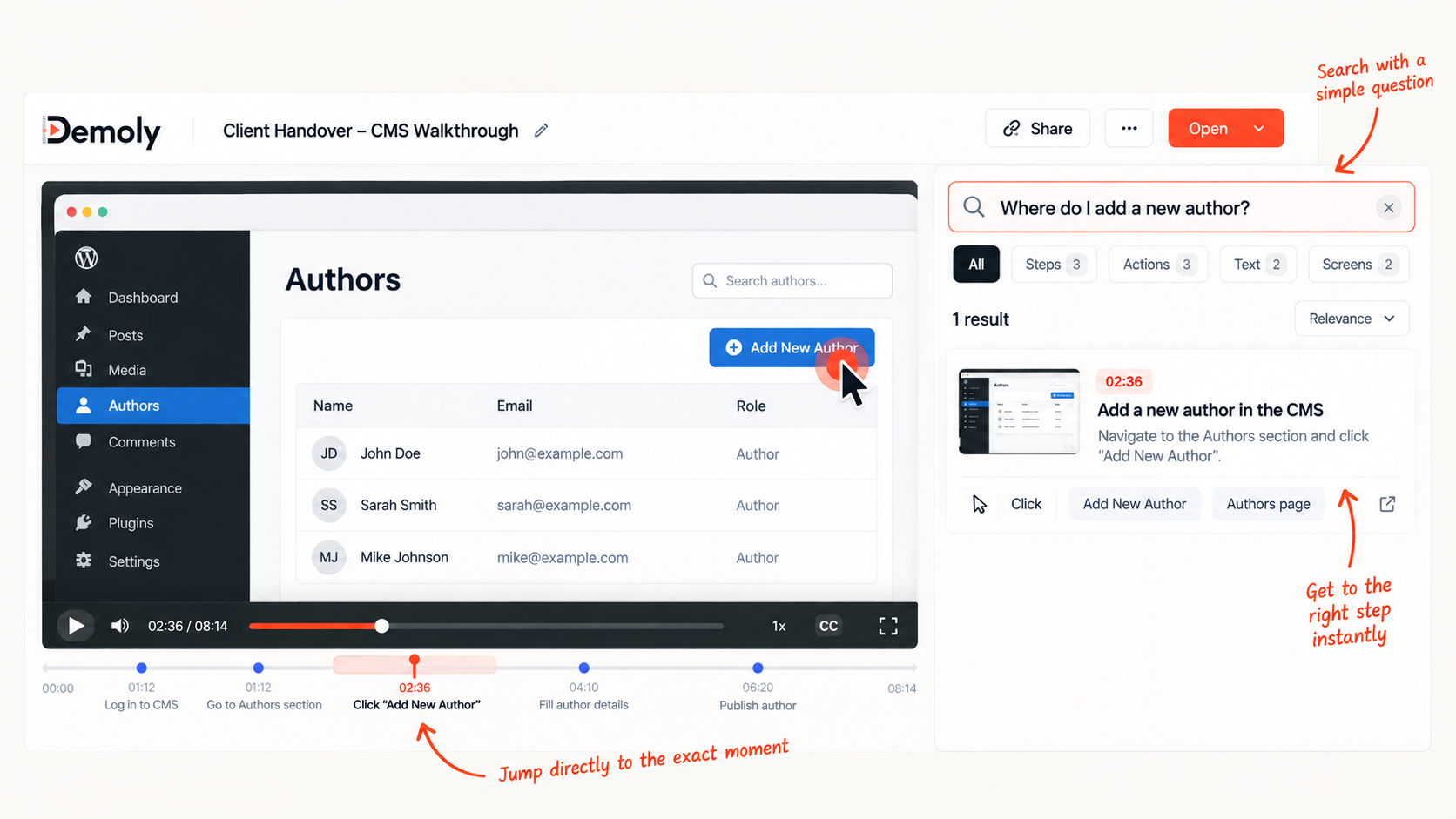
Recording video walkthroughs is faster than writing 30-page manuals, but standard video files create new problems. When a client forgets how to edit a form three weeks later, they do not want to scrub through a 20-minute video to find the answer.
Walkthrough platforms like Demoly turn recorded screen explanations into interactive, searchable resources:
Capture Complex Workflows: Record multi-tab setup procedures, moving from CMS collections to third-party dashboards without pausing.
Redact Sensitive Credentials: Use permanent canvas redaction to mask production API keys, billing details, and customer information before sharing the link.
Self-Serve Client Search: Clients type natural-language questions into the AI drawer to jump directly to the visual timestamp where the setting was changed.
Frictionless Viewing: Clients can watch and query walkthroughs in their browser without creating paid software accounts or installing extensions.
Practical Next Steps
Turn this checklist into your agency's standard delivery template. Review it with your developers before scheduling cutover, and package the completed assets into a single delivery link for your client.
For a complete breakdown of delivery software and client repository options, read our guide on the best tool for client project handovers.
Frequently asked questions
Commonly asked questions about this article.
01•How long should client handover documentation take to create?
standard handover package should take between two and four hours to assemble if workflows are captured as you finish the final build.
02•What is the biggest cause of post-launch client questions?
Clients most frequently ask about editing navigation menus, uploading media files with correct dimensions, and updating third-party form integrations.
03•Should agencies retain administrative access after launch?
Yes, retain a dedicated secondary admin account for maintenance and emergency support, but ensure primary billing and account ownership sit with the client.
04•How can agencies protect credentials shown in video walkthroughs?
Use tools with permanent canvas-layer redaction to scrub live tokens and keys before sharing, or demonstrate the process using dummy staging credentials.
05•Do clients need to create software accounts to view Demoly walkthroughs?
No, clients can open, watch, and search Demoly walkthroughs directly in any modern web browser without creating accounts or downloading software.

Team Demoly
Contributing author covering precision walkthroughs and modern product engineering at Demoly.
Related Dispatches
View all dispatches →
Loom vs Vidyard: Which Is Better for Tech Agencies?
Compare Loom and Vidyard for tech agencies. Discover how screen capture, CRM tracking, video analytics, and client handoff workflows compare in practice.
Supademo vs Demoly: Interactive Demos vs AI-Searchable Walkthroughs
Compare Supademo and Demoly to choose between synthetic click-through demo tours and AI-searchable browser video walkthroughs for client handoffs and product guides.
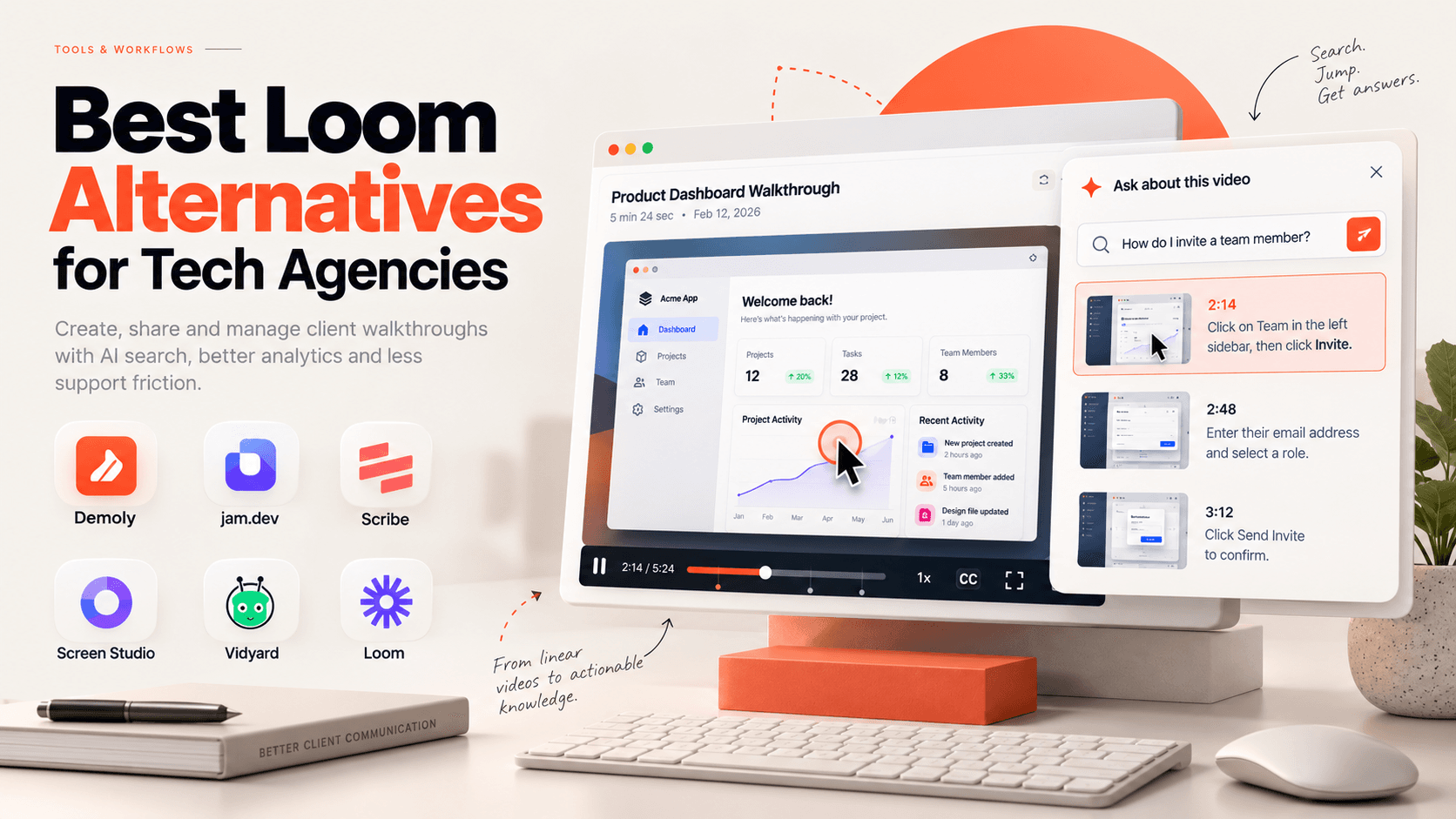
Best Loom Alternatives for Tech Agencies
Looking for Loom alternatives for your tech agency? Compare the 6 best tools for client handoffs, AI-searchable walkthroughs, QA bug reporting, and interactive documentation.
 Team Demoly
Try Demoly for your team
Create branchable, interactive demo recordings and deliverables in minutes with zero friction.