Best Screen Studio Alternatives for Windows and Linux
Looking for Screen Studio alternatives on Windows or Linux? Compare top cross-platform tools for auto-zoom effects, AI-searchable walkthroughs, and screen recording.
Best Screen Studio Alternatives for Windows and Linux
Screen Studio set a high standard for software presentation videos by automating cinematic camera pans, smooth cursor curves, and dynamic zoom effects on macOS. For indie developers and marketing teams sharing launch teasers on social media, its one-click polish turns standard desktop screen recordings into refined product presentations. However, software engineering teams, digital agencies, and cross-platform creators encounter an immediate operational barrier: Screen Studio is strictly macOS-exclusive, with no native support or planned releases for Windows or Linux.
When your team operates on Windows workstations, builds on Ubuntu or Fedora distributions, or collaborates across hybrid operating systems, an Apple-only desktop tool breaks team workflows. Furthermore, high-polish marketing reels do not solve everyday product delivery. When agencies and developers hand off complex web applications, client portals, or internal documentation, clients do not need cinematic zooms; they need answers. Flat video files trap technical knowledge on a linear timeline. When a stakeholder needs to verify an API configuration or locate a billing toggle two weeks after launch, scrubbing through a flat video is tedious and time-consuming. Most give up and book unbilled support calls. Modern teams do not just need aesthetic screen recorders that run on Windows and Linux; they need cross-platform tools that turn screen workflows into interactive, searchable knowledge assets.
TL;DR:
- Demoly: Best cross-platform browser tool for AI-searchable walkthroughs, conversational in-video Q&A, and permanent canvas redaction on Windows, Linux, and macOS.
- FocuSee: Best Windows alternative for automated click-triggered zoom animations, cursor styling, and social media video presets.
- OBS Studio: Best open-source capture suite for Linux and Windows power users requiring multi-source scene layouts and total recording control.
- Camtasia: Best full-featured Windows desktop editor for manual zoom-and-pan keyframing and multi-track timeline refinement.
- Canvid: Best lightweight Windows-native recorder designed specifically to deliver smooth cursor physics and auto-zoom effects.
- Screen Studio: Best for macOS users who need automated, marketing-grade presentation videos and social media feature teasers.
Why Windows and Linux Users Need Screen Studio Alternatives
While Screen Studio delivers impressive visual polish on Apple Silicon hardware, creators and technical teams operating outside the macOS ecosystem face several fundamental limitations:
1. The Hard Platform Wall (Zero Windows and Linux Compatibility)
Screen Studio relies deeply on macOS-specific graphics frameworks and Apple screen-capture APIs. As a result, the software cannot run on Windows or Linux operating systems. In engineering consultancies, web development shops, and technical product teams, workflows are rarely homogeneous. Developers frequently run Linux distributions, technical project managers work on enterprise Windows laptops, and QA teams test across multi-OS virtual machines. Relying on an Apple-exclusive tool creates software silos, forcing non-Mac contributors out of recording workflows or requiring expensive secondary hardware.
2. Marketing Polish vs. Functional Software Documentation
Screen Studio is engineered primarily for promotional teasers, Twitter product demos, and landing page hero reels. It excels at making buttons look stylish and adding gradient backdrops. However, for client onboarding, technical training, and software handoffs, cosmetic animations offer diminishing returns. When a client needs to learn how to manage database records or configure webhooks, automatic camera zooms often disorient the viewer by hiding essential navigation menus and context bars. Teams need functional clarity and searchable answers, not motion design effects.
3. Flat Linear Video Traps Technical Knowledge
Like most desktop screen capture tools, Screen Studio outputs flat MP4 video files. Flat video is completely passive: neither the creator nor the viewer can interact with the elements on screen. If an engineer records a fifteen-minute walkthrough demonstrating a complex dashboard, the viewer cannot query the video. When a client encounters an issue later, they must manually scrub back and forth along the progress bar to find the relevant step. Because flat videos lack indexable search, clients abandon the recording and submit repetitive support tickets.
4. Zero DOM-Level Redaction and Fragile Privacy Controls
When recording live staging environments, internal administration panels, or client dashboards, sensitive data routinely appears on screen. This includes staging API keys, private customer emails, database connection strings, and billing tokens. Desktop screen recorders capture raw desktop pixels. If sensitive information appears during a take, creators must either discard the entire recording, spend hours applying manual blur masks in a video editor, or risk sharing unredacted credentials. Teams operating in regulated environments require permanent redaction built directly into the capture workflow.
What to Look for in a Cross-Platform Screen Recording Tool
Before selecting an alternative to Screen Studio, technical leads, product managers, and agency founders should evaluate software across four foundational pillars:
- Universal Cross-Platform Accessibility: The tool must operate reliably across Windows, Linux distributions, and macOS without demanding dedicated graphic configurations or platform-specific lock-in. Browser-based extensions or open-source cross-platform engines guarantee that every team member can record and share workflows regardless of their operating system.
- Conversational Visual and Voice Search: Recording a walkthrough is only half the battle; viewers must be able to retrieve information efficiently. The platform should index both spoken voice audio and silent visual interface interactions across the Document Object Model (DOM). Viewers should be able to ask natural-language questions in an AI drawer and jump immediately to the exact second where an action occurs.
- Non-Destructive Editing and Permanent Canvas Redaction: Software workflows change, and human presenters make mistakes. Look for tools that permit non-destructive timeline trimming and permanent canvas-layer data masking. If an API key or customer record is exposed, the software must permanently purge the pixels at the render layer rather than applying superficial CSS overlays that can be inspected in browser developer tools.
- Zero-Friction Recipient Experience: External clients, stakeholders, and prospective buyers should never be forced to install desktop software, register for third-party accounts, or consume paid workspace seats simply to view or search a video. The viewing environment must run smoothly inside standard web browsers with interactive element-level feedback.
The 6 Best Screen Studio Alternatives for Windows and Linux (Compared)
1. Demoly: Best for AI-Searchable Web App Walkthroughs and In-Video Q&A
Demoly is an interactive screen recording and video documentation platform engineered for web development studios, digital agencies, and software product teams. While Screen Studio focuses on rendering aesthetic motion graphics for macOS social clips, Demoly solves the core problem of software delivery across all operating systems: turning browser-based screen recordings into searchable, self-serve knowledge assets that eliminate repetitive client support calls.

Overview and Core Workflow
Because Demoly operates through a lightweight browser extension, it runs seamlessly on Windows, Linux, macOS, and ChromeOS. Creators record multi-tab browser walkthroughs without worrying about operating system boundaries. After capture, teams can refine recordings inside Demoly’s in-browser editor. Creators can trim awkward pauses, delete mistaken clicks, cut out accidental tab switches, and apply permanent canvas-layer redaction to obscure API keys, client passwords, or staging URLs before generating a share link.
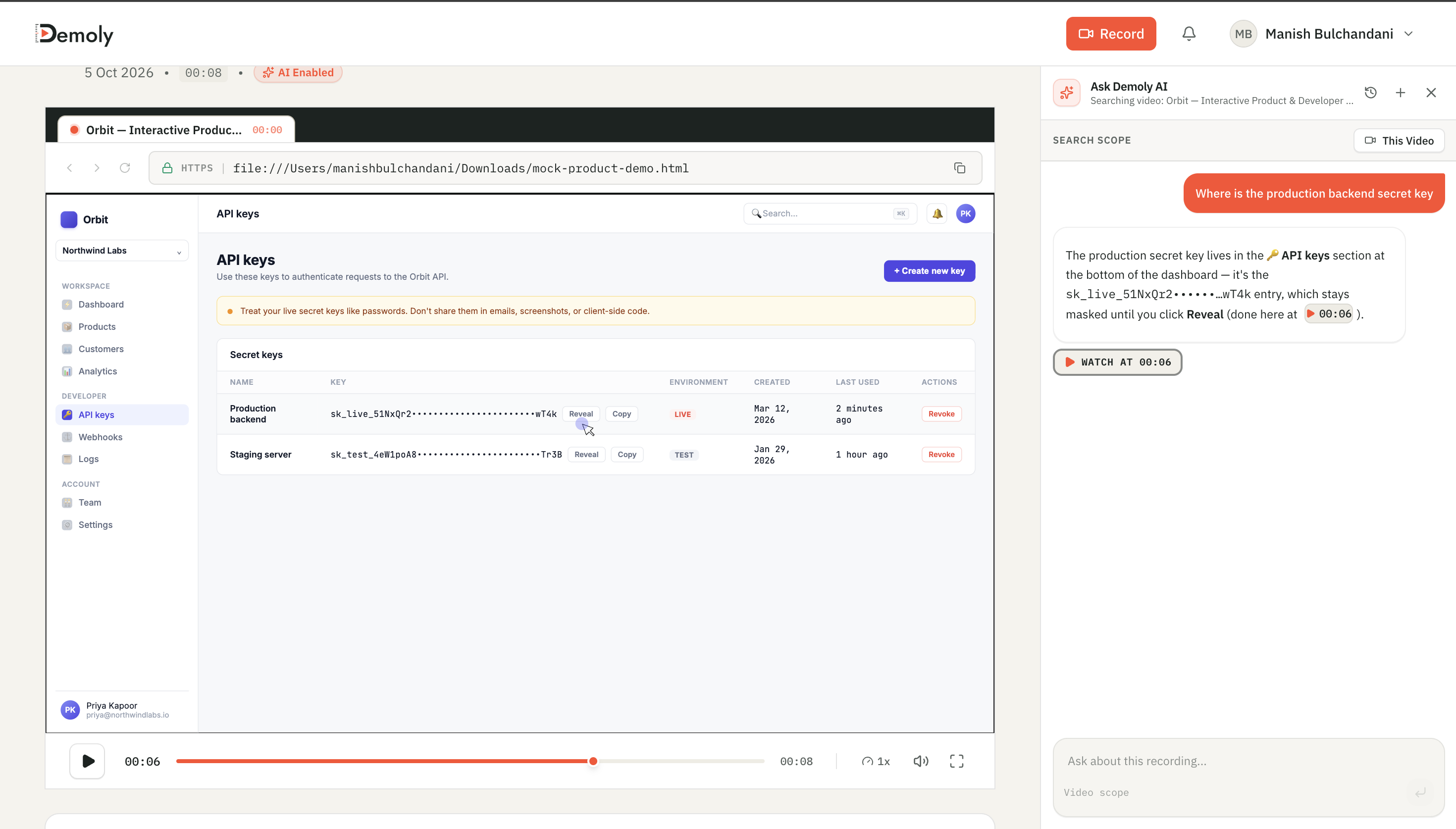
When a client or team member opens a Demoly walkthrough, they do not receive a passive video file. Instead, the video features an integrated Ask Demoly AI search drawer. Rather than scrubbing across a fifteen-minute timeline, viewers type natural-language questions such as, "Where do I configure team permissions?" or "How do I connect the Stripe webhook?" Demoly indexes both spoken narration and unvoiced visual clicks across the Document Object Model (DOM), returning immediate written instructions paired with an interactive timestamp chip (▶️ Jump to 00:06). Viewers can also copy code snippets directly from video frames, open live page URLs, and pin comments to specific interface elements.
Where It Beats Screen Studio
- Full cross-platform browser support: Runs equally well on Windows, Linux, and macOS without demanding dedicated graphics cards or platform-exclusive licenses.
- Conversational AI Q&A search: Viewers ask plain-English questions and jump straight to the exact visual timestamp, eliminating timeline scrubbing.
- Indexes silent visual interface actions: Searches through unvoiced button clicks, form inputs, and tab switches that occurred without audio narration.
- Permanent canvas redaction: Permanently purges sensitive staging credentials, API tokens, and customer data directly at the video canvas layer.
- Interactive element comments: Stakeholders leave timestamped feedback pinned to exact web interface elements (
🎯), streamlining client reviews. - Zero-cost client viewer access: Clients and stakeholders view, search, and comment on walkthroughs for free without creating accounts or downloading software.
Where It Falls Short
- Focused on browser-based web applications: Built specifically for web apps, SaaS dashboards, and browser environments rather than capturing full-desktop native OS software or video games.
- No automated marketing zoom animations: Focuses on searchable software documentation, client handoffs, and clear communication rather than rendering cinematic social media pan-and-zoom teasers.
Pricing and Seat Structure
- Free Plan ($0/month): Unlimited video recordings, 15-minute recording cap per video, 5 AI-enabled search recordings per month, and unlimited free client viewers.
- Pro Plan ($8/creator/month): Unlimited video recordings, 30-minute recording duration, unlimited AI-indexed recordings, and full conversational visual search.
- Team & Agency Model: Workspaces pay only for internal creators who record walkthroughs. All external clients and team members view, search, and comment at zero cost.
2. FocuSee: Best for Automated Zoom Animations and Motion Styling on Windows
FocuSee (developed by Gemoo) is a desktop screen recording application designed explicitly to bring Screen Studio’s signature auto-zoom and cursor motion styling to Windows and macOS workstations.
Overview and Core Workflow
FocuSee records desktop screens, selected application windows, or webcam feeds. While recording, the software tracks mouse cursor coordinates and click events. During post-capture processing, FocuSee automatically generates dynamic zoom-in animations around active click areas, adds smooth cursor trajectories, and places the recording against customizable gradient backgrounds with rounded corners and drop shadows. Creators can adjust zoom depths, customize cursor styles, and export polished MP4 or GIF files formatted for YouTube, TikTok, or Twitter.
Where It Performs Well
- Automated click-triggered zooms on Windows: Automatically tracks mouse clicks and applies smooth zoom animations without manual keyframing.
- Pre-styled presentation canvas: Applies professional background padding, drop shadows, and rounded corners in seconds.
- Multi-aspect ratio exports: Automatically crops and formats videos for landscape desktop presentations or vertical mobile reels.
Where It Falls Short for Technical Teams
- No Linux support: While available on Windows and macOS, FocuSee does not offer a native Linux build for engineering teams.
- Produces flat, unsearchable media: Exports standard video files with no conversational search layer, meaning viewers cannot ask questions or jump to specific steps.
- No canvas-layer credential redaction: Lacks built-in tools to permanently purge sensitive API keys or staging data from captured footage.
Pricing and Seat Structure
- Free Trial: Watermarked video exports with limited recording durations.
- Subscription Plan: Approximately $19.99 per month or $59.99 billed annually.
- One-Time Lifetime License: Approximately $79.99 to $99.99 for perpetual desktop use on single machines. (Note: Competitor pricing is subject to vendor updates.)
3. OBS Studio: Best for Open-Source Capture and Custom Layouts on Linux
OBS Studio (Open Broadcaster Software) is the benchmark open-source video recording and live streaming suite, offering native cross-platform support across Linux distributions, Windows, and macOS.
Overview and Core Workflow
OBS Studio gives creators complete control over video capture pipelines. Users construct modular scenes composed of display captures, window sources, webcam overlays, and audio mixers. On Linux distributions (such as Ubuntu, Fedora, and Arch), OBS runs natively on both X11 and Wayland display servers. Through community plugins like "OBS Zoom and Follow Mouse" or "Source Clone," technical creators can emulate Screen Studio’s dynamic zoom behavior, tracking cursor movements across the screen in real time.
Where It Performs Well
- Native Linux, Windows, and macOS compatibility: Fully open-source and free, running seamlessly across any enterprise operating system without licensing fees.
- Unmatched source flexibility: Combines multiple monitors, application windows, audio interfaces, and hardware encoders into a single production pipeline.
- Zero recording limits or watermarks: Completely unrestricted local recording with hardware-accelerated encoding (NVENC, VAAPI, QuickSync).
Where It Falls Short for Technical Teams
- Steep configuration learning curve: Requires extensive manual setup, scene building, and plugin installation to achieve smooth cursor zoom effects.
- No built-in cloud hosting or sharing: Saves raw local video files (MKV/MP4) that creators must manually upload, host, and distribute.
- Lacks conversational documentation features: Viewers cannot query recordings, copy on-screen code, or interact with recorded software steps.
Pricing and Seat Structure
- Free and Open Source ($0): Free for personal and commercial use under the GNU General Public License (GPLv2) with no paid tiers or seat restrictions. (Note: Competitor pricing is subject to vendor updates.)
4. Camtasia: Best for Timeline Keyframing and Cursor Precision on Windows
Camtasia by TechSmith is a comprehensive desktop screen recorder and multi-track video editor that has served Windows and Mac professionals for over two decades.
Overview and Core Workflow
Camtasia captures screen video, microphone audio, system sound, and webcam footage into a multi-track desktop editing suite. Following capture, users can smooth erratic mouse paths, enlarge the cursor, and manually place zoom-and-pan animations anywhere on the timeline. Its extensive effects library includes callout arrows, text annotations, blur masks, and transition presets. For Windows creators who require granular editorial control over every frame, Camtasia provides an established, stable production suite.
Where It Performs Well
- Granular zoom-and-pan keyframing: Allows creators to manually orchestrate exact zoom coordinates, easing curves, and duration timings across a multi-track timeline.
- Synthetic cursor path smoothing: Automatically converts erratic, jittery mouse movements into clean, sweeping bezier curves.
- Integrated timeline annotation library: Offers rich graphic callouts, text lower-thirds, shape highlights, and transition effects.
Where It Falls Short for Technical Teams
- Heavy manual editing overhead: Achieving Screen Studio-style polish requires tedious manual placement of zoom keyframes on the timeline.
- No Linux compatibility: Available exclusively on Windows and macOS, leaving Linux developers without an option.
- High software licensing cost: Demands a significant financial investment compared to lightweight browser-based recording tools.
Pricing and Seat Structure
- Annual Subscription: Approximately $179.88 per user per year.
- Perpetual License with Maintenance: Approximately $299.99 one-time payment plus annual maintenance renewal. (Note: Competitor pricing is subject to vendor updates.)
5. Canvid: Best for Lightweight Windows-Native Screen Polish and Auto-Zoom
Canvid is a dedicated Windows screen recording tool built specifically to replicate the automated aesthetic appeal of Screen Studio for PC users.
Overview and Core Workflow
Engineered specifically for Windows 10 and 11, Canvid runs as a native desktop application. It captures application windows or full desktop monitors while monitoring cursor coordinates. Following capture, Canvid automatically smooths mouse movements, inserts smooth auto-zoom effects on user clicks, and centers the video inside styled background frames with rounded corners and soft drop shadows. Users can adjust zoom levels and customize frame padding before exporting clean 4K presentation videos.
Where It Performs Well
- Windows-first design: Built specifically for Windows users seeking Screen Studio’s automated motion styling without requiring Mac hardware.
- Automated camera movement and cursor physics: Automatically generates smooth zooms and removes jittery mouse movement without manual editing.
- Clean export presets: Outputs sharp 1080p and 4K video files formatted for social channels, product documentation, and email updates.
Where It Falls Short for Technical Teams
- Windows exclusive (No Linux support): Does not support Linux operating systems, restricting distributed development teams.
- Produces passive video files: Like standard desktop recorders, Canvid outputs flat videos with no conversational search layer or unvoiced action indexing.
- Limited collaboration features: Lacks element-anchored feedback, interactive code copying, and client self-service capabilities.
Pricing and Seat Structure
- Free Tier: Basic recording features with duration limitations or watermarks.
- Pro Plan: Typically priced between $10 to $14 per month billed annually for unrestricted 4K exports and custom branding. (Note: Competitor pricing is subject to vendor updates.)
6. Screen Studio: Best for Native Cinematic Presentation Videos (macOS Exclusive)
Screen Studio remains the benchmark tool that popularized automated cursor smoothing and cinematic zoom effects for desktop screen recordings on macOS.
Overview and Core Workflow
Screen Studio records desktop screens on macOS, taking advantage of Apple Silicon hardware to monitor cursor vectors and window states. It automatically generates dynamic camera pans, zooms into active click targets, softens cursor motion, and places recordings on tasteful background canvases with soft drop shadows. For Mac-based founders, designers, and marketing professionals crafting promotional launch videos or social teasers, it provides an unmatched aesthetic finish with zero manual video editing.
Where It Performs Well
- Unrivaled automated motion design: Generates broadcast-quality cursor curves and camera zooms automatically from raw screen captures.
- High-resolution 4K rendering: Produces 60fps presentation videos with customizable canvas padding and aspect ratios.
- Minimal editing time: Delivers polished presentation assets in minutes without requiring traditional video editing expertise.
Where It Falls Short for Cross-Platform Teams
- macOS exclusive: Completely unavailable on Windows and Linux, making team-wide cross-platform deployment impossible.
- Unsearchable flat MP4 files: Produces linear video files that viewers cannot query or search using natural language.
- No client self-service documentation tools: Lacks permanent canvas-level redaction, code extraction, and interactive viewer commenting.
Pricing and Seat Structure
- Standard Pricing: Approximately $9 per user per month billed annually (~$108/year) or $29 per user per month on monthly billing. (Note: Competitor pricing is subject to vendor updates.)
Feature and Use-Case Comparison Matrix
The following comparison matrix evaluates the top Screen Studio alternatives across platform compatibility, automated zoom styling, AI-searchable walkthroughs, redaction capabilities, and pricing models:
Tool | Supported Platforms | Automated Zoom & Motion Styling | AI Conversational Search (Voice + Visual) | Privacy & Canvas Redaction | Primary Use Case | Starting Price |
|---|---|---|---|---|---|---|
Demoly | Windows, Linux, macOS, ChromeOS (Browser) | Functional focus (Clean browser capture) | Yes (Natural-language Q&A + jump to timestamp) | Permanent canvas removal at render layer | Searchable web app walkthroughs & client handoffs | Free ($0) / Pro: $8/mo |
FocuSee | Windows, macOS | Yes (Automatic click zoom + cursor styling) | No (Flat video export) | Basic post-capture crop | Windows presentation videos & social demos | Free trial / ~$59.99/yr |
OBS Studio | Linux, Windows, macOS | Manual / Via community plugins | No (Flat local recording) | Manual source masking | Power-user recording, streaming & custom setups | Free & Open Source ($0) |
Camtasia | Windows, macOS | Manual keyframing & cursor smoothing | No (Flat video export) | Manual blur annotations | In-depth desktop video editing & training courses | ~$179.88/yr subscription |
Canvid | Windows | Yes (Automatic zoom + smooth cursor) | No (Flat video export) | Basic post-edit crop | Windows marketing demos & quick feature clips | Free tier / ~$10/mo |
Screen Studio | macOS only | Yes (Automated camera pans & smooth cursor) | No (Flat video export) | None (Requires post-edit masking) | Cinematic Mac product demos & social launch teasers | ~$9/mo (billed annually) |
Detailed Platform Breakdown
- Demoly:
- Supported Platforms: Windows, Linux, macOS, ChromeOS (Browser-based)
- Automated Zoom & Motion Styling: Functional focus (Clean browser capture)
- AI Conversational Search: Yes (Natural-language Q&A + jump to timestamp)
- Privacy & Canvas Redaction: Permanent canvas removal at render layer
- Primary Use Case: Searchable web app walkthroughs & client handoffs
- Starting Price: Free ($0) / Pro: $8/mo
- FocuSee:
- Supported Platforms: Windows, macOS
- Automated Zoom & Motion Styling: Yes (Automatic click zoom + cursor styling)
- AI Conversational Search: No (Flat video export)
- Privacy & Canvas Redaction: Basic post-capture crop
- Primary Use Case: Windows presentation videos & social demos
- Starting Price: Free trial / ~$59.99/yr
- OBS Studio:
- Supported Platforms: Linux, Windows, macOS
- Automated Zoom & Motion Styling: Manual / Via community plugins
- AI Conversational Search: No (Flat local recording)
- Privacy & Canvas Redaction: Manual source masking
- Primary Use Case: Power-user recording, streaming & custom setups
- Starting Price: Free & Open Source ($0)
- Camtasia:
- Supported Platforms: Windows, macOS
- Automated Zoom & Motion Styling: Manual keyframing & cursor smoothing
- AI Conversational Search: No (Flat video export)
- Privacy & Canvas Redaction: Manual blur annotations
- Primary Use Case: In-depth desktop video editing & training courses
- Starting Price: ~$179.88/yr subscription
- Canvid:
- Supported Platforms: Windows
- Automated Zoom & Motion Styling: Yes (Automatic zoom + smooth cursor)
- AI Conversational Search: No (Flat video export)
- Privacy & Canvas Redaction: Basic post-edit crop
- Primary Use Case: Windows marketing demos & quick feature clips
- Starting Price: Free tier / ~$10/mo
- Screen Studio:
- Supported Platforms: macOS only
- Automated Zoom & Motion Styling: Yes (Automated camera pans & smooth cursor)
- AI Conversational Search: No (Flat video export)
- Privacy & Canvas Redaction: None (Requires post-edit masking)
- Primary Use Case: Cinematic Mac product demos & social launch teasers
- Starting Price: ~$9/mo (billed annually)
Which Screen Studio Alternative Should You Choose?
Selecting the right alternative depends directly on your team's operating systems, technical workflow, and end-recipient expectations:
- For automated click zooms, smooth cursor curves, and styled presentation videos on Windows, deploy FocuSee or Canvid.
- For complete local control, multi-monitor scene building, and zero-cost open-source capture on Linux and Windows, utilize OBS Studio.
- For deep timeline keyframing, multi-track audio editing, and extensive manual annotation controls on Windows, choose Camtasia.
- For native macOS creators who exclusively need broadcast-grade marketing videos and social launch teasers, stick with Screen Studio.
- For digital agencies, software engineering teams, and product managers who need cross-platform web app walkthroughs that clients can actually search and query, choose Demoly.
While automated zoom effects produce attractive social media clips, they do not solve the day-to-day challenge of explaining software. When delivering completed web applications, digital products, or technical documentation, teams lose billable hours to repetitive questions because flat video files trap knowledge on a timeline. Discover How to Trim and Edit a Walkthrough Video Without Re-Recording to refine your video workflows, or review our guide on the Best Loom Alternatives for Client Handoffs to compare broader asynchronous communication platforms.
By adopting tools that index both visual interactions and spoken voice, your team can turn everyday screen recordings into self-serve documentation that works across any device or operating system. You can get started with Demoly on the free forever plan ($0, unlimited recordings) at demoly.dev.
Frequently asked questions
Commonly asked questions about this article.
01•Can I run Screen Studio on Windows or Linux?
No. Screen Studio is strictly built for macOS and leverages Apple-specific graphics frameworks. There is no official Windows or Linux version available.
02•What is the closest Windows equivalent to Screen Studio?
FocuSee and Canvid are the closest direct equivalents on Windows. Both tools automatically track cursor clicks, apply dynamic zoom animations, and add styled backgrounds.
03•How do I record screen zoom effects on Linux?
Linux users can use OBS Studio paired with community plugins like "OBS Zoom and Follow Mouse" to dynamically zoom into cursor coordinates during screen recordings.
04•Why do clients prefer AI-searchable walkthroughs over polished marketing videos?
Polished presentation videos look appealing, but flat video forces clients to scrub through timelines to find specific settings. AI-searchable walkthroughs allow viewers to ask natural-language questions and jump straight to the exact visual timestamp.
05•Can I edit and redact sensitive data without re-recording my screen?
Yes. Platforms like Demoly offer non-destructive editing and permanent canvas-layer redaction, allowing creators to trim pauses and permanently purge sensitive API keys or credentials directly in the browser before sharing.
Demoly Team
Contributor
Related Dispatches
View all dispatches →
Best Arcade Alternatives for Product Walkthroughs
Looking for an Arcade alternative for product walkthroughs? Compare the top tools for interactive demos, AI-searchable video walkthroughs, and client handovers.

Best Guidde Alternatives for Video Documentation
Looking for a Guidde alternative for video documentation? Compare top tools for AI walkthroughs, searchable guides, written SOPs, and client handovers.
Best Scribe Alternatives for Step-by-Step Guides
Looking for the best Scribe alternatives? Compare the top tools for step-by-step guides, interactive SOPs, AI-searchable walkthroughs, and technical documentation.
Try Demoly for your team
Create branchable, interactive demo recordings and deliverables in minutes with zero friction.