Best Guidde Alternatives for Video Documentation
Looking for a Guidde alternative for video documentation? Compare top tools for AI walkthroughs, searchable guides, written SOPs, and client handovers.
Best Guidde Alternatives for Video Documentation
Guidde popularized automated AI video documentation by converting browser clicks into narrated how-to guides complete with synthetic voiceovers and auto-generated step titles. For customer success managers producing generic onboarding reels or internal teams needing rapid multilingual audio dubs, it offers an appealing shortcut. However, digital agencies, product teams, and technical delivery leads encounter severe operational friction when deploying Guidde for client deliverables and complex web applications.
Handing off a bespoke web application, customer portal, or multi-tenant dashboard requires technical authenticity, nuanced explanation, and self-serve utility. When teams send Guidde videos, clients and end users frequently suffer from synthetic voiceover fatigue: the robotic text-to-speech cadence feels clinical, mispronounces domain-specific technical jargon, and lacks genuine context. More critically, Guidde outputs passive linear video files. When a client needs to recall where a specific webhook secret lives two weeks after launch, scrubbing through a four-minute video or clicking through rigid step slides is slow and frustrating. Most abandon the video and email the account manager anyway. Teams do not just need tools that auto-generate video files; they need living video documentation that viewers can interactively query.
TL;DR:
- Demoly: Best for AI-searchable walkthroughs, conversational in-video Q&A, permanent canvas redaction, and zero-tax client handovers.
- Tango: Best for interactive in-browser guidance overlays, live workflow prompts, and step-by-step click capture.
- Scribe: Best for auto-generated static written SOPs, click-by-click manuals, and PDF/Notion exports.
- Screen Studio: Best for high-production cinematic product marketing videos, cursor smoothing, and auto-zoom on macOS.
- Loom: Best for rapid asynchronous team screen recording, casual internal communication, and transcript summaries.
- Guidde: Best for synthetic text-to-speech AI voiceovers, multi-lingual audio dubbing, and automated step detection.
Why Teams Outgrow Guidde
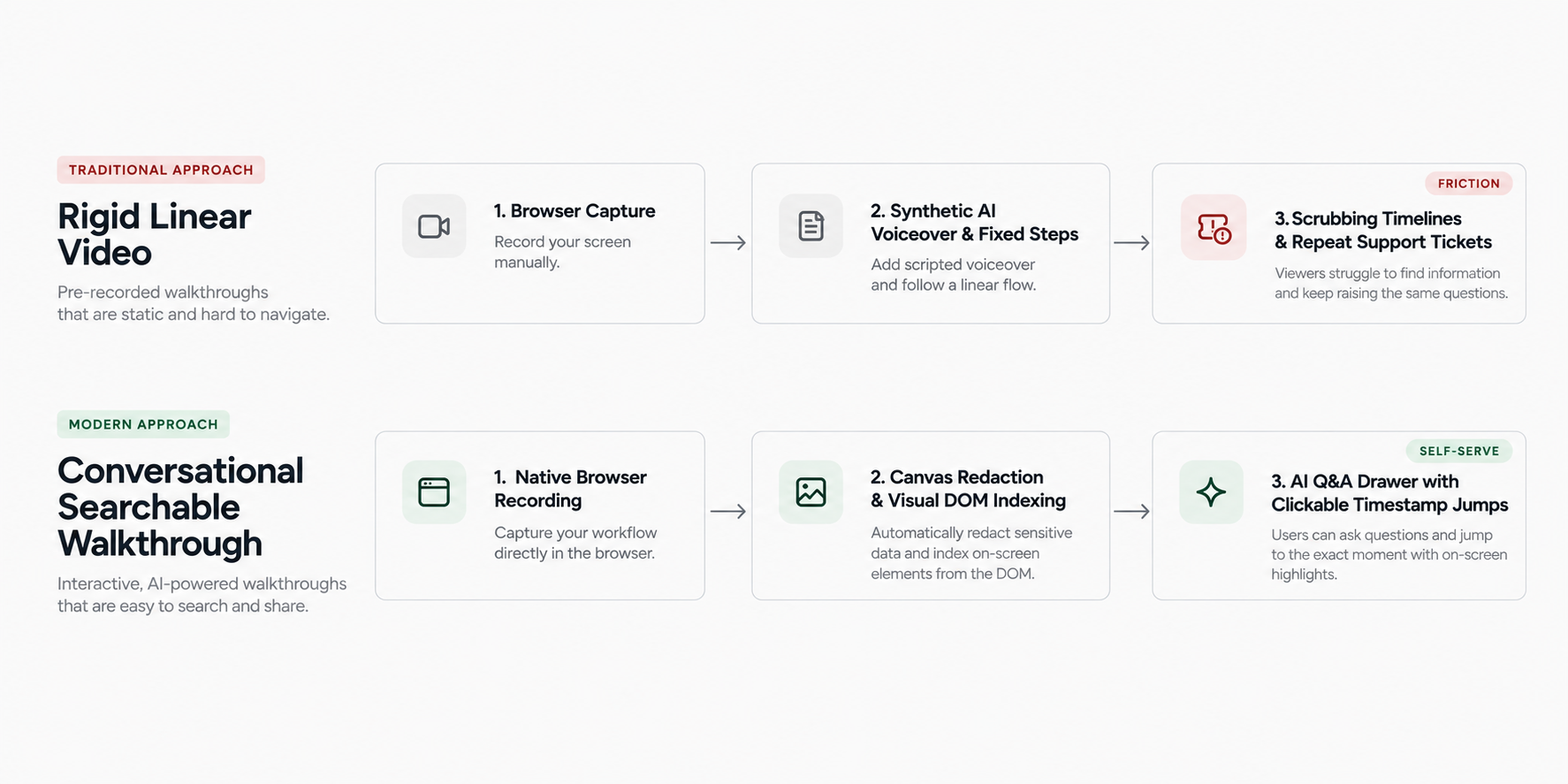
While Guidde provides an automated bridge between screen recording and video assembly, teams documenting modern web applications and delivering high-stakes client deliverables run into four primary operational bottlenecks:
1. Synthetic AI Voice Fatigue and Robotic Delivery
Guidde relies heavily on synthetic text-to-speech (TTS) engines to narrate captured workflow steps. While impressive as a novelty, artificial narration quickly becomes monotonous and impersonal during in-depth walkthroughs. Robotic voices struggle with custom API routes, brand pronunciations, and technical syntax, flattening the natural vocal emphasis that engineers and project leads use to signal critical warnings or business logic. For agencies delivering premium client builds, sending robotic AI-narrated videos feels low-effort rather than consultative.
2. Brittle Maintenance Cycles When Interfaces Evolve
In active product delivery, software interfaces change continuously. When a form layout shifts, a navigation link moves, or a button label updates, Guidde’s auto-assembled slides and synthetic timing become desynchronized. Replacing a single step often requires re-recording the sequence, re-generating synthetic speech segments, adjusting zoom animations, and re-rendering the output file. Instead of saving documentation time, maintenance turns into a video editing chore.
3. Linear Video Traps Answers Without Conversational Search
Even though Guidde uses AI to assemble its video packages, the recipient experience remains fundamentally linear. Clients receive an embedded video or slide reel that must be watched sequentially or scrubbed manually. When an operator needs an answer to a single focused question—such as "Where do I configure billing notifications?"—they cannot hold a conversation with the recording. Because the documentation cannot answer questions directly, viewers abandon the recording and schedule repetitive support calls.
4. Compounding Seat Taxes on Casual Creators
Guidde enforces creator seat licenses that start around $16 to $35 per user per month. For digital agencies, software consultancies, and distributed engineering teams where developers, QA testers, and project managers only record occasional handovers or feature demos, paying recurring monthly seat licenses across the entire roster creates unnecessary overhead. Furthermore, export quality caps and video limits on entry tiers push growing teams into expensive commercial contracts.
What to Look for in Video Documentation Software
Before evaluating alternatives, technical delivery leads and product managers should measure candidate tools against four operational standards:
- Conversational Visual & Voice Search: The platform must index both spoken dialogue and silent visual interactions across the Document Object Model (DOM). Viewers should be able to type natural-language questions into an AI drawer and jump immediately to the verified visual timestamp where that setting appears.
- Zero Viewer Friction & Open Access: Clients, contractors, and non-technical stakeholders must be able to view, search, and comment on documentation directly in their browser without being forced to create an account, install an extension, or consume a paid workspace seat.
- Non-Destructive Editing & Permanent Canvas Redaction: Because product walkthroughs frequently expose staging API tokens, database connection strings, or personal client data, the software must permanently purge sensitive information at the canvas layer rather than applying brittle CSS overlays that leave raw data in the DOM.
- Interactive Technical Context: Effective software documentation is more than a movie. The viewing interface should support element-anchored pins (
🎯), direct on-screen code extraction, and multi-tab browser continuity so users can act on the knowledge immediately.
The 6 Best Guidde Alternatives for Video Documentation (Compared)
1. Demoly: Best for AI-Searchable Client Walkthroughs and Conversational Documentation
Demoly is an interactive walkthrough and technical documentation platform built specifically for web agencies, software consultancies, and product teams. Instead of generating artificial robotic voices over static screenshots, Demoly captures genuine browser-based workflows and indexes both spoken narration and silent visual interface actions into a conversational AI knowledge layer.
Overview and Core Workflow
Teams capture multi-tab web application walkthroughs using Demoly’s lightweight browser extension. Creators can narrate workflows with their authentic voice or record silent demonstrations while navigating complex user journeys. Following capture, creators can trim dead air, split segments, and remove mistaken clicks inside an intuitive in-browser editor.
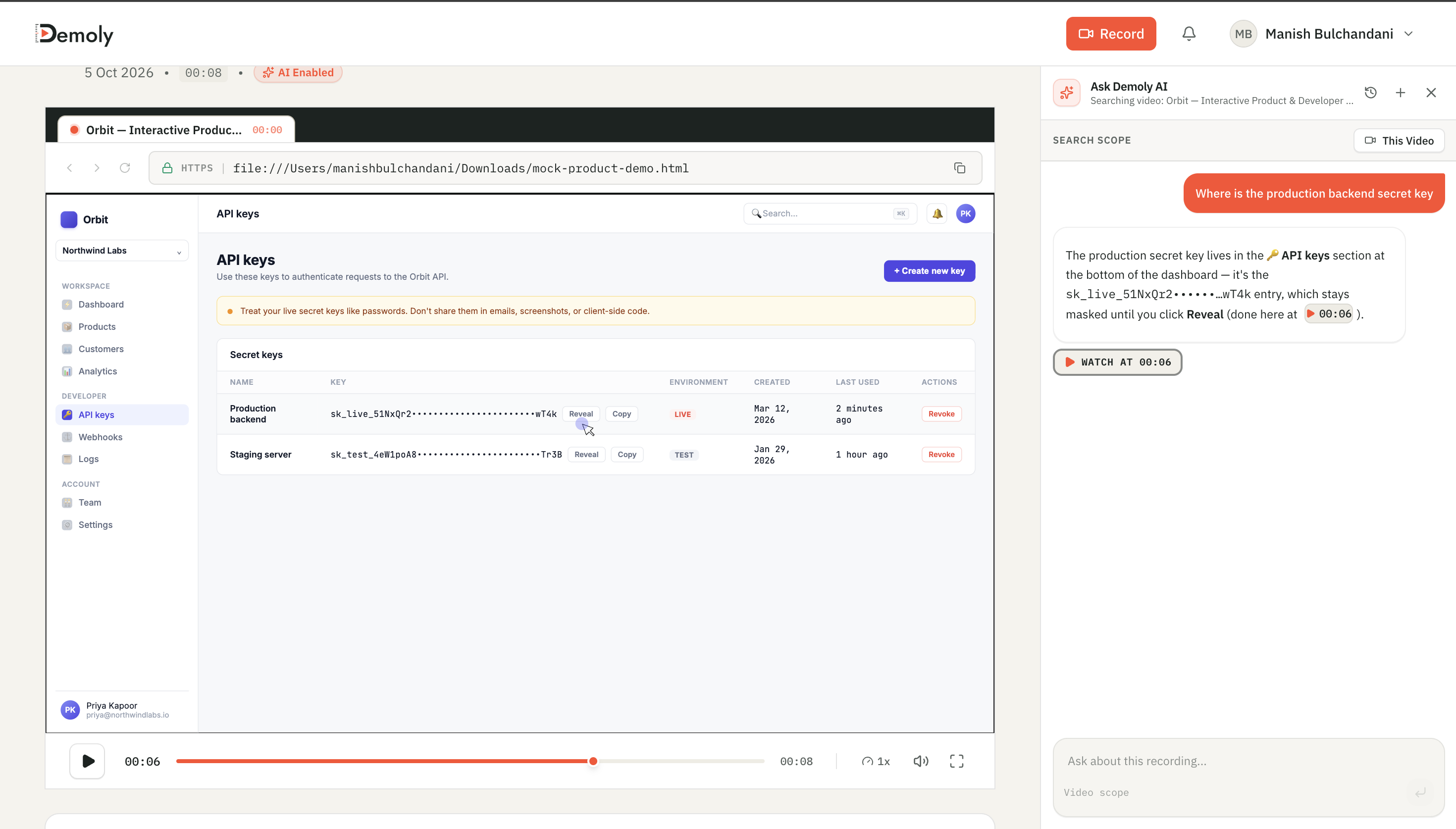
Crucially, Demoly includes built-in canvas-layer redaction. Creators can draw permanent blur boxes over sensitive staging API keys, customer emails, or environment variables before publishing. When shared via a public or password-protected link, recipients do not simply watch a flat video. They can type plain-English questions into the Ask Demoly AI drawer—such as "How do I invite an editor to this project?"—and the AI returns an immediate written answer paired with an interactive timestamp chip (▶️ Jump to 00:06) that cues the video directly to the solution.
Where It Beats Guidde
- Conversational visual & voice search: Unlike Guidde’s linear video output, Demoly enables viewers to query both spoken voice and unvoiced visual clicks using natural language.
- Authentic human delivery without robotic voiceovers: Preserves real human nuance, technical inflection, and consultative trust without sounding like an automated telephone menu.
- Permanent canvas-level redaction: Sensitive staging secrets, passwords, and API credentials can be permanently purged from the video canvas before client distribution.
- Zero-friction client model: Clients and external stakeholders view, search, and comment on walkthroughs for free without creating accounts or paying viewer fees.
- Element-anchored contextual comments: Viewers can pin timestamped feedback directly to interface elements (
🎯) for frictionless two-way collaboration.
Where It Falls Short
- Focused on browser-based web applications: Demoly is engineered for web apps, SaaS dashboards, and browser environments, rather than full-OS desktop software or mobile app capture.
- No synthetic voice generator: Demoly relies on human narration or indexed silent visual actions rather than synthesizing artificial text-to-speech audio tracks.
Pricing and Seat Structure
- Free Plan ($0/month): Unlimited video recordings, up to 15 minutes per recording, 5 AI-enabled search recordings per month, and unlimited free client viewers.
- Pro Plan ($8/creator/month): Unlimited recordings, 30-minute recording duration, unlimited AI-indexed recordings, and full access to conversational visual search.
- Agency & Team Model: Workspaces only pay for internal creators who record videos; all clients and external viewers search and interact for free.
2. Tango: Best for Interactive In-App Guidance and Browser SOPs
Tango takes an alternative approach to documentation by capturing browser workflows and converting them into interactive step-by-step guides and live in-app guidance overlays.
Overview and Core Workflow
Operating as a browser extension, Tango monitors user clicks and form interactions in real time. As you navigate a web platform, it automatically captures high-resolution screenshots, crops them around active buttons, and generates sequential instructions. Through its "Guidance" feature, Tango can overlay interactive hints directly onto the live web application, guiding users through the interface step by step as they complete tasks. For teams that want to evaluate how Tango stacks up against other workflow capture platforms, explore our in-depth breakdown of the Best Tango Alternatives for Process Documentation.
Where It Performs Well
- Live in-app walkthrough guidance: Overlays interactive callouts directly on top of the live web application to walk employees through tasks in real time.
- Rapid written guide assembly: Generates clean, numbered guides with automated zoom callouts around clicked buttons without rendering video files.
- Automated blur for sensitive fields: Includes built-in privacy masking to detect and blur email addresses and numbers during capture.
Where It Falls Short for Video Documentation
- Not a continuous video medium: Tango captures discrete screenshots rather than continuous video streams, making it poorly suited for complex software interactions, dynamic state transitions, or design handoffs.
- Lacks spoken narrative context: Cannot capture the conversational nuance, architectural explanation, or design rationale that delivery leads convey through video.
Pricing and Seat Structure
- Free Plan ($0): Up to 15 workflow captures per user with web-based sharing.
- Pro Plan ($16–$20/user/month): Unlimited workflows, desktop application capture, custom branding, and export capabilities.
3. Scribe: Best for Auto-Generated Written SOPs and Click Manuals
Scribe replaces video recording entirely by monitoring browser and desktop actions to generate instant, click-by-click written process documents and standard operating procedures.
Overview and Core Workflow
When you activate Scribe, it runs silently in the background, logging every mouse click and keystroke. Once you end the capture session, Scribe automatically outputs a formatted, numbered document with cropped screenshots, highlighted click targets, and auto-generated step instructions. The resulting document can be edited in seconds, shared via link, or exported directly into Notion, Confluence, or PDF manuals.
Where It Performs Well
- Instant document generation: Eliminates video rendering, voiceover recording, and timeline editing entirely by producing written SOPs in seconds.
- High scannability for repetitive tasks: Recipients can scan a five-step written document in ten seconds rather than waiting through an introductory video.
- Universal export formats: Exports cleanly to Markdown, HTML, PDF, and native knowledge base integrations like Notion and SharePoint.
Where It Falls Short for Video Documentation
- Zero motion and audio support: Scribe does not produce video or record voice, making it incapable of explaining high-level technical decisions or nuanced workflows.
- Rigid linear step structure: If a client has a question about a feature not explicitly clicked during the capture, the static document cannot provide answers.
Pricing and Seat Structure
- Basic Plan ($0): Free web-based process capture with public link sharing.
- Pro Plan ($12–$23/user/month): Captures desktop software, enables screenshot redaction, and removes Scribe branding.
4. Screen Studio: Best for High-Polish, Cinematic Product Walkthroughs (macOS)
Screen Studio is a native macOS application engineered to turn raw desktop screen recordings into cinematic, marketing-grade presentation videos with automated motion effects.
Overview and Core Workflow
Screen Studio captures your display and cursor coordinates simultaneously. During post-capture processing, it automatically smooths erratic mouse movements, generates dynamic camera pans, and executes cinematic auto-zooms centered on active clicks. Creators can customize background padding, apply elegant drop shadows, and export ultra-sharp 4K MP4 files ready for product launches, Changelog announcements, or social media teasers.
Where It Performs Well
- Unrivaled visual production polish: Produces marketing-grade demo videos with zero manual motion graphics or keyframing expertise.
- Automated cursor smoothing and camera tracking: Keeps videos visually engaging by zooming into active input fields and smoothing frantic cursor tracks.
- High-resolution 4K exports: Generates crisp video files formatted for multiple aspect ratios and presentation canvases.
Where It Falls Short for Video Documentation
- macOS exclusive: Completely unavailable for Windows, Linux, or Chromebook workstations.
- Flat, unsearchable MP4 output: Exports standard media files that contain zero interactive search, no DOM indexing, and no conversational AI support.
- High maintenance burden: Any interface change requires a full re-recording and manual export.
Pricing and Seat Structure
- Individual License: Typically structured as a one-time purchase (~$89–$108) with one year of updates, or recurring subscription options ($9–$29/month).
5. Loom: Best for Rapid Asynchronous Screen Recording and Casual Updates
Loom remains the most widely adopted platform for recording quick screen-plus-webcam videos to replace internal status meetings and clarify operational tasks.
Overview and Core Workflow
Loom allows users to initiate a screen recording with their camera bubble in one click. Once recording stops, the file is instantly processed in the cloud, generating a shareable link within seconds. Loom generates automatic speech transcripts, time-stamped chapters, and AI summaries, making it the default async messaging tool for cross-functional teams in Slack and Jira.
Where It Beats Competitors
- Frictionless team adoption: Near-universal familiarity across engineering, product, and sales teams minimizes onboarding friction.
- Instant cloud generation: Videos are immediately viewable online without local rendering delays or complex file transfers.
- Deep ecosystem integrations: Seamlessly embeds video previews into Slack channels, Jira tickets, Notion pages, and Gmail.
Where It Falls Short for Video Documentation
- Transcript-only search: Loom’s search engine only indexes spoken words; silent interface navigation, code changes, and unvoiced clicks remain completely unsearchable.
- 5-minute limit on free tier: The free Starter plan caps recordings at 5 minutes and 25 videos, making comprehensive documentation impossible without paid upgrades.
- Passive linear playback: Viewers cannot query the video interactively, leading to skipped segments and repeat questions during handoffs.
Pricing and Seat Structure
- Starter ($0): Up to 25 videos per user, strictly limited to 5 minutes per recording.
- Business ($12.50–$18/creator/month): Unlimited video storage, unlimited recording time, AI add-on summaries, and transcript export.
6. Guidde: Best for Automated Synthetic AI Narration and Multi-Lingual Dubbing
Guidde is an AI documentation platform that automatically compiles screen interactions into structured video tutorials voiced by synthetic speech models.
Overview and Core Workflow
Users record a task inside their web browser while Guidde tracks mouse clicks, route changes, and form fills. The platform breaks the recording down into modular slides, generates synthetic narration in over 100 languages and accents, and applies automated callouts and zoom boxes. Creators can swap AI voice avatars, edit subtitle text, and assemble quick internal knowledge base articles.
Where It Performs Well
- Automated multilingual voiceovers: Generates narrated documentation in dozens of languages without hiring voice actors or recording personal audio.
- Modular slide editing: Breaks recordings into individual steps that can be reordered or adjusted independently.
- Automated visual callouts: Highlights active click targets with stylized arrows and zoom effects automatically.
Where It Falls Short for Modern Teams
- Robotic and impersonal delivery: Synthetic text-to-speech narration sounds robotic, struggles with technical terms, and lacks authentic human credibility in client-facing handoffs.
- Rigid linear video consumption: Delivers linear video clips where viewers cannot search for specific visual actions or ask conversational questions.
- High ongoing seat costs: Pricing scales rapidly per creator seat, making workspace deployment expensive for occasional documentation contributors.
Pricing and Seat Structure
- Free Plan ($0): Up to 25 video how-tos with Guidde watermarking.
- Pro Plan ($16/user/month billed annually): Full 1080p export, custom branding, and voiceover tools.
- Business Plan ($35/user/month): Advanced analytics, team collaboration, and unlimited voice generation.
Feature and Use-Case Comparison Matrix
The table below contrasts the top six video documentation platforms across primary use case, capture technology, viewer searchability, sensitive data handling, viewer costs, and starting pricing:
Tool | Primary Documentation Use Case | Voice & Narration Engine | Viewer Searchability | Sensitive Data Redaction | Client Viewer Access | Starting Price |
|---|---|---|---|---|---|---|
Demoly | AI-searchable client walkthroughs & web app handovers | Natural voice or silent capture with AI visual indexing | Conversational visual + voice AI (query questions, jump to timestamps) | Permanent canvas-layer redaction | Free (unlimited external viewers) | Free ($0) / Pro: $8/creator/mo |
Tango | Interactive step-by-step guidance & browser SOPs | None (text callouts & step highlights) | Text search across generated step catalog | Automated field masking | Free | Free ($0) / Pro: ~$16/user/mo |
Scribe | Auto-generated written SOPs & click-by-click manuals | None (written steps & cropped screenshots) | Full-text search across document | Screenshot crop & blur tools | Free | Free ($0) / Pro: ~$12–$23/user/mo |
Screen Studio | Cinematic product showcases & marketing demos | Human microphone narration | None (flat MP4 video export) | Manual video blur post-production | N/A (local video files) | ~$9–$29/mo (or lifetime license) |
Loom | Casual internal team messaging & async screen clips | Human microphone narration | Spoken audio transcript search only | Basic post-recording blur | Free | Free (5-min cap) / Business: ~$12.50–$18/mo |
Guidde | Synthetic AI voiceovers & automated multilingual dubbing | Text-to-speech synthetic AI voices (100+ languages) | Slide titles & transcript search | Automated privacy blur | Free | Free (watermarked) / Pro: $16/user/mo |
Which Guidde Alternative Should You Choose?
Selecting the most effective Guidde alternative depends directly on your team's operational delivery model and how your viewers prefer to consume technical knowledge:
- For live, in-app interactive guidance and SOP overlays: Choose Tango to guide users through live software workflows step by step.
- For static, click-by-click written manuals and SOP documentation: Deploy Scribe to turn browser interactions into scannable written guides for Notion or Confluence.
- For high-production marketing reels and social demos on macOS: Select Screen Studio to produce gorgeous, cinematic video clips with automated cursor smoothing.
- For quick, low-stakes internal team updates in Slack: Stick with Loom for fast webcam and screen recordings across internal colleagues.
- For generating automated synthetic voiceovers across 100+ languages: Retain Guidde if your primary requirement is avoiding personal human voice recording entirely.
- For client handovers, web app walkthroughs, and eliminating repeat support calls: Choose Demoly.
Modern software delivery demands more than robotic voiceovers overlaid on passive video clips. By adopting a platform that indexes both visual actions and spoken explanations into an interactive AI search drawer, your team turns project handovers into self-serve knowledge assets that answer questions autonomously long after launch.
You can test Demoly with your team on the free forever plan ($0, unlimited recordings) and deliver your first AI-searchable walkthrough today.
Frequently asked questions
Commonly asked questions about this article.
01•Why do clients prefer authentic walkthroughs over synthetic AI voiceovers?
Synthetic voiceovers sound robotic, impersonal, and struggle with custom technical terminology or project-specific context. Clients and stakeholders appreciate authentic human explanations from delivery leads because natural vocal inflection conveys genuine priorities, critical warnings, and consultative care.
02•Can clients search inside Demoly walkthroughs if the creator didn't speak during recording?
Yes. Demoly indexes both spoken dialogue and silent visual interactions across the browser's Document Object Model (DOM). Viewers can query unvoiced button clicks, form inputs, route changes, and tab switches, allowing the AI to return timestamped video jumps even on silent recordings.
03•How does Demoly handle sensitive staging keys and client credentials?
Demoly provides permanent canvas-layer masking within its in-browser video editor. Creators can place permanent blur boxes over API secrets, passwords, or customer personal data, ensuring that sensitive information is physically purged from the video frame before public or client links are distributed.
04•Do clients need to create an account or pay a fee to watch interactive walkthroughs?
No. Demoly operates on a zero-friction viewer model. External clients and team members can open walkthrough links, play videos, and query the **Ask Demoly AI** search drawer directly in their web browser without signing up, installing extensions, or purchasing viewer licenses.
05•When does it make sense to use written SOPs like Scribe instead of video documentation?
Written SOPs excel for simple, repetitive, text-based tasks where a user needs to verify a quick three-step setting without sitting through a video. Video walkthroughs remain far superior for complex web application handovers, dynamic architectural tours, and multi-step workflows where spatial layout, visual context, and design intent are paramount.
Demoly Team
Contributor
Related Dispatches
View all dispatches →
Best Screen Studio Alternatives for Windows and Linux
Looking for Screen Studio alternatives on Windows or Linux? Compare top cross-platform tools for auto-zoom effects, AI-searchable walkthroughs, and screen recording.
Best Arcade Alternatives for Product Walkthroughs
Looking for an Arcade alternative for product walkthroughs? Compare the top tools for interactive demos, AI-searchable video walkthroughs, and client handovers.
Best Scribe Alternatives for Step-by-Step Guides
Looking for the best Scribe alternatives? Compare the top tools for step-by-step guides, interactive SOPs, AI-searchable walkthroughs, and technical documentation.
Try Demoly for your team
Create branchable, interactive demo recordings and deliverables in minutes with zero friction.