How to Trim and Edit a Walkthrough Video Without Re-Recording
Learn how to trim pauses, cut mistakes from the middle of a walkthrough, and edit screen recordings in your browser without re-recording or breaking share links.
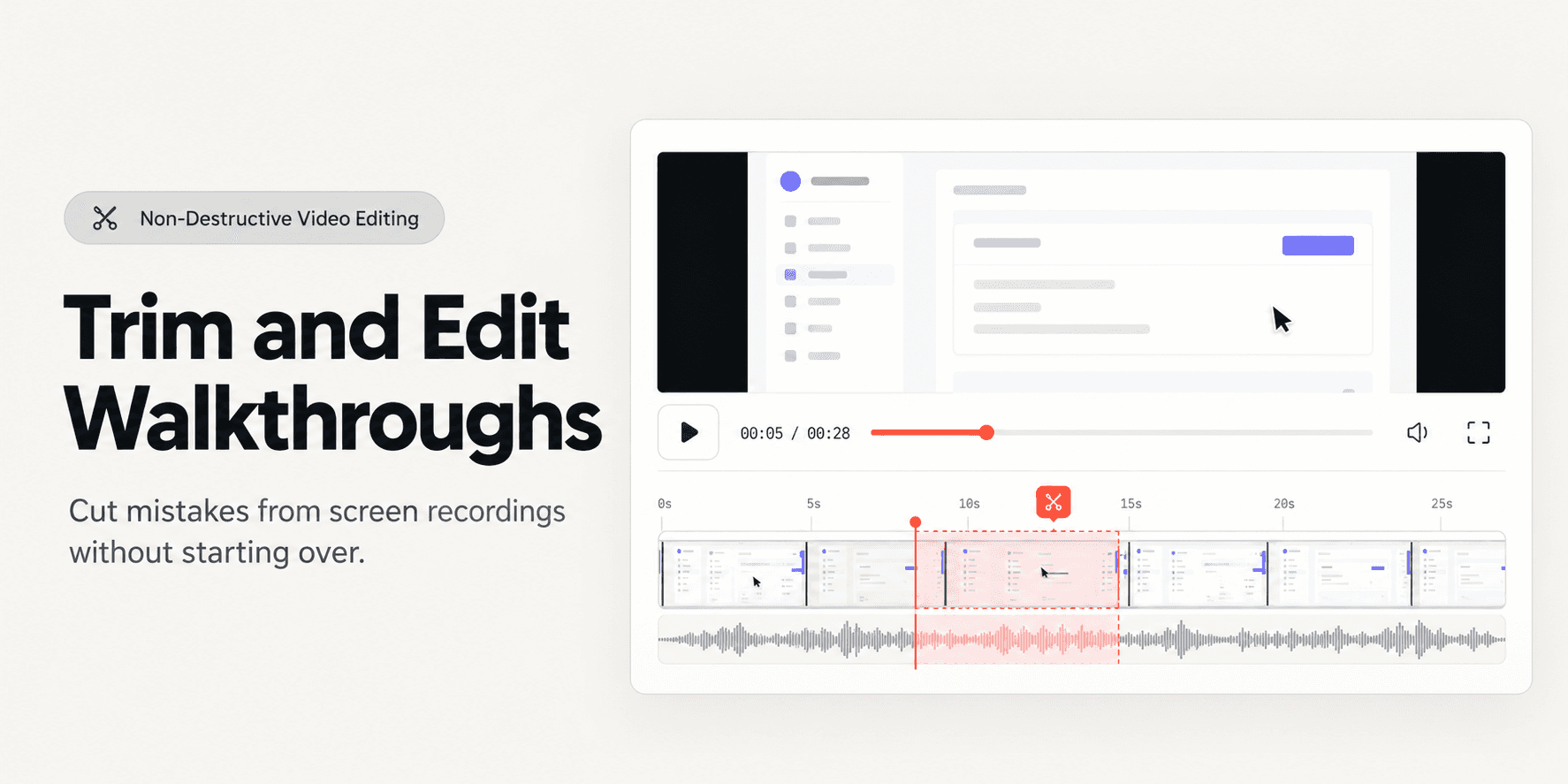
How to Trim and Edit a Walkthrough Video Without Re-Recording
When recording an eight-minute client walkthrough or internal product demonstration, an awkward stumble, a barking dog, or a thirty-second loading spinner can derail an otherwise flawless take. Starting over from scratch wastes valuable agency hours, while exporting footage to traditional desktop editing suites demands heavy local rendering and generates broken file links.
This guide shows you how to trim pauses, delete mistakes from the middle of your recording, and polish product walkthroughs directly in your browser. By leveraging non-destructive timeline editing, you can update published walkthroughs instantly while keeping client share links intact and realigning AI search indexes automatically.
Quick Steps:
- Open the studio editor: Select your walkthrough in Demoly and click Edit Video to launch the browser workspace.
- Locate the unwanted section: Scrub the playhead across the synchronized video track and visual audio waveform to isolate the error.
- Set cut points with the Split tool: Place split markers at the beginning and end of the mistake to isolate the unwanted clip.
- Delete the clip and ripple-stitch: Remove the isolated segment so remaining sections join together smoothly.
- Save non-destructively: Update the recording instantly without re-rendering delays; existing share URLs update live with realigned AI timestamps.
Before You Start
- Verify an existing recording: Ensure your walkthrough has completed initial processing in your Demoly workspace. If you have not recorded your session yet, consult our walkthrough on How to Record a Web App Walkthrough Your Client Can Actually Search.
- Understand non-destructive browser cuts: Traditional video tools permanently discard sliced frames upon export. Demoly saves trims as a non-destructive metadata layer over the raw source footage, allowing you to restore cut sections or re-adjust boundaries at any time.
- Identify sensitive client data: If your walkthrough accidentally captured live client credentials or secret API tokens alongside conversational mistakes, pair your timeline trimming with canvas masking as detailed in How to Redact Sensitive Client Data Before Sharing a Screen Recording.
Step 1: Open the Walkthrough in the In-Browser Studio Workspace
From your Demoly dashboard or immediate recording preview modal, click Edit Video in the top navigation rail to open the studio editor.
The studio workspace loads your recording into a responsive editing canvas paired with a bottom multi-track timeline. The timeline displays your primary video scrub track alongside a synchronized audio waveform, providing visual indicators of speech and dead air.
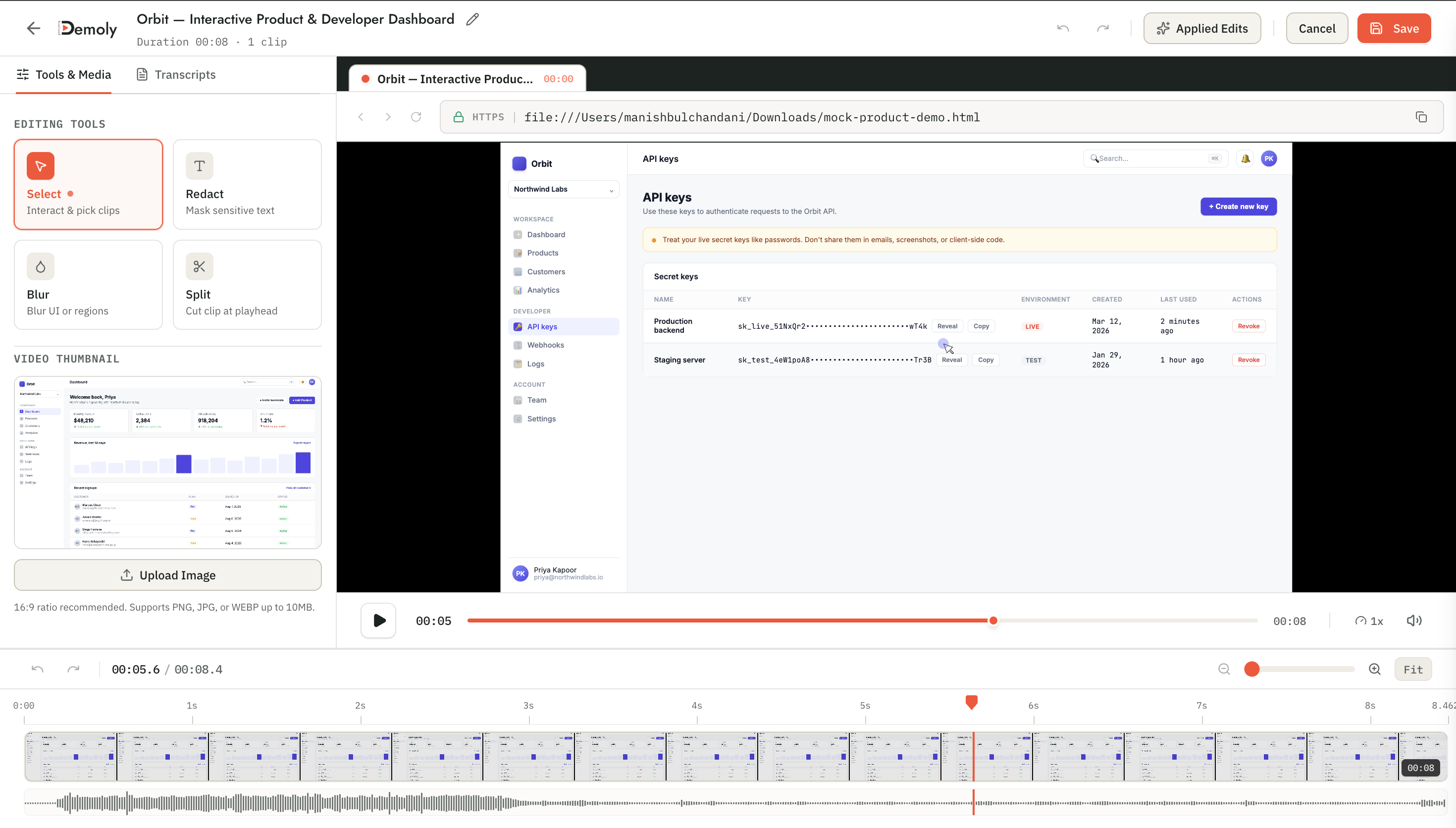
Step 2: Locate the Error Using Waveforms and Scrubbing
Scrub the timeline playhead to the approximate timecode where the mistake, hesitation, or unexpected interruption occurred.
Use the visual audio waveform peaks to distinguish speech from silence:
- Flat waveform lines: Indicate dead air, silent page loading times, or pauses where you gathered your thoughts.
- Erratic waveform spikes: Indicate sudden background noise, microphone bumps, or coughs that require removal.
Use your keyboard arrow keys to step forward or backward frame-by-frame until the playhead rests precisely on the frame before the error begins.

Step 3: Isolate the Unwanted Range Using the Split Tool
Position your playhead at the starting boundary of the segment you want to eliminate. Click the Split tool icon on the timeline control bar (or press S on your keyboard) to place your first cut point.
Next, scrub the playhead forward past the mistake to the exact frame where clean narration or screen action resumes. Click Split a second time.
The timeline now divides your walkthrough into three separate clips: the preceding footage, the isolated middle mistake, and the subsequent clean walkthrough.
Step 4: Delete the Middle Clip and Ripple-Stitch the Remaining Timeline
Click directly on the isolated middle clip to highlight it in the timeline track.
Click the Delete icon on the editing toolbar or press Backspace. Demoly instantly removes the unwanted segment and automatically ripple-stitches the remaining left and right clips together.
Preview the cut by clicking Play two seconds prior to the seam. The playhead will jump smoothly across the cut point without introducing black frames, audio clicks, or timeline desynchronization.
Step 5: Trim Dead Air from the Head and Tail of the Walkthrough
If you hesitated before starting your demonstration or fumbled for the stop button at the end of the recording, trim the perimeter boundaries directly using timeline edge handles:
- Hover your cursor over the leftmost edge of the first timeline clip until the bracket handle cursor appears.
- Drag the handle to the right until it aligns with your first spoken word or UI action.
- Hover over the rightmost edge of the final clip and drag the handle to the left to cleanly remove post-walkthrough browser tab navigation.
Step 6: Save Non-Destructively and Update the Shared Link
Once your timeline cuts are complete, click Save Changes in the upper-right corner of the editor canvas.
Demoly saves your edits as a non-destructive timeline profile and immediately initiates background index alignment:
- Zero Re-Rendering Delay: Unlike desktop editors that force you to wait for a 4K video export, Demoly renders cuts instantaneously in the cloud.
- Persistent Share URL: If you previously distributed the walkthrough link to a client, developer, or teammate, the URL remains identical. Recipients immediately see the trimmed version without needing a new link.
- Realigned AI Search Engine: Demoly automatically shifts the timestamps of indexed Document Object Model (DOM) events and transcript citations forward, ensuring clients querying the video jump to exact, post-trim timecodes.
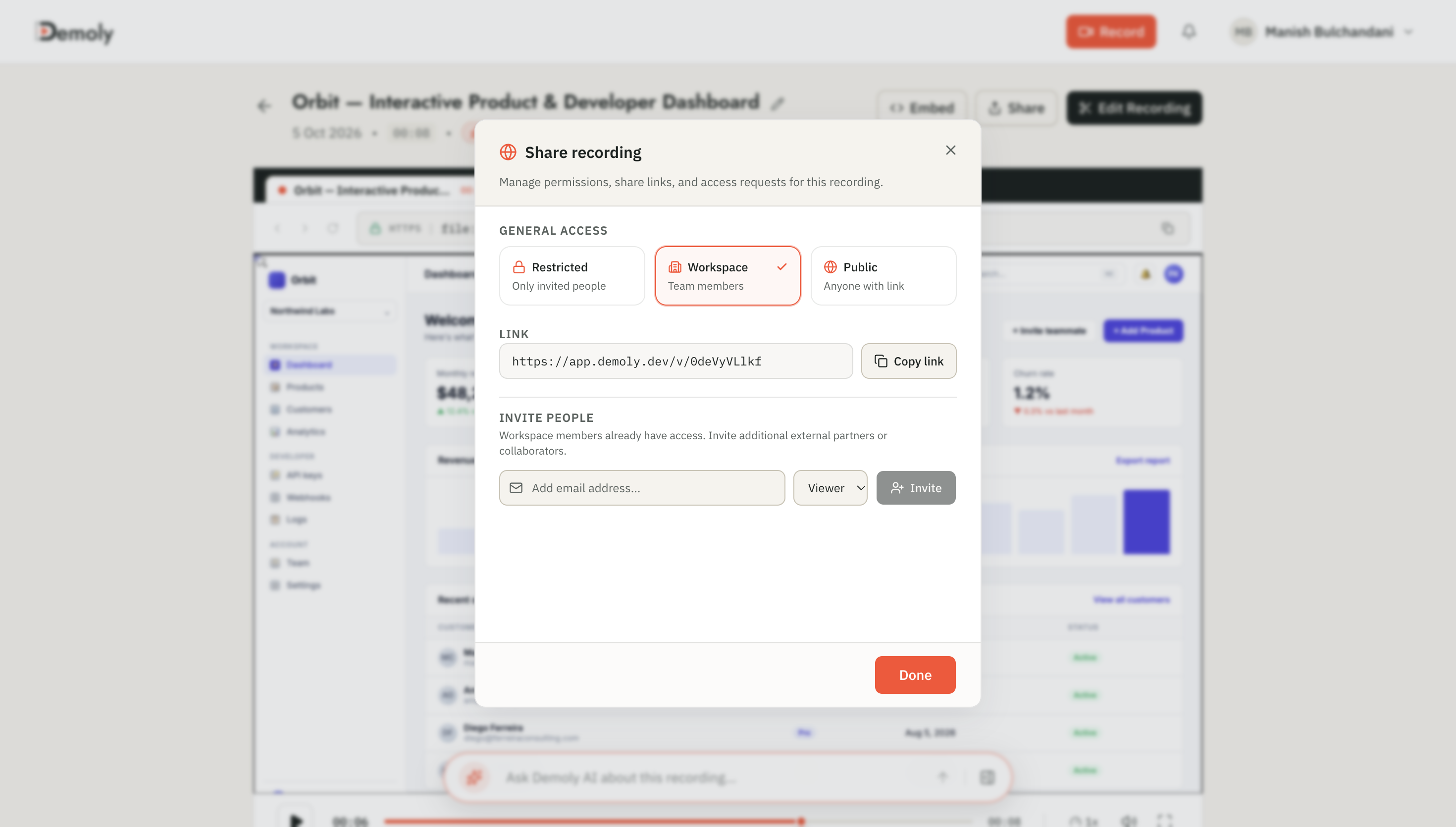
How to Verify It Worked
To ensure your trimmed walkthrough plays cleanly and delivers accurate search citations:
- Click Share in the editor toolbar, verify permissions are set to Viewer Only, and click Copy Link.
- Open a private or incognito browser window and paste the link into your address bar.
- Play the video across the timestamps where cuts were made to confirm smooth audio transitions and seamless visual continuity.
- Open the Ask Demoly AI drawer on the right side of the player and enter a query covering an action shown after the cut point (e.g., "Where are user permissions configured?").
- Click the returned timestamp citation pill to confirm the playhead jumps to the correct, updated timecode rather than the original pre-trim position.
Important Notes & Edge Cases
- Non-Destructive Asset Preservation: Edits applied in Demoly never erase underlying raw footage. If you realize next week that an accidentally trimmed sentence contained vital context, open the editor, select the clip boundary, and drag the handles outward to recover the original frames.
- Automatic Multi-Modal Index Synchronization: When you cut ninety seconds out of a video, conventional transcript tools often fail to re-sync or leave orphaned subtitles. Demoly recalibrates both speech text and underlying DOM action trees so that AI search remains synchronized to the millisecond.
- Multi-Tab Continuity: If your walkthrough spans multiple browser tabs, ensure you do not cut across tab switches abruptly. Check that the active URL bar displays the expected domain when clean playback resumes.
Troubleshooting
Audio pops or clips abruptly at the cut seam
- Cause: The split marker was positioned directly over an active syllable or breathing intake rather than a clean silence valley.
- Fix: Reopen the timeline editor, zoom in on the waveform, and drag the split boundary 100–150 milliseconds into the flat silence before speech resumes.
Accidental over-trimming removed necessary instructions
- Cause: The clip edge handle was dragged too far inward during perimeter trimming.
- Fix: Hover over the boundary handle of the shortened clip and drag it back outward. Demoly preserves all raw recorded frames, allowing instant restoration without re-recording.
Conclusion
Recording web application walkthroughs should not require perfection on the first take. With Demoly's in-browser non-destructive studio, web agencies and engineering teams can trim awkward silences, eliminate mid-demo stumbles, and polish documentation in seconds. Your shared links stay live, and your AI-searchable index stays accurate.
Start recording, trimming, and sharing searchable walkthroughs directly in your browser with Demoly's free tier at $0 forever, with no credit card required.
Frequently asked questions
Commonly asked questions about this article.
01•Does trimming a walkthrough break existing share links already sent to clients?
No. Demoly updates playback non-destructively in the cloud on the original share URL. Clients opening the link automatically view the latest trimmed version without needing a new URL.
02•Can I delete a mistake from the middle of a recording or only the start and end?
You can delete segments anywhere in the timeline. Use the Split tool to place two cut points around the mistake, delete the middle clip, and Demoly automatically stitches the remaining sections together.
03•Does trimming an already recorded video permanently destroy the original raw footage?
No. All trims in Demoly are non-destructive metadata layers applied over the raw capture. Workspace creators and administrators can revert cuts or expand clip handles to recover original footage at any time.
04•What happens to the AI search timestamps when I cut out video segments?
Demoly automatically re-indexes your walkthrough upon saving. All speech transcript timestamps and visual DOM action citations recalibrate to match the new duration, ensuring accurate AI search results.
05•Do I need to wait for the video to re-render or re-export as an MP4?
No. Trims are processed instantly in the browser and cloud player without the lengthy export rendering times required by traditional desktop editing software.
Demoly Team
Contributor
Related Dispatches
View all dispatches →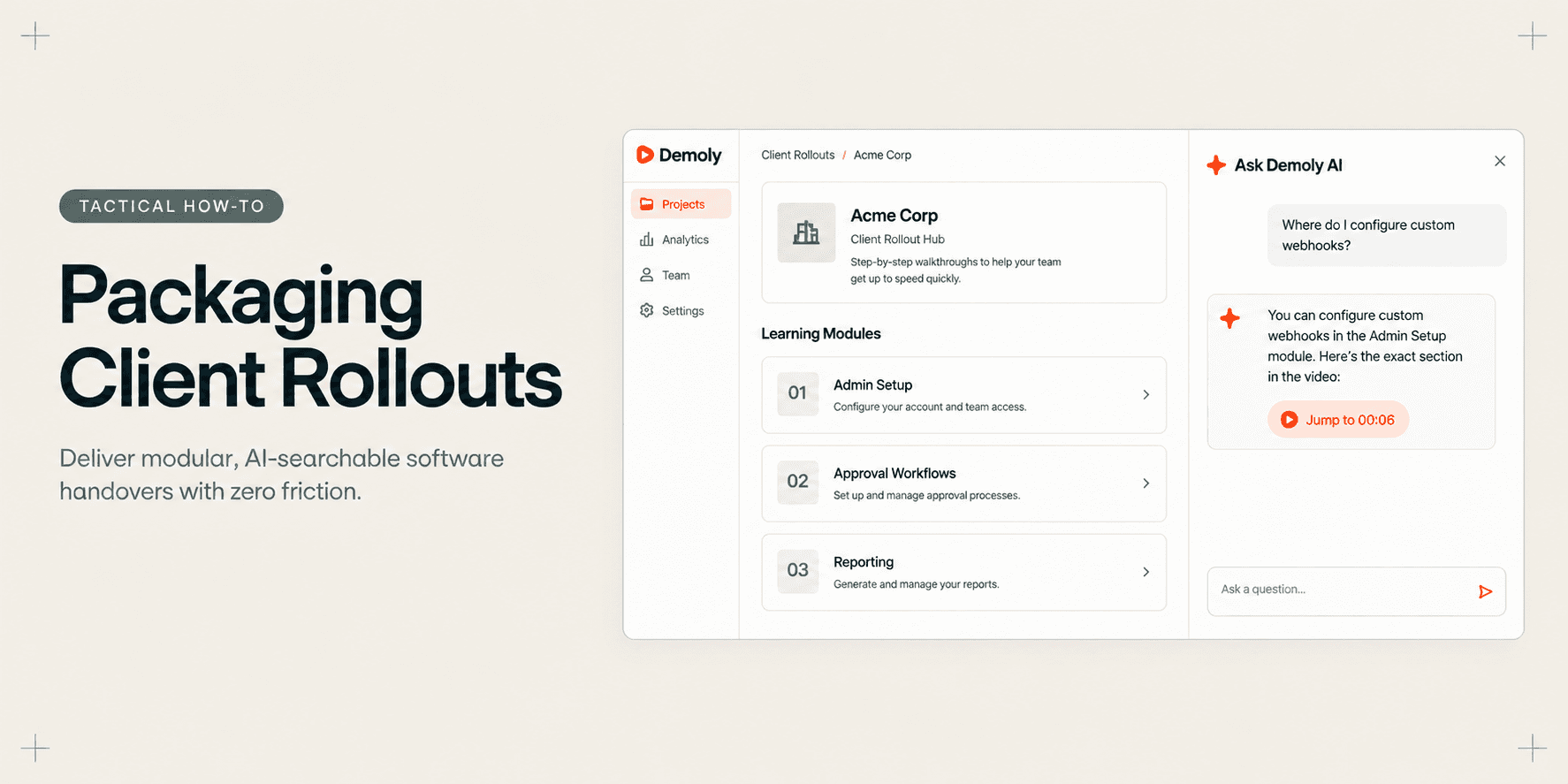
How Implementation Consultants Package a Rollout for a New Client
Learn how enterprise implementation consultants package software rollouts into modular, AI-searchable walkthroughs that eliminate post-go-live hypercare calls.
How to Let Clients Ask Questions Inside a Video Walkthrough
Learn how to turn static screen recordings into self-serve support hubs where clients can query features, locate settings, and jump directly to exact timestamps.

How to Search Inside a Video Recording Using AI
Learn how to search inside video recordings using conversational AI. Query spoken words, unvoiced clicks, and on-screen UI elements to jump directly to exact timestamps.
Try Demoly for your team
Create branchable, interactive demo recordings and deliverables in minutes with zero friction.