How to Redact Sensitive Client Data Before Sharing a Screen Recording
Learn how to redact sensitive client data, API keys, and customer PII from screen recordings using in-browser canvas masking before sending shareable walkthrough links.
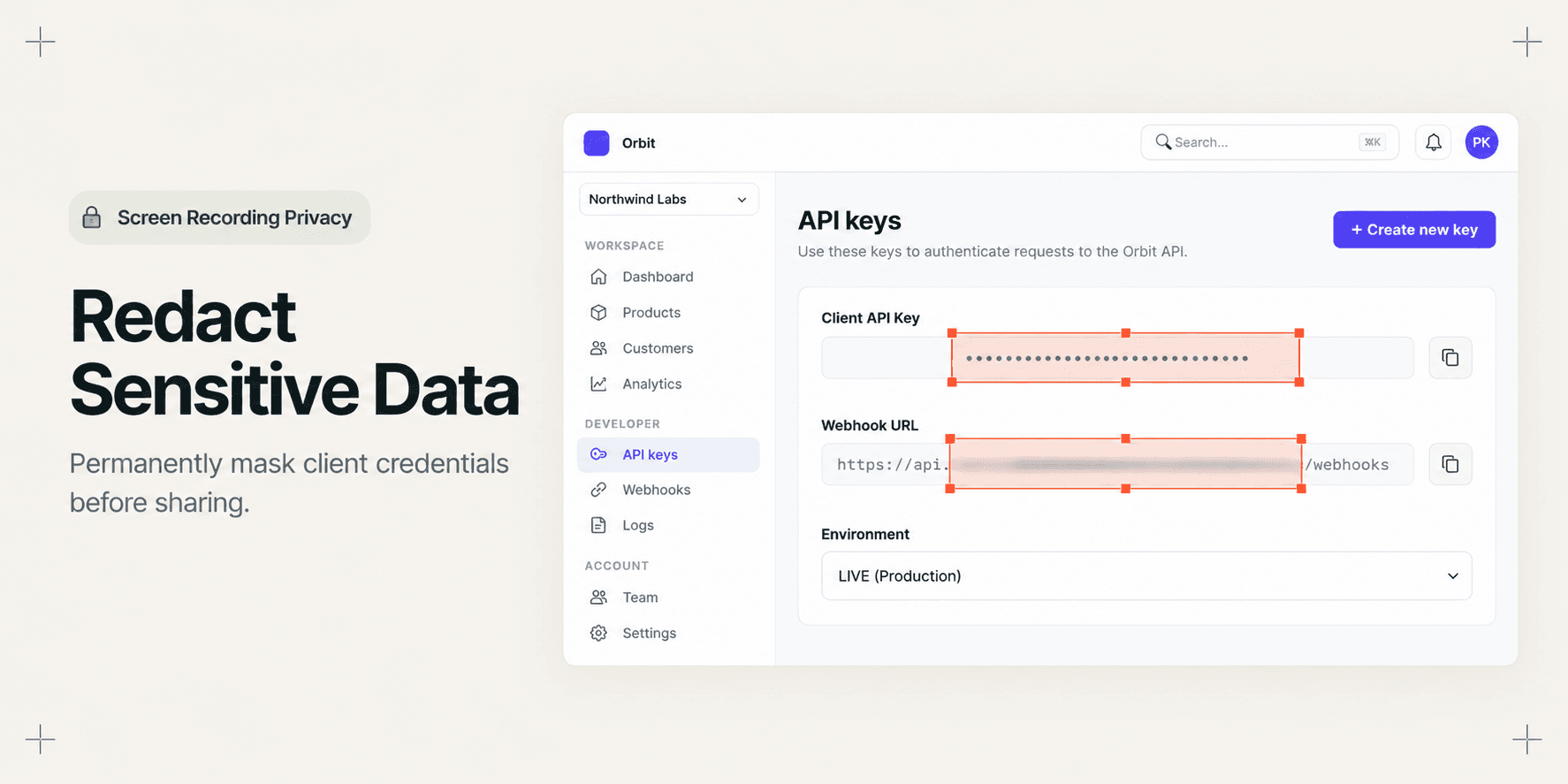
How to Redact Sensitive Client Data Before Sharing a Screen Recording
When recording a client walkthrough or staging demonstration, sensitive data routinely slips onto the screen. A live Stripe secret key, client customer email, database connection string, or internal authorization token exposed for two seconds can compromise security. Re-recording a fifteen-minute video wastes hours, while traditional desktop video editors require manual tracking and lengthy export renders.
This guide shows you how to redact sensitive client data, API credentials, and personal information directly in your browser before generating a client share link. By following these steps, you will produce a secure walkthrough where confidential fields are permanently masked from recipient view without needing to re-record your session.
Quick Steps:
Open the studio editor: Select your finished capture in Demoly to open the in-browser editing workspace.
Scrub to the exposure: Position the timeline playhead at the exact second sensitive credentials or customer records appear.
Apply the Redact tool: Click the Redact tool in the left toolbar and drag a masking boundary over the target data container.
Synchronize mask duration: Adjust the timeline duration handles so the mask stays locked for the full visibility window.
Verify and share: Test the link in an incognito window with Viewer Only permissions to confirm client secrets cannot be inspected or viewed.
Before You Start
Distinguish canvas excision from CSS blurring: Standard browser CSS blurs (
filter: blur()) can be removed by recipients using Chrome Developer Tools. Ensure your workflow uses canvas-level video masking that burns over raw output. For an in-depth explanation of how event-layer recording differs from surface video, read our analysis on DOM Capture vs Pixel Capture: Why It Changes What a Video Can Answer.Confirm audio isolation: Verify that you did not read confidential credentials, password strings, or client phone numbers aloud during narration. Audio redaction requires muting or trimming waveform segments.
Review your staging checklist: When preparing handovers for external stakeholders, consult The Complete Client Handover Checklist for Web Agencies to identify high-risk screens before distributing public URLs.
Step 1: Identify Exposed Credentials on the Target Interface
Before launching the editor, review the views captured during your walkthrough. High-risk exposure zones typically include API credential dashboards, webhook configuration tables, user billing records, and personal identity metrics.
If your walkthrough captured secret tokens, production endpoints, or client account emails, note the timestamp ranges where these modal dialogs or tables remain visible on screen.
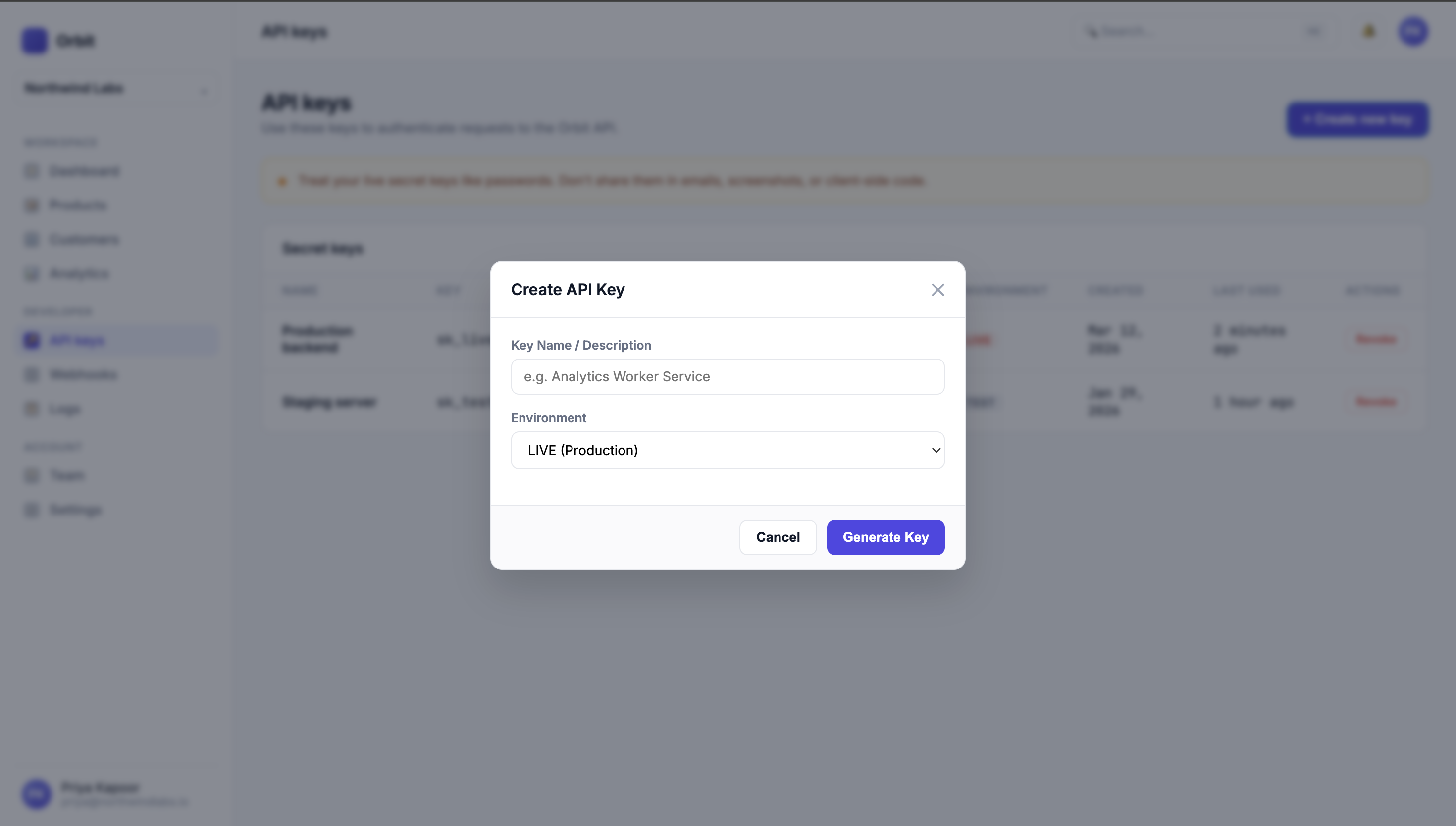
Live Application Secrets Modal - Target for Canvas Redaction
Step 2: Open the In-Browser Studio Workspace
From your Demoly dashboard or immediate recording preview, click Edit Video to open the full browser studio.
The studio workspace provides a central high-resolution canvas, a left-hand editing tool rail, and a multi-track timeline displaying your synchronized video track and audio waveform.
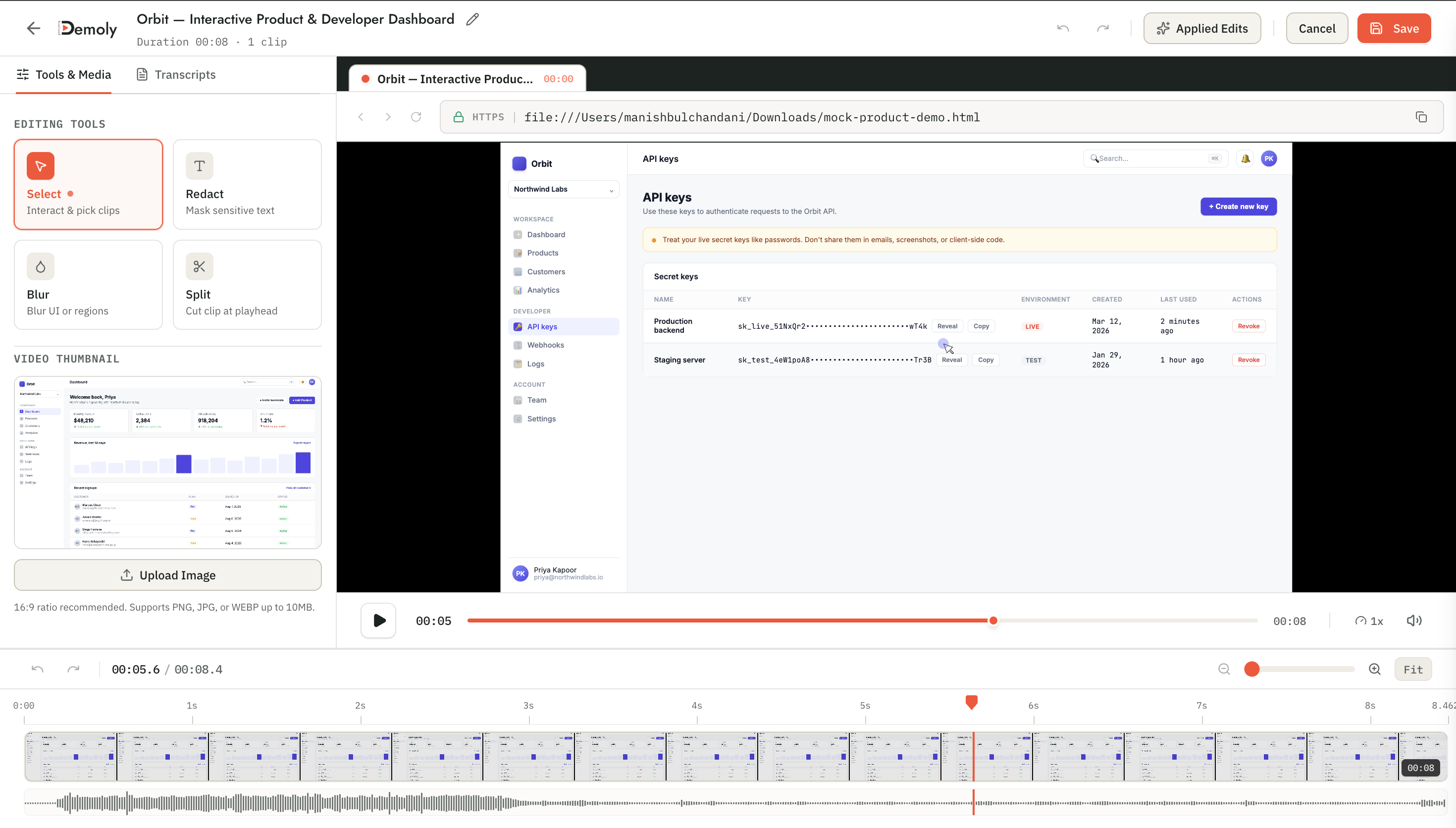
Demoly Web Editor - Full Studio Workspace
Step 3: Scrub the Playhead to the Exposure Timestamp
Navigate the bottom timeline scrub bar to locate the exact second where confidential client information enters the viewport.
Use the frame-by-frame arrow keys or drag the playhead directly to the starting frame. Identifying the precise entry frame prevents sensitive text from flashing visible before the mask activates.
Step 4: Draw a Canvas Redaction Mask Over Sensitive Elements
Click the Redact tool (or Blur) in the left editing sidebar. Your cursor will convert into a crosshair selector on the active video canvas.
Click and drag a bounding box directly over the sensitive UI component. You can mask single input fields, entire API secret blocks, or multi-row client billing tables. Use the corner and edge resize handles to ensure the boundary covers the full text container with generous padding.
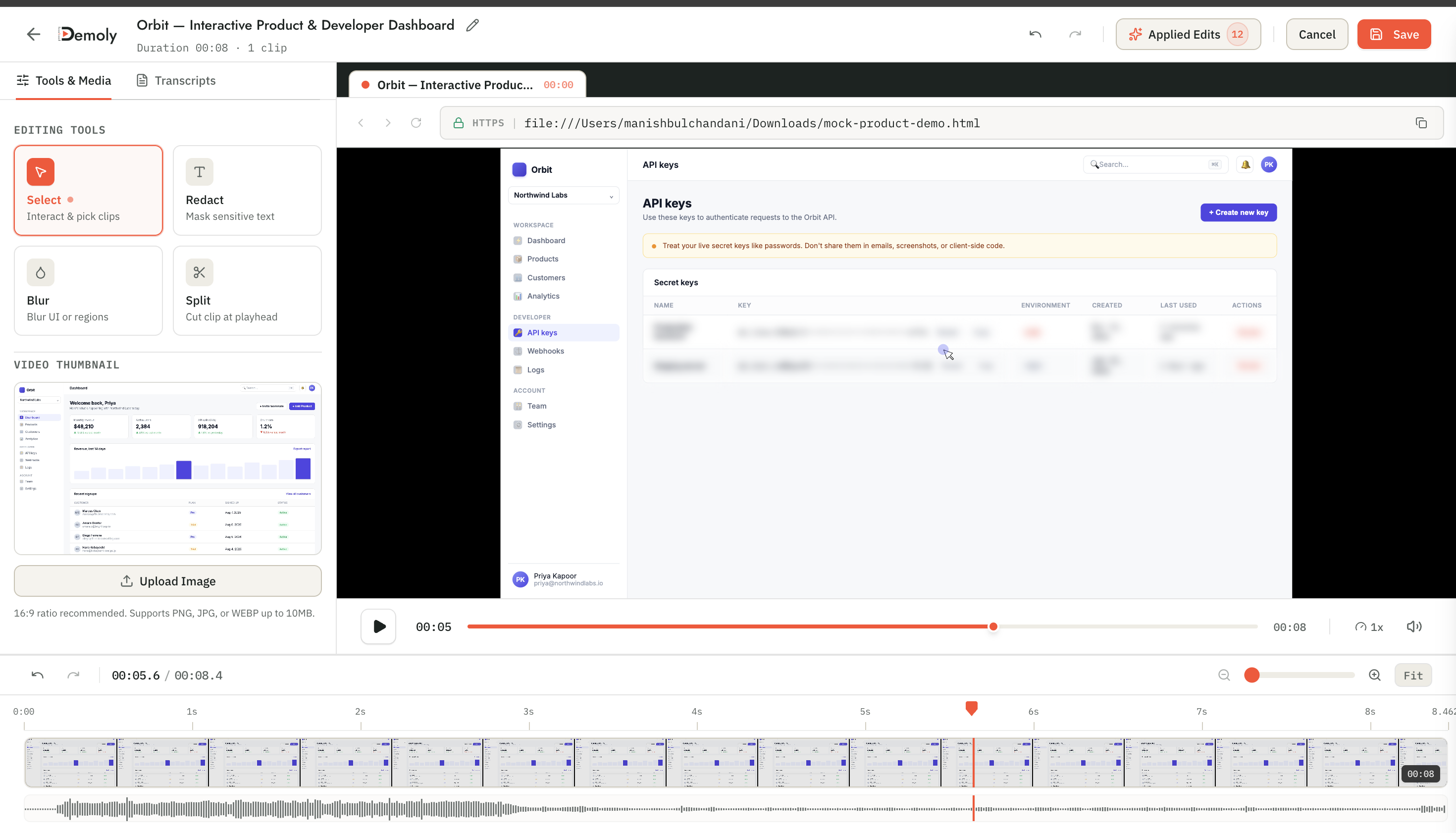
Demoly Visual Editor - Canvas Element Redaction and Blur
Step 5: Adjust Timeline Mask Duration
Once the redaction box is positioned on the canvas, a corresponding mask clip appears on the secondary timeline layer below your video.
Click and drag the left edge of the mask clip to snap to the entry timestamp. Drag the right edge to extend the mask until the modal closes or the page navigates away. If the user scrolls or switches tabs, repeat the selection on the new viewport position or trim the visibility window accordingly.
If sensitive data was spoken aloud during this same timestamp interval, click the Mute or Split tool on the audio waveform track to cut out the spoken audio snippet simultaneously.
Step 6: Configure Permissions and Generate the Client Link
Once your redaction boundaries and audio trims are set, click Share in the top-right corner of the editor studio.
In the project share dialog, verify that permissions are toggled to Viewer Only. This setting ensures external recipients can watch the video and use interactive search but cannot access editor controls, inspect source layers, or modify redaction masks. Copy the public link to your clipboard.
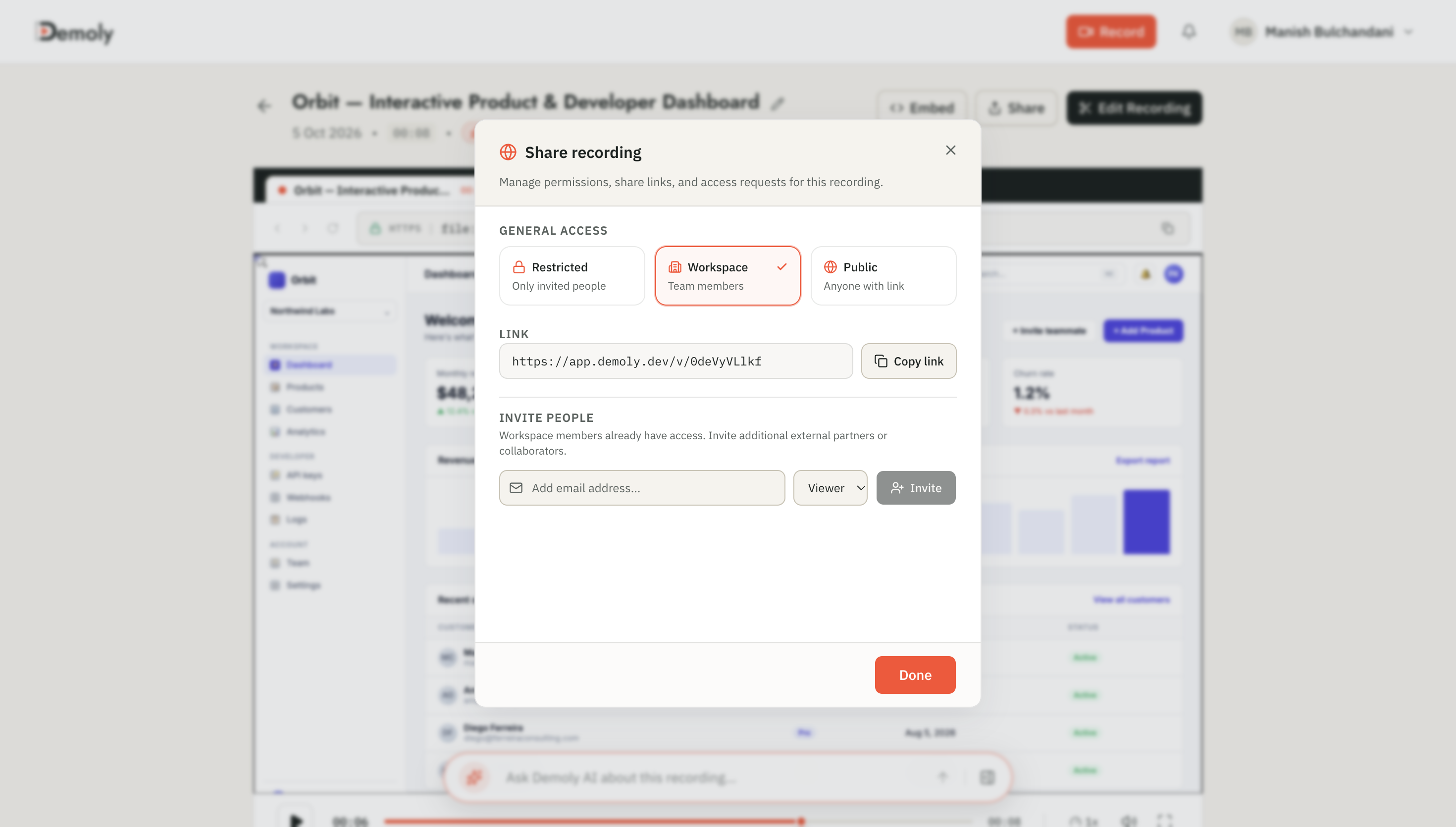
Demoly Share Modal - Zero-Friction Public & Client Access
How to Verify It Worked
Before sending the recording link to your client or external partners, perform an independent security verification:
Open a new Incognito / Private browser window.
Paste your copied share URL and load the player without logging into an account.
Play the video through the exposure timestamps. Confirm that the redacted bounding box displays an opaque, unreadable blur with zero text bleeding through the edges.
Right-click the blurred area, select Inspect, and verify that no underlying DOM strings, plaintext tokens, or credential values are retrievable through the browser console.
Important Notes & Edge Cases
Viewport Scrolling & Dynamic Layouts: If your walkthrough involved rapid page scrolling while a sensitive table was visible, confirm that the redaction bounding box covers the element throughout its entire vertical travel, or create consecutive keyframe masks for scrolled positions.
Non-Destructive Creator Editing: Within your authenticated creator workspace, redactions remain adjustable. If you need to resize or relocate a mask later, you can reopen the project in the editor without losing previous cuts. External viewers only ever receive the rendered, unalterable presentation layer.
Spoken Credentials: A visual blur does not hide spoken audio. Always inspect the audio waveform whenever redacting passwords, phone numbers, or account codes to verify that confidential data was not dictated during recording.
Troubleshooting
Redacted text flashes for a fraction of a second before the blur appears
Cause: The mask start handle on the timeline begins a few milliseconds after the modal or page transition loads.
Fix: Pause at the transition point, zoom in on the timeline track, and drag the left edge of the redaction clip backward until it precedes the visual appearance by one frame.
Mask boundary leaves trailing characters exposed on wide screens
Cause: The bounding box was sized too tightly around standard text, failing to account for responsive element shifting or longer variable values.
Fix: Reopen the editor, select the redaction overlay on the canvas, and drag the bounding box handles outwards by 15–20 pixels on each side to create a safety margin.
Conclusion
Redacting confidential client credentials and internal tokens does not require re-recording twenty-minute demonstrations or round-tripping through complex video rendering software. Demoly's in-browser canvas masking allows web agencies and development teams to ship clean, compliance-safe walkthroughs in minutes.
You can record, index, and redact walkthrough videos directly in your browser with Demoly's free tier at $0 forever, with no credit card required.
Frequently asked questions
Commonly asked questions about this article.
01•Can external viewers unmask redacted data using Chrome Developer Tools?
No. Demoly's public viewer presentation layer strips underlying credential strings and burns the redaction into the rendered video output. Inspecting DOM elements or network payloads in Developer Tools reveals no hidden plaintext.
02•Does redacting a video alter the original recording permanently?
Inside your private creator workspace, redactions remain non-destructive so you can adjust masks or unmask fields if requirements change. External recipients viewing the share link only see the permanently masked output.
03•Can I redact client data across multiple browser tabs?
Yes. If your recording spans multiple tabs, scrub the timeline to each tab view and apply a redaction mask over sensitive fields in each corresponding scene.
04•How do I remove sensitive information if I read it aloud?
Use the in-browser timeline editor to split the audio waveform track at the relevant timestamp and click Mute. This silences the spoken credential while maintaining seamless video playback.
05•Do clients need an account to view a redacted video?
No. Clients can watch the redacted walkthrough instantly in any browser via your share URL without creating an account or logging into Demoly.
Demoly Team
Contributor
Related Dispatches
View all dispatches →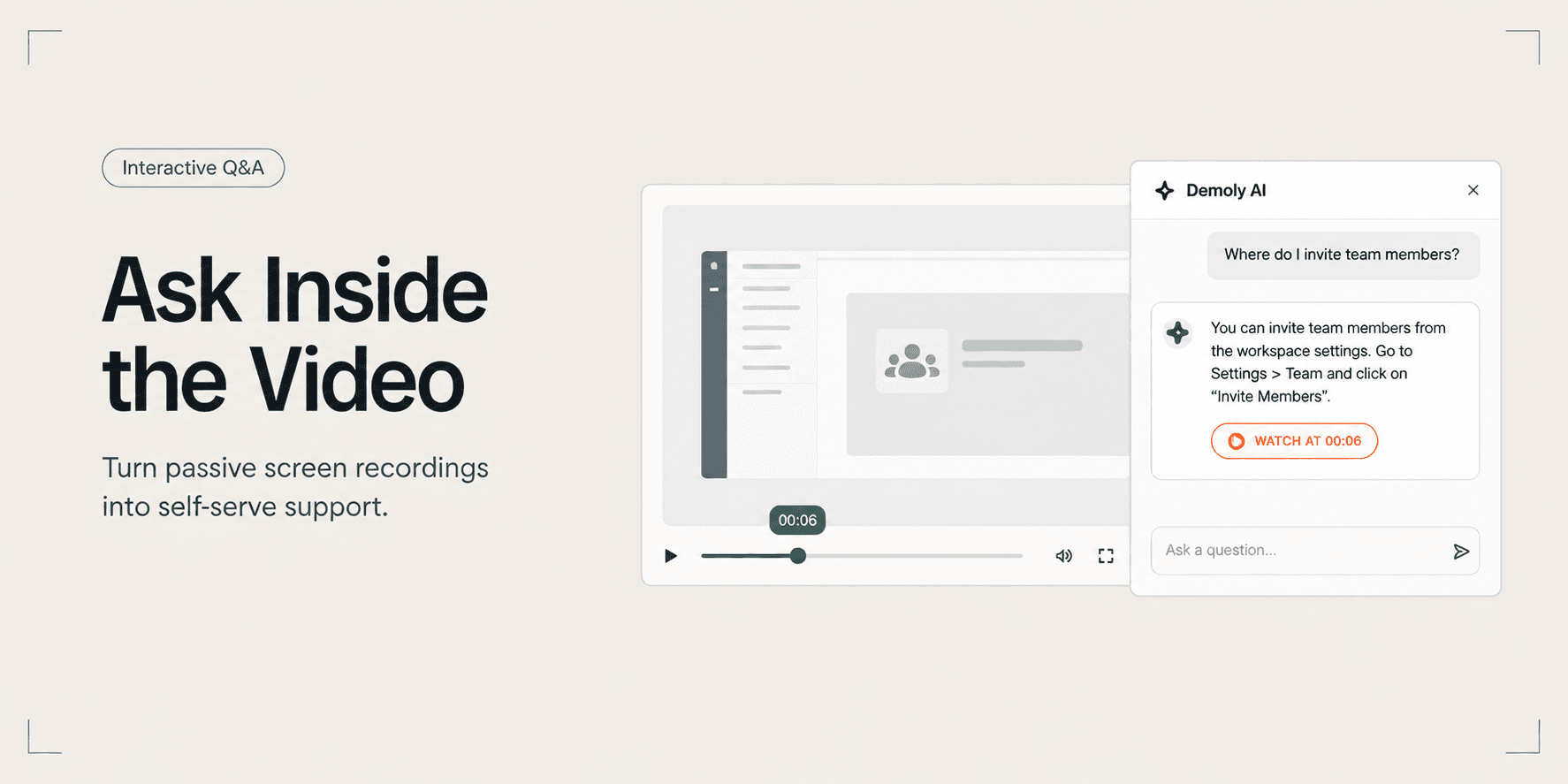
How to Let Clients Ask Questions Inside a Video Walkthrough
Learn how to turn static screen recordings into self-serve support hubs where clients can query features, locate settings, and jump directly to exact timestamps.
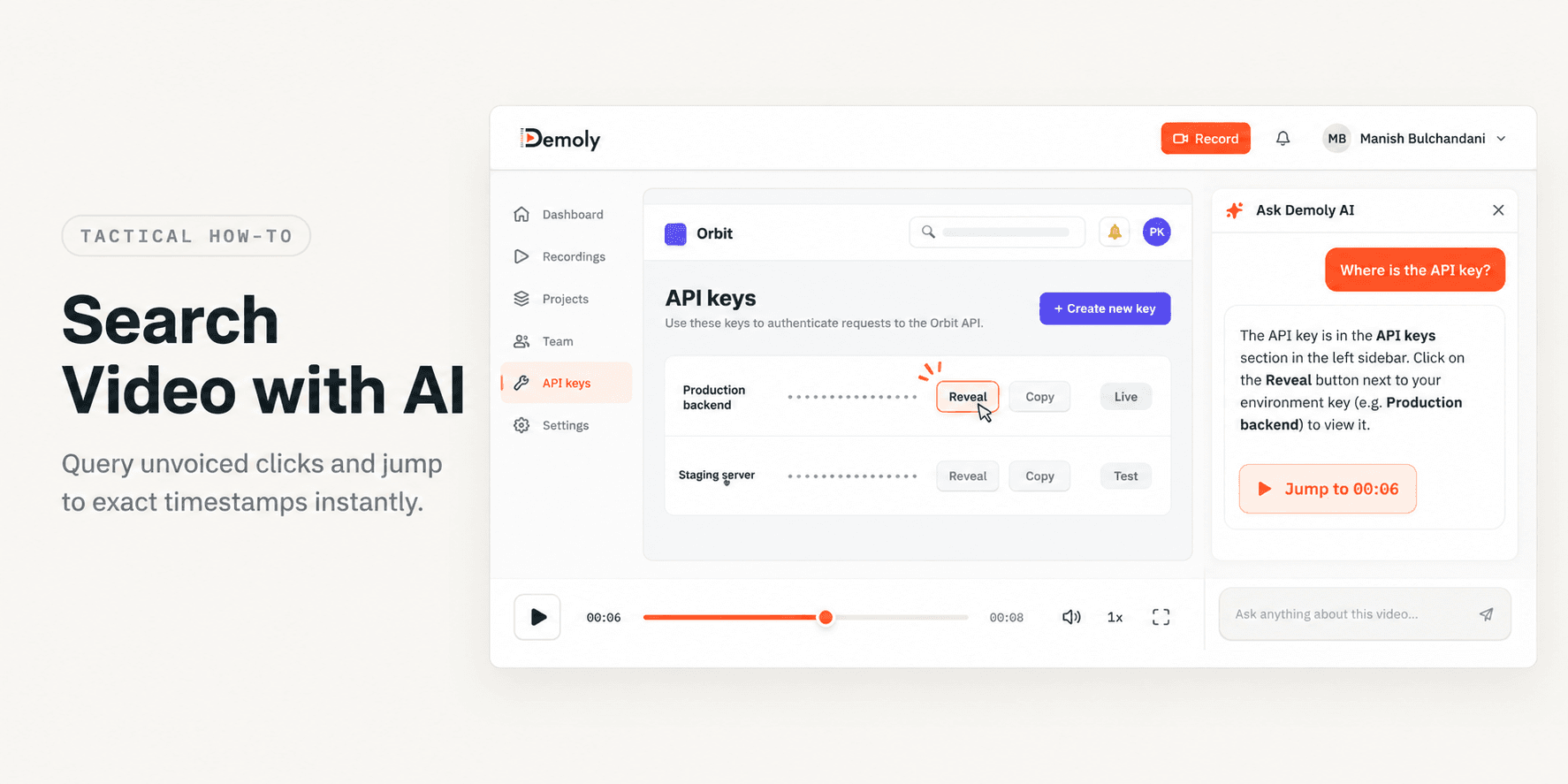
How to Search Inside a Video Recording Using AI
Learn how to search inside video recordings using conversational AI. Query spoken words, unvoiced clicks, and on-screen UI elements to jump directly to exact timestamps.
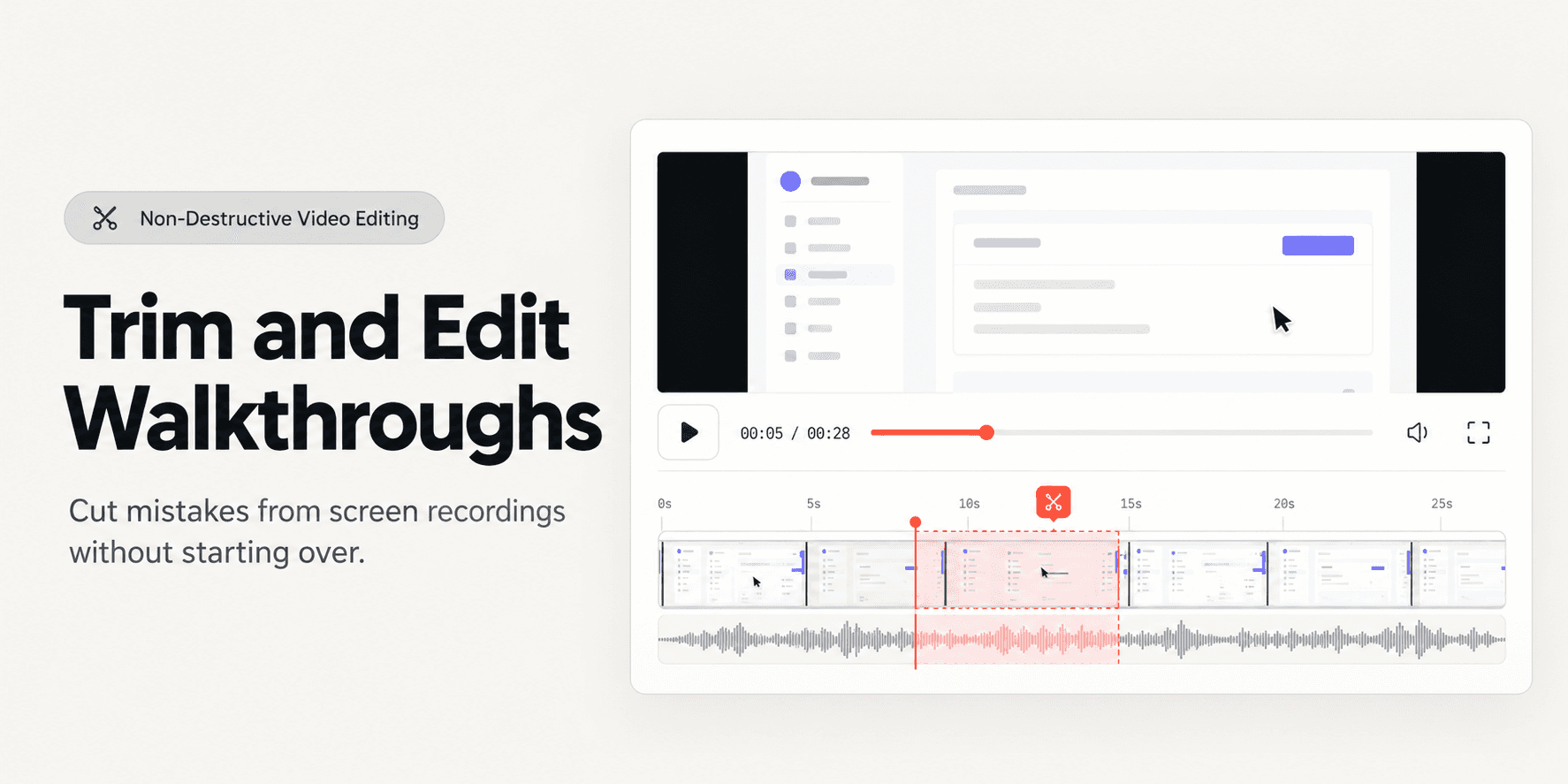
How to Trim and Edit a Walkthrough Video Without Re-Recording
Learn how to trim pauses, cut mistakes from the middle of a walkthrough, and edit screen recordings in your browser without re-recording or breaking share links.
Try Demoly for your team
Create branchable, interactive demo recordings and deliverables in minutes with zero friction.