How to Let Clients Ask Questions Inside a Video Walkthrough
Learn how to turn static screen recordings into self-serve support hubs where clients can query features, locate settings, and jump directly to exact timestamps.
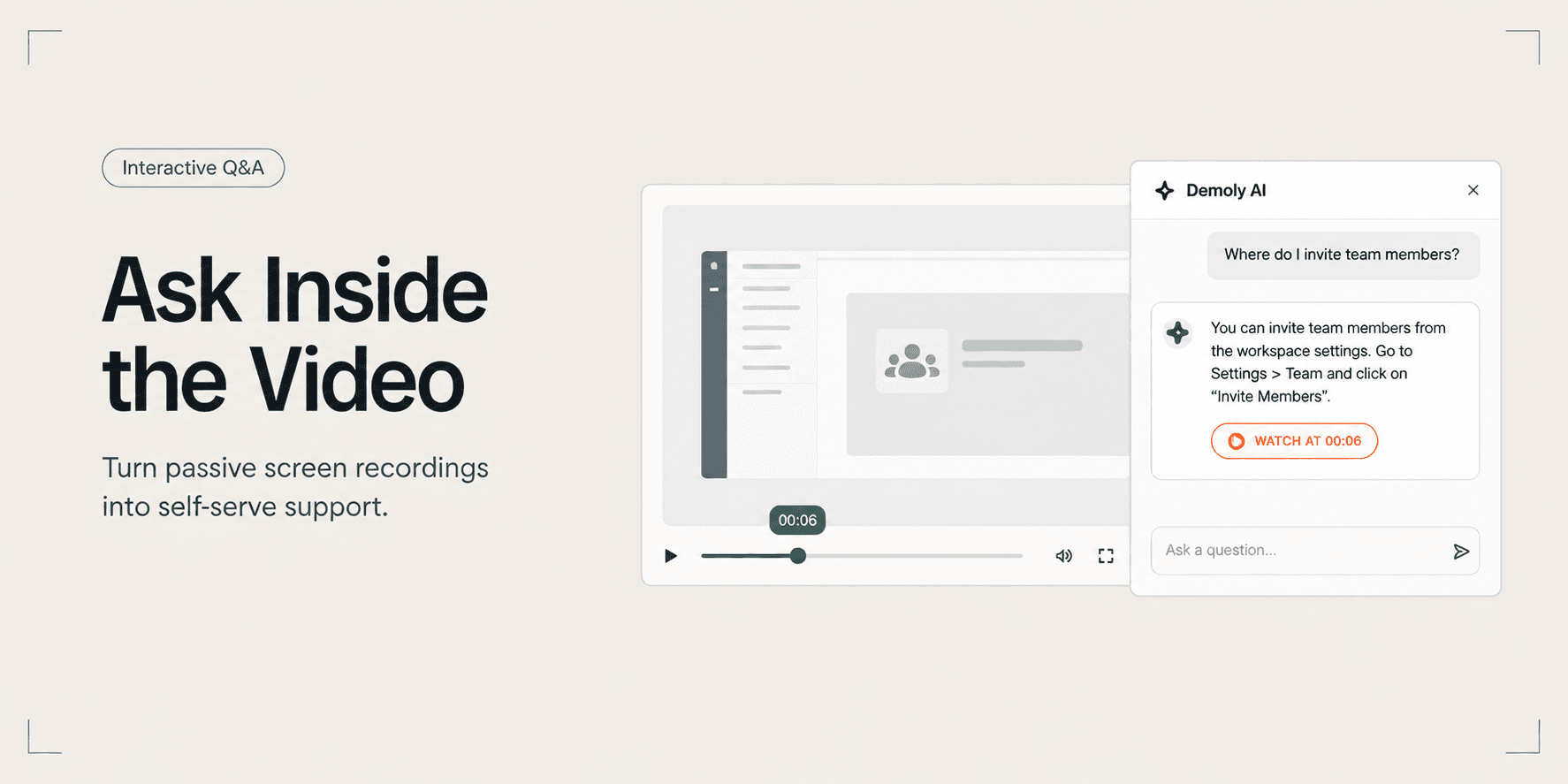
How to Let Clients Ask Questions Inside a Video Walkthrough
Delivering a 20-minute product walkthrough rarely prevents follow-up emails. Clients avoid scrubbing through long screen recordings to locate a single setting; instead, they message you asking where to click or request a 30-minute review call to re-demonstrate features you already covered.
This guide shows you how to transform a standard screen recording into an interactive, self-serve support hub where clients can ask questions directly inside the video player and jump to the exact second each action occurs.
Quick Steps:
- Record the walkthrough: Capture the web app workflow with Demoly's Chrome extension to index spoken audio and on-screen clicks.
- Access the Q&A drawer: Open the recording in the Demoly web editor and verify the Ask Demoly AI sidebar.
- Test client queries: Submit sample practitioner questions to confirm accurate timestamp citation chips.
- Configure viewer permissions: Set access controls to Viewer Only to enable zero-login client playback.
- Deliver the self-serve link: Share the URL with your client so they can query features and jump to timestamps autonomously.
Before You Start
- Demoly Chrome extension: Install the extension from the Chrome Web Store.
- Prepared application tab: Log into the staging or production web app and open the starting screen in an active tab. For initial recording setup, review our guide on how to record a web app walkthrough your client can actually search.
- Audio configuration: If you plan to narrate, verify that your browser has microphone permissions enabled. Narration is optional because visual indexing captures unvoiced clicks automatically.
Step 1: Record and Index the Application Walkthrough
Navigate to the starting screen of your web application and click the Demoly extension icon in your browser toolbar.
Select Current Tab if your demonstration stays within a single web app, or Entire Screen if the workflow requires switching across multiple windows. Click Start Recording. A three-second countdown appears before capture begins.
Demonstrate your application workflows at a natural working pace. Click through navigation menus, toggle settings, and open form modals. Demoly captures both your audio narration and on-screen interface interactions, continuously indexing button labels, input fields, and state changes. If your walkthrough displays sensitive staging credentials or client records, review how to redact sensitive client data before sharing a screen recording before finalizing your draft.
When you finish the walkthrough, click the red Stop button on the floating recording control widget. Demoly immediately loads the video into the web editor and processes the audio and visual event stream into a searchable index.
Step 2: Open and Verify the Interactive Q&A Drawer
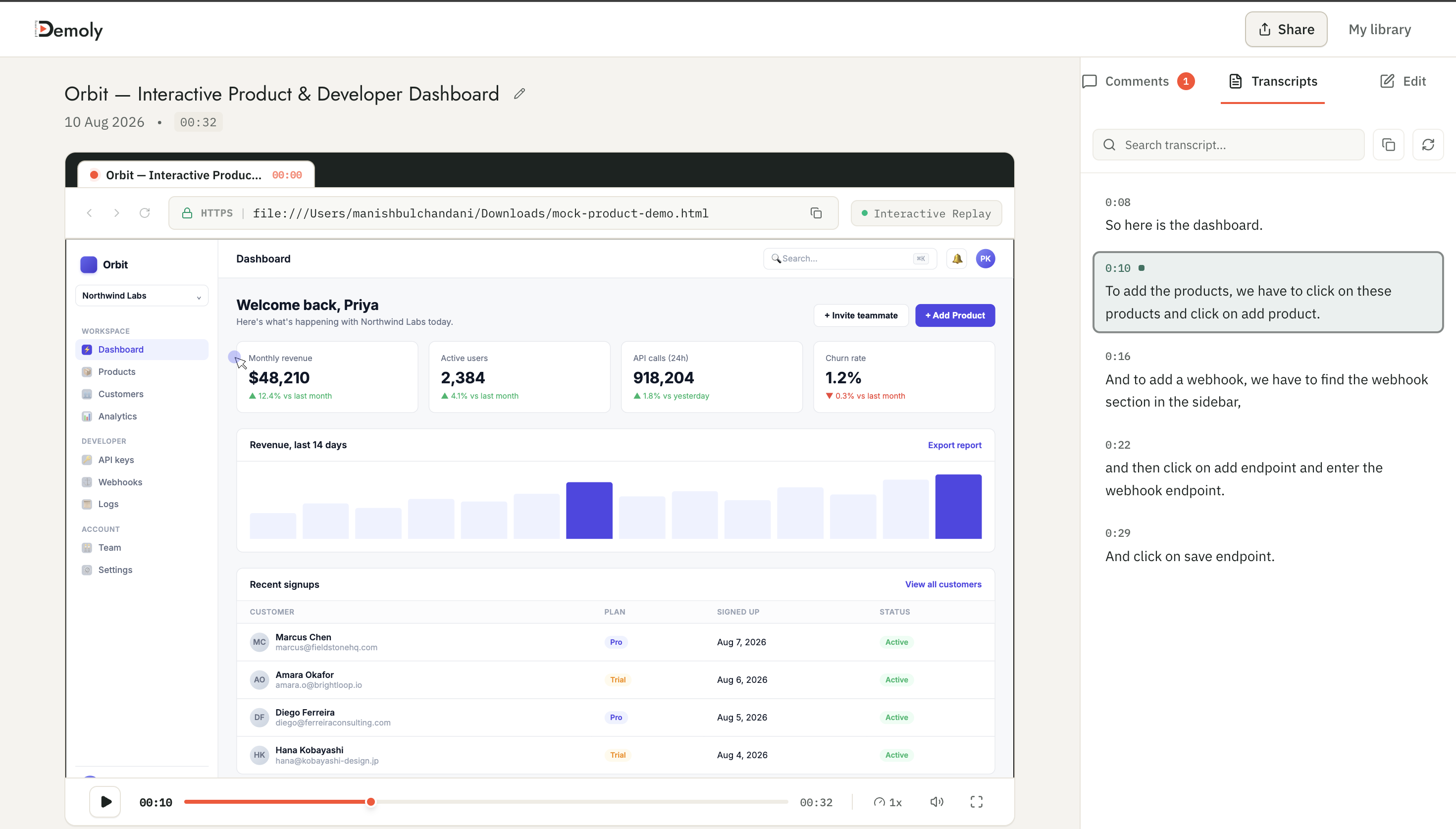
In the Demoly web editor, locate the Ask Demoly AI tab in the top-right corner of the player sidebar. Click the tab to expand the conversational Q&A drawer.
The drawer connects directly to the processed event index of your walkthrough. Rather than scanning a flat text transcript, this panel queries an event engine that pairs spoken audio with on-screen interface actions.
Step 3: Test Sample Client Queries and Timestamp Citations
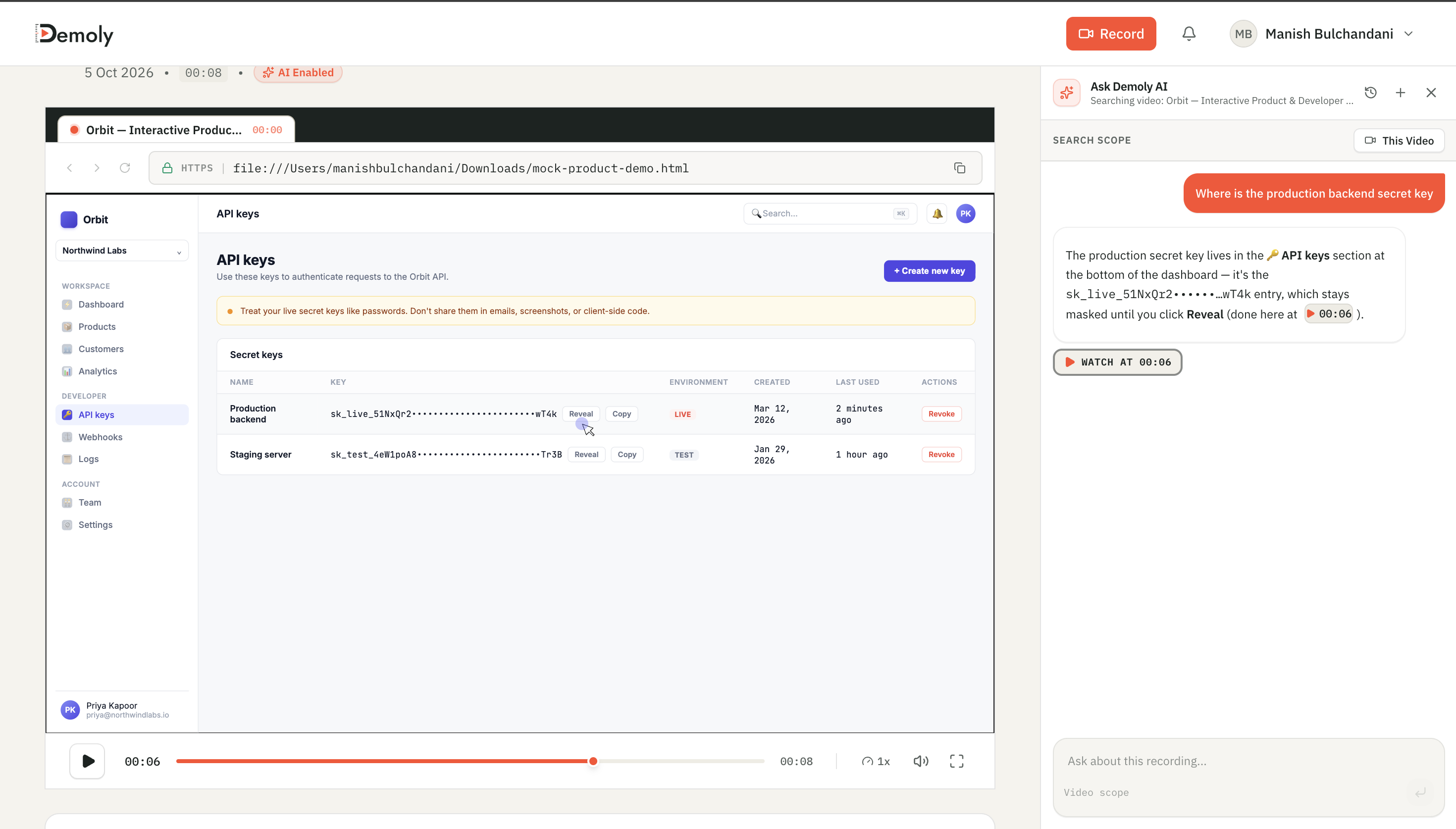
Before sharing the link with your client, test the queries they are most likely to ask. Click into the Ask or search anything input field at the bottom of the drawer.
Enter realistic operational questions such as:
- "Where do I invite new team members?"
- "How do I export monthly billing reports?"
- "Where is the webhook configuration tab located?"
Demoly evaluates the recording context and returns a concise conversational summary paired with an interactive timestamp citation chip (such as WATCH AT 00:06 or ▶ Jump to 02:14).
Click the timestamp chip. The video player immediately moves the playhead to that exact second on the timeline and starts playback. Confirm that the video shows the open modal, cursor click, and configuration panel required to complete the action. For a detailed breakdown of how the search engine handles complex prompts, see our guide on how to search inside a video recording using AI.
Step 4: Configure Zero-Login Viewer Permissions
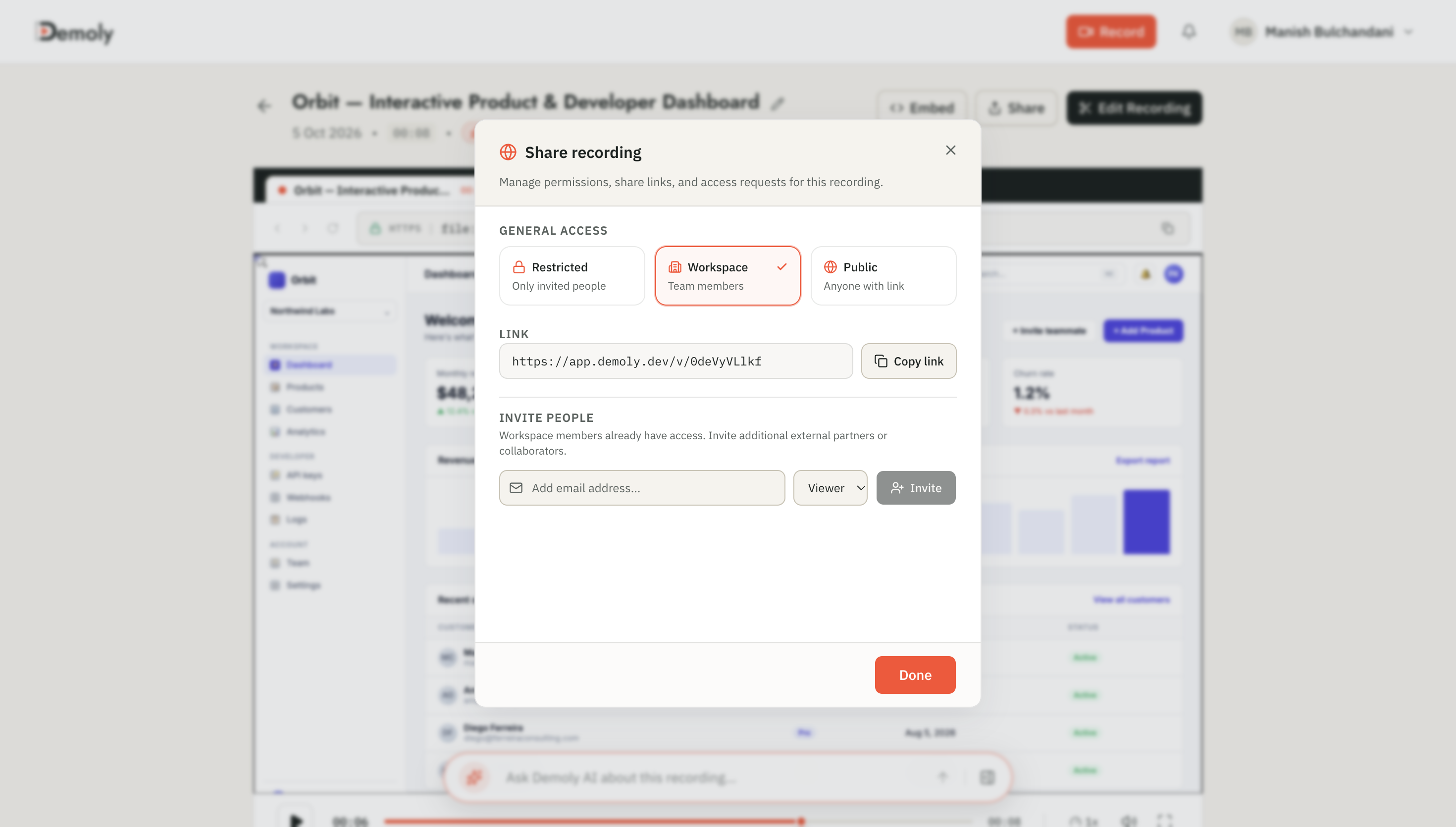
Click the Share button in the top-right header of the editor canvas to open the sharing modal.
Set the permissions dropdown to Viewer Only. This setting gives your client full access to video playback, interactive AI search, and timestamped commenting while keeping your original recording and trims locked.
Confirm that public link sharing is active so the recipient can open the walkthrough without creating an account or logging in. For more details on sharing settings and access controls, check our guide on how to share a video walkthrough without requiring a client login.
Click Copy Link to save the URL to your clipboard.
Step 5: Deliver the Self-Serve Walkthrough to Your Client
Send the copied link to your client via Slack, email, or your project handover portal.
Include a short orientation note with the link:
"Here is the interactive walkthrough of your new platform. You can watch it straight through, or type questions into the Ask Demoly AI drawer on the right to jump directly to any setting or feature."
When your client clicks the link, the walkthrough loads immediately in their browser. They can ask questions, verify workflows, and navigate complex settings without scheduling a live meeting.
How to Verify It Worked
To ensure your client receives a smooth, frictionless experience:
- Open a new incognito or private browser window.
- Paste the copied walkthrough URL into the address bar and press Enter.
- Confirm that the video player loads immediately with the video canvas and right-hand drawer visible, requiring no login or password.
- Click the Ask Demoly AI tab, submit a test query (for example, "Where are the settings?"), and verify that a clickable timestamp citation returns within three seconds.
- Click the timestamp chip to ensure the playhead jumps smoothly to the demonstrated step.
What Your Client Experiences
When clients access your walkthrough, they interact with an active support assistant tied directly to your product demonstration:
- Natural Language Q&A: Clients ask questions in plain English ("How do I add a new payment method?"). The assistant explains the procedural step and cites the exact timecode.
- Direct Timeline Jumps: Clicking the timestamp badge moves the playhead to the exact frame where the action occurs, eliminating manual scrubbing.
- Element-Anchored Comment Pins: If a client needs clarification on a specific interface element, they can drop a comment pin (
🎯) directly on the UI container at that timestamp, giving you clear contextual feedback without back-and-forth emails.
Important Notes & Edge Cases
- Unvoiced Actions Remain Searchable: Demoly indexes visible DOM elements alongside spoken audio. If you navigate through an administrative screen without saying the button names out loud, clients can still search for those buttons and locate the exact moment you clicked them.
- Masked Data Remains Protected: If you applied element-level redactions to hide staging passwords or sensitive client records, those masks remain permanently burned into the viewer playback layer. Clients cannot uncover or query redacted text through AI search prompts.
- Conversational Context Retention: Clients can ask progressive follow-up questions (such as "What did you click after that?") without repeating previous context. The assistant remembers the active conversation within that viewing session.
Troubleshooting
- Problem: The client asks a question and receives a response stating the action was not found.
Fix: Check that the action was demonstrated on screen during your recording. If you demonstrated the feature quickly inside a nested flyout menu, ask the client to query the exact button label or section title visible in the interface.
- Problem: The search drawer returns multiple timestamps instead of a single jump chip.
Fix: The queried element appeared across several points in the demonstration. Advise the client to add a clarifying context term (for example, "the initial user invitation modal" instead of just "user").
- Problem: The recipient is prompted to log in when opening the walkthrough.
Fix: Reopen the Share modal in the Demoly editor and confirm that the link permission is set to public Viewer Only rather than restricted workspace access.
Practical Next Steps
Allowing clients to ask questions inside your walkthrough turns passive screen recordings into an asynchronous support engine. You eliminate repetitive post-launch meetings while giving clients instant answers to their questions. Demoly provides full recording, automated UI indexing, and zero-login link sharing on its free plan ($0 forever, no credit card required).
Frequently asked questions
Commonly asked questions about this article.
01•Does my client need a Demoly account to ask questions inside the video?
No. Clients can open the walkthrough link in any standard web browser, watch the video, and query the AI search drawer without creating an account or logging in.
02•What if I forgot to speak during part of the walkthrough?
The recording remains fully searchable. Demoly indexes on-screen DOM elements and interface interactions, so clients can query buttons, input fields, and menus that were shown silently.
03•Can clients leave feedback on specific buttons or screens?
Yes. Clients can click the comment tool to place an element-anchored pin directly on any button or UI container at that exact timestamp, eliminating vague feedback.
04•Can clients see redacted or blurred information through the AI search?
No. Any element masked with Demoly's redaction tool is permanently protected on the published viewer layer. The AI search cannot reveal or extract hidden values.
05•How many questions can a client ask inside a single video?
Clients can ask unlimited questions within the interactive player session. The assistant retains conversational context so clients can ask multi-step follow-ups as needed.
Demoly Team
Contributor
Related Dispatches
View all dispatches →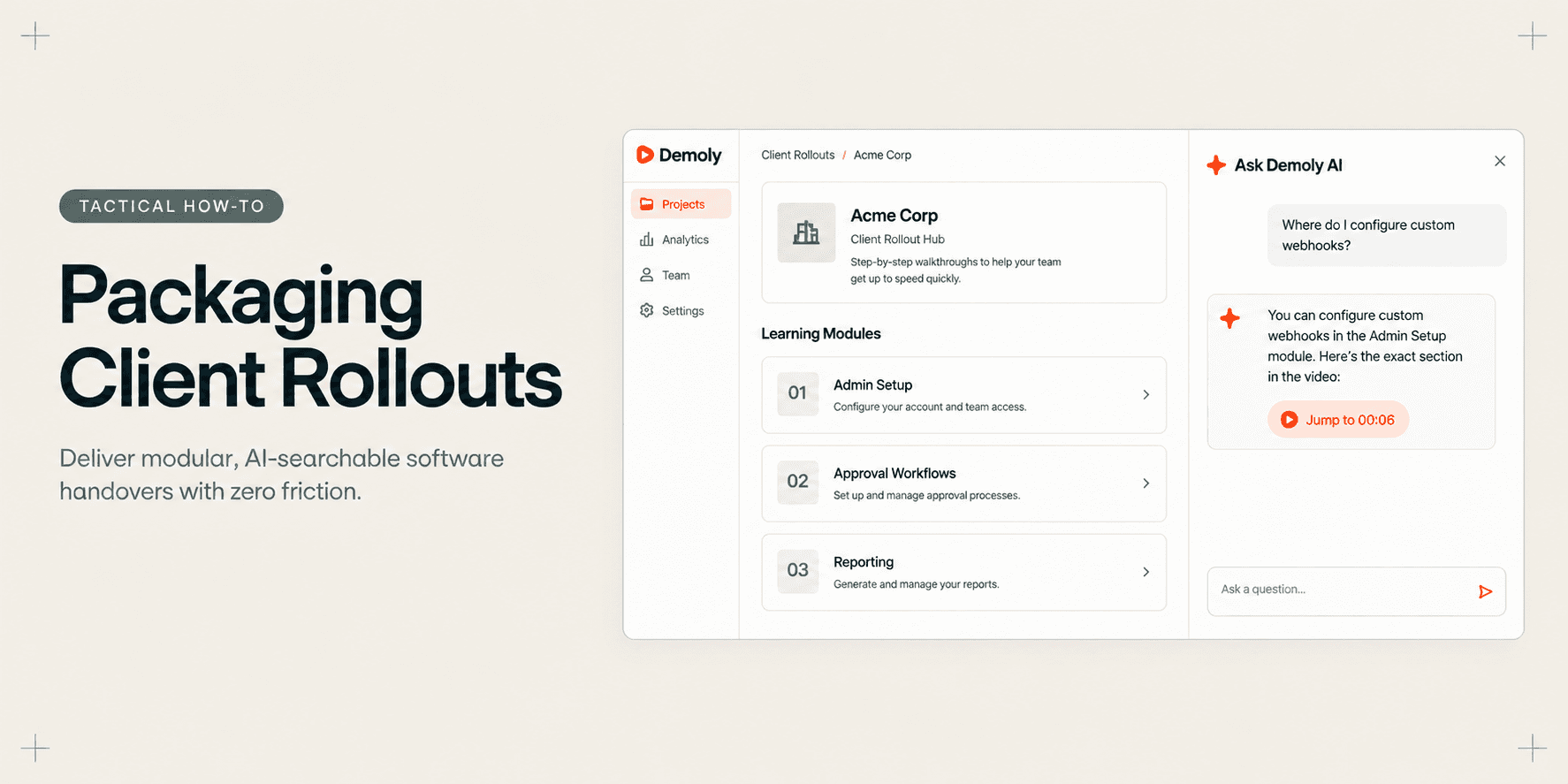
How Implementation Consultants Package a Rollout for a New Client
Learn how enterprise implementation consultants package software rollouts into modular, AI-searchable walkthroughs that eliminate post-go-live hypercare calls.
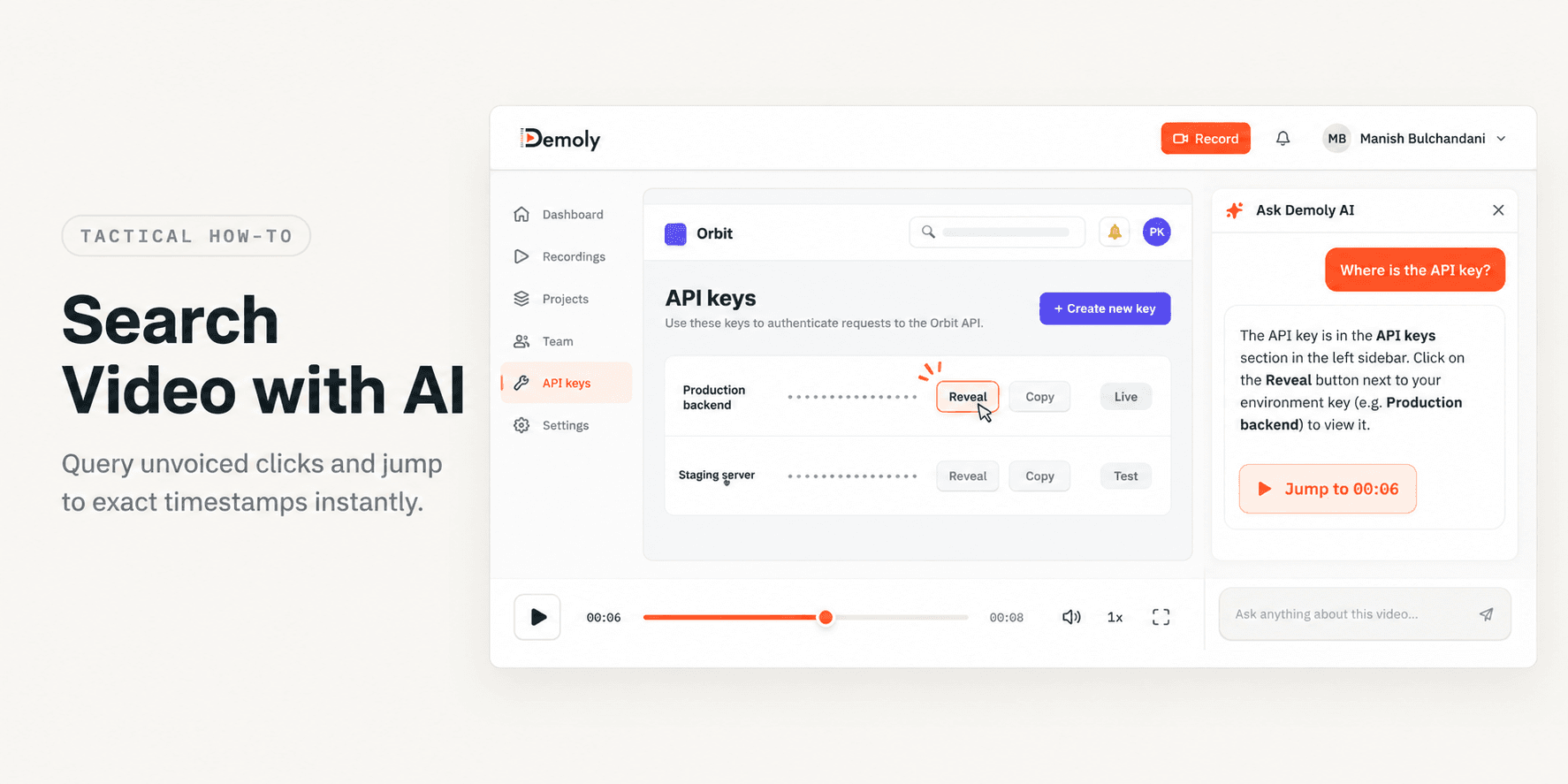
How to Search Inside a Video Recording Using AI
Learn how to search inside video recordings using conversational AI. Query spoken words, unvoiced clicks, and on-screen UI elements to jump directly to exact timestamps.
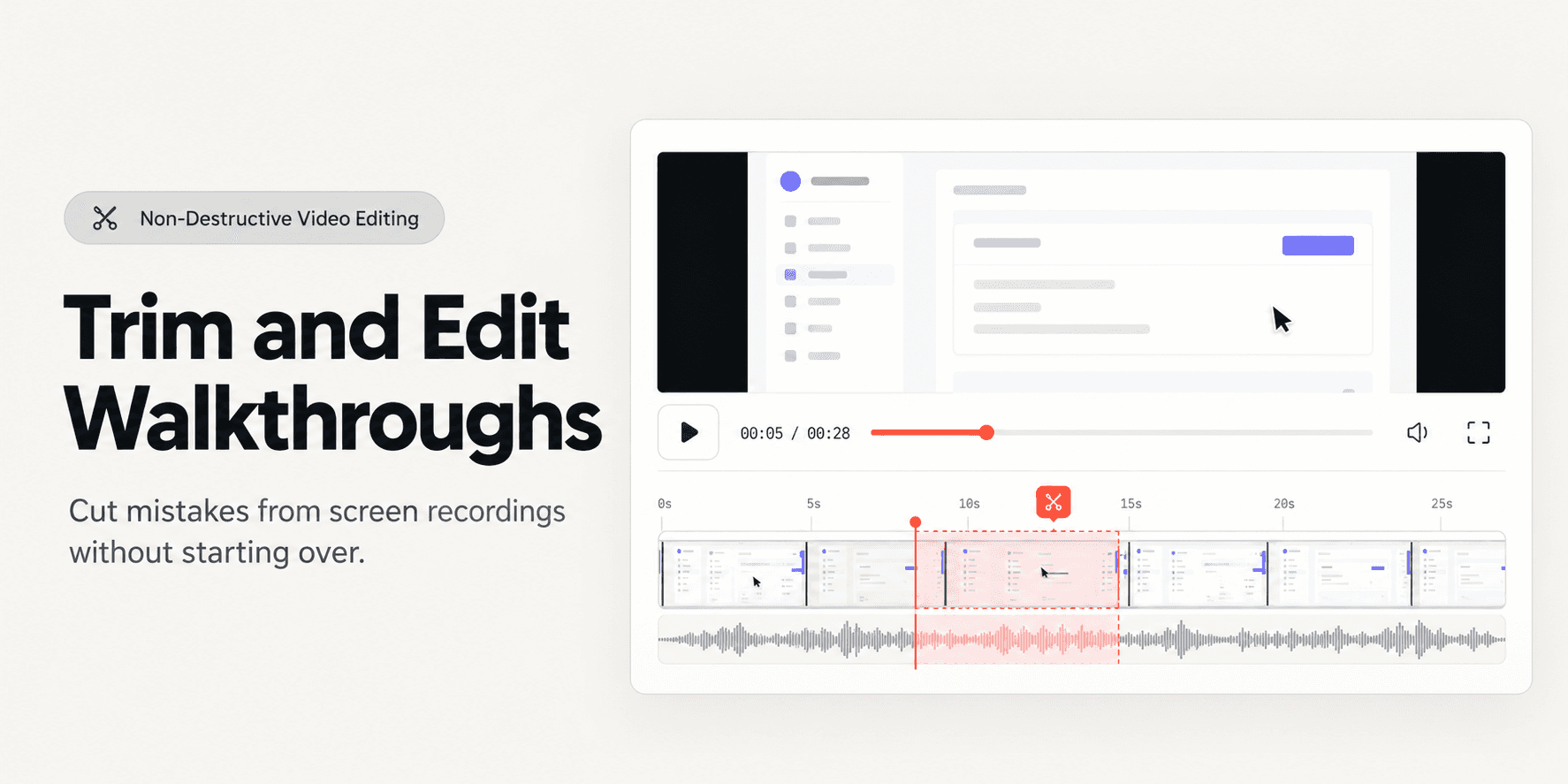
How to Trim and Edit a Walkthrough Video Without Re-Recording
Learn how to trim pauses, cut mistakes from the middle of a walkthrough, and edit screen recordings in your browser without re-recording or breaking share links.
Try Demoly for your team
Create branchable, interactive demo recordings and deliverables in minutes with zero friction.