How to Search Inside a Video Recording Using AI
Learn how to search inside video recordings using conversational AI. Query spoken words, unvoiced clicks, and on-screen UI elements to jump directly to exact timestamps.
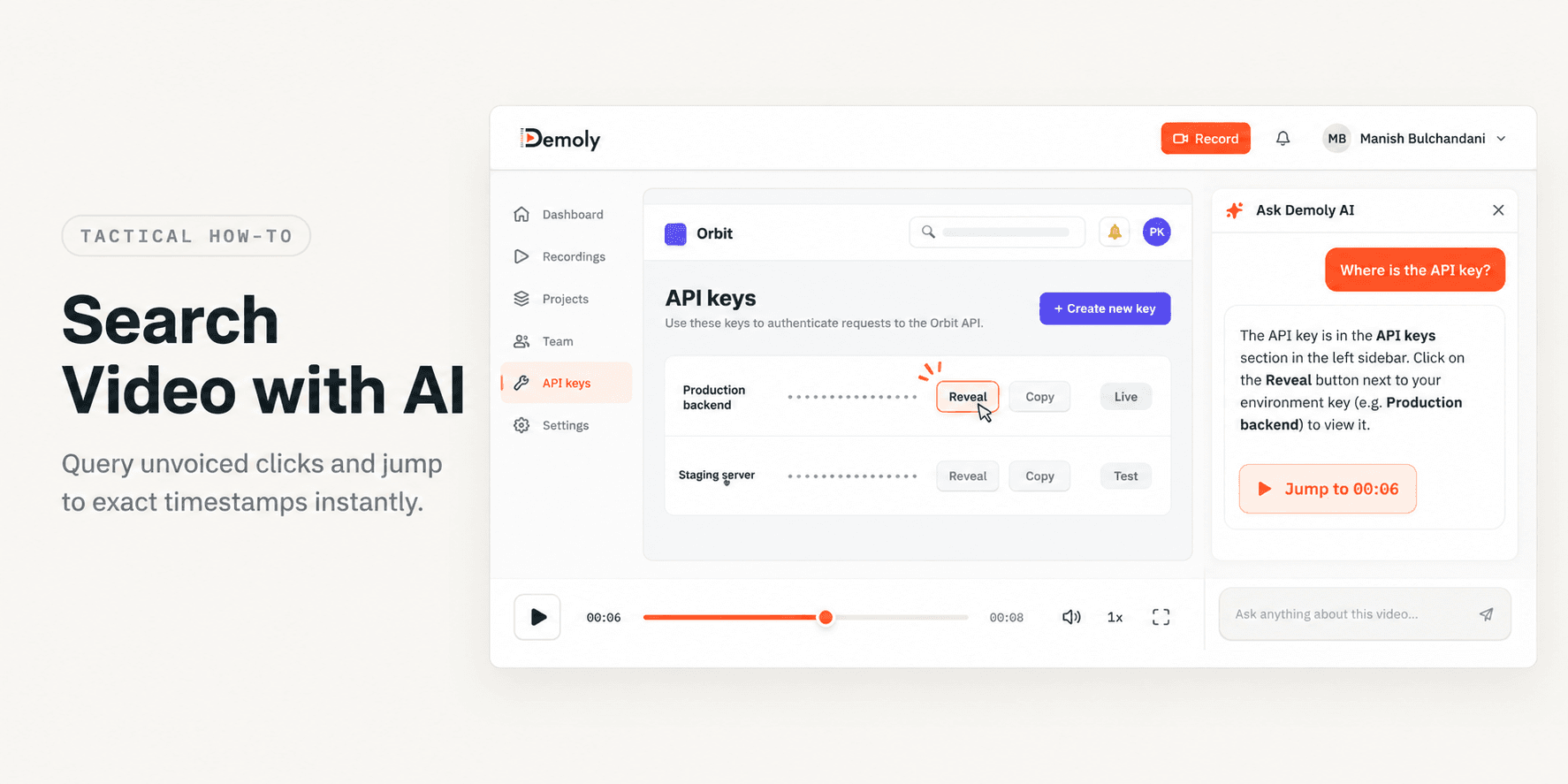
How to Search Inside a Video Recording Using AI
Hunting through a 15-minute product walkthrough to find a single settings toggle or API configuration wastes valuable time. Traditional video players force viewers to scrub blindly across an unstructured timeline, guessing where an action occurred.
This guide shows you how to search inside an interactive video recording using conversational AI. By following these steps, you will learn how to query spoken words, unvoiced button clicks, and visible screen elements to jump directly to the exact second an action occurs.
Quick Steps:
- Open the recording link: Launch the walkthrough URL in any modern web browser without logging in.
- Access the AI search drawer: Click the Ask Demoly AI tab in the right-hand panel of the player.
- Submit a conversational query: Type a specific question or exact interface keyword into the prompt field.
- Review timestamp citations: Inspect the returned answer summary and generated jump chips.
- Jump to the exact second: Click the timestamp citation to move the playhead directly to the relevant action.
Before You Start
- Active Demoly walkthrough URL: Ensure you have the link to an AI-indexed recording created in Demoly. For creators setting up recordings, follow our guide on how to record a web app walkthrough your client can actually search.
- Modern web browser: Open the video link in Chrome, Safari, Edge, or Firefox. No software installation, browser extensions, or recipient logins are required.
Step 1: Open the Video Link in Your Web Browser
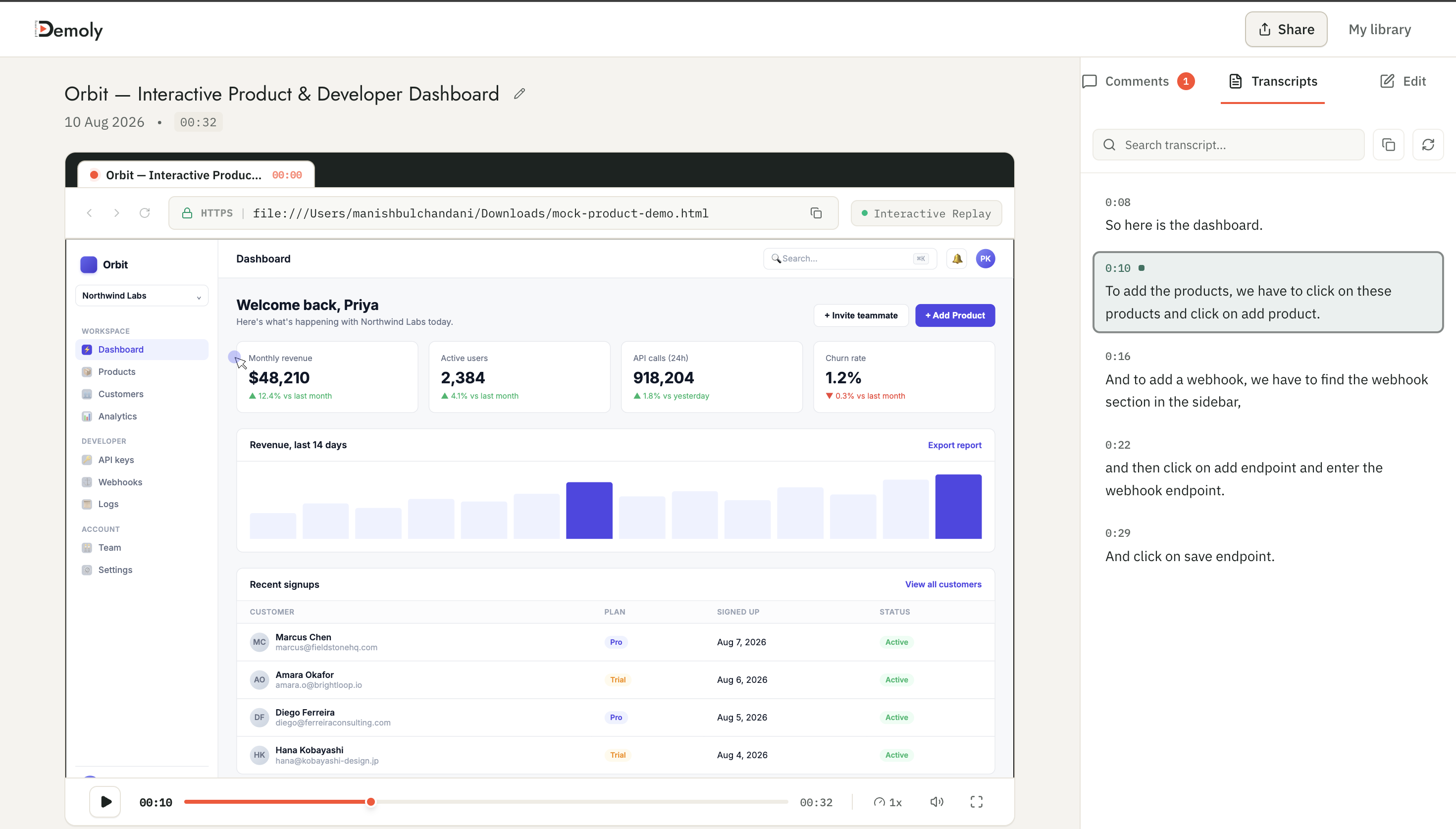
Paste the walkthrough link into your browser address bar. The recording loads directly inside Demoly's interactive web player.
Because Demoly uses zero-login viewer sharing, you do not need an account, workspace invitation, or password to access the recording. The playback window displays the video canvas on the left, an interactive navigation track below the video, and the communication drawer on the right.
Step 2: Open the Ask Demoly AI Search Drawer
Locate the Ask Demoly AI tab in the top-right corner of the player sidebar. Click the tab to expand the conversational search drawer.
The search drawer provides a natural language query interface linked directly to the video's indexed event stream. Rather than scanning a flat text transcript, this panel connects to an event engine that tracks both spoken words and on-screen interface actions.
Step 3: Enter Your Question or Search for Specific UI Elements
Click into the Ask or search anything input field at the bottom of the right-hand drawer. Type your query and press Enter.
You can query the recording using two distinct approaches:
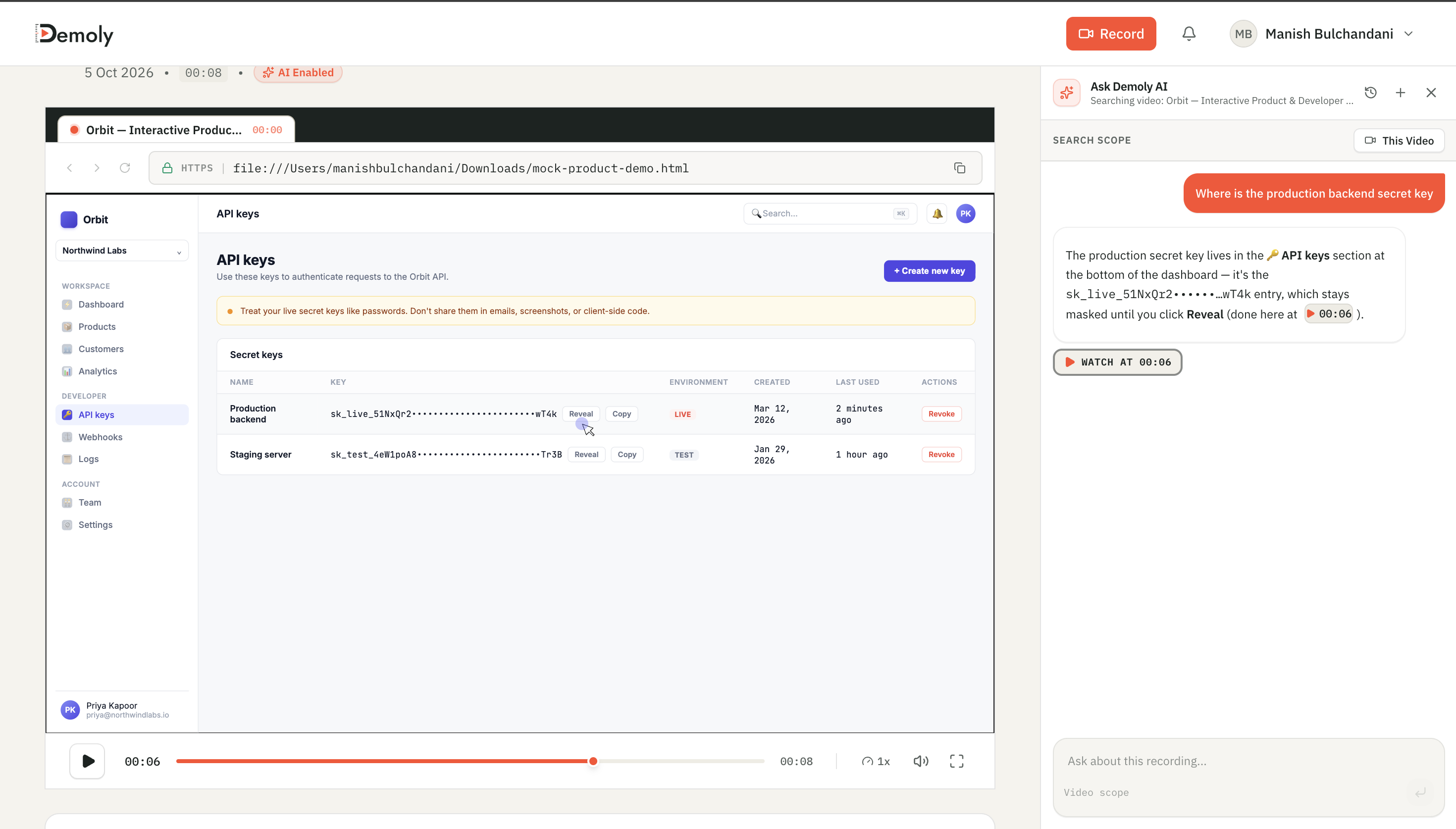
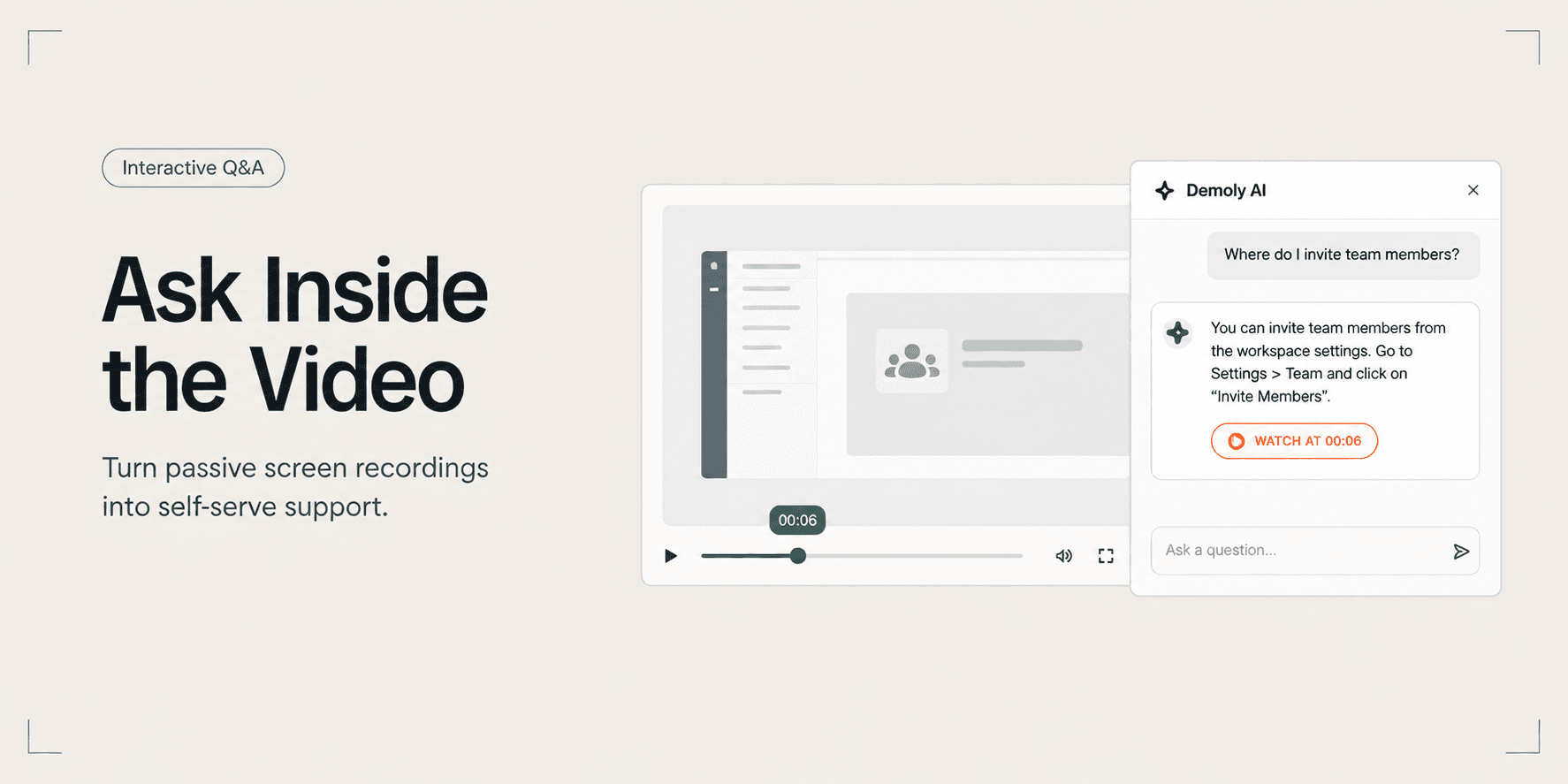
- Natural Language Questions: Ask conversational questions such as "Where do I find the production backend secret key?" or "How do I invite a new team member?" The AI evaluates the recording context to explain the step and cite where it occurs.
- Direct UI Keywords: Search for exact button labels, form fields, or settings names (for example, "Stripe Webhook," "Export CSV," or "Billing").
Unlike legacy players where search fails if a presenter clicks a button silently, Demoly detects on-screen interface elements. Understanding why transcript-only video search fails (and what fixes it) reveals why indexing visible elements is essential: presenters rarely read every button label aloud while demonstrating software.
Step 4: Click the Timestamp Citation to Jump Directly to the Action
Within two to three seconds, the drawer returns a concise conversational answer accompanied by an interactive timestamp citation chip (such as WATCH AT 00:06 or ▶ Jump to 02:14).
Click the timestamp chip. The video player immediately moves the playhead to that exact second on the timeline and initiates playback. You instantly see the cursor movement, the open modal, and the exact button click required to complete the task.
If a workflow spans multiple points in the recording, such as opening a configuration page and returning later to verify credentials, Demoly provides secondary timestamp citations beneath the primary answer.
Step 5: Ask Follow-Up Questions in the Active Session
Keep the conversation active in the search drawer if you need additional clarification on subsequent steps.
Demoly maintains conversational context throughout an active chat session. You can ask progressive follow-up questions like:
- "What button did the presenter click right after that?"
- "What permissions were selected in that dropdown?"
- "Was the webhook URL set to live or staging?"
The AI references the previous step in your conversation, evaluates the corresponding playback frames, and returns the next timestamp citation without requiring you to retype the initial query context.
How to Verify It Worked
To verify that your query returned the correct moment in the video:
- Click the provided timestamp chip in the search drawer.
- Confirm that the playhead jumps to the target timestamp and the video displays the specific button, form field, or settings view mentioned in your prompt.
- If the answer describes a multi-step sequence, let the video play for five seconds from the citation point to confirm that the on-screen action matches your query.
Important Notes & Edge Cases
- Spoken Dialogue vs. Unvoiced Visual Clicks: Demoly indexes both audio tracks and visual DOM interactions. If a presenter demonstrates a setting silently without saying a word, the AI still identifies the exact timestamp. To learn how this event capture differs from standard pixel recording, see our breakdown on DOM Capture vs Pixel Capture: Why It Changes What a Video Can Answer.
- Specific vs. Vague Queries: Formulating targeted questions yields the highest accuracy. Asking "Where is the monthly invoice export button in the billing tab?" returns a single precise timestamp chip, whereas asking "How do reports work?" returns multiple broad timeline markers.
- Redacted and Masked Fields: If the creator used Demoly's element-level redaction tool to mask sensitive passwords or API keys, those masked values cannot be revealed or unmasked via AI search prompts. The AI confirms the location of the field while maintaining data privacy.
Troubleshooting
- Problem: The AI search drawer returns multiple timestamps instead of a single jump point.
Fix: The feature or setting was shown or discussed at multiple points during the demonstration. Rephrase your query with additional context (for example, specify "the initial setup modal" instead of just "the modal").
- Problem: The query returns a low confidence message stating the action could not be found.
Fix: Check that the action was performed within the active recording. If the walkthrough was recorded silently and relies on intricate nested menus, try querying the exact visible text of the button or header rather than an abstract concept.
- Problem: The player does not jump when clicking the timestamp.
Fix: Refresh your browser tab. Ensure your browser is not blocking active JavaScript execution on the Demoly playback domain.
Practical Next Steps
Searching inside video walkthroughs eliminates the friction of scrubbing through long screen recordings or scheduling follow-up meetings to locate basic settings. Demoly provides full recording, automated UI indexing, and zero-login link sharing on its free plan ($0 forever, no credit card required).
Frequently asked questions
Commonly asked questions about this article.
01•Do viewers need an account to search inside a Demoly video?
No. Anyone with a public Demoly link can open the recording, watch the video, and use the AI search drawer in any browser without signing up or logging in.
02•Can the AI find a button if the presenter never said its name aloud?
Yes. Demoly indexes visible on-screen interface text and click interactions alongside speech audio, allowing viewers to locate unvoiced buttons, input fields, and menu options.
03•What languages can I use to search inside a video?
The AI search engine is currently optimized for English queries and transcripts. Support for additional languages is on the product roadmap.
04•Can I ask questions across multiple videos in a folder?
Yes. If you have access to a shared project folder or workspace, Demoly's AI search can evaluate all walkthroughs in that collection simultaneously to locate relevant answers.
05•How accurate are the timestamp citations provided by the AI?
Demoly provides timestamp citations with 80% to 85% baseline precision, jumping viewers within a two-second window of the exact click or spoken explanation.
Demoly Team
Contributor
Related Dispatches
View all dispatches →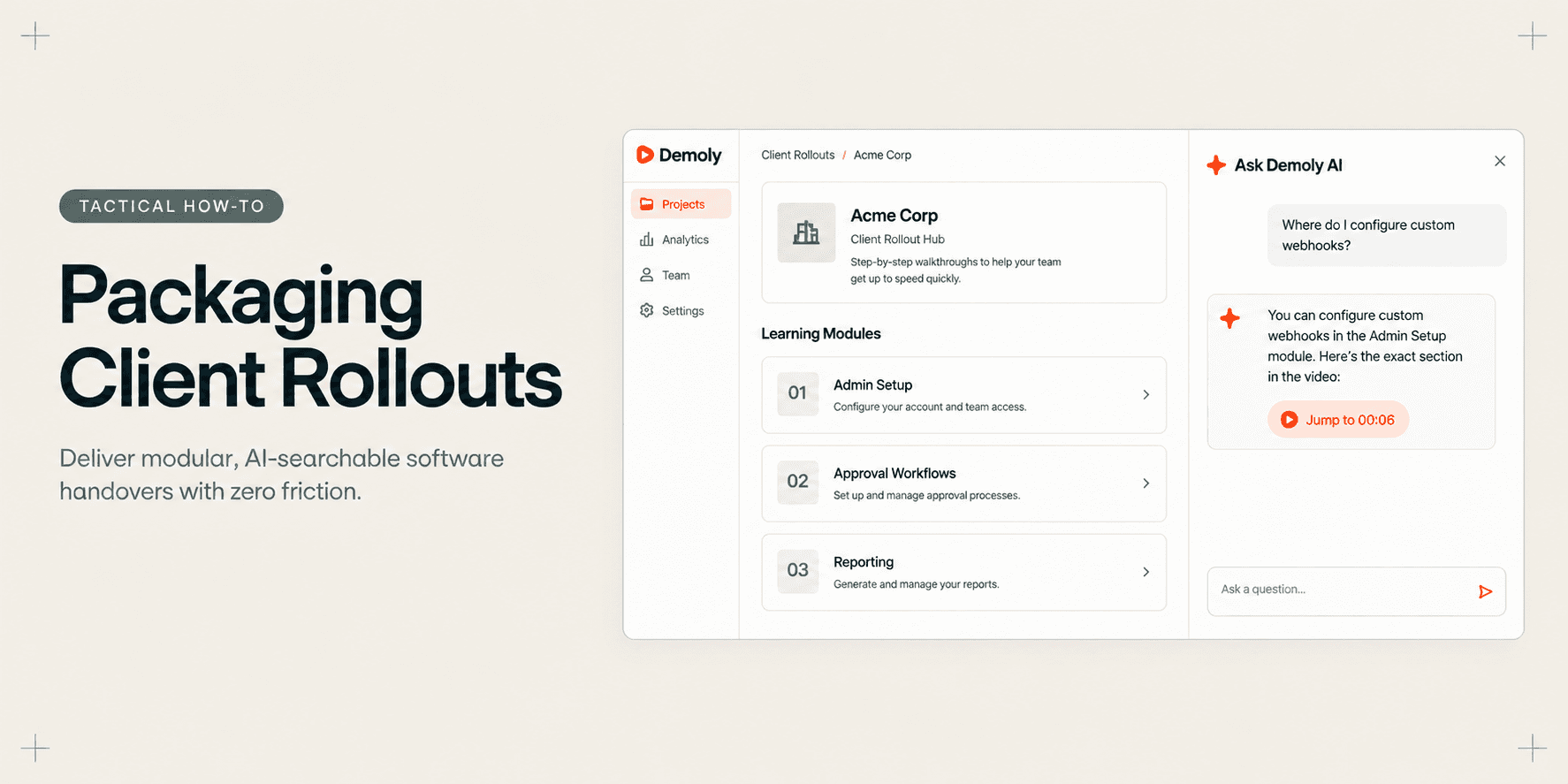
How Implementation Consultants Package a Rollout for a New Client
Learn how enterprise implementation consultants package software rollouts into modular, AI-searchable walkthroughs that eliminate post-go-live hypercare calls.
How to Let Clients Ask Questions Inside a Video Walkthrough
Learn how to turn static screen recordings into self-serve support hubs where clients can query features, locate settings, and jump directly to exact timestamps.
How to Trim and Edit a Walkthrough Video Without Re-Recording
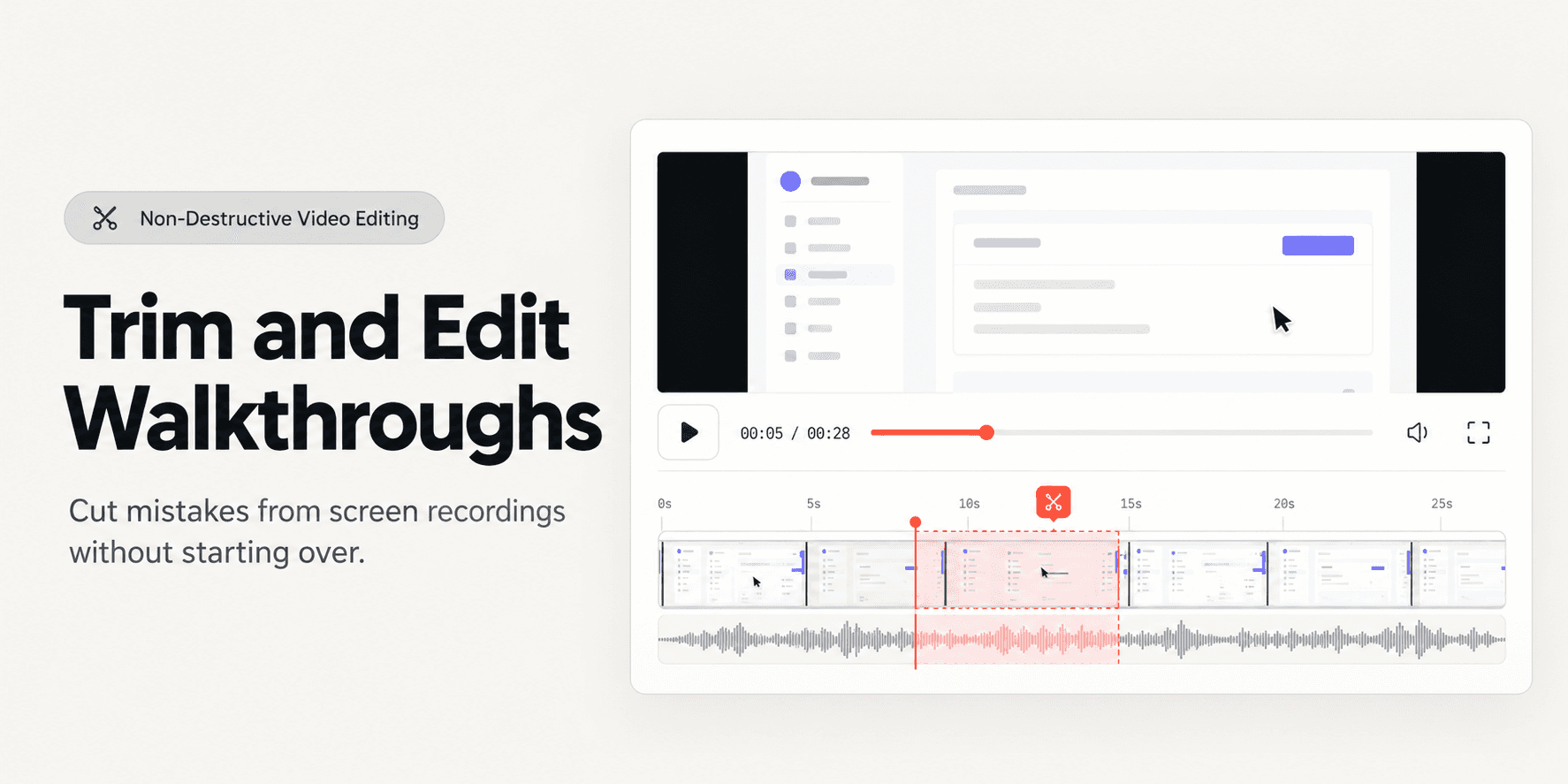
Learn how to trim pauses, cut mistakes from the middle of a walkthrough, and edit screen recordings in your browser without re-recording or breaking share links.
Try Demoly for your team
Create branchable, interactive demo recordings and deliverables in minutes with zero friction.