How Implementation Consultants Package a Rollout for a New Client
Learn how enterprise implementation consultants package software rollouts into modular, AI-searchable walkthroughs that eliminate post-go-live hypercare calls.
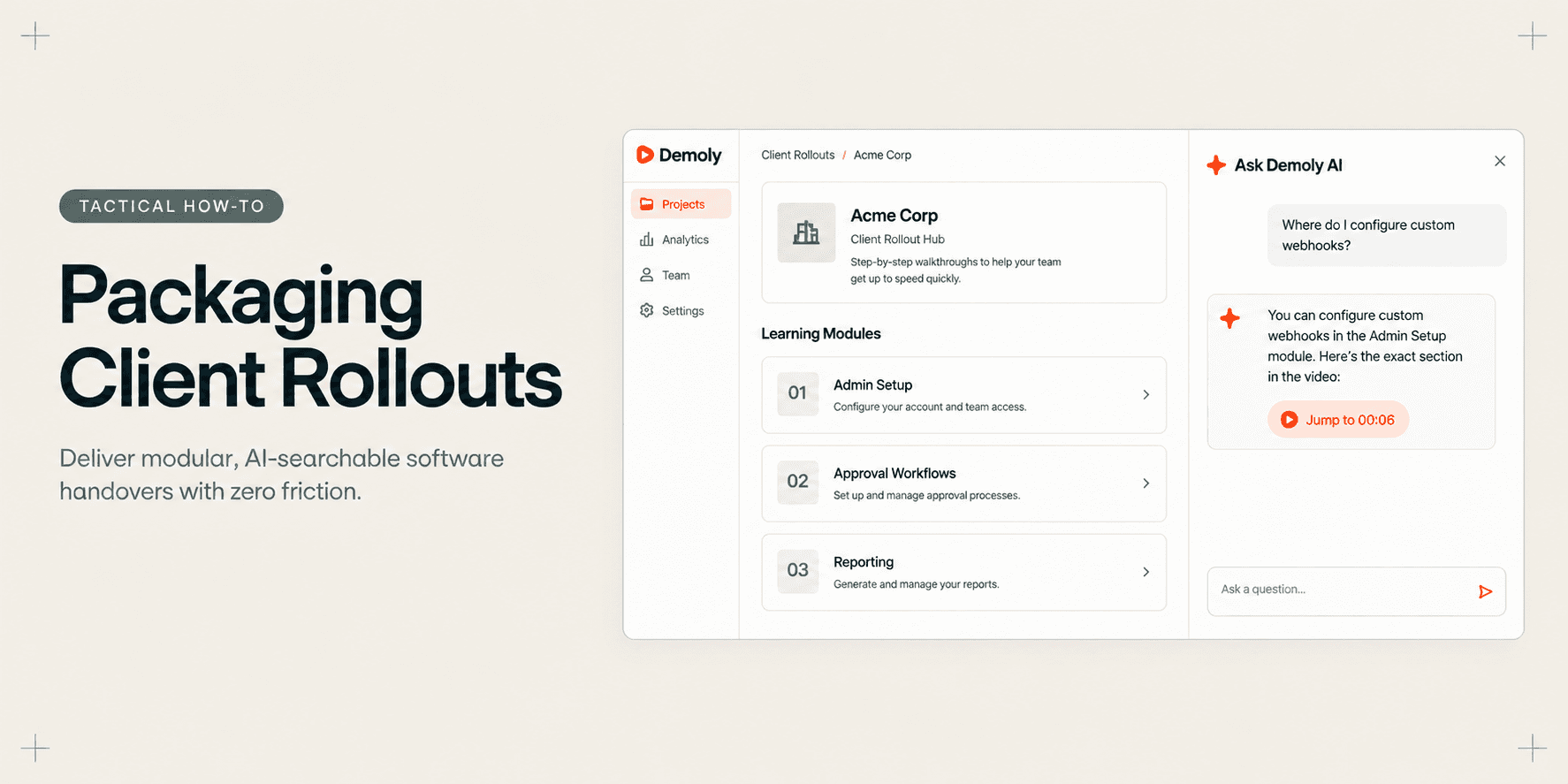
How Implementation Consultants Package a Rollout for a New Client
When enterprise implementation consultants deploy a new web application, ERP module, or custom software platform, the go-live date is rarely the hardest milestone. The real operational friction begins the following morning. End users across the client organization flood email inboxes, submit ad-hoc tickets, and demand 15-minute clarification calls for tasks already covered during multi-hour training webinars.
Packaging a software rollout should not mean handing over a 40-page static PDF that nobody reads or dumping twenty disconnected, 30-minute video recordings into a shared drive. Unstructured screen recordings force client team members to hunt through scrub bars to locate a single settings toggle, while traditional screen recording tools charge monthly seat licenses simply to let viewers watch.
This guide provides a tactical, step-by-step framework for implementation consultants to structure, record, redact, and package a self-serve software rollout. By combining modular task recordings, permanent canvas redaction, and AI-indexed visual search, you can deliver an interactive rollout package that empowers client teams to resolve operational questions immediately without scheduling follow-up meetings.
Quick Steps:
- Architect the rollout curriculum: Group recordings into discrete 2-to-4 minute functional modules mapped directly to specific client user roles.
- Initialize a client rollout workspace: Create a dedicated project repository in Demoly to house all role-specific walkthroughs under a unified namespace.
- Capture focused browser workflows: Record each business procedure inside the web application using tab capture, capturing both spoken commentary and on-screen DOM actions.
- Redact staging credentials and PII: Scrub API keys, client financial data, and personal records permanently at the video canvas layer.
- Publish zero-friction access links: Configure viewer permissions and distribute a clean, searchable rollout portal without forcing client stakeholders to create user accounts.
Before You Start
Before recording your client rollout curriculum, complete three operational prerequisites:
- Finalize your role-based module syllabus: Map out the exact procedural tasks required for each department (e.g., System Administrators, Team Leads, Everyday Operators) before hitting record.
- Prepare a sanitized demonstration tenant: Ensure you have access to a clean staging organization or pre-seeded sandbox workspace containing realistic mock data rather than live production secrets.
- Install the Demoly Chrome extension: Verify that your browser has the Demoly extension pinned and that microphone permissions are authorized for clear voiceover guidance.
Step 1: Structure the Rollout Curriculum by Operational Role
The most common failure mode in software implementations is recording a monolithic, 45-minute "all-hands" video walkthrough. When an accounts payable clerk needs to verify how to approve an expense report, they will not scrub through 35 minutes of database configuration to find the step.
Divide your client rollout into targeted, modular tracks:
- Track 1: System Administrators & IT Governance: User provisioning, role-based access controls (RBAC), SSO integration, webhook configurations, and audit logging.
- Track 2: Operational Managers & Team Leads: Approval workflows, queue reassignments, exception reporting, and team performance dashboards.
- Track 3: Day-to-Day End Users: Standard entity creation, batch imports, search filtering, and common keyboard shortcuts.
Keeping each module strictly between two and four minutes ensures high comprehension and makes future workflow updates frictionless when the software changes. For a deeper breakdown of deliverable structuring, consult our guide on How to Structure a Project Handover Package Clients Will Actually Use.
Step 2: Initialize a Dedicated Client Project Repository
To prevent rollout assets from scattering across disparate shared folders or email threads, organize all modules inside a structured workspace project.
- Navigate to your Demoly workspace dashboard.
- Click Create Project in the upper-right corner.
- Assign a standardized naming convention containing the client organization name, platform version, and rollout phase (for example:
Acme Corp - Enterprise ERP Rollout v2.4). - Select the target workspace and confirm creation.
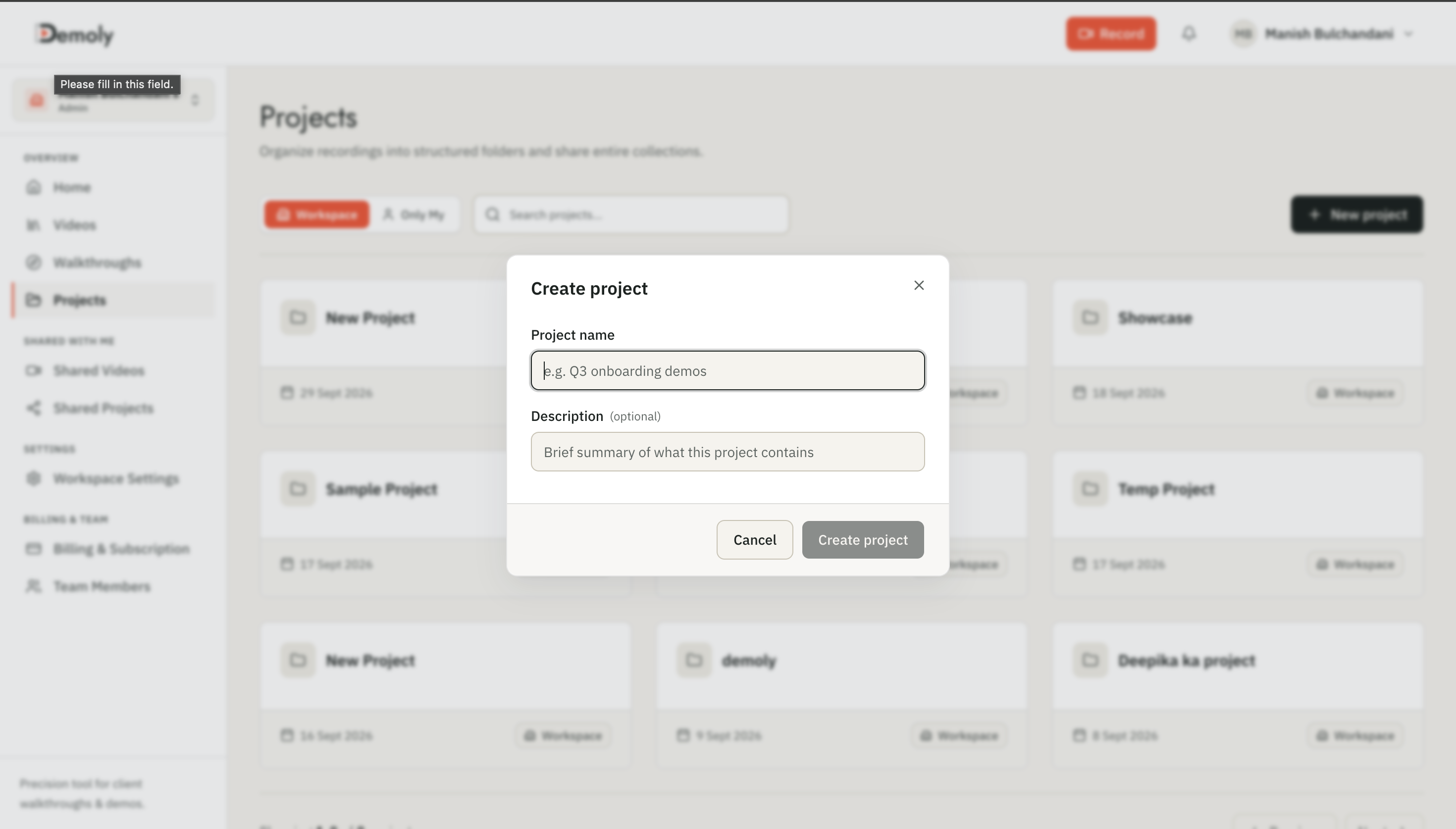
This project folder serves as the central administrative hub where you can manage versioned updates, monitor client interaction metrics, and organize distinct track sub-modules.
Step 3: Record Procedural Modules with DOM and Audio Indexing
Open the target web application in your browser and prepare to record your first operational procedure:
- Click the Demoly icon in the browser extension bar to launch the recording drawer.
- Select Current Tab to confine the recording boundary strictly to the web application viewport, preventing external desktop notifications or extraneous tabs from appearing on screen.
- Ensure microphone audio is toggled on if you are providing spoken guidance.
- Click Start Recording. A clean 3-second countdown will initiate before capture starts.
- Execute the specific software workflow at a deliberate, steady pace. Click navigation menus, expand accordion drawers, input sample data, and highlight confirmation modals.
You do not need to narrate every field label or button name out loud. Demoly automatically captures the Document Object Model (DOM) and visual interface states alongside your voice. If you click a nested button labeled "Reassign Approval Tier" without speaking the phrase, the visual element remains fully indexed and searchable to the client later.
Once the procedure is complete, click the green checkmark on the floating recording control bar to stop the capture session.
Step 4: Redact Sensitive Credentials and Client Tenant Data
Enterprise software demonstrations frequently require navigating past integration keys, webhook endpoints, or sensitive tenant account details. Leaving raw credentials visible creates severe compliance liabilities, while re-recording entire demonstrations wastes hours of consulting capacity.
Clean the recorded asset directly within Demoly's in-browser editor:
- Open the recorded walkthrough in the Demoly timeline workspace.
- Scrub to the frame where sensitive credentials, internal email addresses, or API keys appear.
- Select the Redact / Blur tool from the left-hand editing toolbar.
- Drag a bounding box over the sensitive interface region. Adjust the duration handles along the bottom timeline track to match the exact duration the element remains in view.
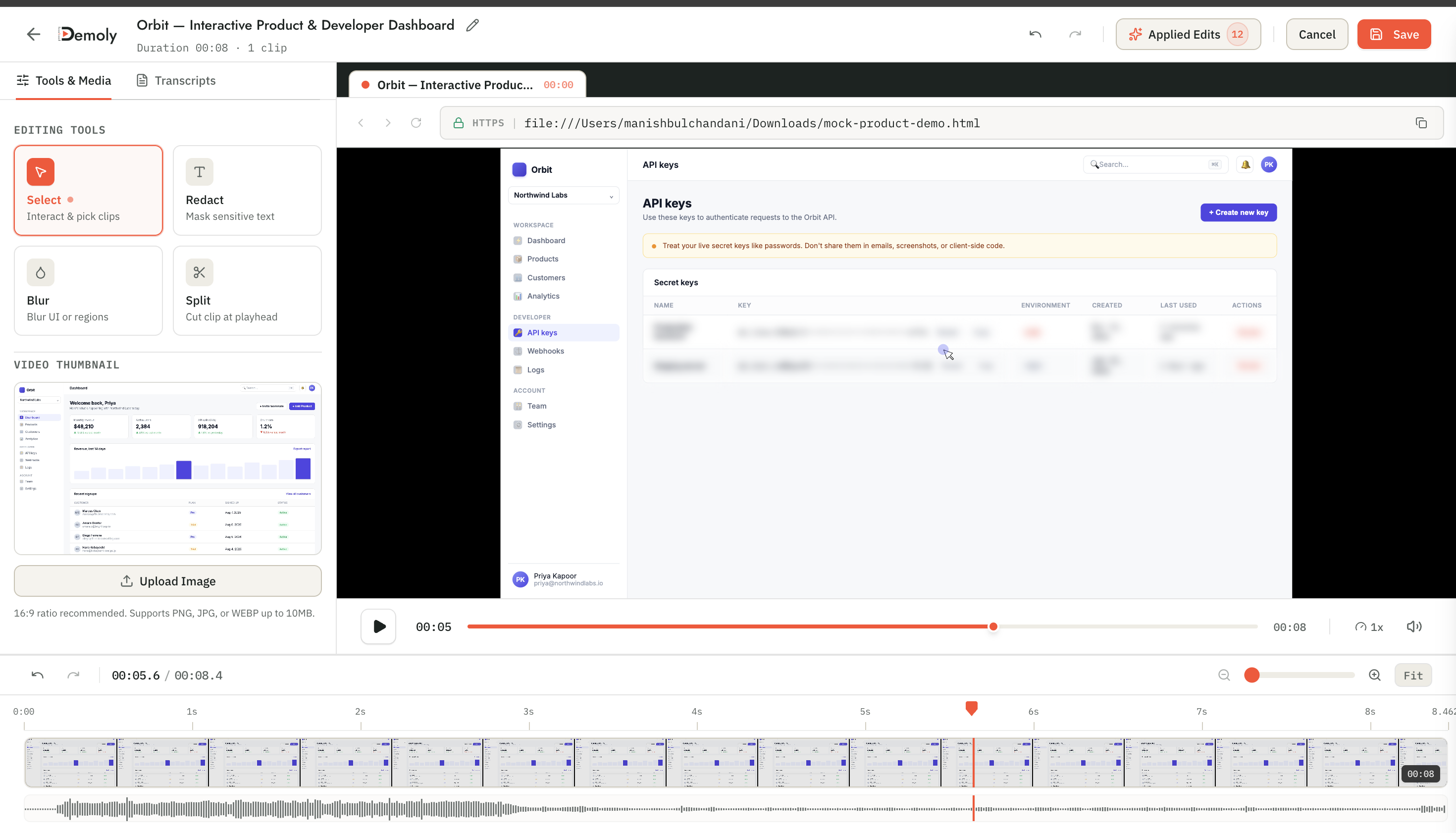
Demoly burns the redaction overlay directly into the canvas video layer. Unlike superficial client-side CSS blurs used in web prototypes, this process permanently excises the underlying data, ensuring client IT auditors cannot inspect elements or recover secrets from browser developer tools. For a comprehensive operational review of demo security, review The Complete Client Handover Checklist for Web Agencies.
Step 5: Test Natural Language Retrieval in the Interactive Player
Before distributing the rollout package to client executives, verify that end users can search the recording using natural conversational queries:
- Open the preview view in the Demoly editor.
- Expand the Ask Demoly AI drawer along the right side of the video player.
- Submit a typical practitioner query that an end user would ask (for example: "Where do I configure custom webhook endpoints?").
- Verify that the AI engine processes both the visual DOM elements and the spoken transcript to return a precise textual summary paired with a clickable timestamp citation chip (
WATCH AT 00:06). - Click the timestamp citation to confirm that the video scrubber jumps directly to the exact frame where the action occurs.
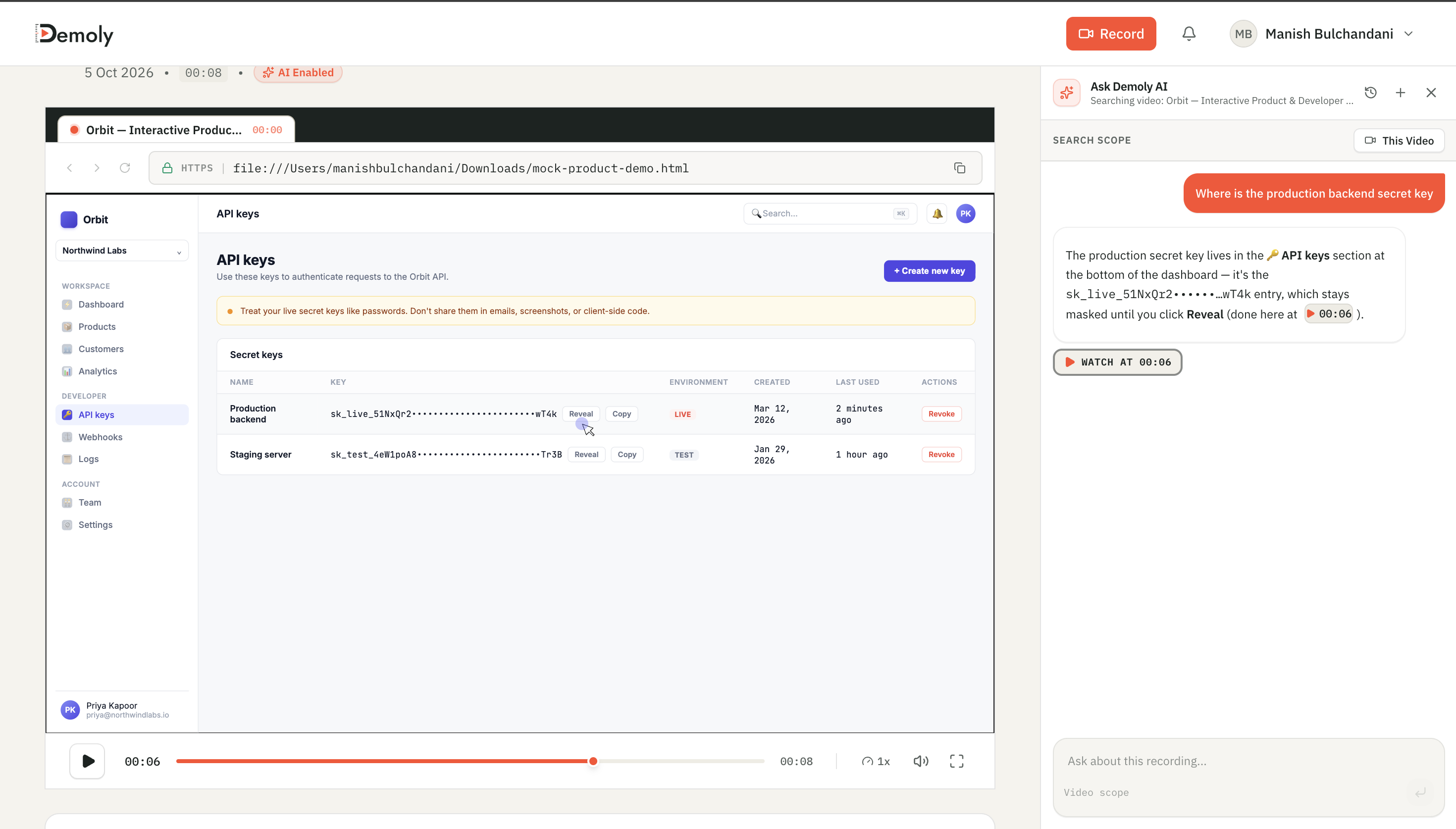
This conversational visual search capability is what prevents client teams from escalating support requests. When users can query the video like an on-demand colleague, they get instant answers without scheduling meetings.
Step 6: Configure Permissions and Publish the Rollout Portal
Distribute the finalized rollout package with zero friction for external stakeholders:
- Click the Share button located in the top-right navigation bar of the project workspace.
- Toggle the access setting to Public Link or Workspace Viewer.
- Set the global viewer permissions to Viewer Only to ensure external stakeholders can watch, search, and leave element-pinned feedback without editing source footage or timeline cuts.
- Click Copy Link.
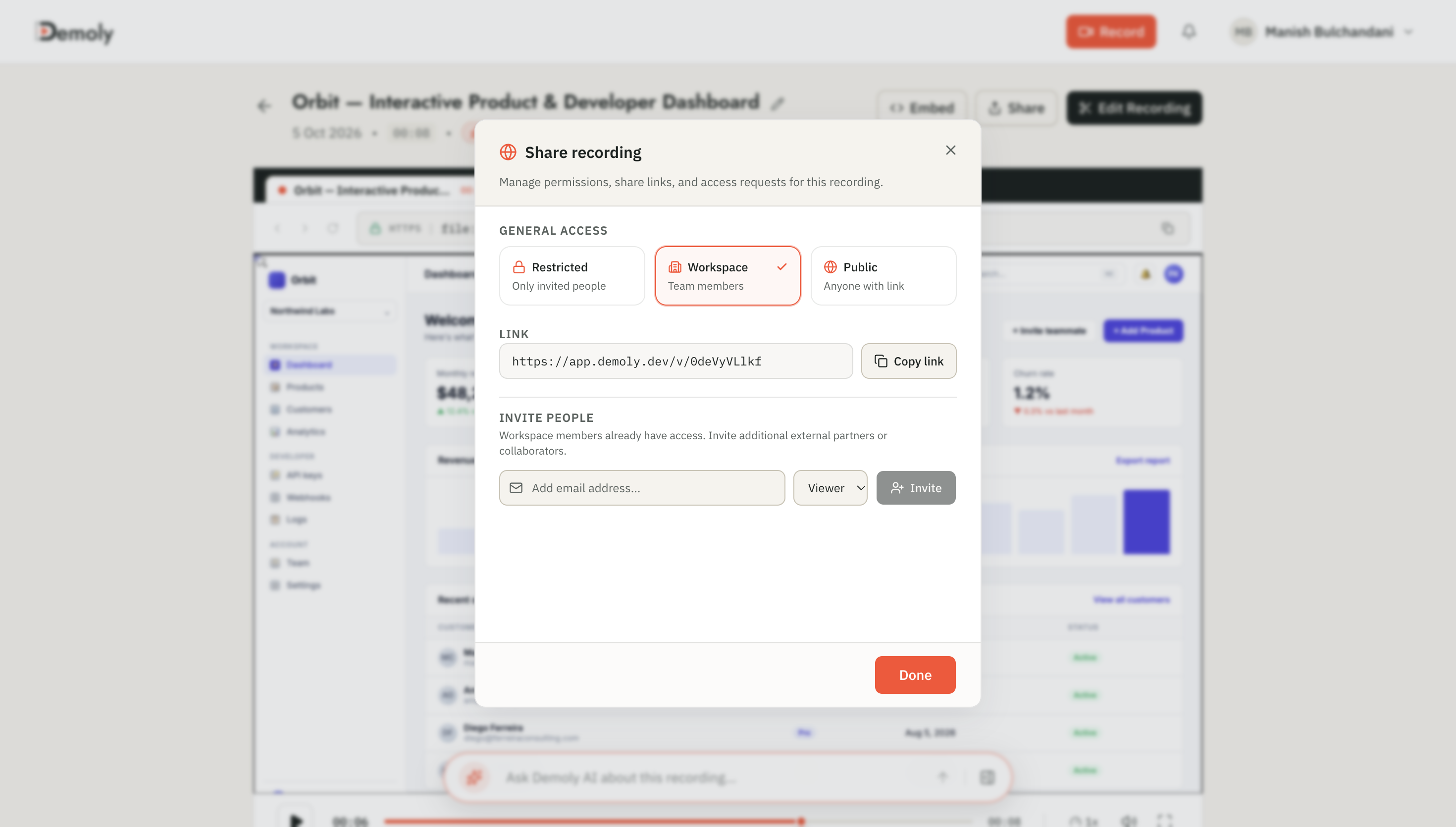
Distribute this centralized link in your formal rollout handover documentation, executive email briefing, or enterprise learning management system (LMS).
How to Verify It Worked
To ensure your client will have a seamless, frictionless onboarding experience:
- Open a fresh private or incognito browser window.
- Paste the copied Demoly project share link into the navigation bar.
- Confirm that the video player and curriculum module tree load instantly without presenting a login prompt, account creation gate, or software download barrier.
- Execute a sample query in the search bar (such as "approve invoice") and ensure the interactive timeline updates with exact timestamp jump points.
Rollout Delivery Comparison: Traditional Handovers vs. Demoly
Handover Dimension | Traditional Screen Recorders (Loom / Drive) | Static Written SOPs (Scribe / Tango / PDFs) | Demoly Interactive Rollout Package |
|---|---|---|---|
Search Mechanism | Spoken audio transcript only (misses unvoiced UI clicks) | Text-only keyword search across static screenshots | Multimodal DOM and spoken audio indexing via conversational AI |
Client Access Barrier | Requires client accounts; subject to viewer seat taxes | Requires downloading large PDF files or third-party web apps | Zero-login instant web playback with full interactive search |
Data Redaction | Requires external video editors (Premiere) or re-recording | Manual screenshot blur tools in document editors | In-browser canvas redaction burned permanently into video layer |
Client Feedback | Disconnected emails, Slack pings, or scheduling calls | Commenting in documentation software silos | Direct element-anchored comment pins ( |
Hypercare Maintenance | 4–6 hours/week answering repeat client questions on live calls | High maintenance overhead when minor UI updates occur | Self-serve conversational AI resolves user queries autonomously |
Important Notes & Edge Cases
- Zero-Seat Licensing for Clients: Traditional video recording platforms charge per-seat monthly subscription fees for team viewers. Demoly does not impose seat taxes on external client viewers. Clients can distribute the rollout links across hundreds of internal enterprise staff without incurring licensing overhead.
- Element-Anchored Comment Pins for UAT: During post-rollout User Acceptance Testing (UAT), encourage client department leads to use Demoly's element-anchored comment pins (
🎯). Rather than typing ambiguous emails like "The button on the top right isn't working," clients can click directly on the malfunctioning UI component in the video to anchor their question to that exact DOM node and timestamp. - Handling Mid-Rollout Feature Updates: If the client requests an updated configuration workflow two weeks after go-live, you do not need to re-record the entire curriculum. Simply record a replacement 3-minute module, drop it into the existing Demoly project folder, and the master client rollout link will automatically reflect the updated documentation.
Troubleshooting Common Implementation Handover Issues
- Problem: Client users report that the video player prompts them to authenticate.
Fix: Open the project workspace in Demoly, click Share, and verify that the link permission is set to Anyone with the link can view. Ensure that restricted team-only domain filters are disabled for external client handoffs.
- Problem: The AI search drawer misses a specific menu item that was opened during the recording.
Fix: When demonstrating flyout menus, hover states, or modal drawers, ensure the interface element remains open on screen for at least one full second. This provides the DOM capture engine sufficient time to map the layout hierarchy into the searchable vector index.
- Problem: A staging API secret was accidentally revealed on screen during capture.
Fix: Open the walkthrough in the Demoly web editor, scrub the playhead to the timestamp where the secret is visible, apply the Redact tool, and resize the bounding box over the credentials. The masking is applied non-destructively to the playback canvas without requiring you to re-record the module.
Conclusion
Packaging an enterprise software rollout does not require weeks of drafting static manuals or months of repetitive hypercare calls. By breaking your implementation curriculum into targeted, role-based walkthroughs and delivering them through an AI-searchable player, you give client teams an on-demand operational knowledge base that answers their questions at the exact moment of need.
Demoly equips implementation consultants with modular screen capture, permanent canvas redaction, and zero-login AI visual search on its free plan ($0 forever, no credit card required).
Frequently asked questions
Commonly asked questions about this article.
01•Do client employees need Demoly accounts to access the rollout package?
No. Client stakeholders and end users can open, watch, and search the entire rollout package in any web browser without creating an account or logging in.
02•How does Demoly find buttons or settings that weren't spoken out loud?
Demoly captures visual interface state transitions and Document Object Model (DOM) data during recording, enabling the AI search engine to index every button, input field, and navigation tab even during silent clicks.
03•Can we prevent client users from downloading raw video files?
Yes. Inside the Share settings modal, implementation consultants can toggle off MP4 downloads, ensuring that the training assets remain exclusively accessible within the secure, interactive web player.
04•What happens if our team updates a workflow after the rollout has been delivered?
You can record an updated 2-minute module and replace the older recording inside the Demoly project folder without changing the master share URL sent to the client.
05•How does Demoly protect client production data during demonstration recordings?
Demoly includes an in-browser canvas redaction tool that permanently excises sensitive credentials, PII, and API keys at the video rendering layer, preventing data extraction through browser developer tools.
Demoly Team
Contributor
Related Dispatches
View all dispatches →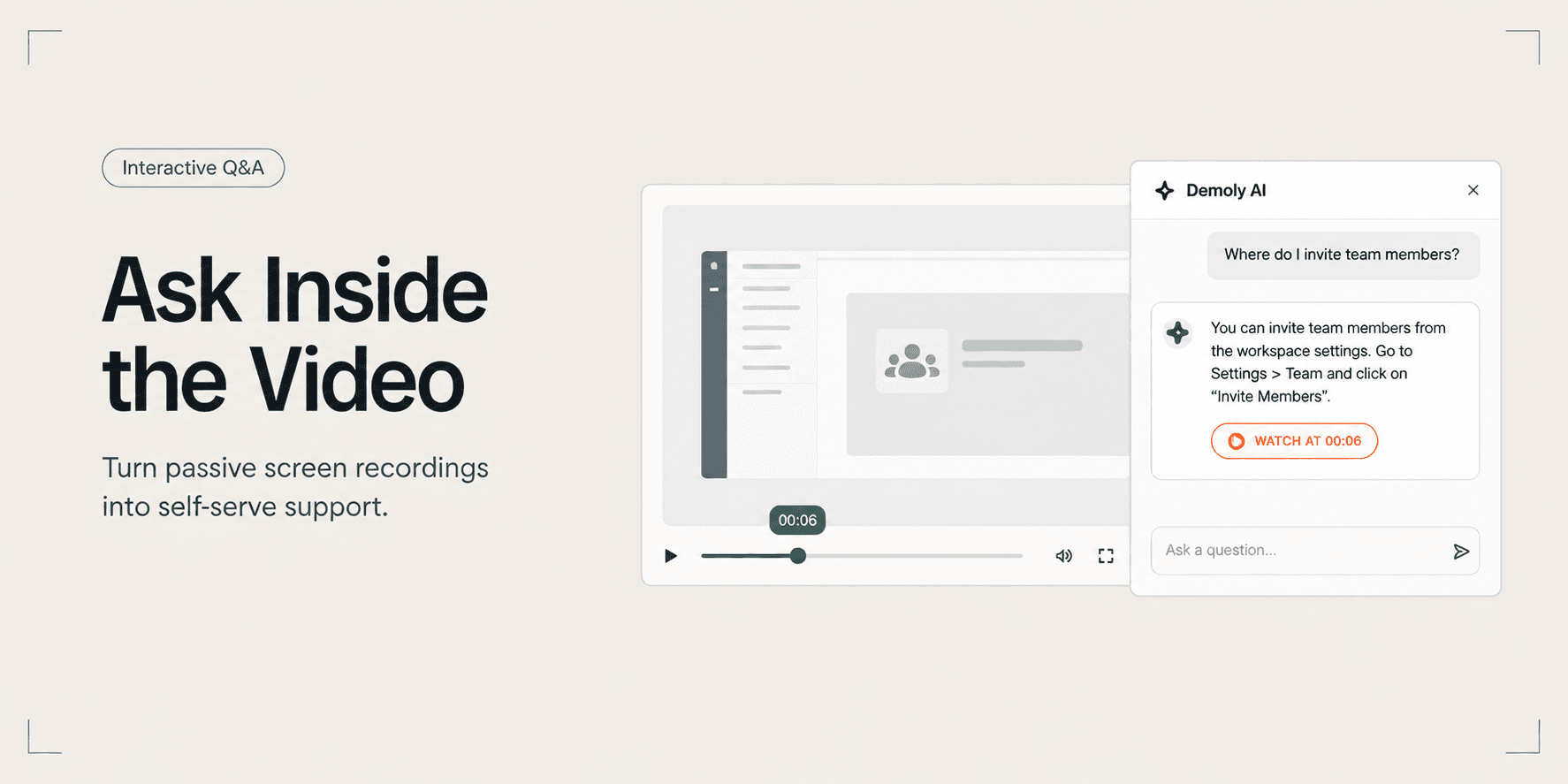
How to Let Clients Ask Questions Inside a Video Walkthrough
Learn how to turn static screen recordings into self-serve support hubs where clients can query features, locate settings, and jump directly to exact timestamps.
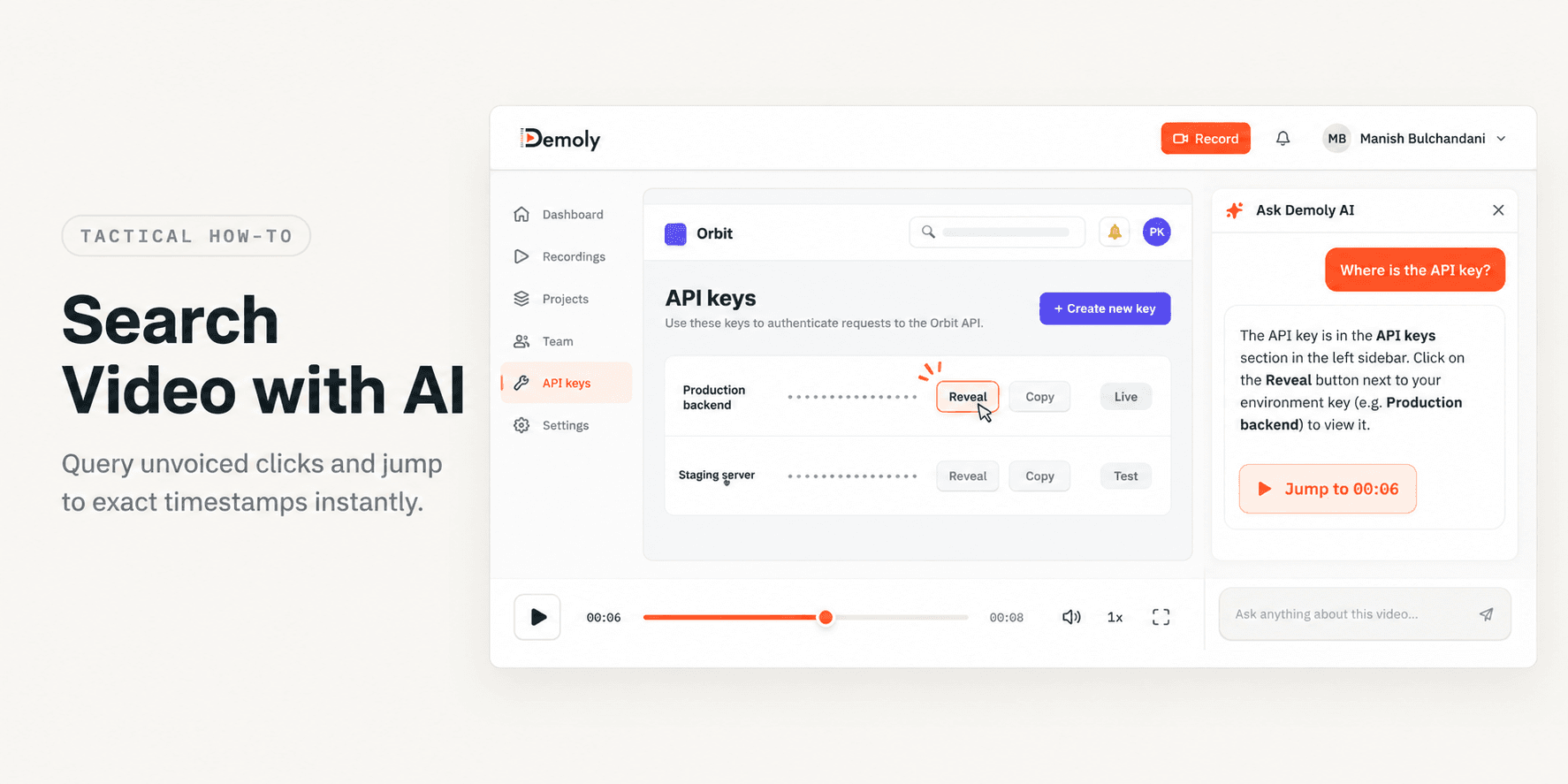
How to Search Inside a Video Recording Using AI
Learn how to search inside video recordings using conversational AI. Query spoken words, unvoiced clicks, and on-screen UI elements to jump directly to exact timestamps.
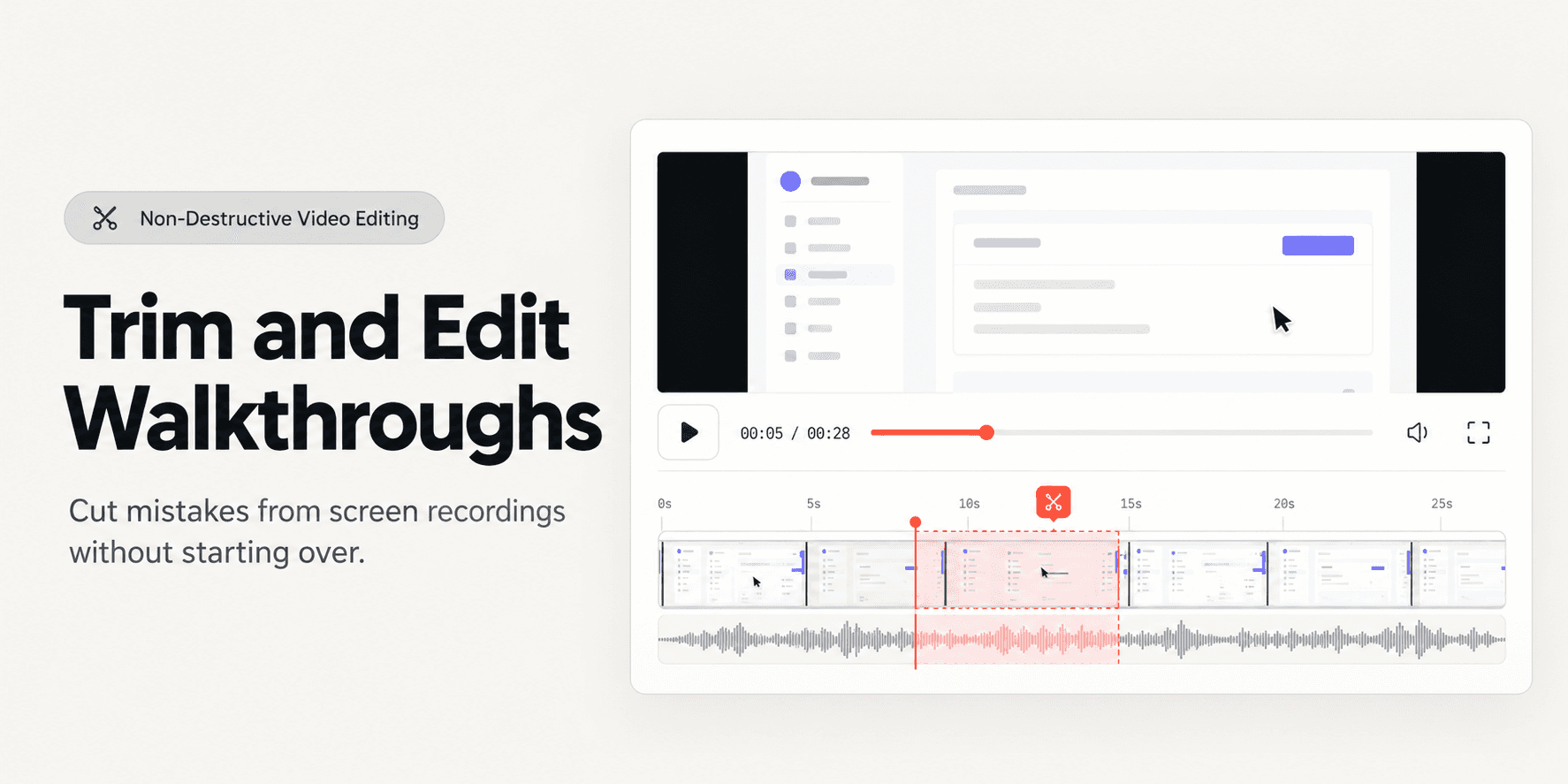
How to Trim and Edit a Walkthrough Video Without Re-Recording
Learn how to trim pauses, cut mistakes from the middle of a walkthrough, and edit screen recordings in your browser without re-recording or breaking share links.
Try Demoly for your team
Create branchable, interactive demo recordings and deliverables in minutes with zero friction.