How to Redact an API Key From a Video After It's Already Recorded
Exposed a production API key or secret token in your walkthrough? Learn how to permanently redact sensitive credentials directly in the browser without re-recording.
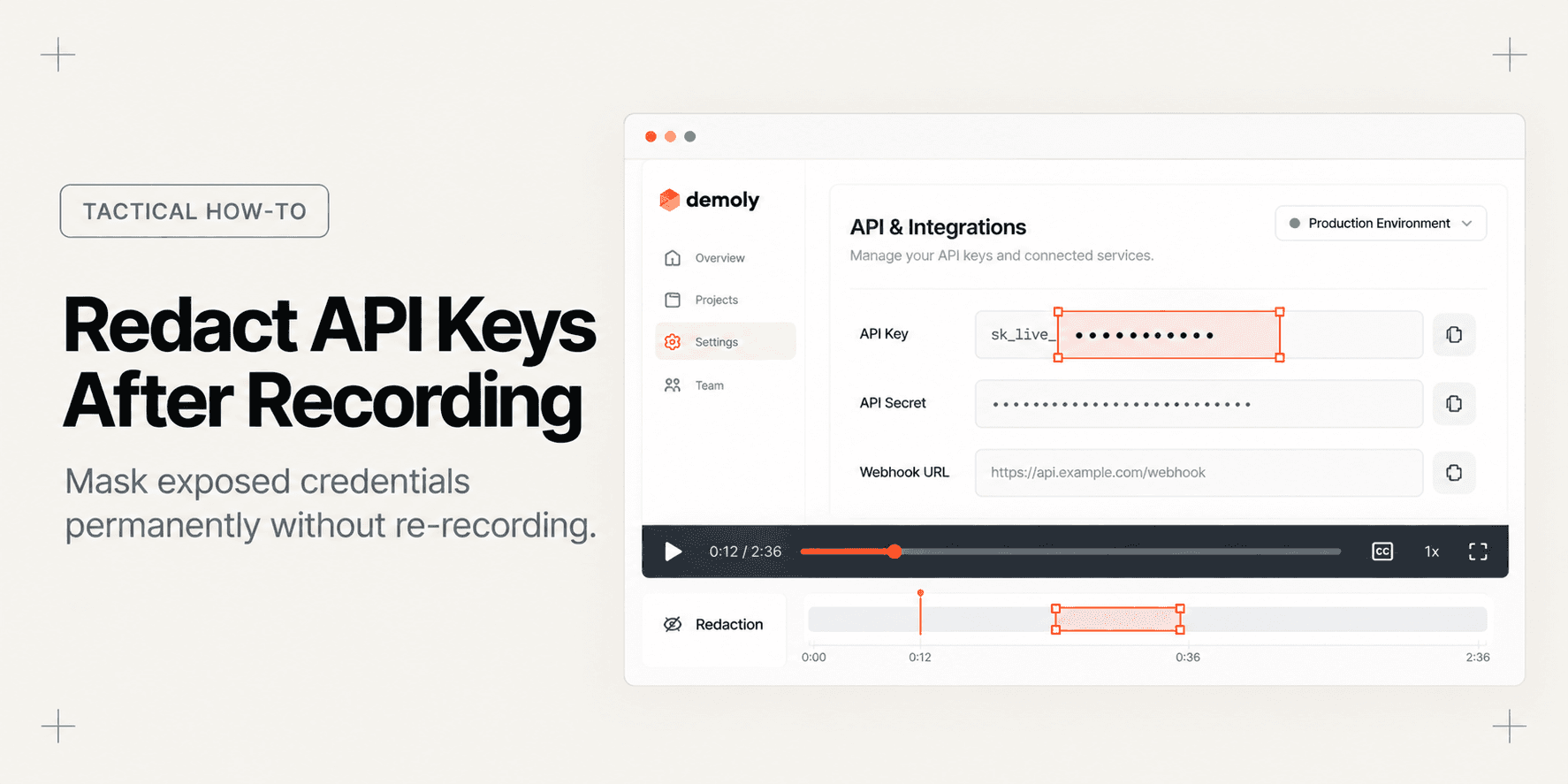
How to Redact an API Key From a Video After It's Already Recorded
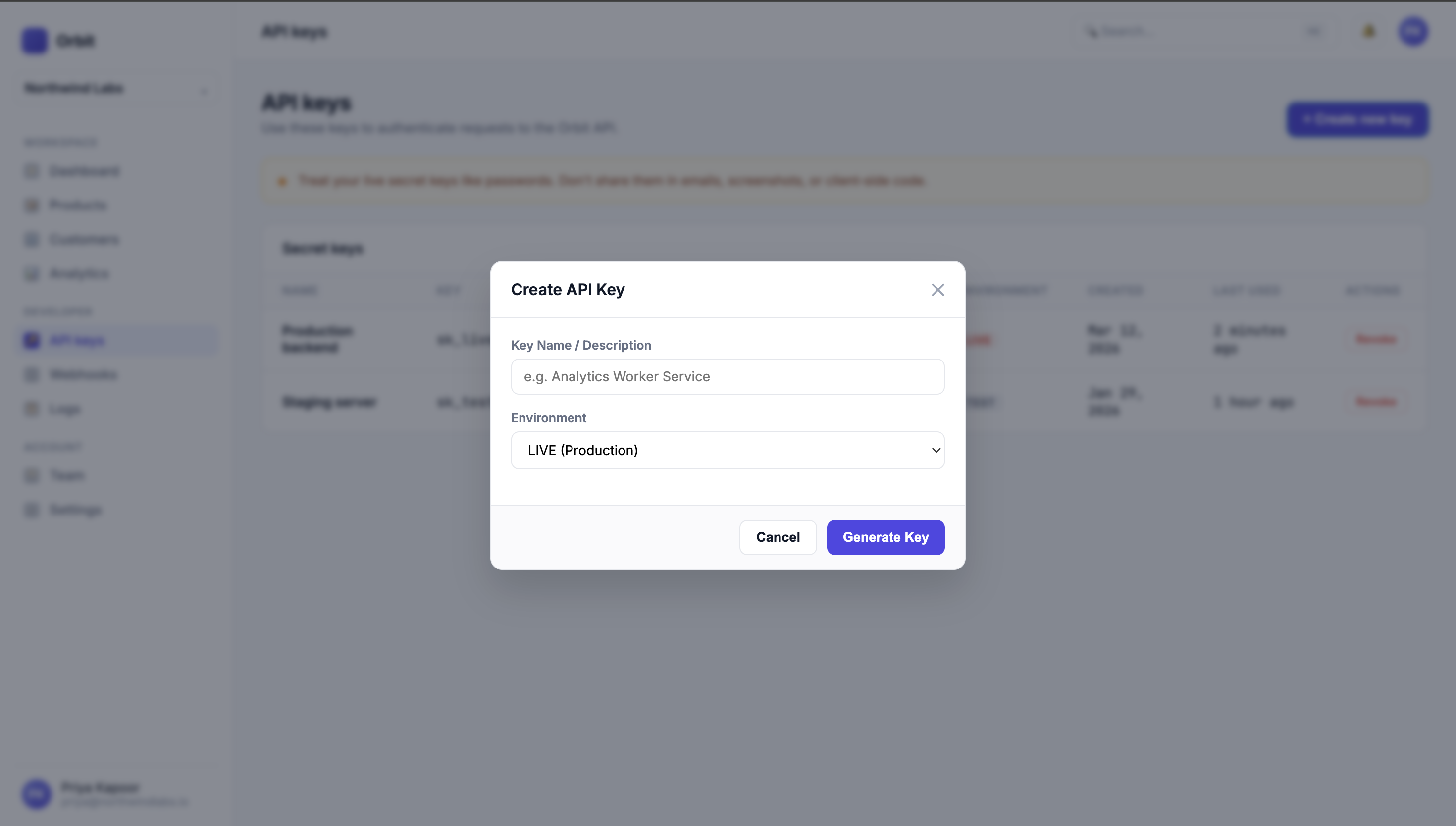
You just finished recording a fifteen-minute technical walkthrough or client onboarding session, only to spot a disaster on review: a live Stripe secret key, OpenAI token, or database credential sat fully exposed in an open configuration tab for four seconds.
Re-recording the entire walkthrough costs another hour of speaking and demoing. Traditional video editors like Premiere Pro or Camtasia force you to export the raw file, track coordinate blur boxes across keyframes, and re-render a multi-gigabyte video.
This guide demonstrates how to redact an API key directly in your browser using Demoly's canvas masking engine. In under sixty seconds, you can permanently obscure secret tokens, verify zero frame leakage, and share a secure walkthrough URL without re-recording a single take.
Quick Steps:
- Open the studio editor: Select your finished capture in Demoly and click Edit Video to launch the browser workspace.
- Scrub to exposure timestamp: Position the timeline playhead at the precise frame where the API key enters the viewport.
- Apply the Redact tool: Select Redact from the left toolbar and drag a bounding mask over the target secret token.
- Synchronize mask duration: Drag the timeline mask handles to match the full duration of the modal or tab exposure.
- Save and share: Click Save Changes to commit the non-destructive canvas mask and distribute your secure viewer link.
Before You Start
- Verify audio track isolation: Check whether you dictated secret keys, prefix strings, or environment passwords aloud during your narration. Visual redaction masks pixels; voiceover requires splitting and muting waveform audio.
- Understand canvas excision versus CSS blurs: Never rely on browser extensions that apply client-side CSS blurs (
filter: blur(8px)). External viewers can open Developer Tools, inspect the DOM node, and remove the CSS rule to expose your raw key. Review our tactical guide on How to Redact Sensitive Client Data Before Sharing a Screen Recording to ensure your masking workflow burns over the rendered presentation layer. - Determine element movement: If your page scrolls or opens modal popups, explore How Element-Anchored Masking Beats Static Blur Boxes to understand why DOM-anchored tracking prevents credential slippage when the viewport shifts.
Step 1: Open the Finished Recording in the Studio Workspace
From your Demoly dashboard or the instant recording preview window, click Edit Video in the top navigation bar.
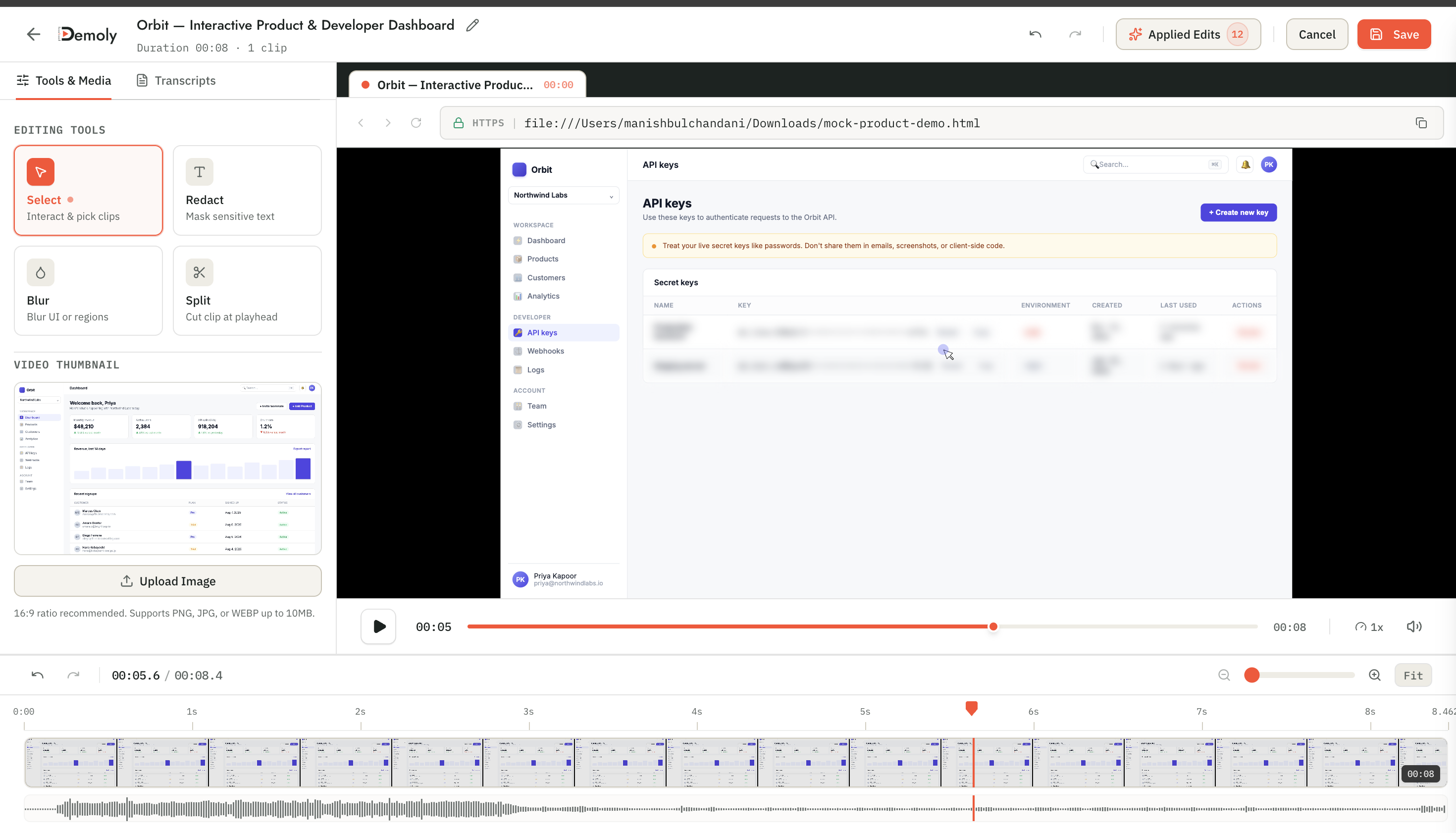
The browser editor opens your recording session instantly without requiring file downloads, local decoding, or proxy creation. The workspace displays the active high-resolution viewport, the left-hand editing tool rail, and the synchronized bottom timeline.
Step 2: Scrub the Playhead to the Secret Key Exposure
Navigate to the bottom timeline and drag the yellow playhead indicator toward the segment where the API credentials appear on screen.
Use your keyboard arrow keys (Left and Right) for frame-by-frame navigation. Locate the exact entry frame where the configuration modal, dropdown, or .env dashboard tab expands into view. Identifying the first millisecond of exposure ensures your secret token never flashes uncovered for a single frame.
Step 3: Draw a Masking Box Across the Secret Credential Field
Click the Redact tool icon located in the left-hand tool rail (or press the R shortcut key).
Your cursor transforms into a crosshair selector. Click and drag a rectangular bounding box directly over the exposed API key string, token prefix, and associated copy-to-clipboard buttons.
When you release the cursor, Demoly applies an opaque, high-density canvas blur across the target container. You can grab the four corner transform handles to expand or contract the redaction boundary, ensuring every character of the secret key is shielded with ample margin.
Step 4: Adjust Duration Handles on the Timeline Mask Track
Once the spatial mask is positioned, configure its temporal boundary on the multi-track timeline below.
When the Redact tool is activated, Demoly creates a dedicated mask slice on the timeline track directly above your video track:
- Click and drag the left edge handle of the mask track backward by 0.5 seconds before the modal transition begins. This eliminates frame-flicker vulnerabilities during opening CSS animations.
- Scrub forward to the moment you close the credentials drawer or navigate to another tab.
- Drag the right edge handle of the mask track to extend past the exit animation of the secrets container.
If you scroll down the page while the modal is open, ensure the mask anchor remains pinned to the container element so the obscured zone glides smoothly with page movement.
Step 5: Save Changes to Trigger Non-Destructive Publishing
Click Save Changes in the upper-right corner of the studio header.
Demoly saves your redactions non-destructively as metadata overlays over the underlying master recording. You do not need to wait for a 15-minute MP4 export or video transcoding pipeline. The platform instantly updates the viewer streaming layer and re-indexes the session's AI search vectors so internal token values cannot be recalled via natural-language video search.
How to Verify It Worked
Before sharing the walkthrough link with external clients or publishing it to documentation, perform this 3-step security check:
- Test in an incognito window: Copy the share URL, open a private browser session, and open the video without logging into your Demoly account.
- Scrub across the exposure transition: Play the recording at 0.5x speed across the timestamp where the key appears. Confirm that zero unblurred frames flash before or after the mask engages.
- Inspect the web viewer: Right-click the player canvas, select Inspect Element, and verify that the viewer streams a flattened canvas presentation. The underlying text string does not exist in the recipient's DOM tree.
Important Notes & Edge Cases
- Non-destructive admin recovery: If you accidentally obscure an adjacent, non-sensitive UI label (like a public webhook URL you wanted the client to see), open the editor in your workspace at any time, click the mask overlay, and adjust its dimensions. The underlying recording is completely preserved.
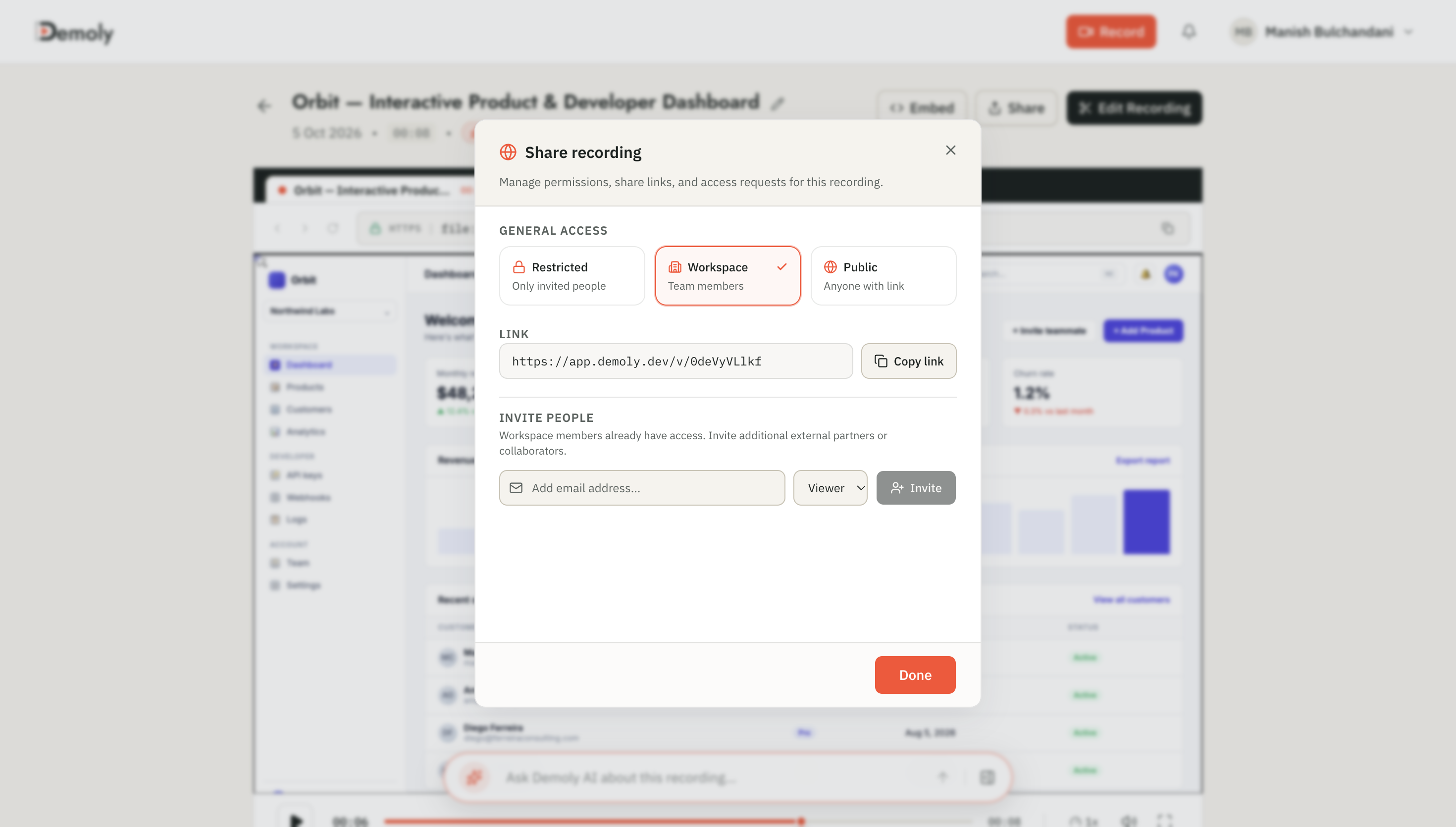
- Persistent single-link sharing: If you previously sent the walkthrough link in a Slack channel, email thread, or Jira ticket before noticing the exposed key, you do not need to issue a replacement link. Saving your redaction updates the existing URL immediately for all subsequent views.
- Multi-tab exposure cleanup: If you switched between multiple browser tabs and exposed different keys across separate dashboards, apply distinct redaction boxes for each tab. Demoly tracks each mask independently on the timeline without degrading playback performance.
Troubleshooting
Symptom | Probable Cause | Immediate Fix |
|---|---|---|
The API key flashes for one frame before blurring | The mask track start point aligns exactly with the frame change rather than the modal animation | Drag the left timeline handle 0.5s prior to the modal entrance so the mask is active before the text renders. |
The token was spoken aloud during recording | Narration verbalized the confidential token name or environment | Position the playhead on the audio track, use the Split tool, and lower the volume slider to 0% for that 3-second audio slice. |
The mask drifts away when scrolling | The blur box was placed as static canvas coordinates instead of anchoring to the DOM element | Enable element-anchored tracking in the Redact tool panel so the mask locks to the parent container coordinates. |
Conclusion
Exposing an API key during a walkthrough does not mean scrapping your recording. With Demoly's in-browser canvas redaction, you can mask credentials in seconds, preserve your original take, and share clean, professional documentation with zero security risk.
Get started for free on Demoly's $0 forever plan—record unlimited browser walkthroughs, redact sensitive data with one click, and never pay a client seat tax.
Frequently asked questions
Commonly asked questions about this article.
01•Can a viewer inspect the browser source code to reveal a redacted API key?
No. Demoly's redaction applies canvas-level masking directly to the rendered video playback stream. The secret key text node is completely excised from the viewer's DOM, making it impossible to uncover through browser Developer Tools or element inspection.
02•Do I need to send a new video link to my client after redacting the key?
No. Demoly's video editing is non-destructive and operates on a single live URL. When you click Save Changes, the redaction updates instantly on the existing link, protecting viewers immediately without requiring link updates in Slack or email.
03•What should I do if I spoke the secret key or password aloud while recording?
Use Demoly's in-browser timeline audio controls. Navigate to the timestamp of the verbal leak, use the **Split** tool to isolate the specific phrase in the audio waveform, and set that segment's volume to zero to mute the audio track while preserving video continuity.
04•Can I remove or adjust the redaction box later if I blurred the wrong field?
Yes. As a workspace administrator, you can open the recording in the studio editor at any time. Clicking the redaction box restores its resize handles and timeline track, allowing you to reposition, resize, or delete the mask entirely without re-recording.
05•Does redacting an API key remove it from Demoly's Ask AI search engine?
Yes. When you save a redaction, Demoly automatically triggers an index refresh. The masked visual coordinates and associated DOM metadata are purged from the vector search engine, preventing viewers from querying the video to reveal the hidden key.
Demoly Team
Contributor
Related Dispatches
View all dispatches →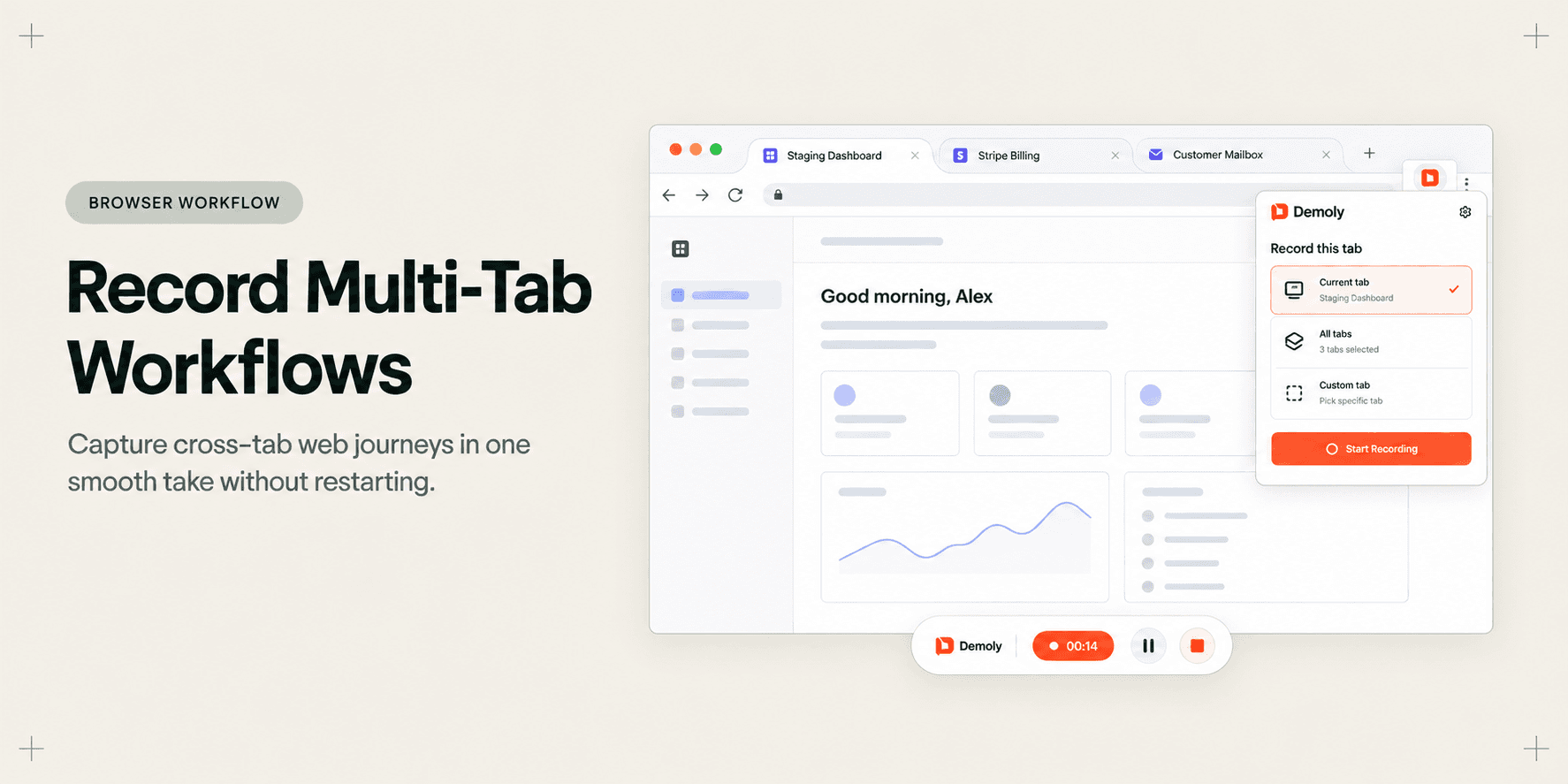
How to Record Smooth Multi-Tab Workflows in One Take
Recording multi-tab SaaS workflows often leads to messy restarts, dropped audio, and disjointed videos. Learn how to capture cross-tab browser journeys in one smooth take.
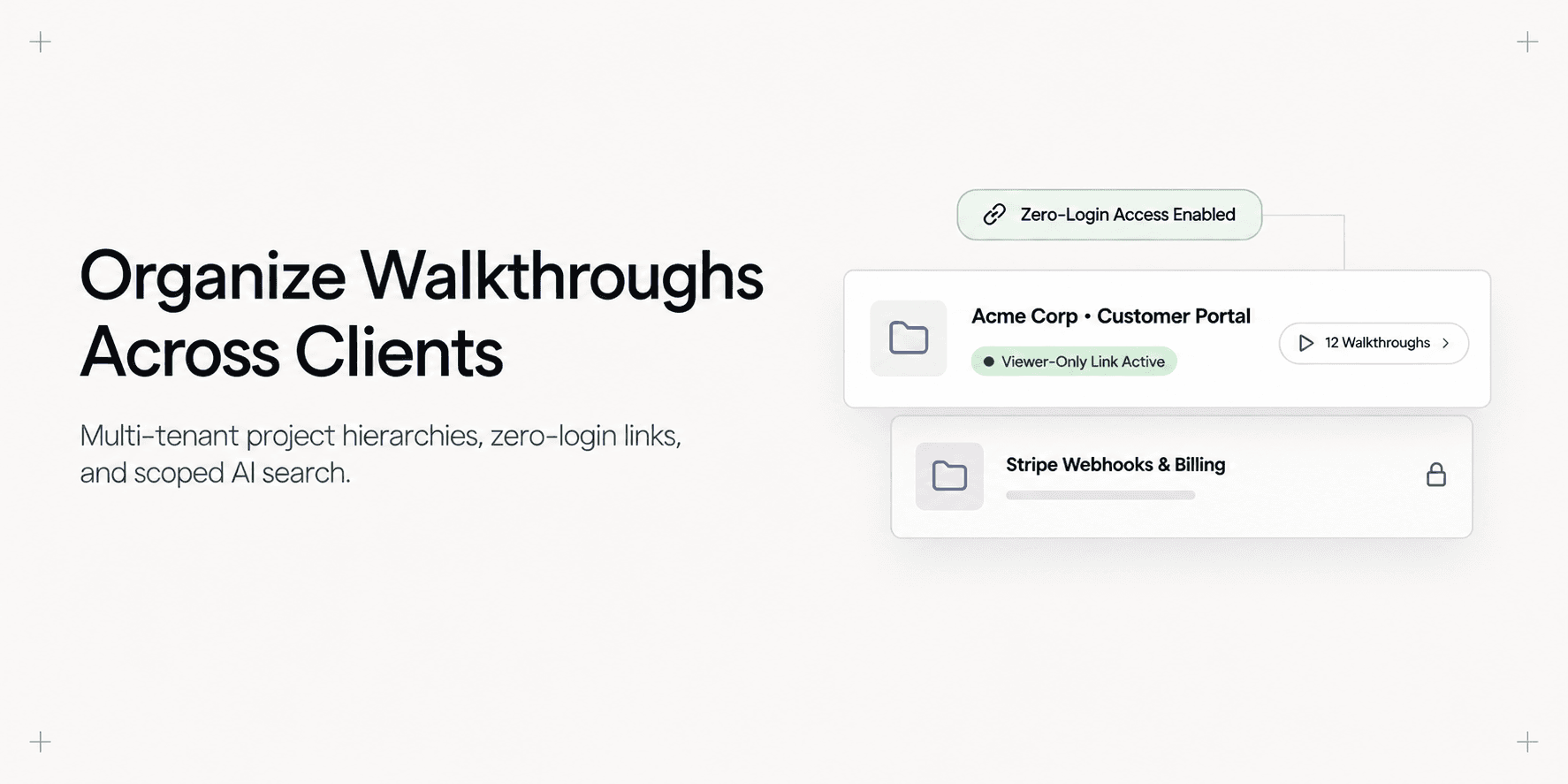
How to Organize Video Walkthroughs for Multiple Client Projects
Learn how web agencies structure, isolate, and organize video walkthroughs across multiple client projects with dedicated folders and AI search.
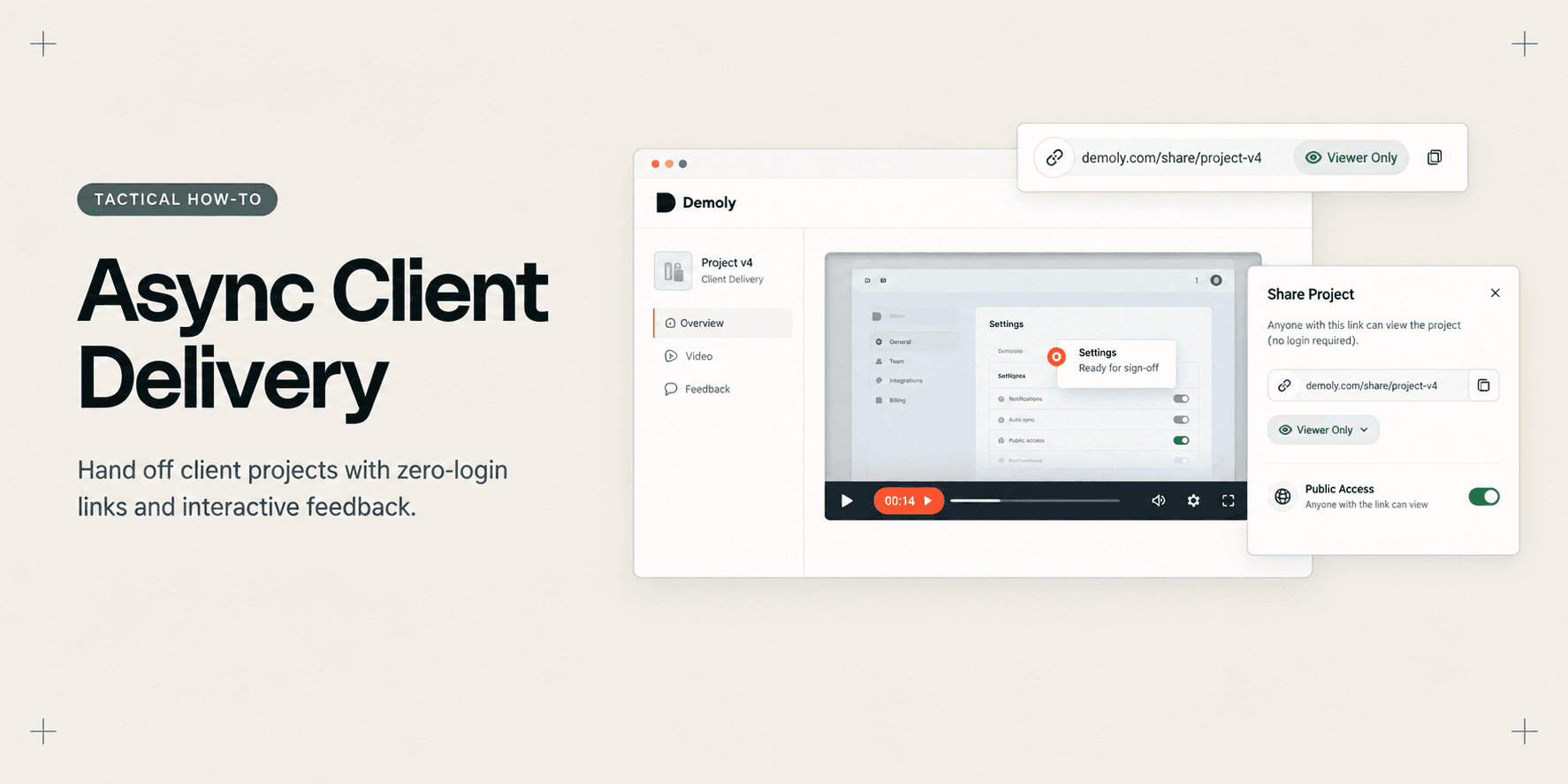
How Account Managers Deliver a Project Without Scheduling Another Call
Learn how account managers deliver completed projects asynchronously using AI-indexed walkthroughs, zero-login sharing, and element-anchored feedback.
Try Demoly for your team
Create branchable, interactive demo recordings and deliverables in minutes with zero friction.