How to Record Smooth Multi-Tab Workflows in One Take
Recording multi-tab SaaS workflows often leads to messy restarts, dropped audio, and disjointed videos. Learn how to capture cross-tab browser journeys in one smooth take.
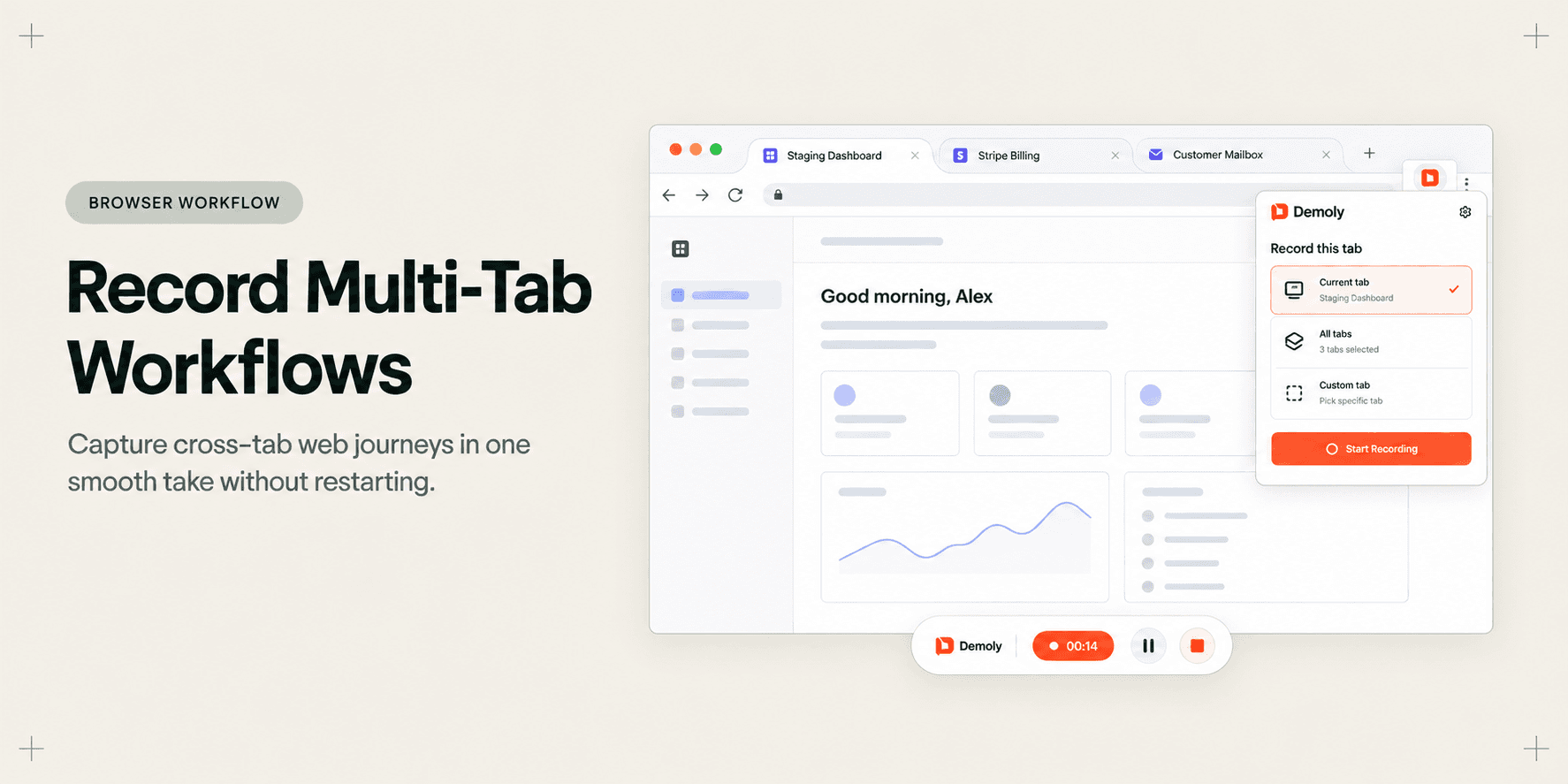
How to Record Smooth Multi-Tab Workflows in One Take
Demonstrating modern web applications rarely happens inside an isolated browser tab. A standard customer onboarding flow might require configuring a webhook inside your SaaS dashboard, verifying event delivery in Stripe, and confirming user receipt inside an email client.
When product managers, customer success leads, and technical founders attempt to record these multi-tab journeys, the workflow frequently collapses. Traditional tab recorders stop capturing the moment you navigate away from the starting page. Full-desktop recorders force you to expose cluttered desktop wallpaper, sensitive Slack notifications, and unscripted browser windows. Even worse, slow page loads or accidental misclicks cause creators to scrap eight minutes of work and restart the entire take from scratch.
This guide shows you how to record seamless, cross-tab browser walkthroughs in a single uninterrupted take. By structuring your browser environment, managing tab transit states, and using browser-native indexing, you can produce professional, AI-searchable product demonstrations without painful re-records.
Quick Steps:
- Pre-stage tabs in a single window: Open your target applications left to right and log in before starting.
- Launch Demoly via Chrome extension: Select capture mode, verify audio input, and begin recording.
- Execute sequential tab transitions: Navigate across tabs naturally while speaking without pausing the recorder.
- Trim transition pauses in post-production: Cut out awkward loading spinners using non-destructive browser split tools.
- Publish and share zero-login link: Distribute an interactive walkthrough where clients can search buttons across all tabs.
Before You Start
- Consolidate target tabs: Ensure all web applications required for the demonstration are opened within a single Google Chrome browser window.
- Pre-authenticate active sessions: Log into all environments (staging consoles, third-party dashboards, test mailboxes) to avoid authentication delays or two-factor prompts during capture.
- Verify microphone permissions: Confirm that Google Chrome has permission to access your microphone and verify that audio levels register properly.
- Clear visual distractions: Hide your browser bookmarks bar (
Cmd+Shift+Bon macOS orCtrl+Shift+Bon Windows) and close unrelated tabs to keep the viewport clean.
Step 1: Stage Your Workflow Tabs in Chronological Left-to-Right Order
Fumbling through twelve open tabs mid-recording instantly breaks the rhythm of a product demonstration. Before initiating capture, arrange your browser tabs in the exact order of the workflow narrative.
Position the primary software dashboard as Tab 1 on the far left. Place supporting tools, such as payment gateways or administrative settings, as Tab 2 and Tab 3. Reserve the final tab on the right for outcome verification, such as a customer mailbox or public storefront.
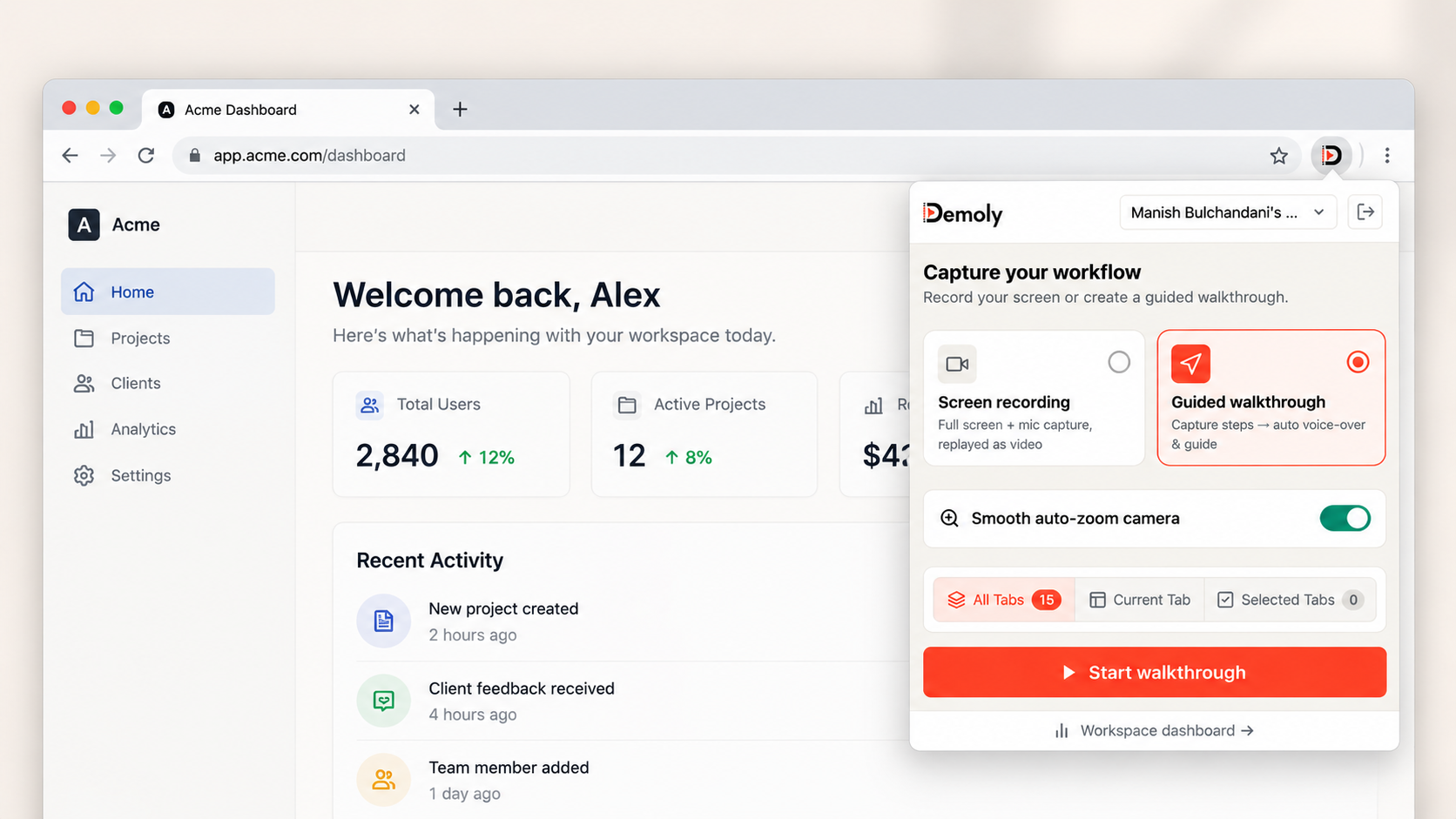
This sequential arrangement allows you to move systematically from left to right using keyboard shortcuts (Cmd+Option+Right on macOS or Ctrl+PgDn on Windows) rather than hunting for specific tab headers with your mouse cursor.
Step 2: Initialize Recording with the Demoly Chrome Extension
Open the first tab of your sequence and click the Demoly icon in your Chrome toolbar to open the recording prompt.
Select your target client project folder from the dropdown to ensure the final recording saves directly to the correct client workspace. Toggle the Microphone switch to active if you plan to provide voiceover commentary.
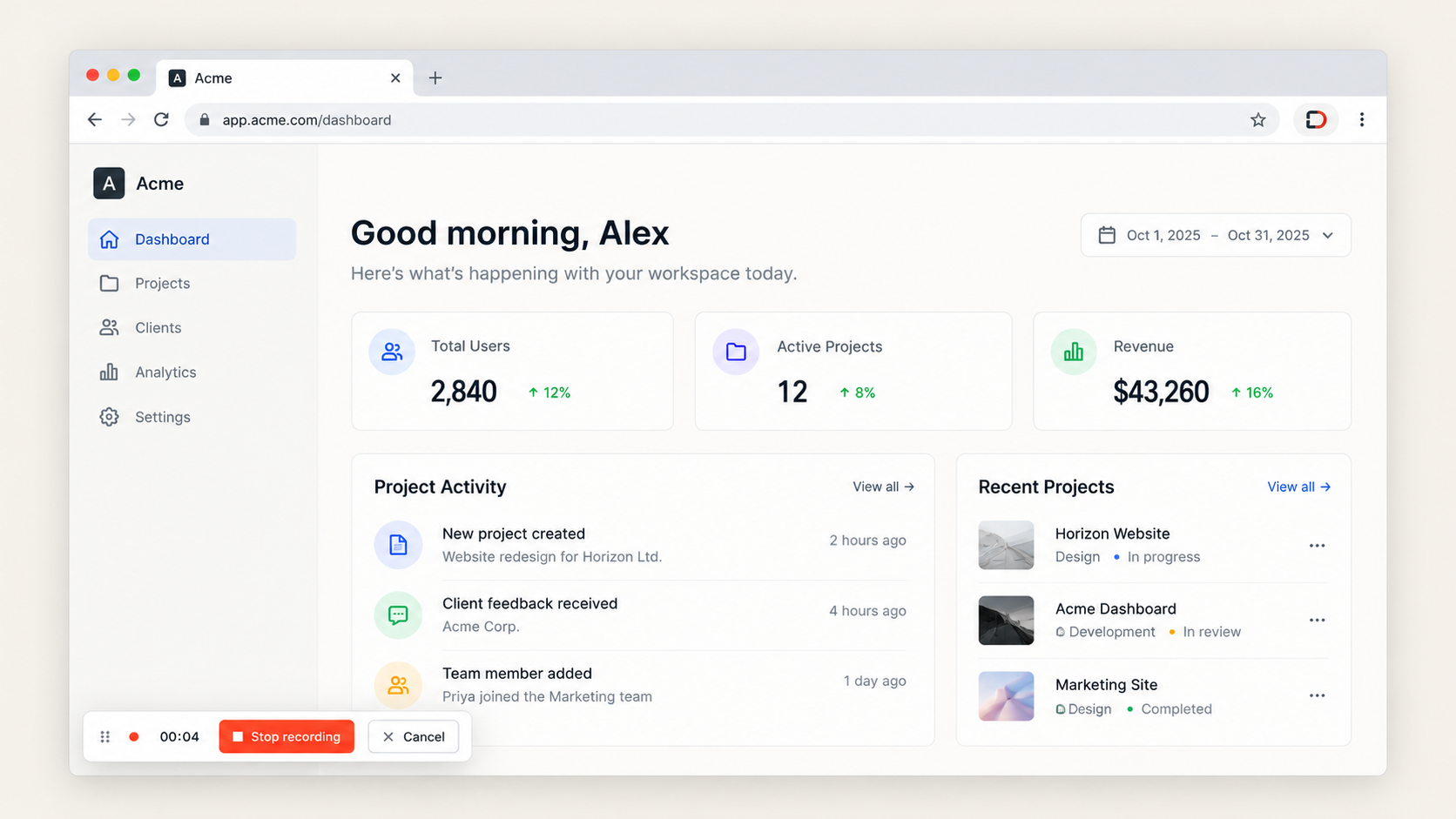
Click Start recording. A three-second visual countdown will appear on screen. When the countdown completes, Demoly begins capturing the active browser window, tab audio, cursor movements, and Document Object Model (DOM) interactions. For initial recording fundamentals, review our tutorial on How to Record a Web App Walkthrough Your Client Can Actually Search.
Step 3: Execute Fluid Tab Transitions Without Stopping the Capture
Begin walking through the workflow in your initial tab. Once you complete the steps in Tab 1, transition directly to Tab 2 by clicking the tab header or executing your browser tab navigation shortcut.
Demoly continues recording smoothly across tab switches within the same Chrome window. Unlike rigid tab recorders that freeze on the initial URL, Demoly tracks your cursor focus and updates capture telemetry to the newly active tab.
Maintain a steady, deliberate pacing during transitions:
- The One-Second Rule: After switching to a new tab, pause for one second before clicking elements. This gives your recipient time to orient themselves to the new interface and allows dynamic single-page applications (SPAs) to finish rendering DOM containers.
- Keep Vocal Narration Continuous: Bridge tab transitions verbally. Instead of falling silent during a switch, explain what you are about to inspect (for example: "Now that the webhook endpoint is saved, let's switch over to Stripe to trigger a live payment event").
Step 4: Manage Loading Latencies and Background Processing
One of the primary reasons presenters scrap a recording take is encountering an unexpected loading spinner or waiting for an authentication callback. Restarting the entire video whenever an API takes five seconds to respond is an enormous waste of time.
During active recording, Demoly displays a lightweight, non-intrusive floating control bar at the bottom edge of your browser window. You can interact with this control widget during multi-tab workflows:
- Pause for Extended Latencies: If a background deployment or email delivery takes longer than ten seconds, click the Pause icon on the floating control bar. Complete the waiting period off-camera, verify the target screen has loaded, and click Resume.
- Let Brief Pauses Run: If the loading latency is under five seconds, keep the camera rolling. You do not need to pause or restart because you can excise dead air in seconds during post-production.
Step 5: Trim Tab Transition Pauses in the Browser Timeline
Once you finish demonstrating the full sequence across all tabs, click the green checkmark or red Stop button on the floating control bar. Demoly immediately compiles the video and opens the project in the in-browser studio editor.

Instead of living with dead silence while tabs loaded, polish the timeline:
- Scrub the playhead to the exact moment where you switched tabs.
- Select the Split tool (
S) to create a cut point right as the old tab closed. - Move the playhead to the exact frame where the new tab finished rendering its UI.
- Add a second cut point, select the dead silence segment between the two markers, and press Delete.
Demoly uses non-destructive editing, meaning your source recording remains intact while your published timeline plays as a crisp, gapless take. To learn how to execute frame-accurate cuts and remove unwanted pauses, consult our guide on How to Trim and Edit a Walkthrough Video Without Re-Recording.
Step 6: Verify Multi-Tab AI Search and Configure Client Access
Before distributing the walkthrough, verify that actions performed across all visited tabs are fully discoverable.
Demoly does not rely solely on spoken audio transcripts; it continuously indexes on-screen DOM elements and button clicks across every tab you touched. Open the Ask Demoly AI drawer on the right side of the editor canvas and submit queries for specific settings from different tabs (for example, a button from Tab 1 and a confirmation badge from Tab 3).
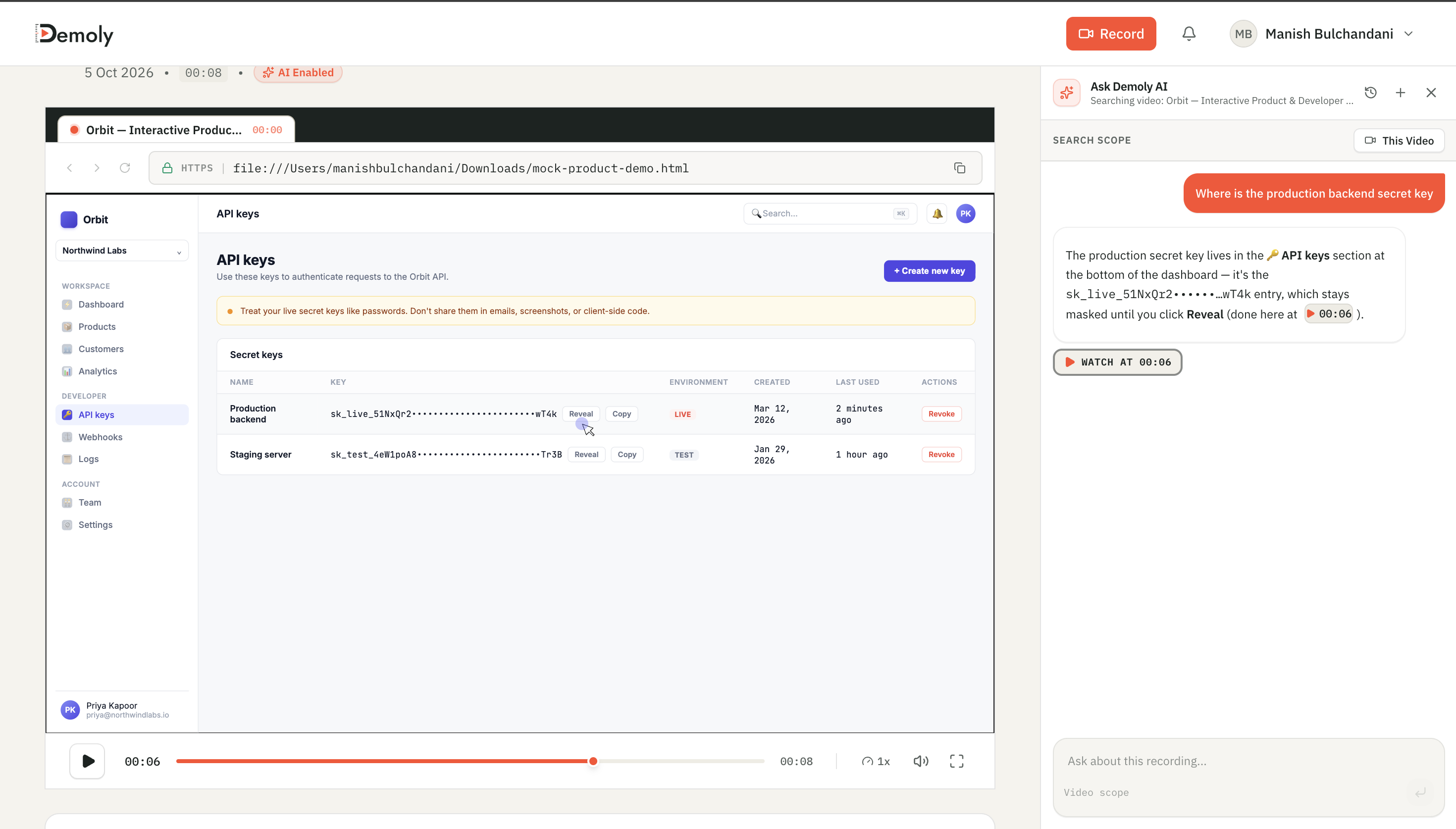
The AI search engine returns instant timestamp citations for both queries. Clicking a citation jumps the playhead directly to that second, regardless of which tab was active at that moment in the video.
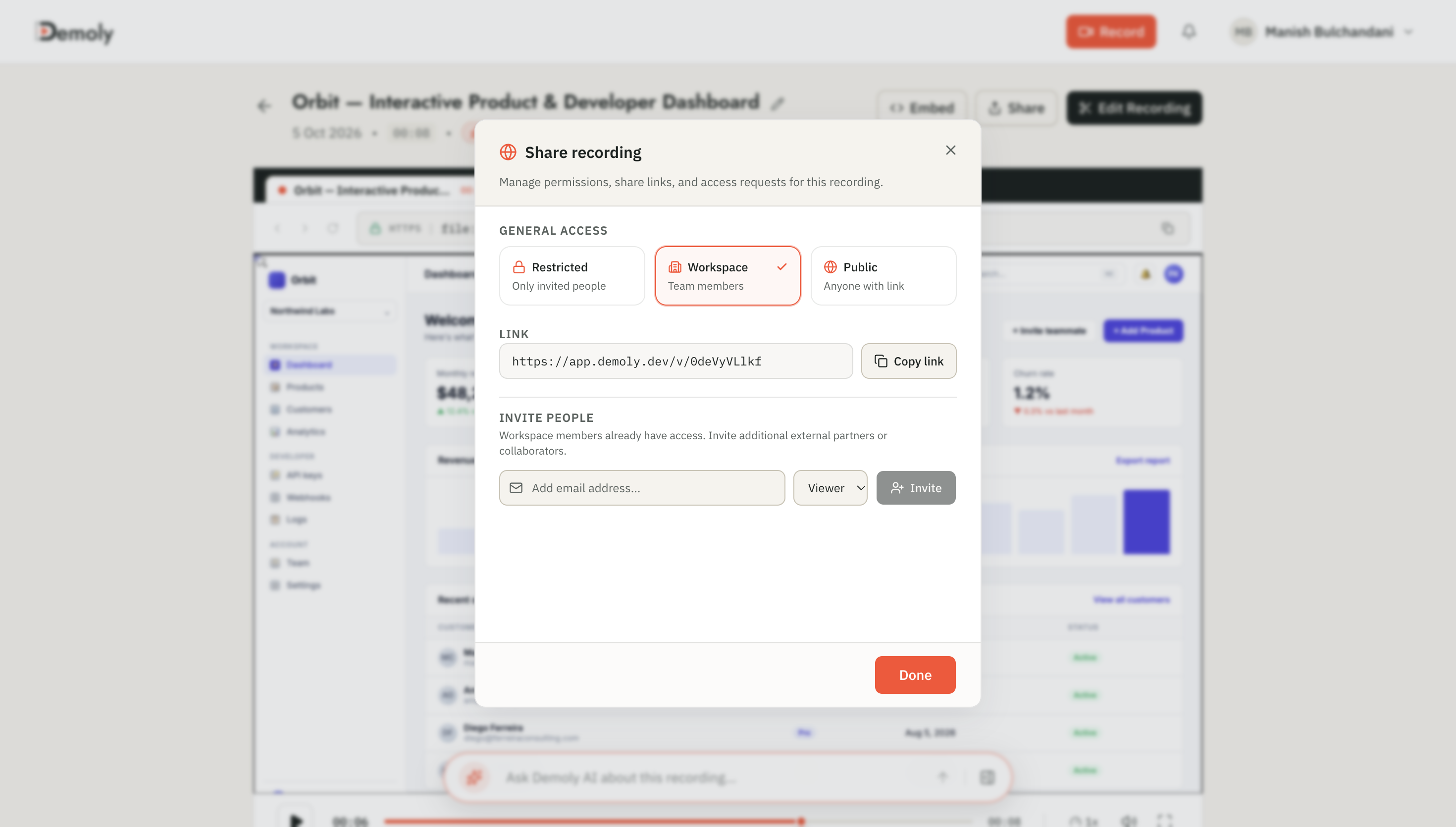
Finally, click Share in the top-right toolbar. In the access modal, confirm permissions are set to Viewer Only and click Copy Link.
How to Verify It Worked
To ensure your multi-tab walkthrough delivers a flawless experience for your client or teammates, perform a quick verification check before sending the URL:
- Open a new private or incognito browser window.
- Paste the copied Demoly share URL into the address bar.
- Play the video and scrub through the tab transitions. Confirm that video transitions are seamless, audio tracks remain synchronized across tab switches, and visual elements render crisply.
- Type a keyword from a secondary tab into the search bar to confirm that cross-tab UI elements jump directly to their respective timestamps without requiring viewer authentication.
Important Notes & Edge Cases
- Single Window Constraint: Demoly tracks tabs active within the recorded Google Chrome window. If you pull a tab out into an independent floating OS window, it leaves the active recording context. Keep all tabs docked in one parent window.
- Pop-Up OAuth Modals: When authenticating via external OAuth pop-ups (such as Google or GitHub sign-in prompts), ensure the pop-up opens as a browser tab rather than an unattached mini-window, or log in prior to recording to bypass pop-ups entirely.
- Canvas Layer Masking: If one of your secondary tabs displays live customer email addresses, API tokens, or billing secrets, use Demoly's in-editor Redact tool to place an element-anchored blur box over the data before generating your share link.
Troubleshooting
- Problem: Audio cuts out or desynchronizes when switching to a second tab.
Fix: Ensure your microphone permissions are granted globally in Chrome settings (chrome://settings/content/microphone) rather than restricted to a single web origin.
- Problem: Accidental navigation to an unscripted tab during recording.
Fix: Do not abort the recording session. Switch back to your intended tab immediately, continue your presentation, and use Demoly's timeline split tool to cut out the accidental detour in post-production.
- Problem: A secondary application tab crashes or displays an error page.
Fix: Hit pause on the floating recording bar, refresh the errant tab until the application recovers, and resume the session.
Practical Next Steps
You now have a clean, continuous multi-tab walkthrough ready for client delivery or team onboarding. Demoly provides full recording, automated UI indexing, and zero-login link sharing on its free plan ($0 forever, no credit card required).
Frequently asked questions
Commonly asked questions about this article.
01•Does Demoly stop recording if I switch tabs mid-session?
No. Demoly continues capturing the active browser tab within your Chrome window, maintaining uninterrupted audio and cursor tracking across all tab transitions.
02•Can viewers search for buttons that appeared on secondary tabs?
Yes. Demoly indexes the visible DOM elements and clicked interface controls across every tab visited during the session, allowing viewers to jump straight to actions on any tab.
03•What happens if I make a mistake while demonstrating a secondary tab?
You do not need to restart the recording. Simply pause, repeat the step correctly, and use Demoly's non-destructive in-browser timeline trimmer to delete the mistake.
04•Do I need to record my entire desktop to capture multiple tabs?
No. Demoly captures your active browser window, allowing you to switch tabs seamlessly without exposing desktop files, dock icons, or private messaging applications.
05•Can clients watch and search the multi-tab video without creating an account?
Yes. Demoly share links open directly in any modern browser with full interactive search and video playback, requiring zero viewer accounts or software downloads.
Demoly Team
Contributor
Related Dispatches
View all dispatches →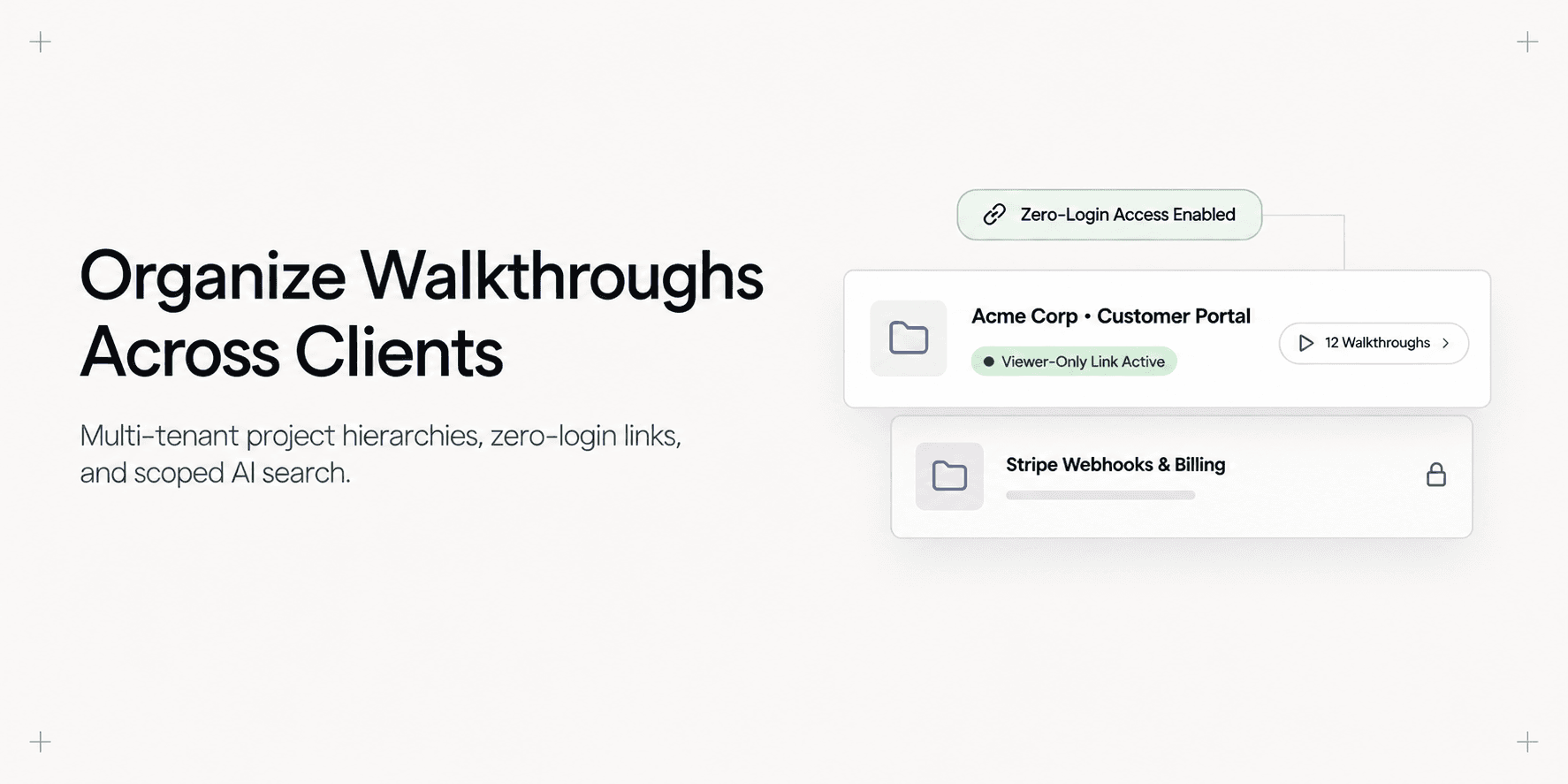
How to Organize Video Walkthroughs for Multiple Client Projects
Learn how web agencies structure, isolate, and organize video walkthroughs across multiple client projects with dedicated folders and AI search.
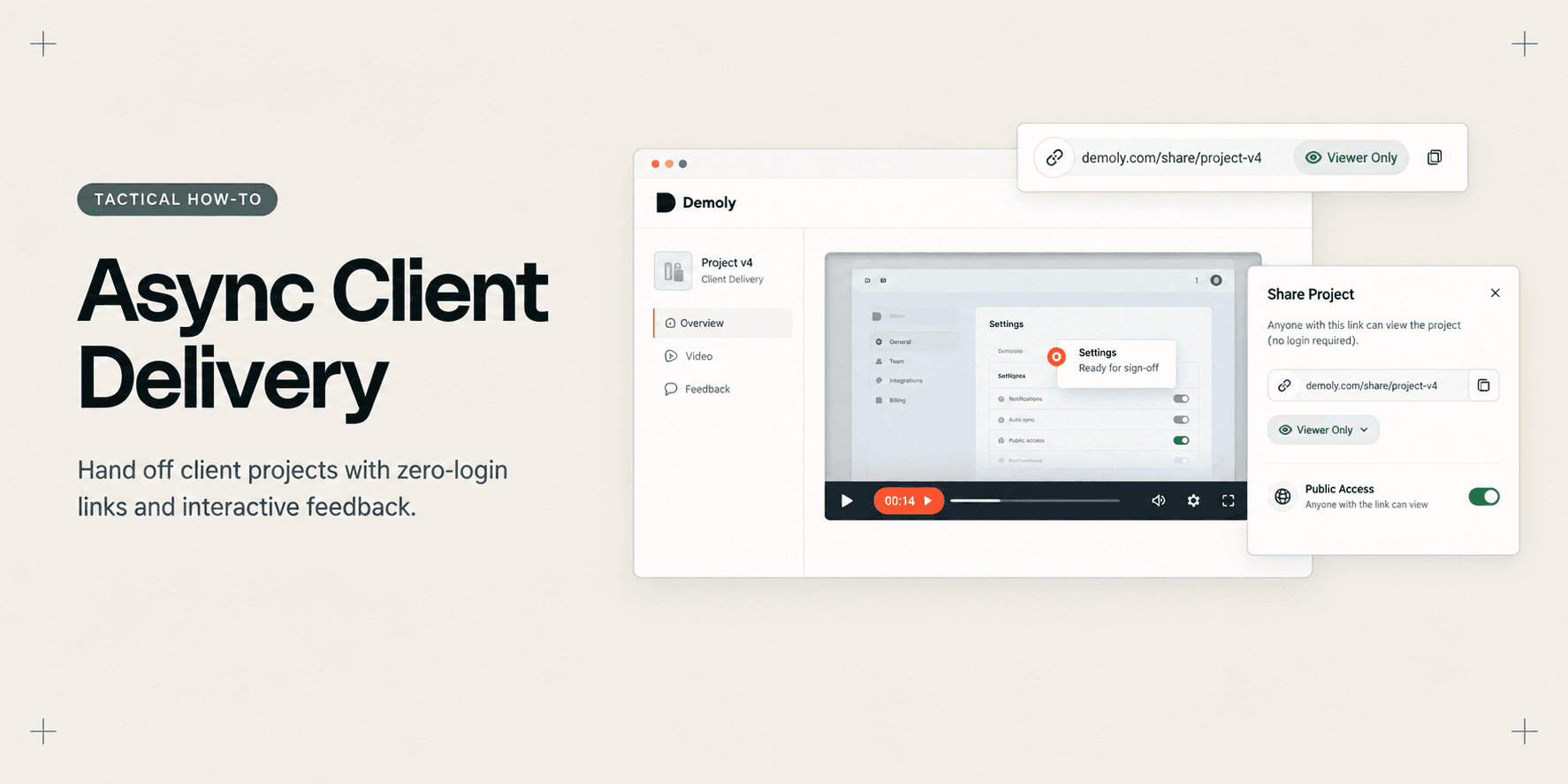
How Account Managers Deliver a Project Without Scheduling Another Call
Learn how account managers deliver completed projects asynchronously using AI-indexed walkthroughs, zero-login sharing, and element-anchored feedback.
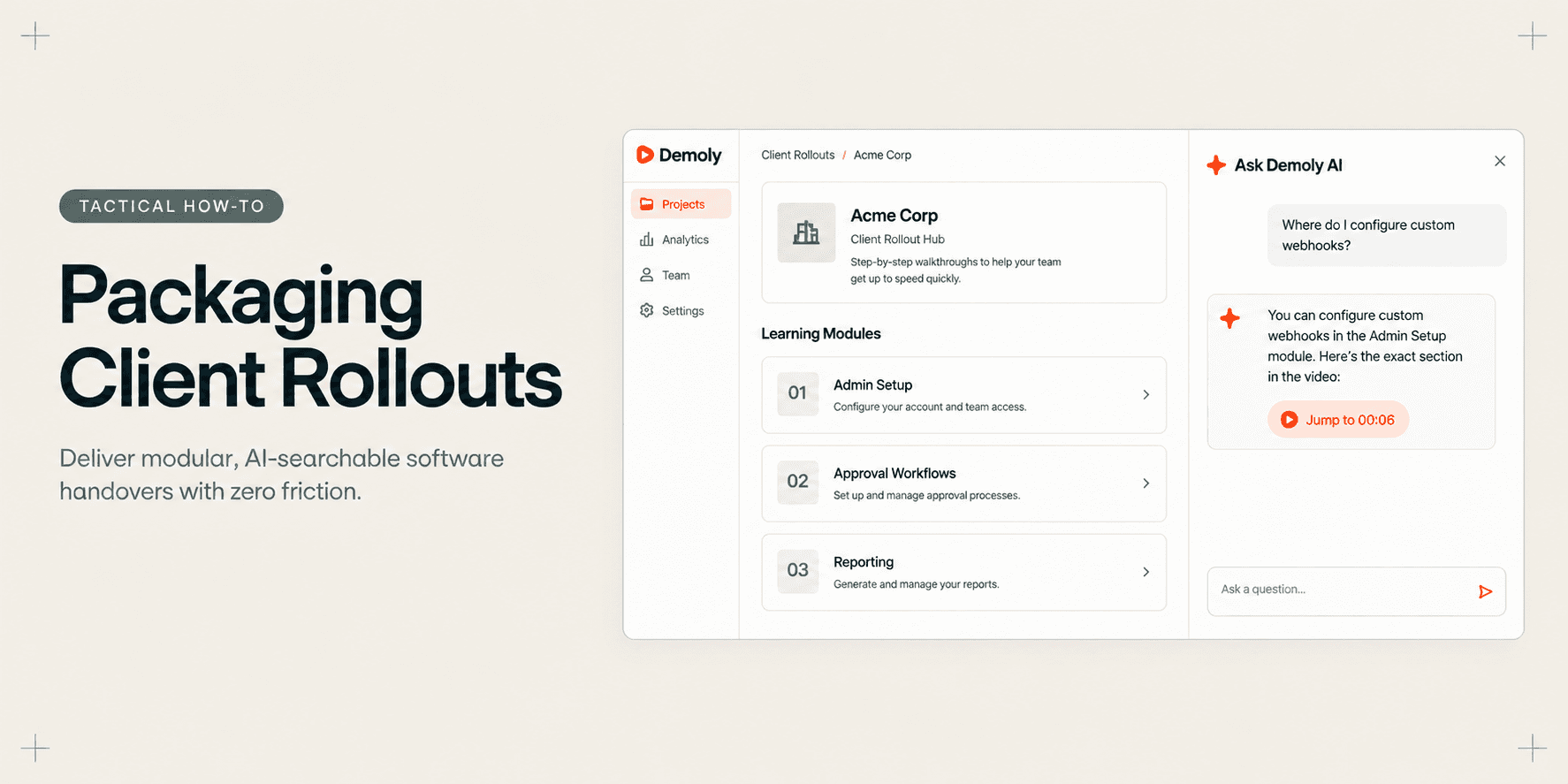
How Implementation Consultants Package a Rollout for a New Client
Learn how enterprise implementation consultants package software rollouts into modular, AI-searchable walkthroughs that eliminate post-go-live hypercare calls.
Try Demoly for your team
Create branchable, interactive demo recordings and deliverables in minutes with zero friction.