How to Organize Video Walkthroughs for Multiple Client Projects
Learn how web agencies structure, isolate, and organize video walkthroughs across multiple client projects with dedicated folders and AI search.
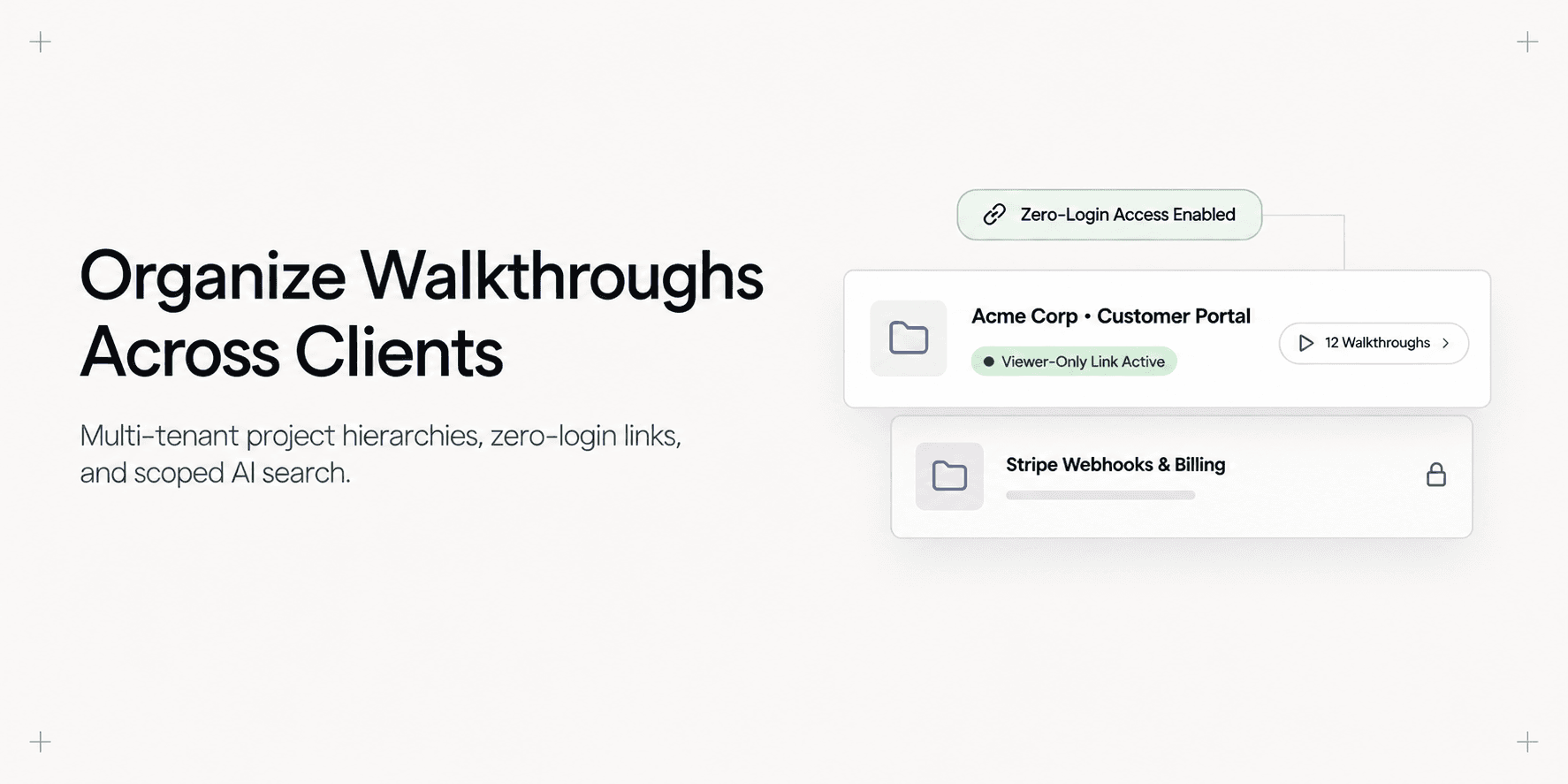
How to Organize Video Walkthroughs for Multiple Client Projects
Agencies delivering custom web applications frequently accumulate dozens of walkthrough videos across parallel client accounts. Without a disciplined folder hierarchy and strict permissions, handover assets end up scattered across Google Drive folders, Slack threads, and unorganized recorder feeds. Client onboarding stalls, team members waste hours locating specific deliverable recordings, and agencies risk cross-tenant data leaks.
This guide provides a step-by-step operational workflow to structure, isolate, and organize walkthrough recordings across multiple client projects. By combining dedicated project folders, systematic milestone naming, and folder-level zero-login permissions, you ensure every client receives an orderly, searchable documentation library without operational overhead.
Quick Steps:
- Create isolated client project containers: Build dedicated workspace folders for each active client engagement.
- Assign recordings at capture time: Select the target client project directly inside the browser extension before recording.
- Apply structured milestone naming: Standardize video titles with environment, milestone, and workflow identifiers.
- Scrub cross-client credentials: Redact staging tokens, API keys, or tenant IDs on the editor canvas before publishing.
- Configure folder permissions and share links: Issue scoped, zero-login viewer links restricted to the designated client folder.
Before You Start
- Verify workspace roles: Ensure your Demoly account has Admin or Editor privileges to create and manage client project directories.
- Define client milestone taxonomy: Establish standardized naming conventions across your team before publishing walkthroughs. Cross-reference our guide on how to structure a project handover package clients will actually use to align your video structure with client acceptance milestones.
- Install the Demoly Chrome extension: Verify the browser extension is active in Google Chrome so you can route recordings straight to target folders.
Step 1: Create Dedicated Client Project Folders in Your Workspace
Begin in the Demoly main dashboard. Rather than maintaining a single flat feed of team recordings, separate your work into discrete client repositories.
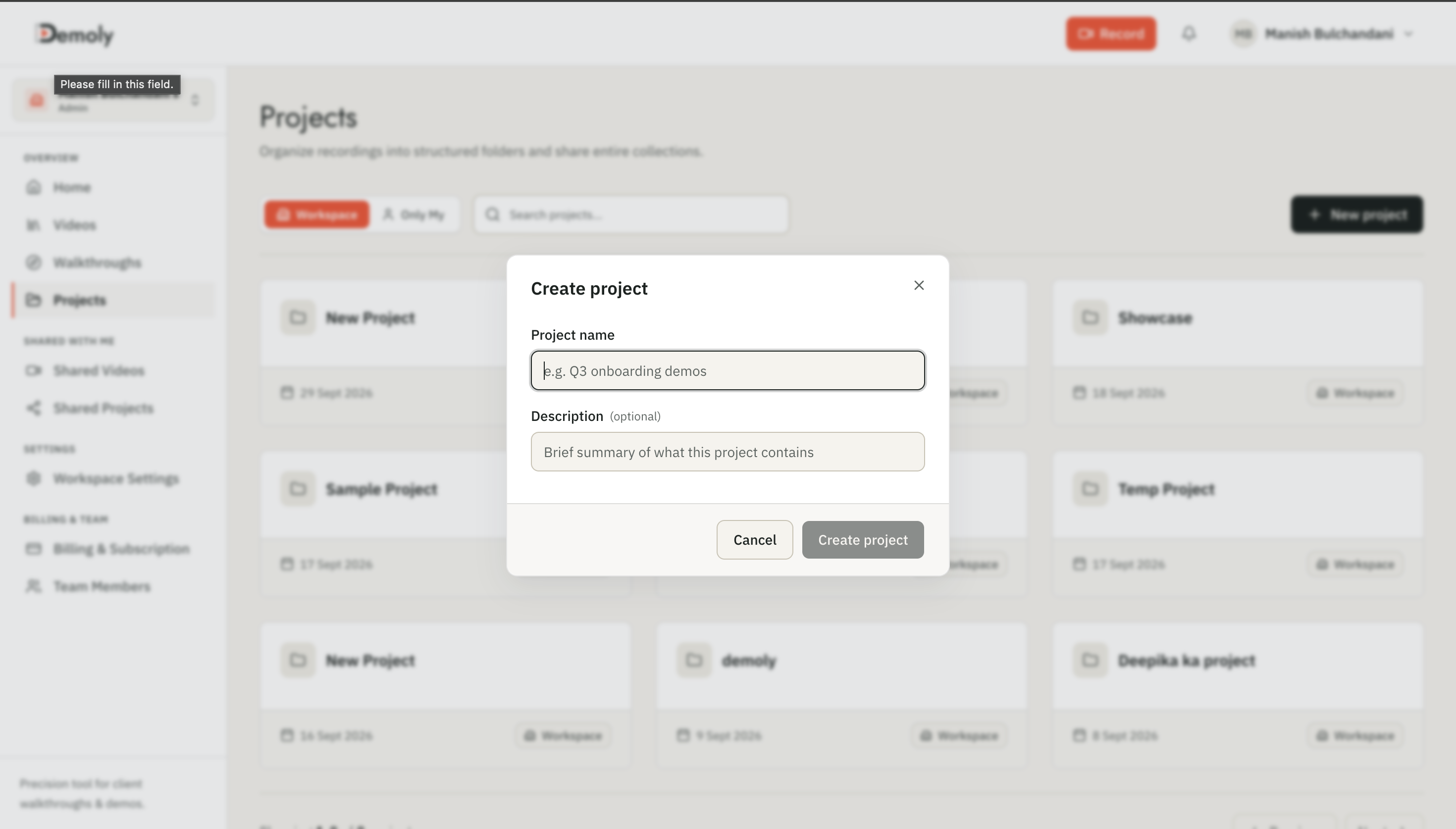
Click New Project in the top navigation bar. In the project creation modal, enter the client name alongside their project scope (for example, Acme Corp - Customer Portal V2). Set the default project visibility to Private Workspace so new recordings remain invisible to external viewers until your team finishes QA reviews.
Click Create Project. Demoly sets up an isolated container that tracks recordings, team access permissions, and folder-level AI indexing for that client.
Step 2: Route New Recordings Directly to Client Folders via the Extension
Organizing videos retroactively after weeks of development creates backlog clutter. Route every walkthrough into its target client repository at the point of capture.
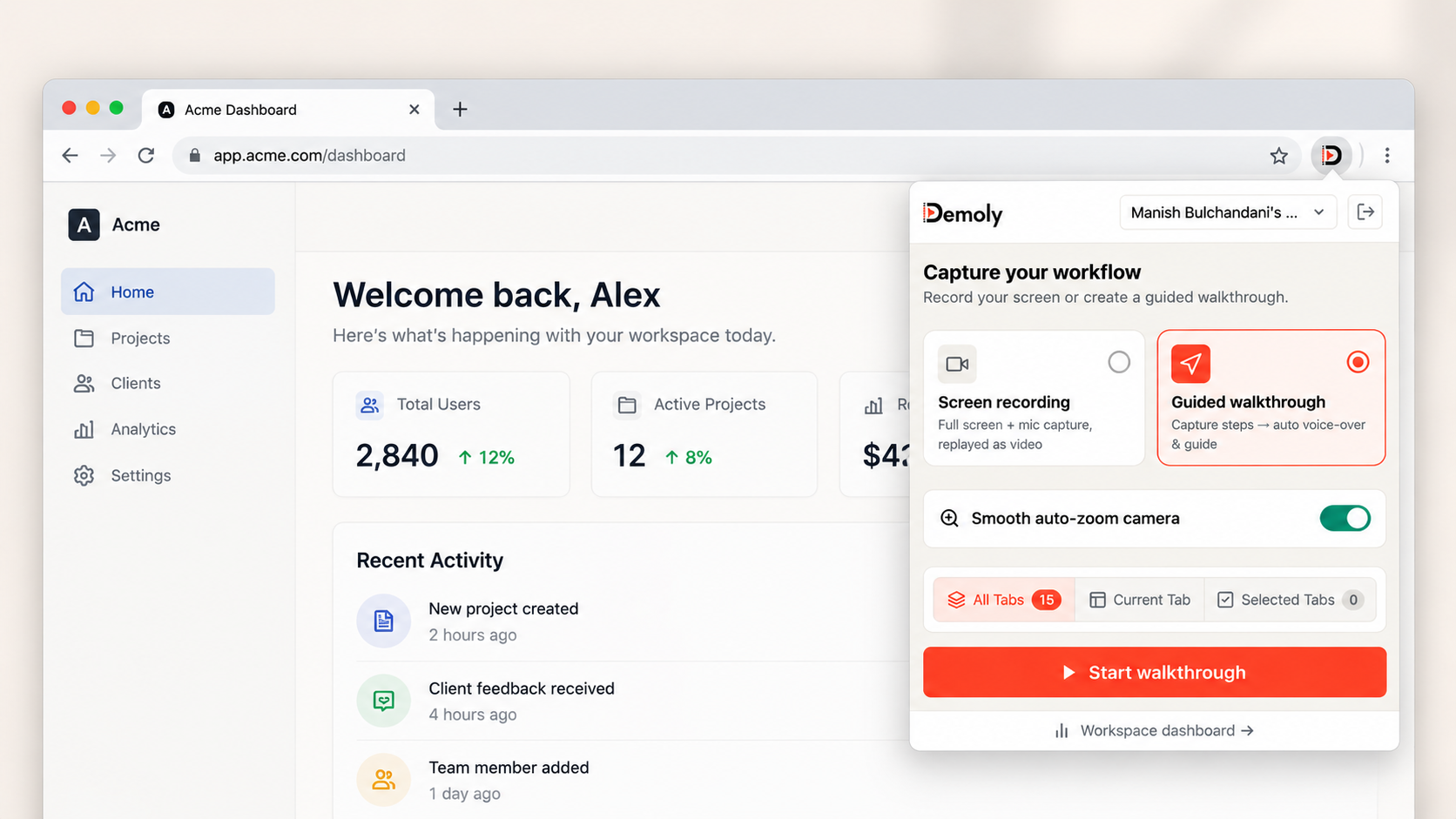
Open the client application in your browser and click the Demoly icon in your Chrome extension toolbar. In the extension popover, click the Project Folder dropdown menu and select the client container you created in Step 1.
Configure your recording boundaries:
- Select Current Tab for focused single-workflow recordings inside the client app.
- Select Entire Screen if the walkthrough spans external developer terminals, Figma design specs, or third-party webhooks.
- Confirm your microphone toggle is enabled for voiceover guidance, or proceed silently if you are logging a click-indexed technical workflow.
Click Start recording. When you stop the capture, Demoly uploads and saves the recording directly into the designated client container, bypassing your personal scratchpad. For best practices on optimizing capture clarity, review how to record a web app walkthrough your client can actually search.
Step 3: Standardize Video Naming and Milestone Tagging
Unstructured video titles like recording-14.webm or Client demo final force team members and clients to open every file to inspect contents. Establish a strict title taxonomy for all team members:
[Module / Milestone] - [Action / Workflow] - [Environment]
For example:
Auth & Onboarding - Inviting Team Members & Role Toggles - StagingBilling & Subscriptions - Stripe Webhook & Invoicing Workflow - ProductionCMS & Publishing - Custom Field Templates & Media Library - Staging
Open the recording in the Demoly web editor. Click the title field in the top header, enter your standardized name, and hit enter. Clear titles help clients locate relevant features instantly and improve the accuracy of cross-video semantic queries.
Step 4: Redact Cross-Client Credentials and Staging Secrets
When managing multiple client engagements simultaneously, agency developers frequently keep internal staging environments, cross-client sandbox tokens, or personal agency emails active in browser tabs.
Before publishing a walkthrough to a client-facing repository, inspect the footage in the Demoly canvas editor:
- Scrub through the timeline to identify any visible API secrets, staging database URLs, or internal agency credentials.
- Click the Redact tool in the left toolbar and drag a masking container over the sensitive element.
- Demoly locks the redaction directly to the underlying canvas element, keeping the data obscured across page scrolls and screen transitions.
Because redaction is non-destructive, the underlying recording remains intact in your agency workspace, but external viewers cannot inspect or extract masked values.
Step 5: Configure Folder-Level Permissions and Zero-Login Share Links
Once milestone recordings are polished and scrubbed, configure distribution settings to ensure clients access only their designated assets.
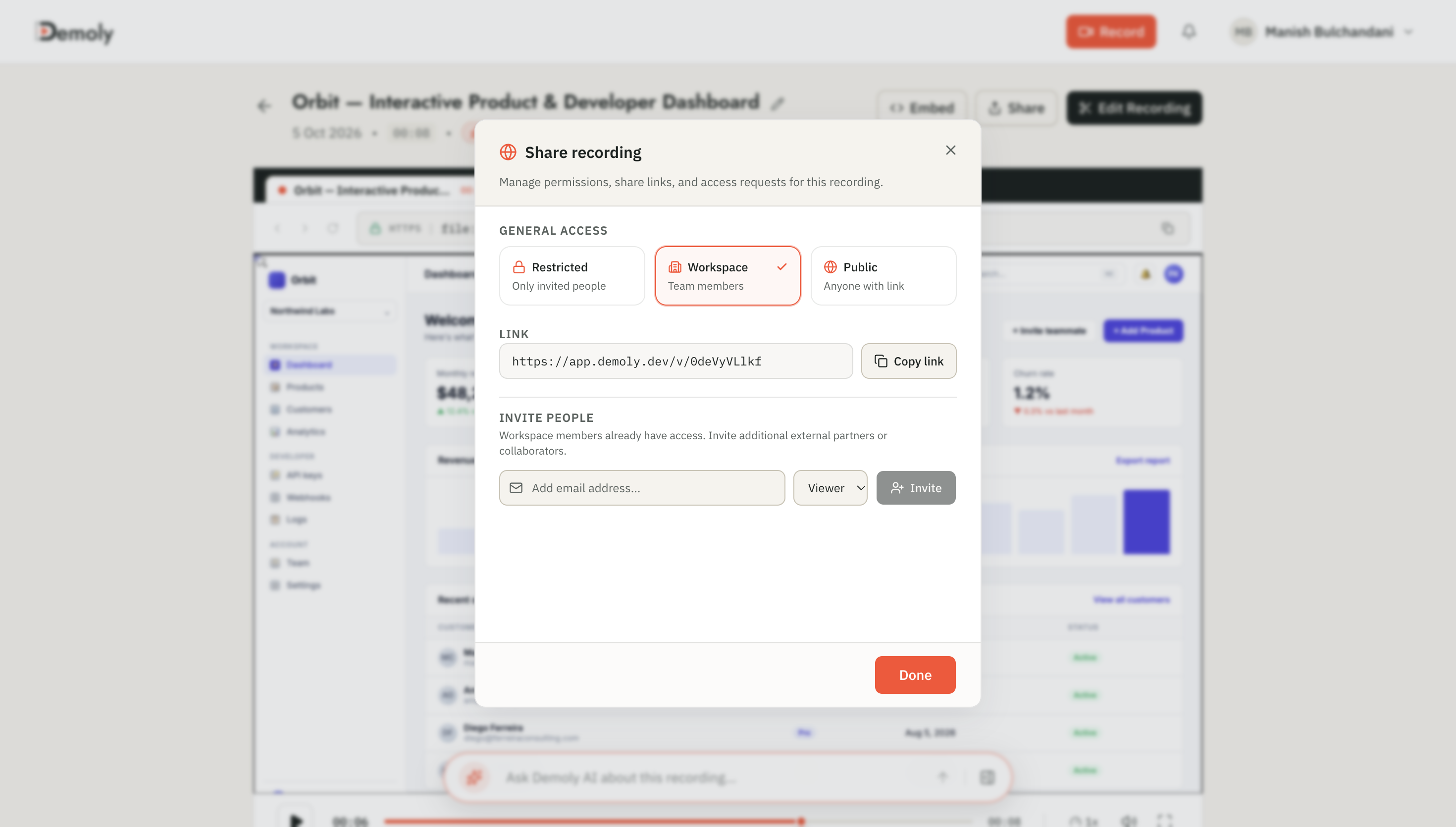
Navigate to the client project directory and click the Share button in the upper right corner of the workspace dashboard.
Select your preferred distribution mode:
- Public Link (Zero-Login): Generates a secure URL allowing client stakeholders, product owners, and non-technical staff to view videos and use the Ask Demoly AI search without registering an account.
- Restricted Email Sharing: Limits playback strictly to verified client email domains for regulated enterprise handovers.
Set client permissions to Viewer Only. This allows clients to stream walkthroughs, ask questions in the conversational AI drawer, and drop element-anchored comments, while preventing accidental edits or asset deletions.
Multi-Project Workspace Architecture Overview
The table below outlines how multi-client agencies structure project hierarchies, permissions, and indexing boundaries across different delivery stages:
Workspace Layer | Asset Types Stored | Access Permissions | AI Search Scope |
|---|---|---|---|
Agency Root / Internal | Internal SOPs, sandbox tests, reusable component walkthroughs | Workspace Admins & Editors | Full internal workspace search |
Client Milestone Folder | Sprint review walkthroughs, feature acceptances, staging demos | Assigned Agency Team + Client Reviewers | Scoped to active milestone recordings |
Final Handover Archive | Production admin guides, API integrations, maintenance manuals | Client Stakeholders (Viewer Only / Zero-Login) | Cross-video search across handover library |
How to Verify It Worked
To ensure your multi-project workspace is cleanly separated and secure before delivering links to clients:
- Test link isolation in an Incognito window: Copy the client folder share URL, open a private browser window, and paste the link. Verify that the video player loads immediately without prompting for an account login, and confirm that no adjacent client folders or internal agency tabs appear in the sidebar.
- Run a cross-video AI search query: In the client folder view, open the Ask Demoly AI drawer. Submit a natural language question (e.g., "Where do I configure custom billing tax rates?"). Verify the AI evaluates recordings within that folder and returns a direct timestamp citation chip (
▶ WATCH AT 01:24).
Important Notes & Edge Cases
- Folder-level AI context limits: While Demoly seamlessly evaluates queries across multiple recordings within a project folder, avoid bundling more than 40–50 large walkthroughs into a single unorganized folder. Group complex enterprise applications into sub-milestone folders (such as
Sprint 1-4,Sprint 5-8, andFinal Admin Documentation) to maintain rapid AI retrieval. - Preserving links during video updates: If a client requests revisions to a workflow, trim or re-record the specific section directly in the Demoly editor. Edits update dynamically on the existing URL, so you never need to replace links embedded in client ticketing systems or handover documents.
- Cross-tenant workspace isolation: Never share agency-level root links with client product owners. Always generate share links at the individual project folder level to ensure total tenant isolation.
Troubleshooting
Issue: New recordings appear in the personal workspace instead of the client folder
Fix: If you forget to select the client folder in the Chrome extension before clicking record, navigate to your Demoly web dashboard, hover over the video thumbnail, click the More Options (...) menu, select Move to Project, and choose the correct client container.
Issue: Client cannot access the folder walkthrough link without an error
Fix: Open the project's Share settings and verify the access toggle is set to Public Link rather than Restricted Workspace Members. If using restricted email sharing, verify the client's email domain matches the approved domain list in project permissions.
Conclusion
Structuring client video walkthroughs into dedicated workspace containers eliminates post-launch support confusion, protects sensitive agency data, and gives clients an interactive reference library they can search on demand.
You can set up multi-project folders, record unlimited walkthroughs, and deliver zero-login client links on Demoly's free tier ($0 forever, no credit card required).
Frequently asked questions
Commonly asked questions about this article.
01•Can clients see videos from other client projects in my Demoly workspace?
No. Sharing permissions are enforced at the individual project folder level. When you share a public or restricted link to a specific client folder, viewers can only see and search recordings inside that assigned container.
02•Can clients query across all videos in their project folder at once?
Yes. When viewers open a client folder with viewer access, the Ask Demoly AI search drawer evaluates all indexed walkthroughs in that specific folder to answer cross-video questions with timestamped citation chips.
03•Do clients need to create a Demoly account to access their project walkthroughs?
No. Demoly supports zero-login public sharing links. Clients can stream high-resolution recordings, browse chapters, search transcripts and visual actions via AI, and leave feedback without creating an account.
04•What happens to existing client share links if I edit or trim a video?
The shared link remains unchanged. Demoly uses non-destructive editing, updating the playback stream and AI indexes automatically on the existing URL without breaking links shared in emails or project management boards.
05•How many client projects and video walkthroughs can I create on the free plan?
Demoly provides unlimited recordings, unlimited video duration, and multi-project folder organization on its free plan, allowing agencies to manage multiple active client handovers without per-seat viewing charges.
Demoly Team
Contributor
Related Dispatches
View all dispatches →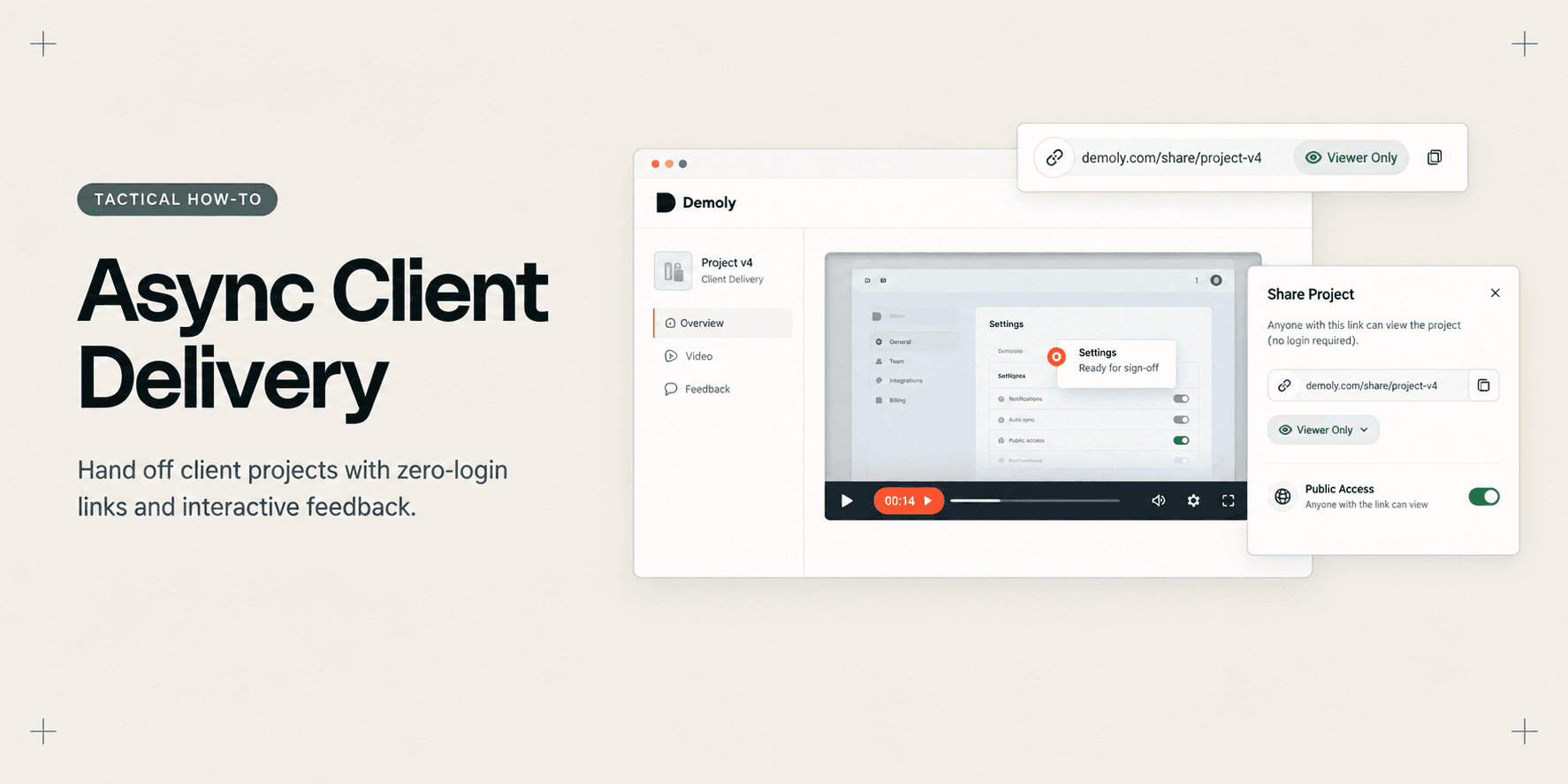
How Account Managers Deliver a Project Without Scheduling Another Call
Learn how account managers deliver completed projects asynchronously using AI-indexed walkthroughs, zero-login sharing, and element-anchored feedback.
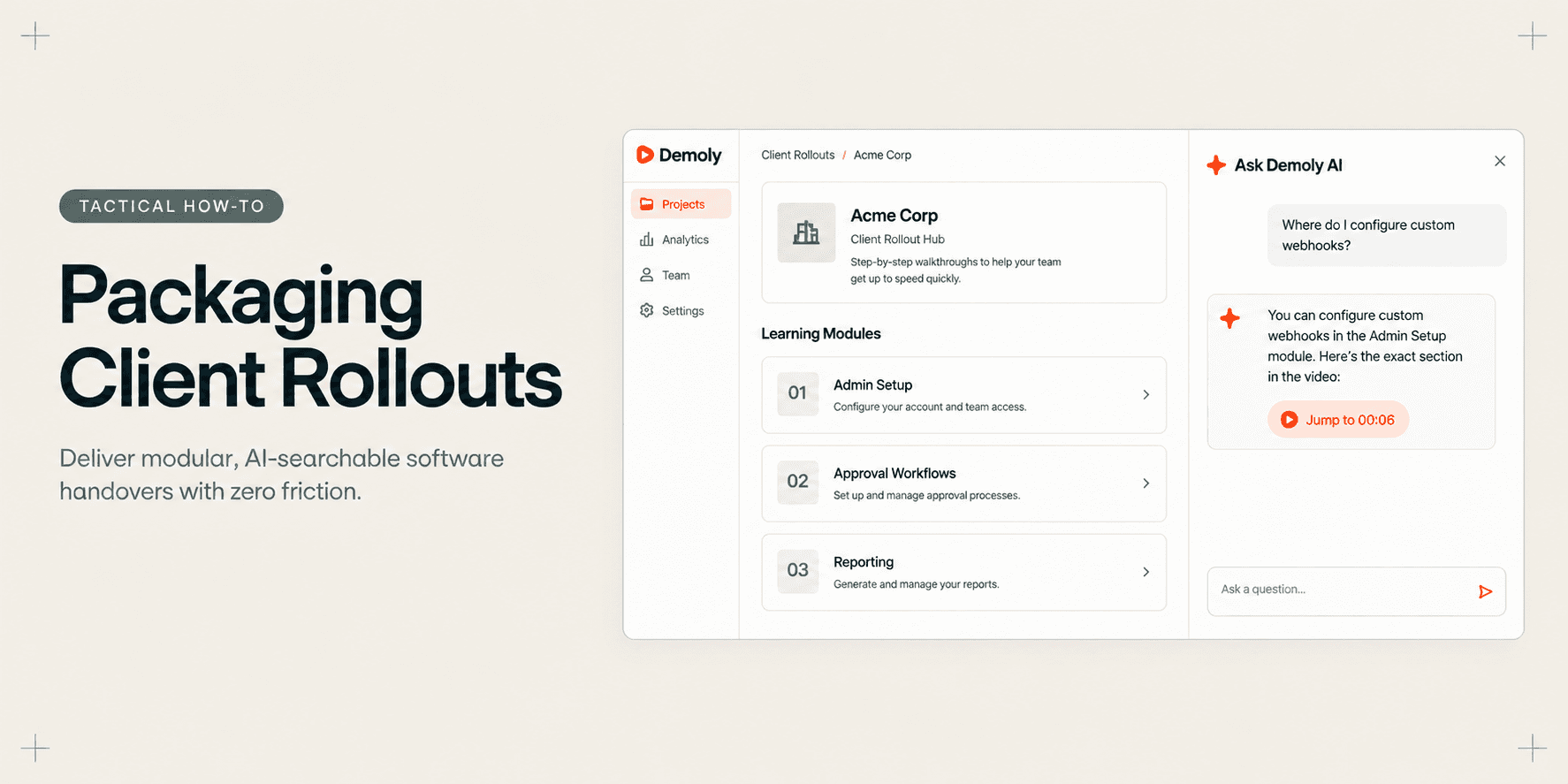
How Implementation Consultants Package a Rollout for a New Client
Learn how enterprise implementation consultants package software rollouts into modular, AI-searchable walkthroughs that eliminate post-go-live hypercare calls.
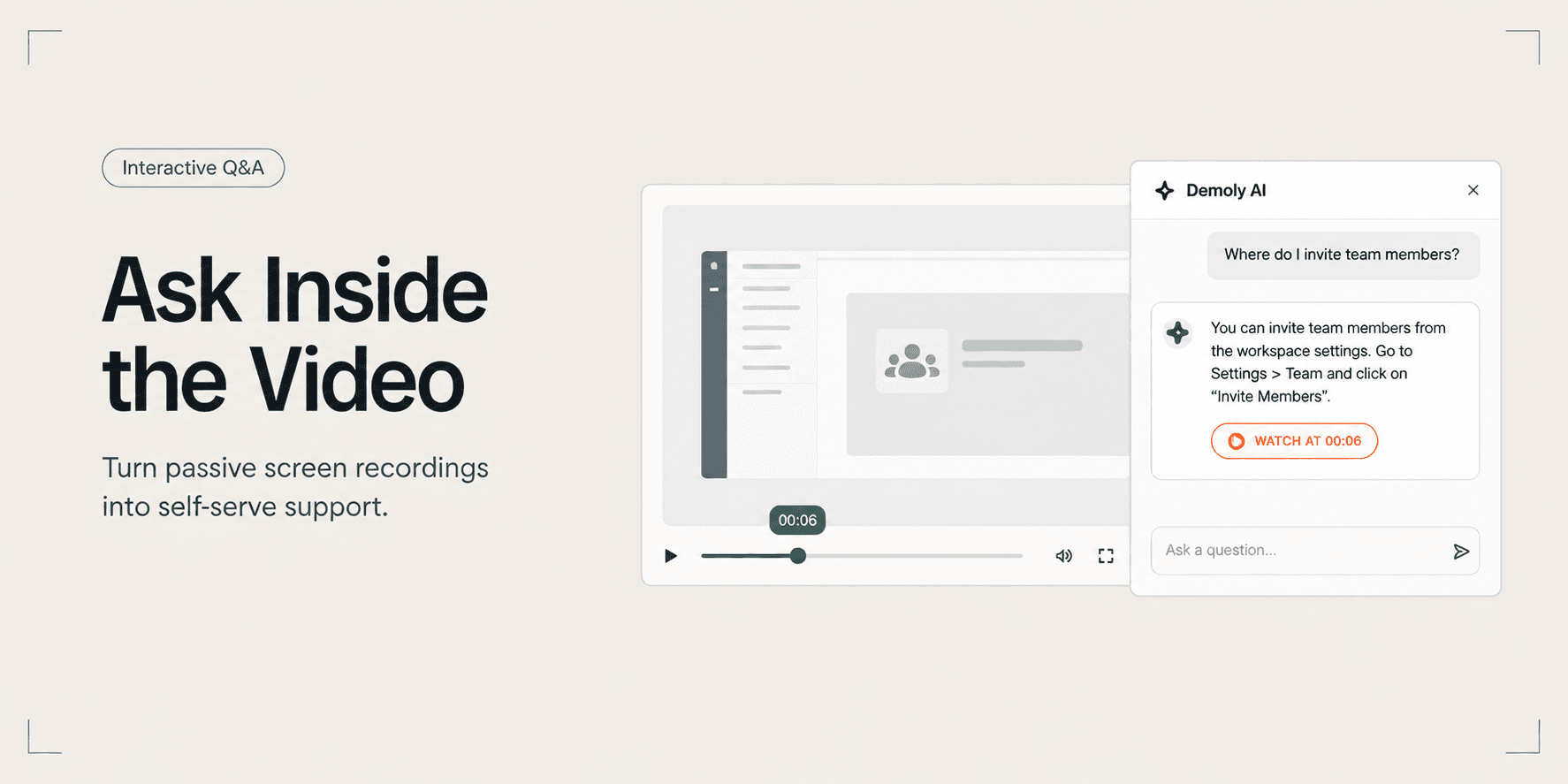
How to Let Clients Ask Questions Inside a Video Walkthrough
Learn how to turn static screen recordings into self-serve support hubs where clients can query features, locate settings, and jump directly to exact timestamps.
Try Demoly for your team
Create branchable, interactive demo recordings and deliverables in minutes with zero friction.