How Account Managers Deliver a Project Without Scheduling Another Call
Learn how account managers deliver completed projects asynchronously using AI-indexed walkthroughs, zero-login sharing, and element-anchored feedback.
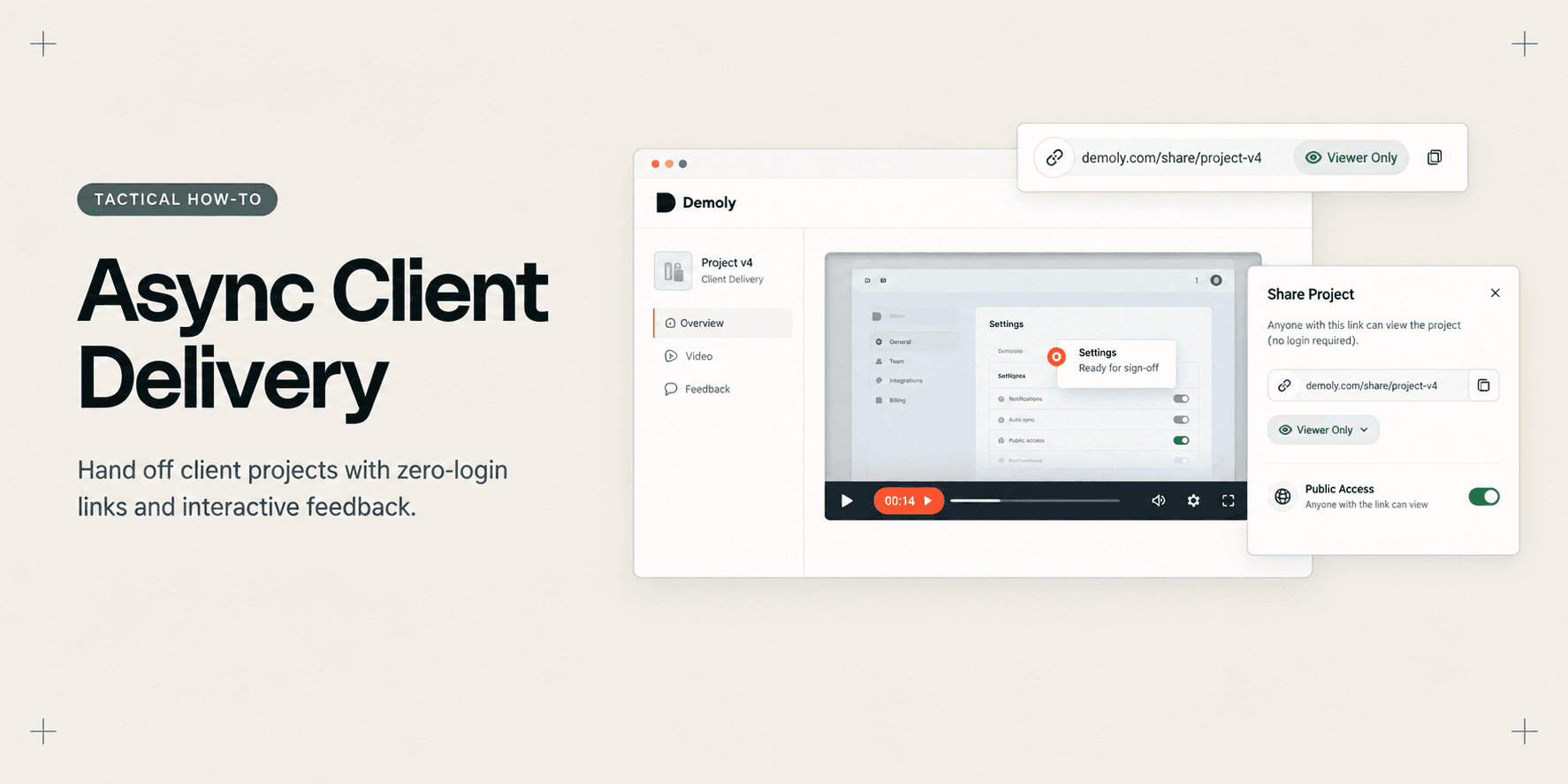
How Account Managers Deliver a Project Without Scheduling Another Call
Scheduling a 45-minute live delivery call often delays project completion by over a week. Coordinating calendars across agency leads, client product owners, and busy executive stakeholders creates unnecessary friction, while 30 minutes of the call are usually spent demonstrating basic admin toggles that clients forget two days later.
This guide provides a step-by-step walkthrough for account managers to deliver completed projects asynchronously. By packaging deliverables into an interactive, AI-indexed video walkthrough with zero-login access, you can eliminate delivery bottlenecks, provide permanent documentation, and secure client sign-off without scheduling another meeting.
Quick Steps:
- Record the milestone walkthrough: Open your client app and capture the core workflow using the Demoly browser extension.
- Redact staging credentials: Mask client API keys, staging URLs, or internal tokens using the in-browser canvas editor.
- Trim pauses and errors: Remove conversational dead air and navigate cleanly between project milestones.
- Generate a zero-login review link: Set permissions to Viewer Only in the Share modal and copy the public review URL.
- Send the async delivery package: Share the walkthrough alongside acceptance criteria so clients can search and comment on their own schedule.
Before You Start
- Install the Demoly Chrome extension: Add Demoly to your Chromium browser to enable single-tab and screen capture.
- Open staging and production environments: Log into the client application in active browser tabs and ensure necessary testing data is loaded.
- Review client acceptance criteria: Cross-reference your deliverable scope with our complete client handover checklist for web agencies to ensure all sign-off requirements are covered.
Step 1: Record the Milestone Walkthrough Using the Extension
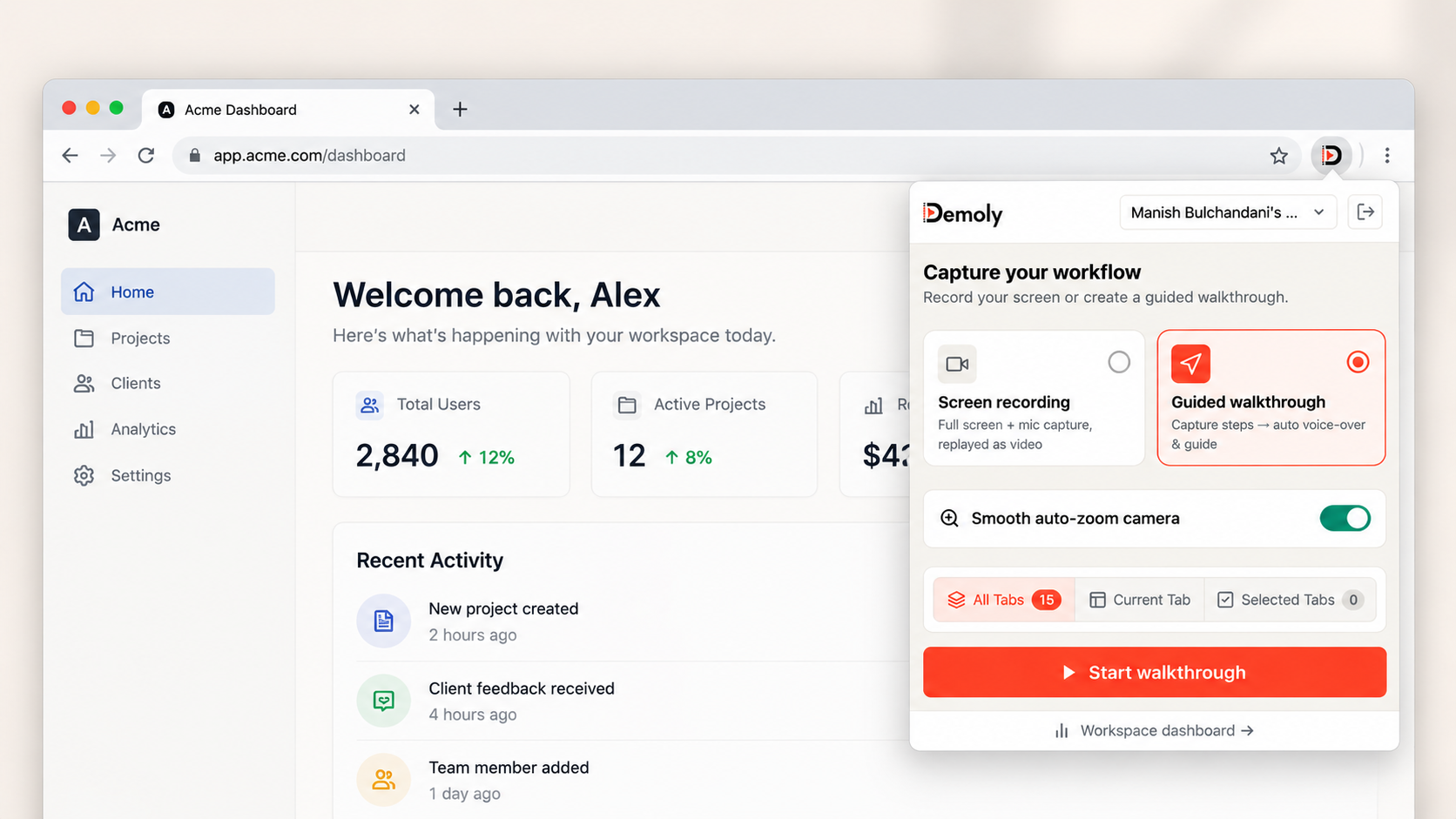
Navigate to the homepage or login view of the completed client project. Click the Demoly icon in your browser toolbar to open the recording control popover.
Select Current Tab if your walkthrough demonstrates an in-browser web app, or Entire Screen if you need to demonstrate external tools, Figma designs, or third-party integrations. Ensure your microphone toggle is enabled if you plan to provide voice narration, or proceed silently if you prefer click-indexed navigation.
Click Start recording. A three-second countdown will display before capture begins. Walk through the completed features in logical sequence: showcase primary user flows, explain client admin controls, and demonstrate where key deliverables live.
Step 2: Redact Sensitive Client Credentials and Staging Data
Once you complete the workflow, click the Stop button on the floating recording control bar. Demoly automatically opens the recorded session inside the web editor canvas.
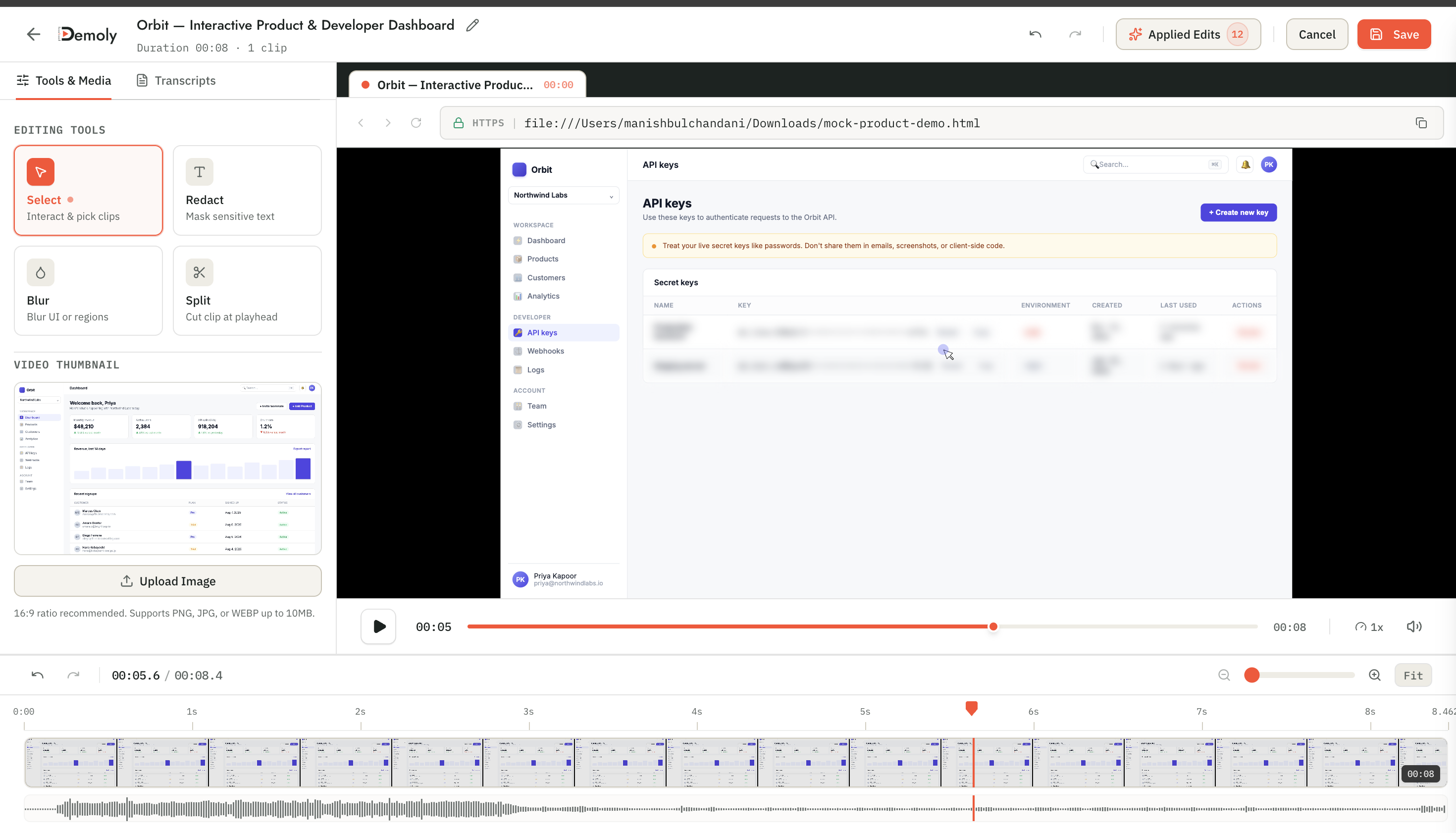
Before distributing the walkthrough to external client stakeholders, review the footage for sensitive credentials, database keys, or customer records displayed during testing. In the left-hand toolbar, select the Redact tool.
Click and drag a bounding blur box across the sensitive form field or API key container on the canvas. Demoly locks the redaction overlay to that visual container across the selected timeline segment, ensuring passwords and sensitive client tokens remain completely hidden during playback.
Step 3: Trim Pauses and Polish the Delivery Timeline
Stay within the editor to tighten the pacing of your delivery presentation. Account managers often encounter page load pauses, staging server delays, or minor verbal slips during capture.
Locate the audio and video track at the bottom of the editor. Click the playhead near the start of any long pause or mistake, select the Split tool, and slice out the unneeded segment.
Demoly uses non-destructive editing, meaning your underlying DOM event stream and audio-visual recordings remain preserved while unneeded frames are instantly removed from the client's view.

Step 4: Generate a Zero-Login Share Link with Viewer Permissions
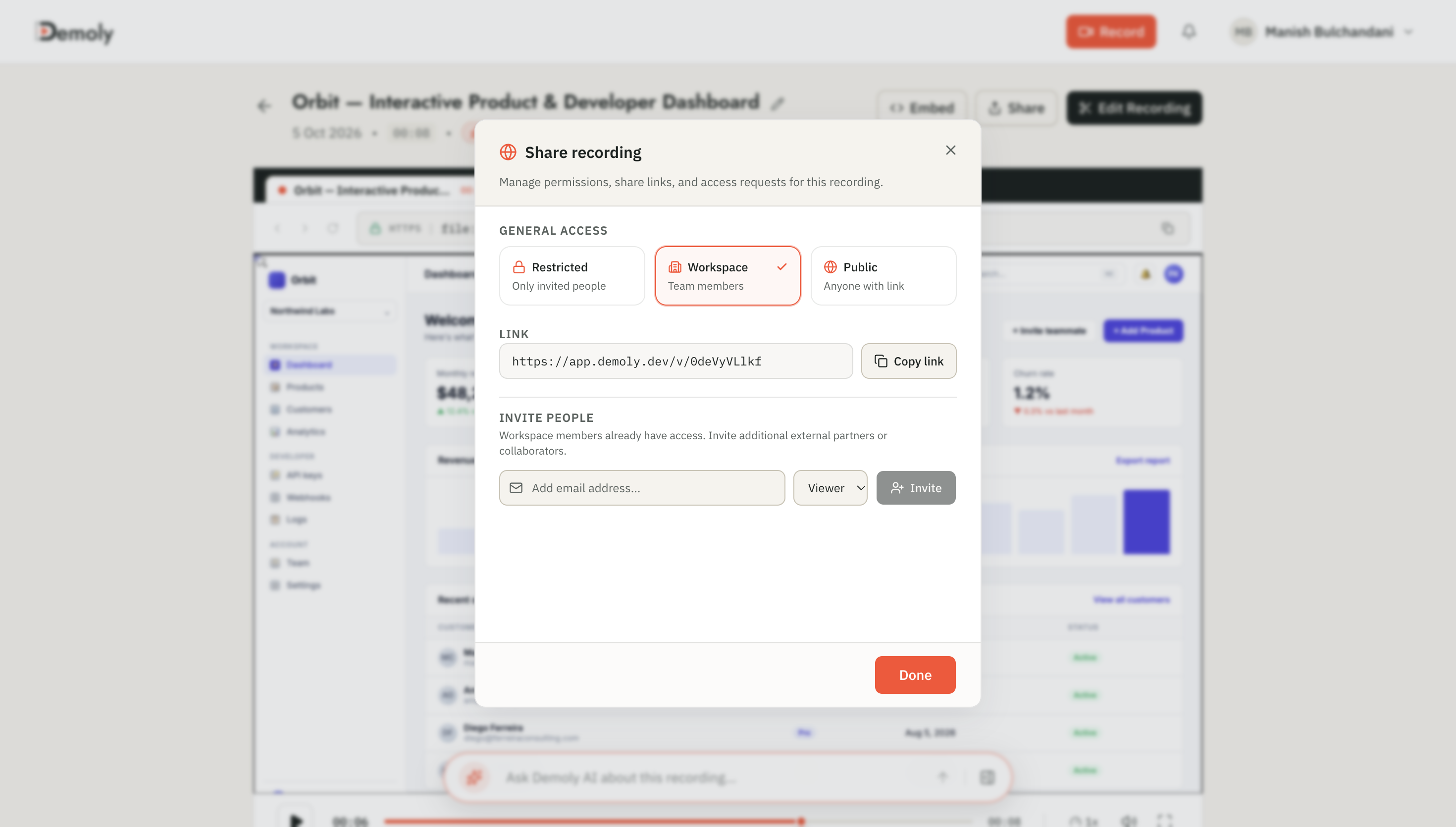
Click the Share button in the top-right corner of the editor canvas to open the project sharing modal.
Select Viewer Only from the permissions dropdown. This setting allows client stakeholders to watch high-definition playback, search the event index, and drop interactive feedback pins without making any edits to your source video or redaction layers.
Copy the generated link. Demoly uses friction-free public links that require no client sign-up, proprietary software installation, or per-seat licensing fees. For a complete breakdown of zero-friction link setup, read our guide on how to share a video walkthrough without requiring a client login.
Step 5: Distribute the Interactive Package and Collect Contextual Feedback
Paste the link into your client delivery email or Slack channel alongside the sign-off criteria and milestone summary.
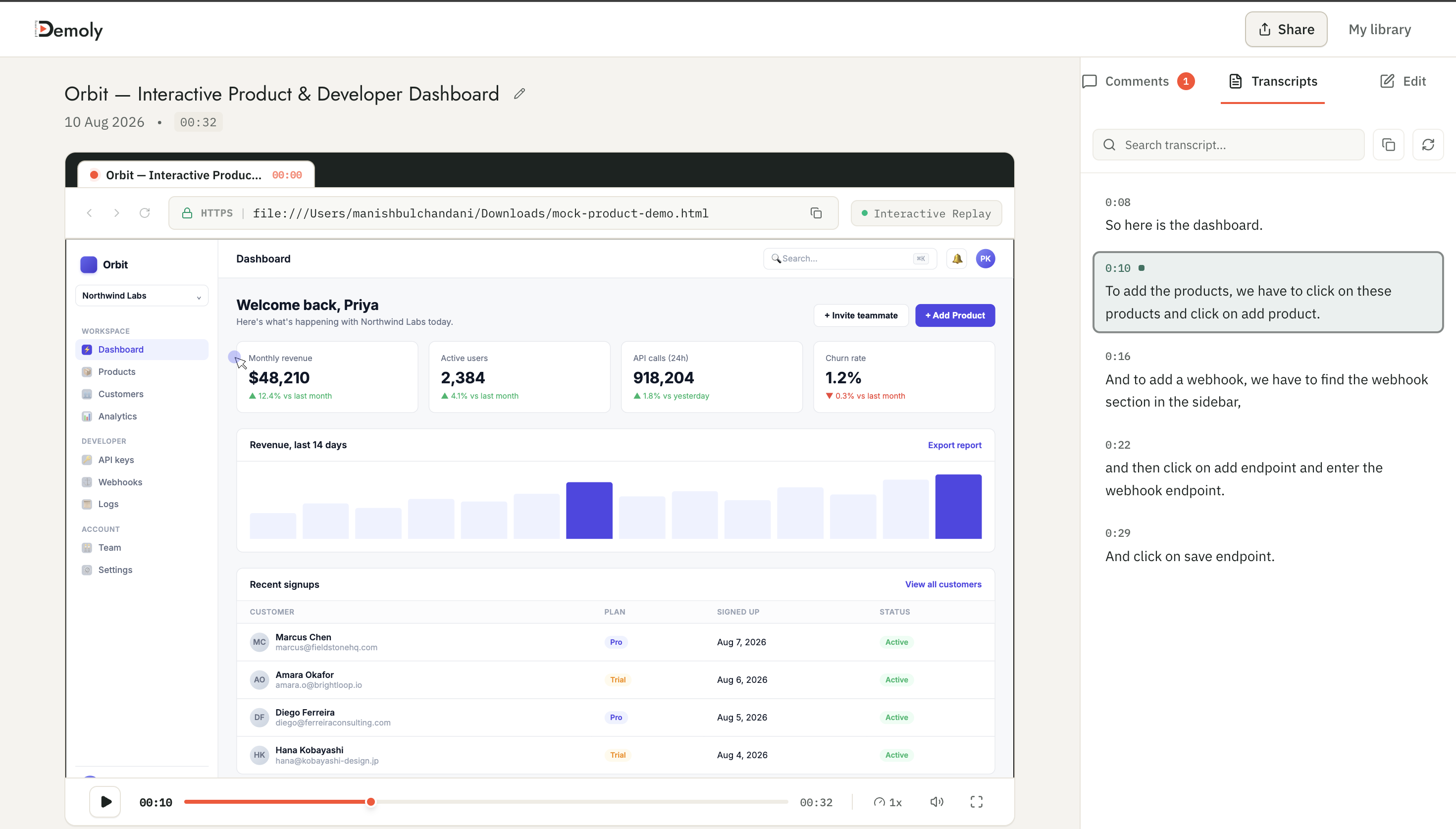
When your client opens the walkthrough, they experience Demoly's interactive player. They can listen to the narration while scanning the real-time transcript drawer on the right. If they want to find a specific feature—such as payment gateways or user permissions—they do not need to scrub manually through the timeline; they can use Demoly's AI-indexed search engine to query spoken words and on-screen clicks.
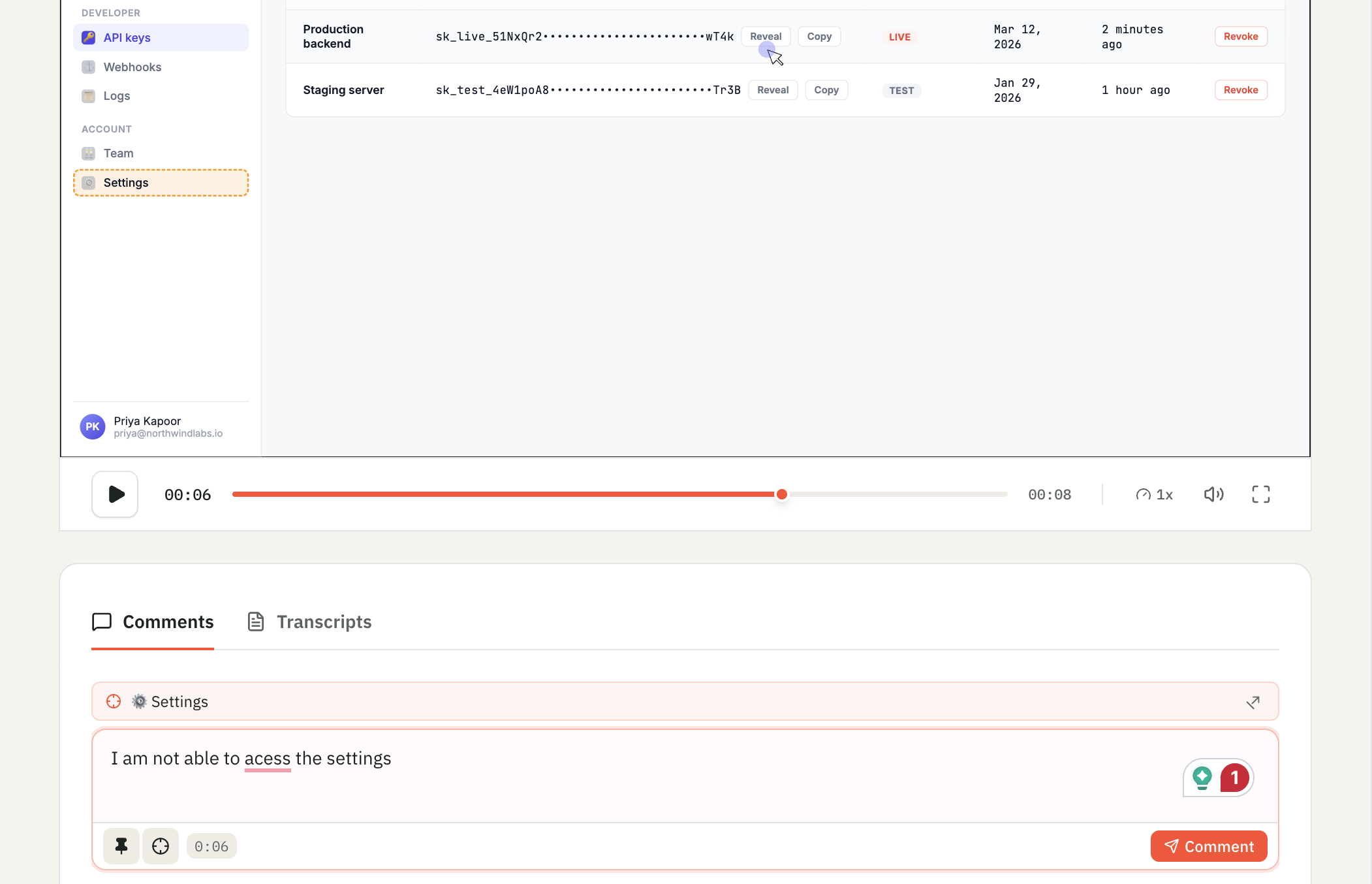
If the client has questions or requests a minor adjustment, they do not need to book a follow-up call. They simply click anywhere on the video canvas to leave an element-anchored comment pin directly linked to the exact timestamp and UI component.
How to Verify It Worked
To ensure your client receives a seamless delivery experience:
- Open a new private or incognito browser window.
- Paste the copied Demoly share URL into the navigation bar and press Enter.
- Confirm that the video loads immediately without displaying a sign-up modal or password prompt.
- Verify that the transcript drawer opens cleanly on the right and that clicking an element-anchored comment pin highlights the target UI element.
Important Notes & Edge Cases
- Handling Multiple Client Decision-Makers: The primary client contact may not be the final approver. Because Demoly links require no accounts, your point of contact can forward the walkthrough directly to their VP, legal counsel, or technical lead without running into login walls.
- Searchable Text vs. Spoken Narration: You do not have to narrate every visible button or input field out loud. Demoly reads the visible text on the web page during capture, making unvoiced UI elements fully searchable when clients query the video.
- Asynchronous Sign-Off Boundaries: Set a clear review window (e.g., 72 hours) in your delivery email. Instruct stakeholders to pin comments directly onto the video so your engineering and design teams have exact visual timestamps for any requested revisions.
Troubleshooting
Symptom | Probable Cause | Actionable Fix |
|---|---|---|
Client reports they cannot access the review link | Permissions are set to Restricted or Private | Open the Demoly Share modal and verify the link status is set to Public with Viewer Only access. |
Staging credentials visible in client player | Canvas blur overlay was placed after the sensitive frames | Reopen the video in the Demoly editor, select the redaction box, and adjust the timeline handles to cover the full duration of the credential display. |
Client requests a meeting to review basic navigation | Stakeholder has not used interactive video search | Reply with a direct timestamp link or instruct the client to use the Ask Demoly AI drawer in the right-hand sidebar to jump straight to the relevant feature. |
Conclusion
Delivering client projects asynchronously transforms agency operations. By replacing scheduling bottlenecks with interactive, AI-searchable walkthroughs, account managers reduce project handover cycles from weeks to hours while providing clients with a permanent reference library.
Demoly offers browser-based recording, automated UI indexing, non-destructive editing, and zero-login link sharing on its free plan ($0 forever, no credit card required).
Frequently asked questions
Commonly asked questions about this article.
01•How do account managers handle executive stakeholders who missed the delivery?
Account managers simply forward the Demoly walkthrough link. Executive stakeholders can watch on any device without creating an account or installing software, using AI search to review the specific deliverables relevant to their department in seconds.
02•Does the client need to install a browser extension to leave feedback?
No. Clients view and interact with the walkthrough entirely within their standard web browser. They can watch playback, search video content, and click the canvas to leave element-pinned comments without downloading plugins or extensions.
03•Can an account manager update the walkthrough after sharing the link?
Yes. Demoly's cloud-based editor lets you trim mistakes or apply element redactions non-destructively to the existing recording. All edits update automatically on the existing share link without breaking saved client bookmarks.
04•How does asynchronous project delivery prevent client scope creep?
Asynchronous delivery anchors client reviews to explicit milestone video walkthroughs and acceptance criteria. Because client comments are pinned to exact visual timestamps, requests are easily categorized as in-scope refinements versus out-of-scope feature additions.
05•What if our client project involves multiple web apps or third-party tools?
When recording with Demoly, select **Entire Screen** mode rather than **Current Tab**. This allows you to seamlessly transition between your staging app, third-party dashboards, and analytics portals while preserving continuous event tracking.
Demoly Team
Contributor
Related Dispatches
View all dispatches →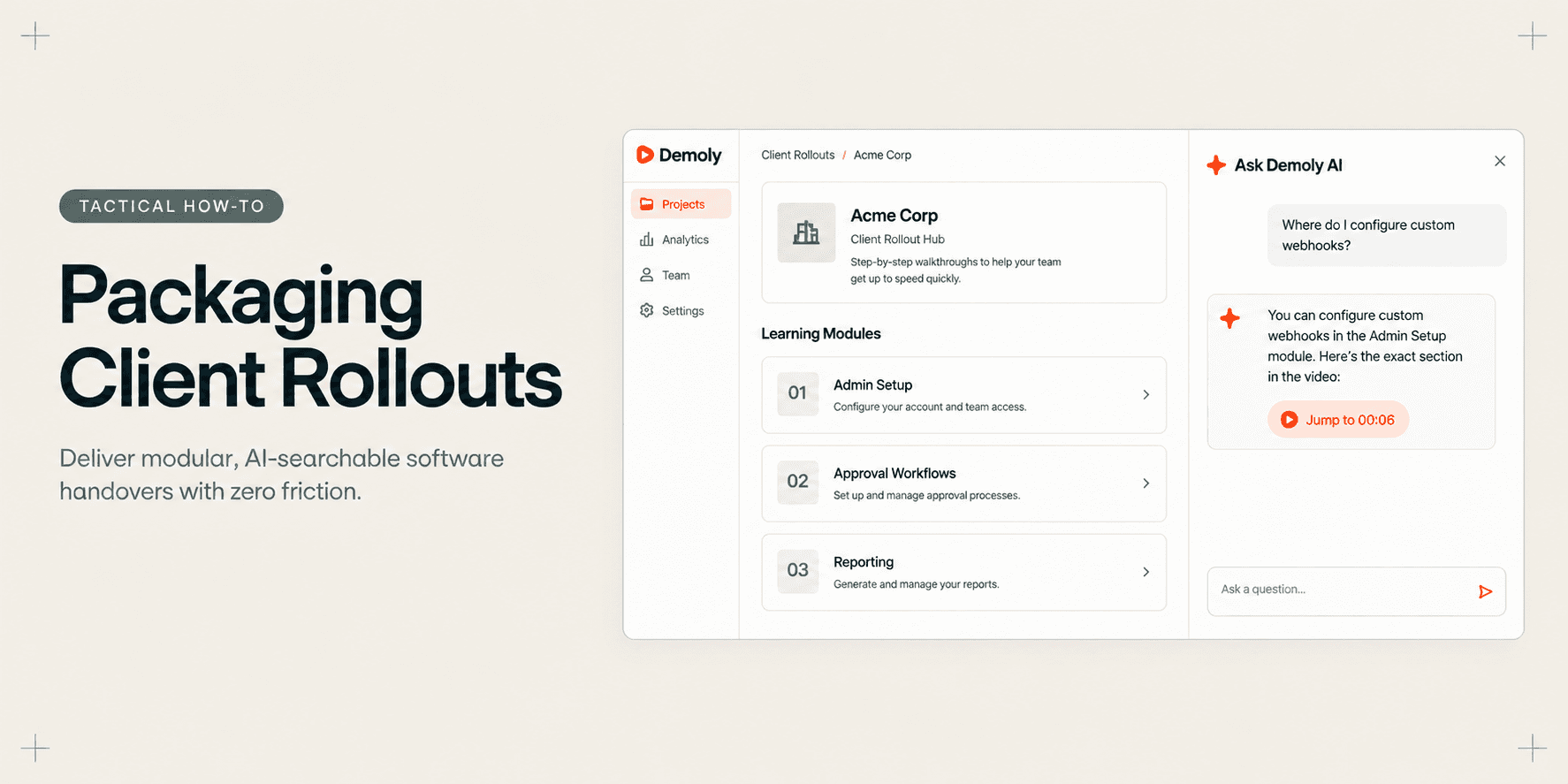
How Implementation Consultants Package a Rollout for a New Client
Learn how enterprise implementation consultants package software rollouts into modular, AI-searchable walkthroughs that eliminate post-go-live hypercare calls.
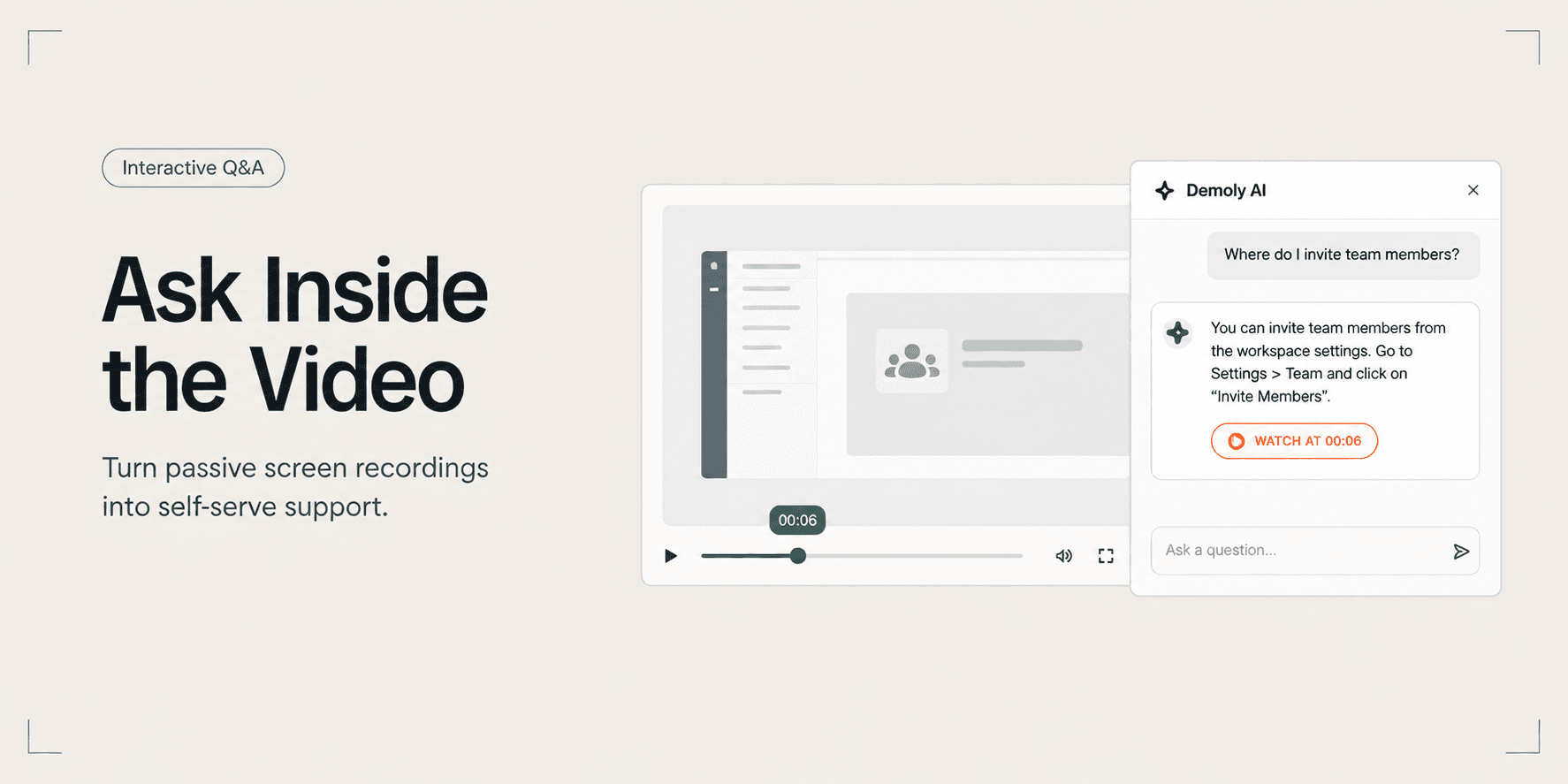
How to Let Clients Ask Questions Inside a Video Walkthrough
Learn how to turn static screen recordings into self-serve support hubs where clients can query features, locate settings, and jump directly to exact timestamps.
How to Search Inside a Video Recording Using AI
Learn how to search inside video recordings using conversational AI. Query spoken words, unvoiced clicks, and on-screen UI elements to jump directly to exact timestamps.
Try Demoly for your team
Create branchable, interactive demo recordings and deliverables in minutes with zero friction.