A Security Checklist for Sharing Demos of Live Production Environments
Prevent credential leaks, PII exposure, and compliance violations. Use this operational security checklist to safely record and share demos of live production environments.
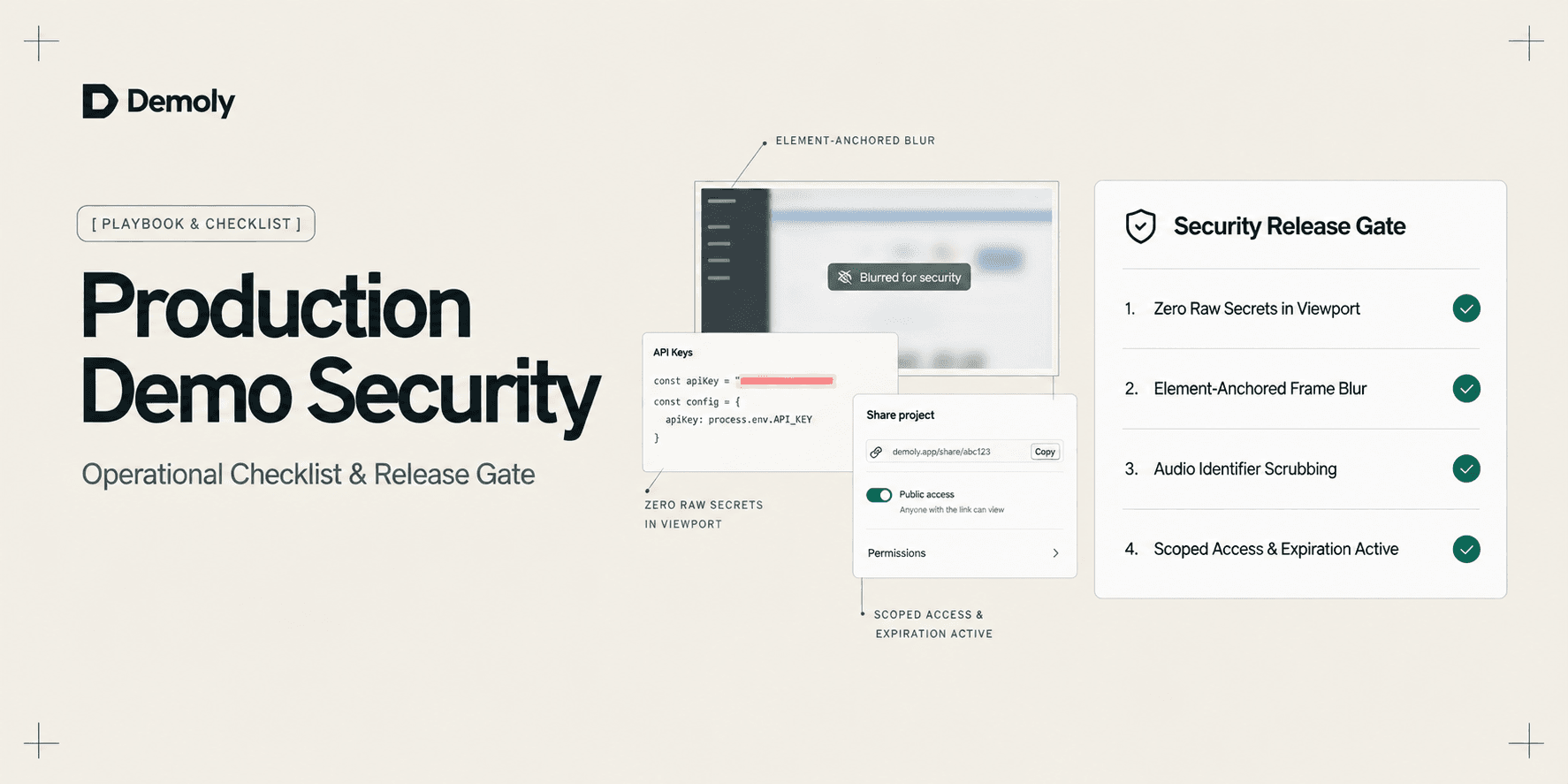
A Security Checklist for Sharing Demos of Live Production Environments
Demonstrating features inside live production environments is often unavoidable. Whether validating a critical bug fix, onboarding an enterprise client, or handing off live infrastructure configurations, staging environments frequently fail to replicate real edge cases. However, live application interfaces contain high-risk data: active API keys, customer personally identifiable information (PII), session tokens, database connection strings, and financial metrics.
Standard screen recording habits expose agencies and software teams to severe security vulnerabilities. Traditional recording tools treat every browser frame as a flat, unindexed pixel stream. A single accidental scroll past an integration dashboard or customer record permanently burns confidential data into published video files. Re-recording entire demonstrations wastes hours of engineering capacity, while superficial browser blur tools often fail to prevent data extraction.
This checklist provides an operational security protocol for engineering leads, agency founders, and product managers. By applying structured pre-capture sanitization, element-level frame redaction, and strict link distribution governance, your team can share live environment walkthroughs without risking data breaches or regulatory non-compliance.
Core Pillars of Production Demo Security
A secure walkthrough requires defense in depth across the entire recording lifecycle. Before capturing live software, verify your process against four foundational security pillars:
- Zero High-Entropy Secrets in the Viewport: Never expose raw production master keys, unhashed credentials, or private certificates during active capture sessions.
- Canvas-Layer Frame Masking: Redactions must permanently obscure underlying data at the video presentation layer rather than relying on inspectable web overlays.
- Minimal Viewport Exposure: Restrict capture boundaries strictly to the target browser application tab, eliminating background desktop context and stray system notifications.
- Time-Bound Access Governance: Recorded links must feature strict role permissions, disabled unauthorized downloads, and defined expiration dates to prevent perpetual data exposure.
The Live Production Environment Security Checklist
Execute this checklist sequentially across every stage of the recording and delivery process.
1. Pre-Recording Environment Sanitization
Clean the browser environment thoroughly before initiating any recording session:
- Audit Visible Browser Chrome: Hide the browser bookmarks bar, close unrelated application tabs, and disable extension icons that display internal company tokens or unread notification counts.
- Suppress Operating System Notifications: Enable system-level Do Not Disturb mode to prevent incoming Slack pings, email previews, or calendar alerts from rendering on screen.
- Pre-Load Sanitized Test Tenants: Whenever possible, authenticate into dedicated staging organizations or demo client workspaces that mirror production schema without exposing real customer databases.
- Rotate or Scope Temporary API Keys: If you must display an API settings page, switch to scoped, read-only staging tokens. Never open views displaying unscoped production secret keys.
- Inspect URL Address Bars and Query Parameters: Verify that active browser URLs do not expose authentication tokens, internal routing IDs, or customer email addresses in plaintext query strings.
2. Capture-Time Operational Boundaries
Maintain strict operational discipline while the recorder is running:
- Confine Capture to a Single Browser Tab: Avoid full desktop or full screen capture modes. Lock the recording boundary exclusively to the active web application tab to prevent accidental application switching.
- Avoid Navigating to Administrative Infrastructure: Never toggle away from the web application interface into cloud consoles (AWS, Google Cloud), database GUIs, or payment provider dashboards during the recording.
- Maintain Controlled Cursor and Scroll Velocity: Erratic, rapid scrolling creates fragmented video frames where sensitive elements flash across screen coordinates, making post-production redaction difficult to verify.
- Keep Oral Descriptions Generic: Do not verbally state sensitive account numbers, client phone numbers, internal server hostnames, or confidential contract values in your microphone audio track.
3. Post-Capture Verification and Redaction
Audit and sanitize the recorded asset before publishing or sharing the link:
- Scrub Frame Transitions for Modal Flashes: Inspect the video timeline around modal openings, tab switches, and dropdown menus. Sensitive records frequently flash for fractions of a second while initial API calls resolve.
- Apply Element-Anchored Redaction Over Dynamic Content: If sensitive account metrics or user lists shift as you scroll, apply dynamic element masking. To understand why standard blur rectangles fail during viewport movement, review how element-anchored masking beats static blur boxes.
- Confirm Permanent Presentation-Layer Redaction: Ensure your video platform permanently scrubs redacted pixels from the viewer video stream. Never use screen recorders that leave underlying DOM text accessible in the browser source.
- Trim Dead Time and Loading Sequences: Cut out lengthy network loading sequences, browser tab switches, and accidental navigation pauses to minimize the total surface area of the recording.
4. Distribution and Access Governance
Control how the completed recording is accessed, viewed, and archived:
- Configure Explicit Viewer Permissions: Share links using email-authenticated viewing or restricted workspace permissions rather than public, search-engine-indexed links.
- Disable Video File Downloads: Prevent viewers from downloading raw MP4 files to personal, unmonitored local storage where files can be recirculated without administrative oversight.
- Define Link Expiration Windows: Set an automated expiration window (such as 14 or 30 days) for demo links so obsolete recordings of live environments do not remain accessible indefinitely.
- Maintain an Audit Log of Shared Links: Track which team members generated production demo links and maintain the capability to instantly revoke access if project scope ends.
Production Demo Security Triage Matrix
Use this matrix to determine the required safeguards based on the sensitivity of the data visible within your walkthrough:
Data Category | Examples | Risk Level | Mandatory Countermeasure |
|---|---|---|---|
Authentication Secrets | API secret keys, JWT tokens, webhook signing secrets | Critical | Do not record; pre-rotate keys or apply canvas-layer redaction |
Customer PII | Full names, email addresses, phone numbers, home addresses | High | Apply element-anchored blur overlays across all active frames |
Financial Records | Stripe customer balances, bank routing details, invoices | High | Mask data elements before publishing link; restrict viewer access |
Internal Infrastructure | Internal IP subnets, database connection strings, VPC IDs | Medium | Trim frames or crop viewport; remove from video timeline |
Public UI Elements | Navigation bars, public copy, marketing assets, layout grids | Low | Standard capture; no special masking required |
Common Operational Mistakes to Avoid
- Relying on Client-Side CSS Blurs: Many browser extension recorders inject basic CSS blur filters directly onto web elements prior to recording. If an extension merely blurs DOM nodes on screen, any user inspecting the browser can remove the filter. Always use verified canvas-level video redaction.
- Ignoring Background Network Requests: Walking through developer tools during live demos can expose authentication headers, bearer tokens, and internal endpoints in the Network tab. Never open browser developer consoles during a client-facing production walkthrough.
- Failing to Mask Spoken Names in Audio: A visual blur is useless if the presenter states the client's private corporate email address or confidential billing figure aloud. Always mute or cut sensitive audio segments.
- Publishing Walkthroughs via Public Storage Buckets: Storing walkthrough videos in unauthenticated cloud buckets or generic video drives creates unmonitored public URLs that anyone with the link can share.
- Skipping Post-Production Playback Audits: Assuming a quick recording went smoothly without reviewing the timeline is the primary cause of leaked API keys. Always review the full playback track before sending the link.
Quality Check: Production Demo Release Gate
Before sending any live walkthrough link to an external client, stakeholder, or contractor, verify these four release criteria:
- Frame Scrub Completed: The entire video timeline has been scrubbed at key transition points, confirming zero unmasked secrets flash on screen.
- Audio Track Sanitized: No proprietary account identifiers, client phone numbers, or confidential metrics are spoken in the voiceover.
- Element Masks Verified Across Scrolls: All applied blur overlays stay locked to target elements even when the page is scrolled or resized.
- Access Rules Enforced: The link requires authenticated viewer access, public search indexing is disabled, and an expiration policy is active.
Using Demoly for Secure Production Walkthroughs
Managing production demo security manually is tedious and prone to human error. Demoly is designed specifically for web application walkthroughs, giving engineering teams and agencies fine-grained control over data privacy without requiring complex video editing software.
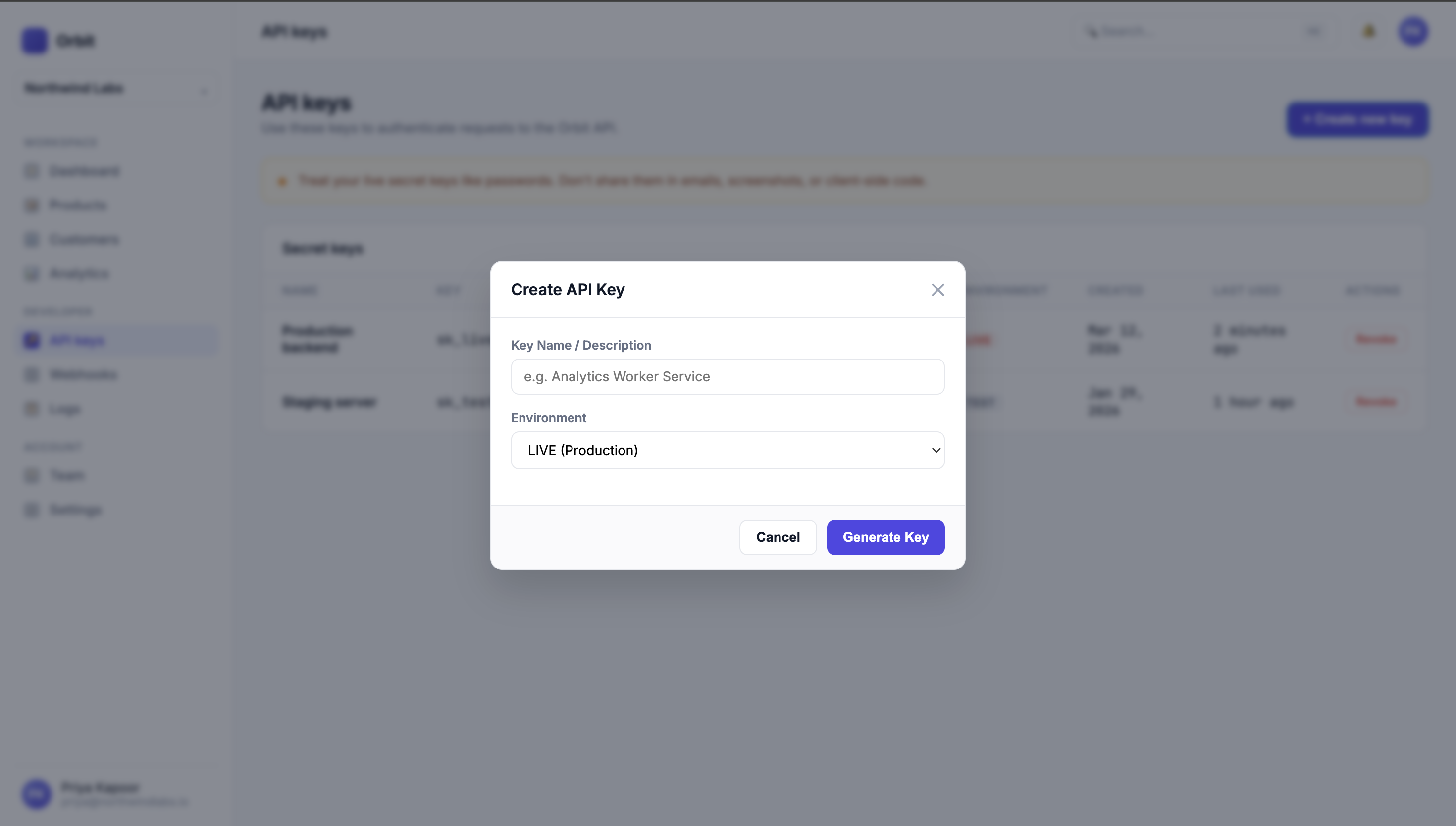
When recording live web applications, sensitive modal windows and API dashboards often surface unexpectedly. Demoly operates directly inside the browser viewport, capturing clean web application context without exposing background desktop apps, system docks, or personal browser windows.
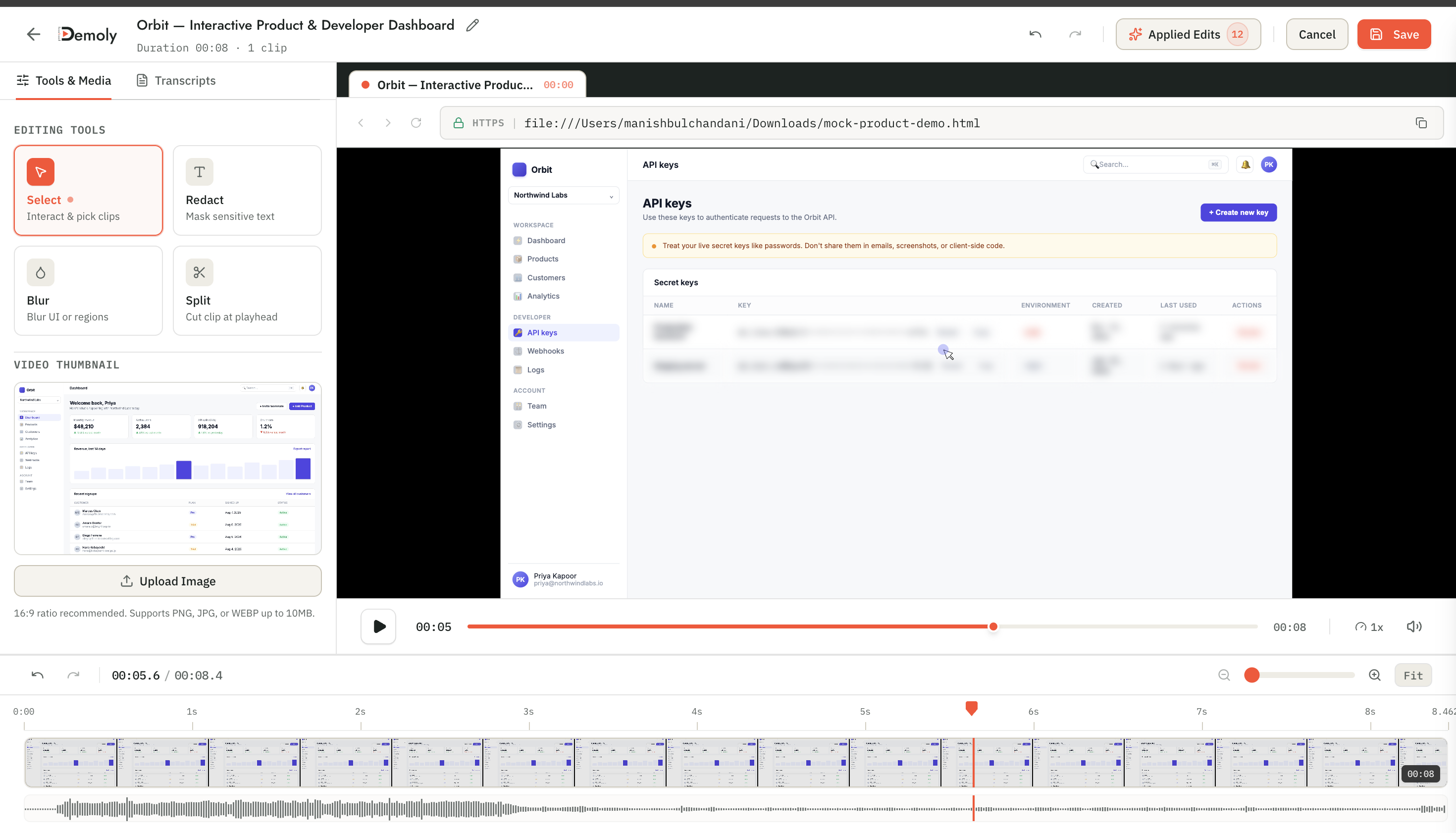
Demoly streamlines post-recording redaction with specialized in-browser privacy tools:
- Canvas-Layer Element Masking: Apply instant redaction boxes directly over sensitive inputs, API keys, or customer tables. Demoly permanently strips the underlying data at the presentation layer, preventing external viewers from recovering masked text.
- Non-Destructive Post-Production: Trim unwanted pauses, mistakes, or accidental tab navigations directly in the web editor without re-recording the entire walkthrough.
- Contextual Element Pins: Mark technical callouts with element-anchored pins (
🎯) to guide the viewer directly to relevant workflows without forcing them to watch irrelevant dashboard areas. - Granular Access Control: Share recordings via secure project folders with zero-friction playback, allowing clients to review walkthroughs without requiring expensive per-seat software licenses.
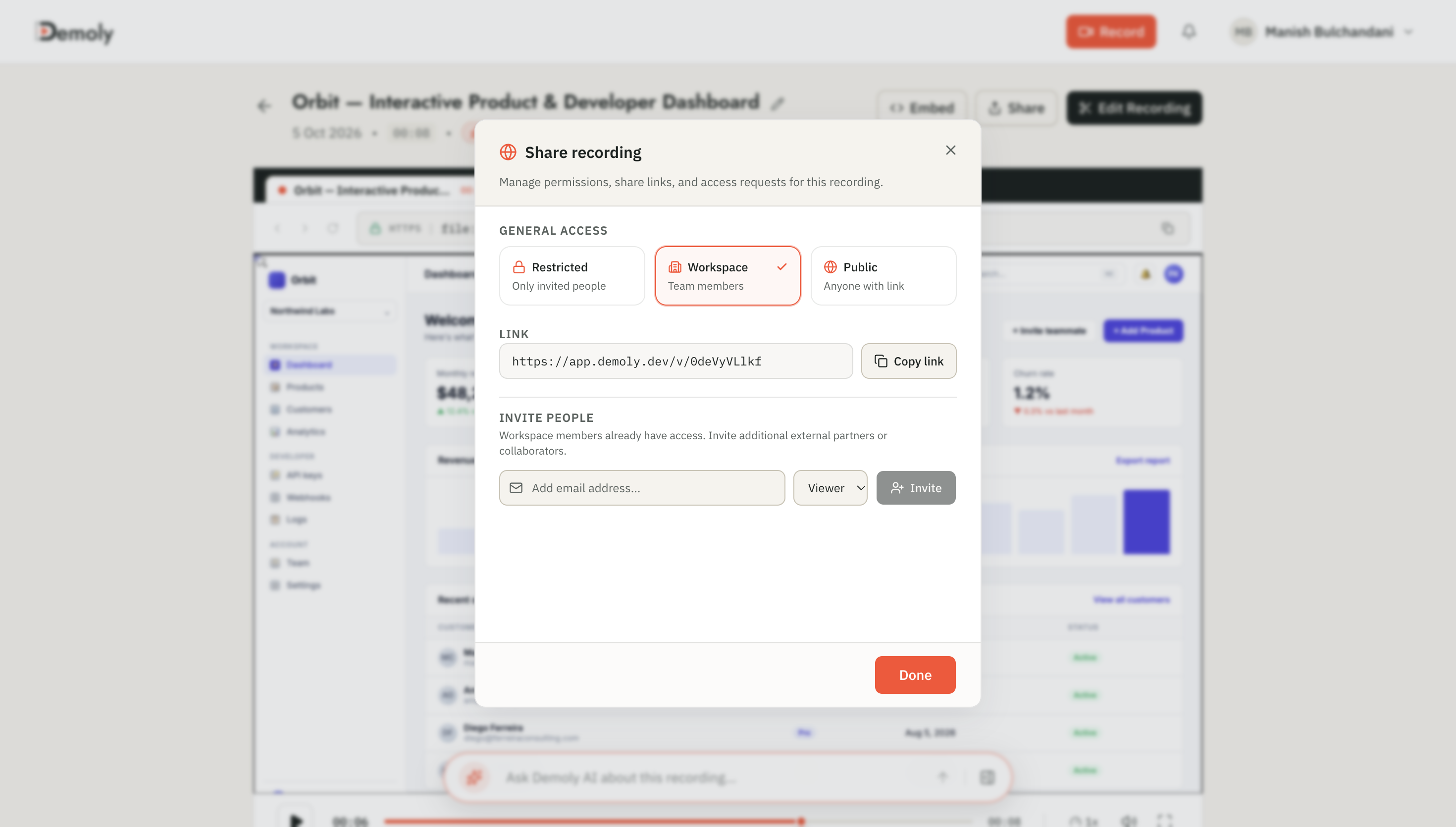
By combining browser-native capture with frame-level redaction, teams eliminate the friction of recording multiple takes while maintaining strict operational security standards. For a complete tactical workflow on redacting client records, explore our detailed guide on how to redact sensitive client data before sharing a screen recording.
Practical Next Steps
Make this security checklist a mandatory pre-flight standard across your agency or engineering team. Incorporate it into your standard bug-reporting protocols and client delivery workflows so developers never share raw production recordings without verification.
To establish repeatable security and handover standards across all customer projects, explore our tactical guide on how to redact sensitive client data before sharing a screen recording.
Frequently asked questions
Commonly asked questions about this article.
01•Can external viewers unmask redacted elements in Demoly?
No, Demoly renders redactions directly into the viewer video presentation layer, completely stripping the underlying data so viewers cannot recover masked content.
02•What is the most common data leak in production demos?
The most frequent leaks involve active API keys displayed in settings modals and customer PII visible in database tables during scroll transitions.
03•Does element-anchored masking move when the page scrolls?
Yes, element-anchored masks attach directly to the DOM element coordinates, dynamically tracking the target item as the page scrolls or reflows.
04•Should production walkthroughs ever show browser developer tools?
No, opening browser developer tools risks exposing bearer tokens, session cookies, and internal endpoint architectures in network request headers.
05•Can I revoke access to a shared Demoly walkthrough link?
Yes, workspace administrators can adjust viewer permissions, make recordings private, or delete shared links instantly from the Demoly dashboard.
Demoly Team
Contributor
Related Dispatches
View all dispatches →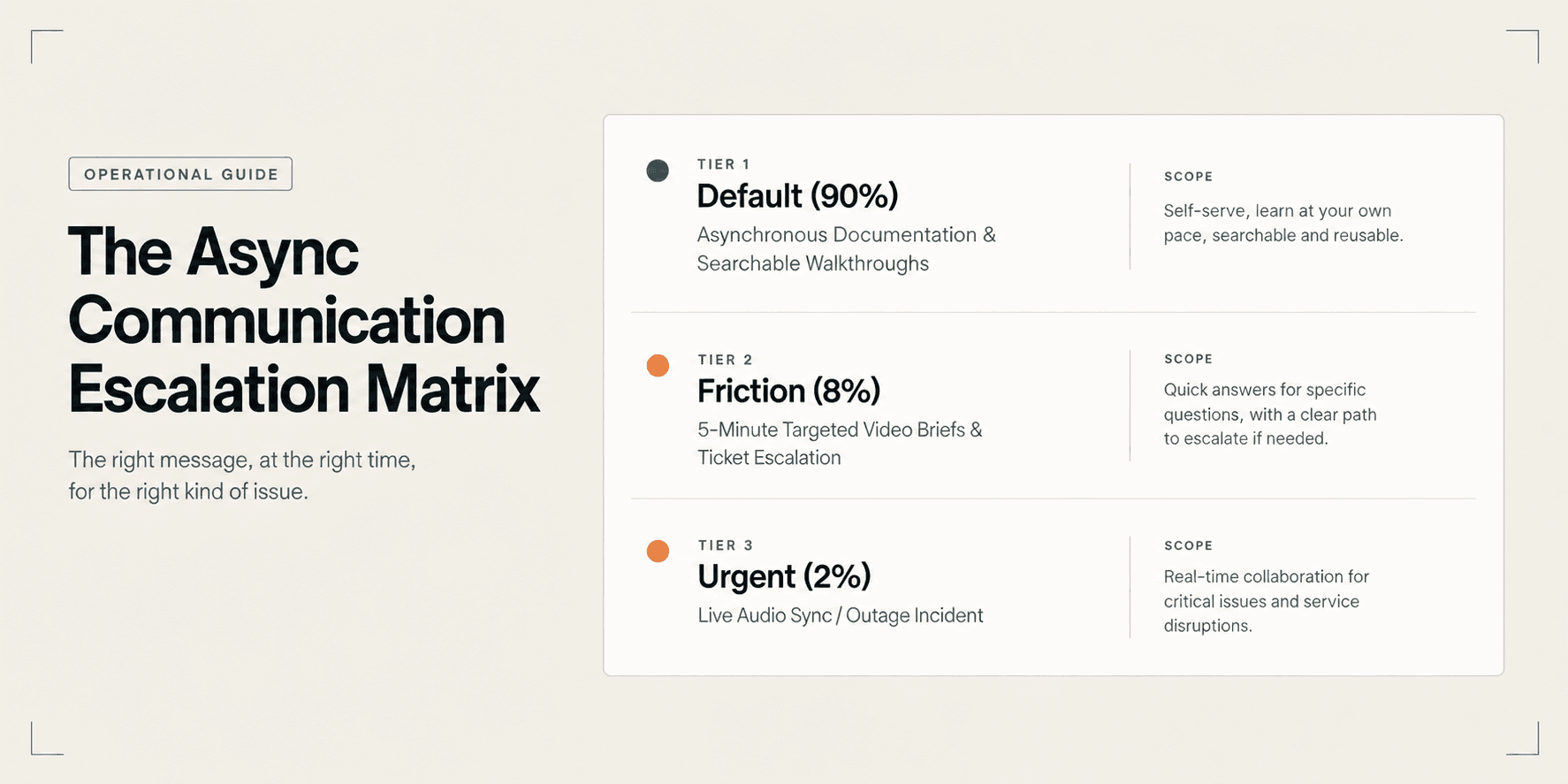
The Async Communication Playbook for Distributed Agency Teams
Eliminate timezone bottlenecks and calendar gridlock. Learn the operational playbook distributed agencies use to manage cross-timezone handoffs and client updates asynchronously.
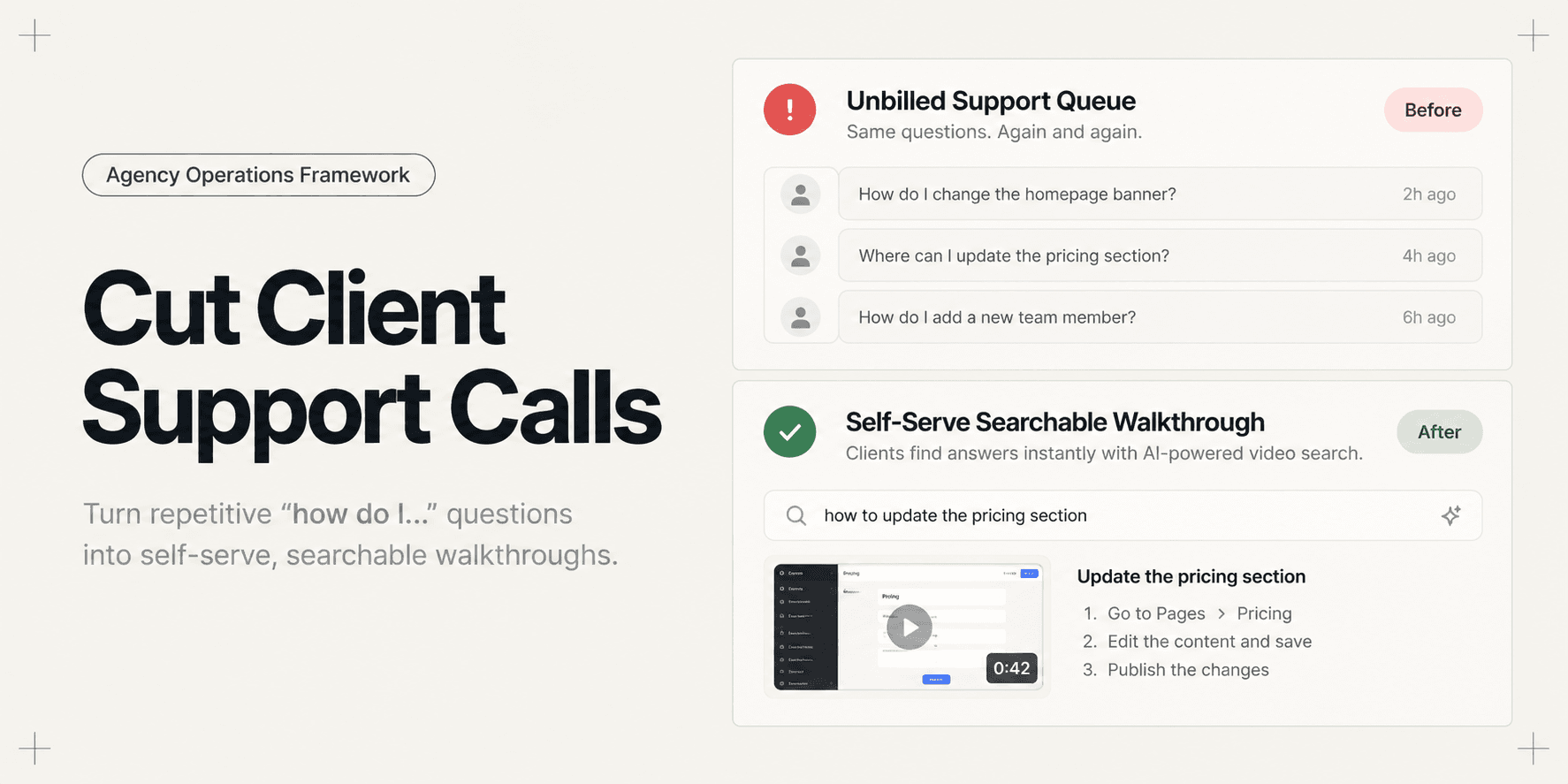
How to Cut Post-Launch Client Support Calls by 70%
Post-launch client questions drain agency profitability through unbilled support hours. Learn an operational playbook to deflect up to 70% of repetitive support calls using searchable video handovers.
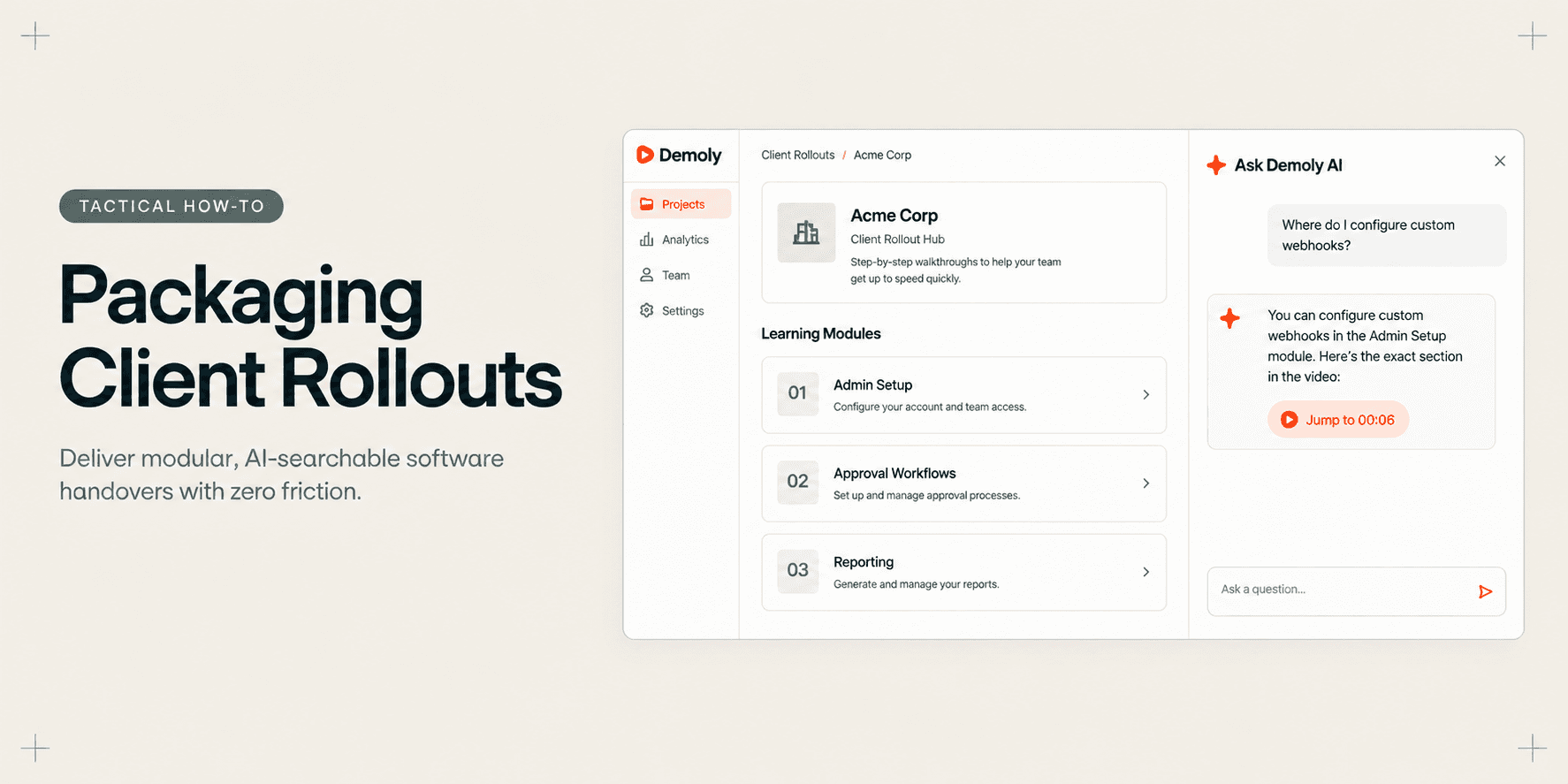
How Implementation Consultants Package a Rollout for a New Client
Learn how enterprise implementation consultants package software rollouts into modular, AI-searchable walkthroughs that eliminate post-go-live hypercare calls.
Try Demoly for your team
Create branchable, interactive demo recordings and deliverables in minutes with zero friction.