How Freelance Developers Deliver Professional Client Handovers Solo
Solo freelance developers often lose days to unpaid post-launch support and disjointed documentation. Learn how to package high-fidelity, asynchronous client handovers in under 30 minutes without scheduling another live call.
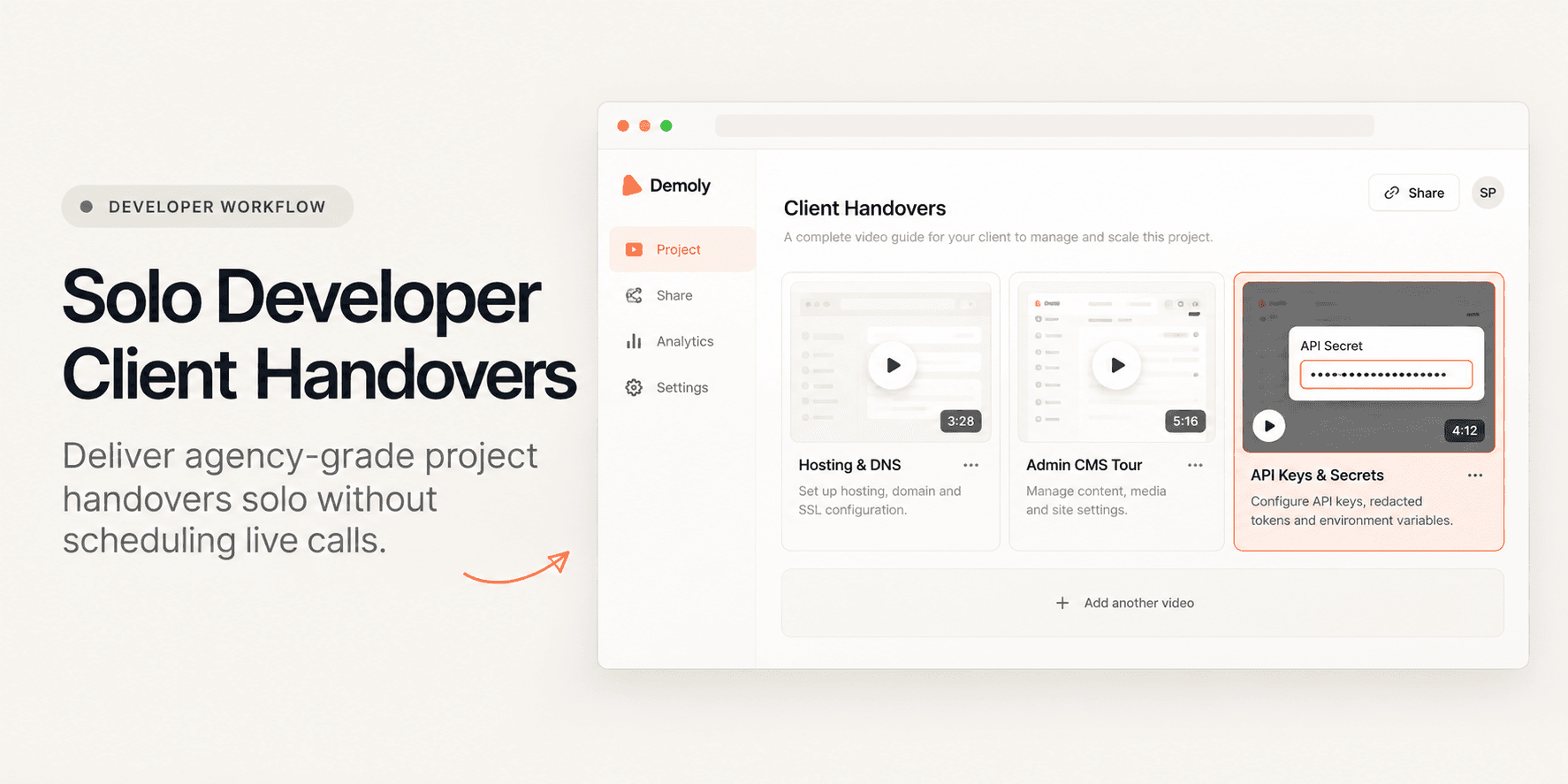
How Freelance Developers Deliver Professional Client Handovers Solo
When a solo freelance developer completes a custom web build, the final milestone often triggers an exhausting second phase: unpaid post-launch support. Handing over raw GitHub repositories and dense markdown README files leaves non-technical clients confused. Scheduling 60-minute live Zoom handover walkthroughs drains your billable hours, yet clients still forget where to manage environment variables or update CMS records two weeks later.
This guide provides a repeatable, 25-minute execution blueprint for solo developers to package professional, agency-grade client handovers asynchronously. By structuring focused video modules, redacting sensitive production keys, and delivering an AI-searchable project hub, you can secure final invoice sign-off while eliminating post-launch support drag.
Quick Steps:
- Structure handover topics into modular chapters: Divide documentation into hosting/architecture, content management, and credentials.
- Record modular browser walkthroughs: Capture deployment consoles, staging dashboards, and admin panels using the Demoly extension.
- Mask production secrets on the video canvas: Apply element-anchored redactions over live API tokens and database connection strings.
- Bundle walkthroughs into a zero-login client project: Organize recordings into a unified project link without forcing client account creation.
- Deliver the searchable handover package: Hand over an interactive resource where clients can query UI elements directly instead of messaging you.
Before You Start
- Pre-authenticate environments: Log into your production hosting platform (e.g., Vercel, Netlify, AWS), DNS manager, and application administrative dashboards in a single Chrome window.
- Isolate demonstration tabs: Close unrelated client repositories, private Slack channels, and personal email tabs to avoid visual clutter during screen recording.
- Install the Demoly Chrome extension: Verify that Google Chrome has microphone permissions enabled if you intend to narrate technical decisions.
Step 1: Divide the Handover into Three Modular Video Chapters
Do not record a single 45-minute continuous screen recording. Clients will not re-watch an entire monolithic video to find a 30-second explanation of how to reconnect a Stripe webhook. Instead, divide your delivery into three concise 3-to-5 minute chapters:
- Chapter 1: Infrastructure & Deployments: Show where the repository is hosted, how environment variables are configured in the hosting dashboard, and how automated production builds trigger on Git push.
- Chapter 2: Daily Operations & CMS Management: Walk through the day-to-day admin panel, demonstrating how to publish content, update navigation links, and handle user accounts.
- Chapter 3: Third-Party Integrations & Maintenance: Highlight DNS records, transactional email settings, payment gateway configurations, and scheduled database backups.
If you are evaluating your overall delivery stack, consult our breakdown of the Best Tool for Freelance Client Handovers to align your documentation workflow with your client's technical literacy.
Step 2: Record Focused Walkthroughs with the Demoly Chrome Extension
Open your web application dashboard or cloud console in Chrome. Click the Demoly icon in your browser toolbar to display the recording drawer.
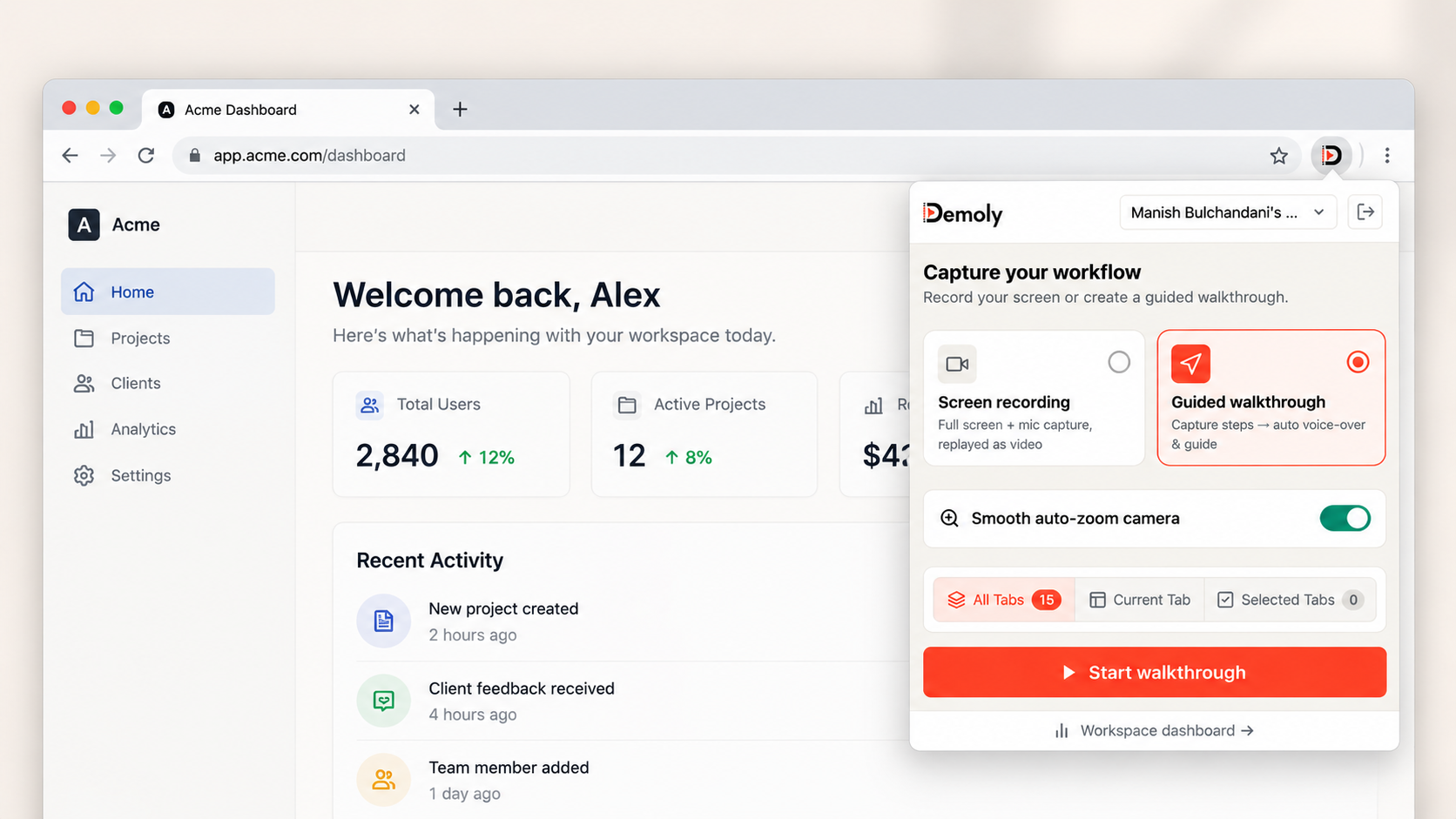
Select Current Tab if your entire walkthrough remains inside one application dashboard, or select Entire Screen if you need to demonstrate transitioning between your terminal, local code editor, and cloud consoles.
Click Start recording. A three-second countdown will initiate before capture starts. Walk through the interface at an even pace, clicking relevant settings tabs and explaining core operations. Demoly captures tab audio, cursor movements, and underlying Document Object Model (DOM) elements simultaneously.
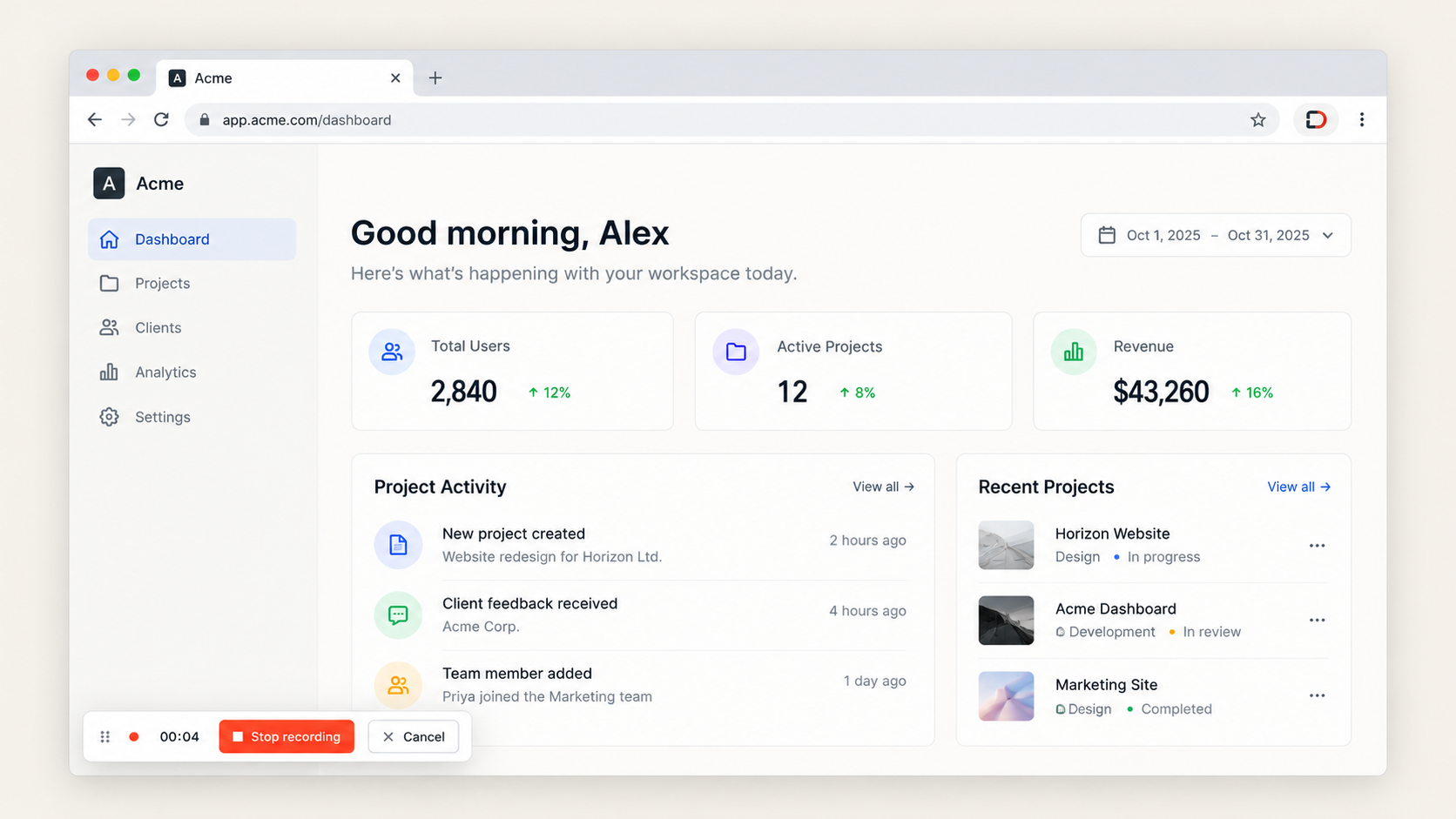
When you complete the chapter walkthrough, click the Stop checkmark on the floating control bar. Demoly immediately compiles the video stream and opens your recorded session inside the web editor canvas.
Step 3: Redact Live API Keys and Secrets on the Canvas
Demonstrating live production infrastructure often requires navigating screens that expose sensitive credentials, such as Stripe secret keys, Resend API tokens, or Supabase connection strings. Leaving these credentials exposed in client videos creates severe security vulnerabilities.
Rather than restarting your recording or exporting footage into complex video editing software, mask sensitive data directly inside the Demoly browser editor:
- In the left-hand editor rail, click the Redact tool.
- Click and drag a rectangular bounding box directly over the credential or API key on the video canvas.
- Use the timeline drag handles at the bottom of the screen to specify the exact time interval during which the redaction box remains active.
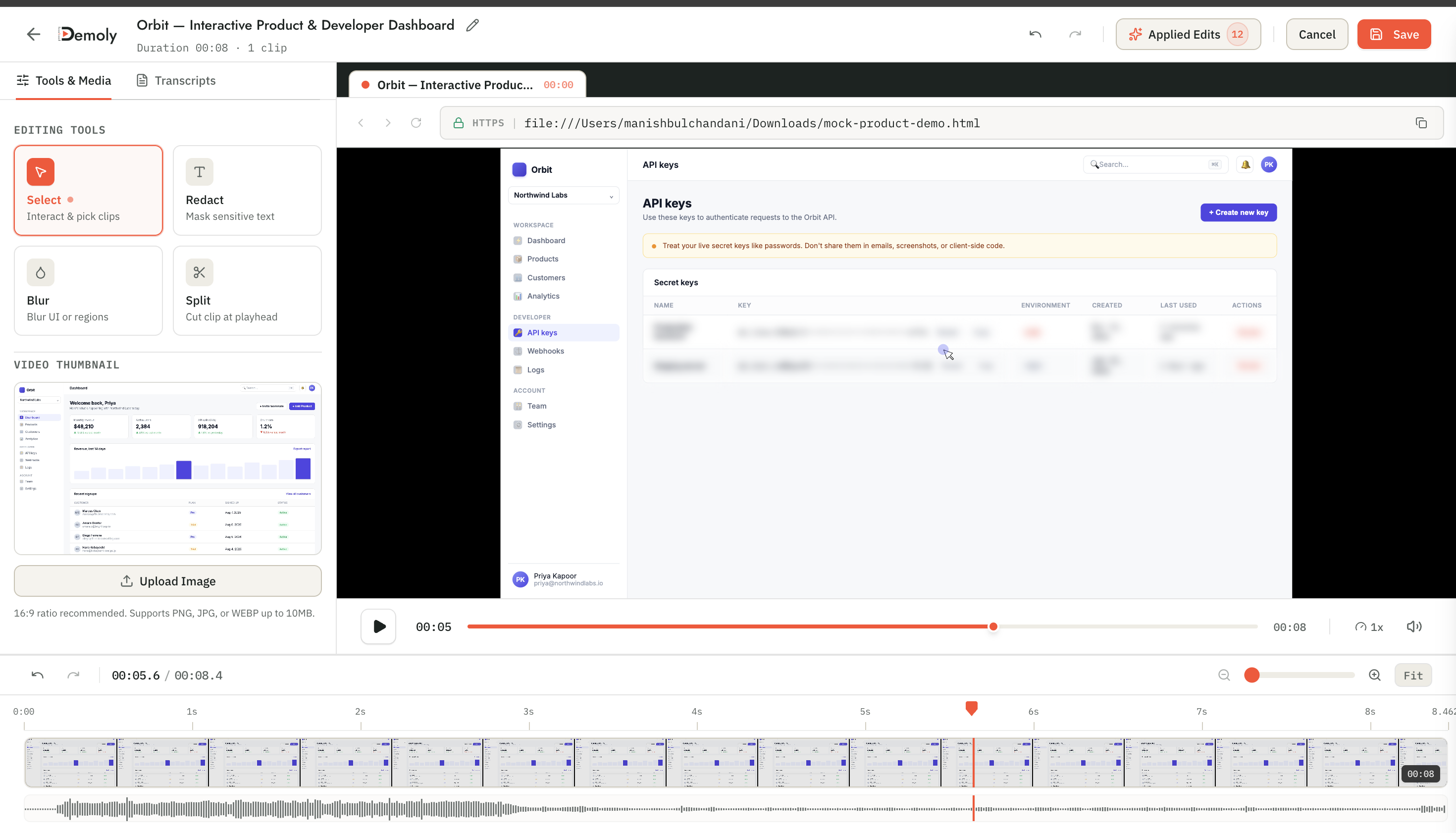
Demoly burns the redaction overlay directly into the canvas video layer upon rendering. Unlike CSS blurs or HTML overlays that can be inspected or disabled in browser developer tools, canvas-level redaction permanently obscures the sensitive credentials.
Step 4: Organize Recordings into a Zero-Login Client Project Hub
Clients should never encounter friction when accessing project documentation. Forcing non-technical clients to create accounts, remember passwords, or download proprietary desktop viewers ensures they will ignore your documentation and contact you directly.
Click Share in the top-right corner of the Demoly editor. In the sharing configuration modal, select your target project folder or create a dedicated folder for your client's business name.
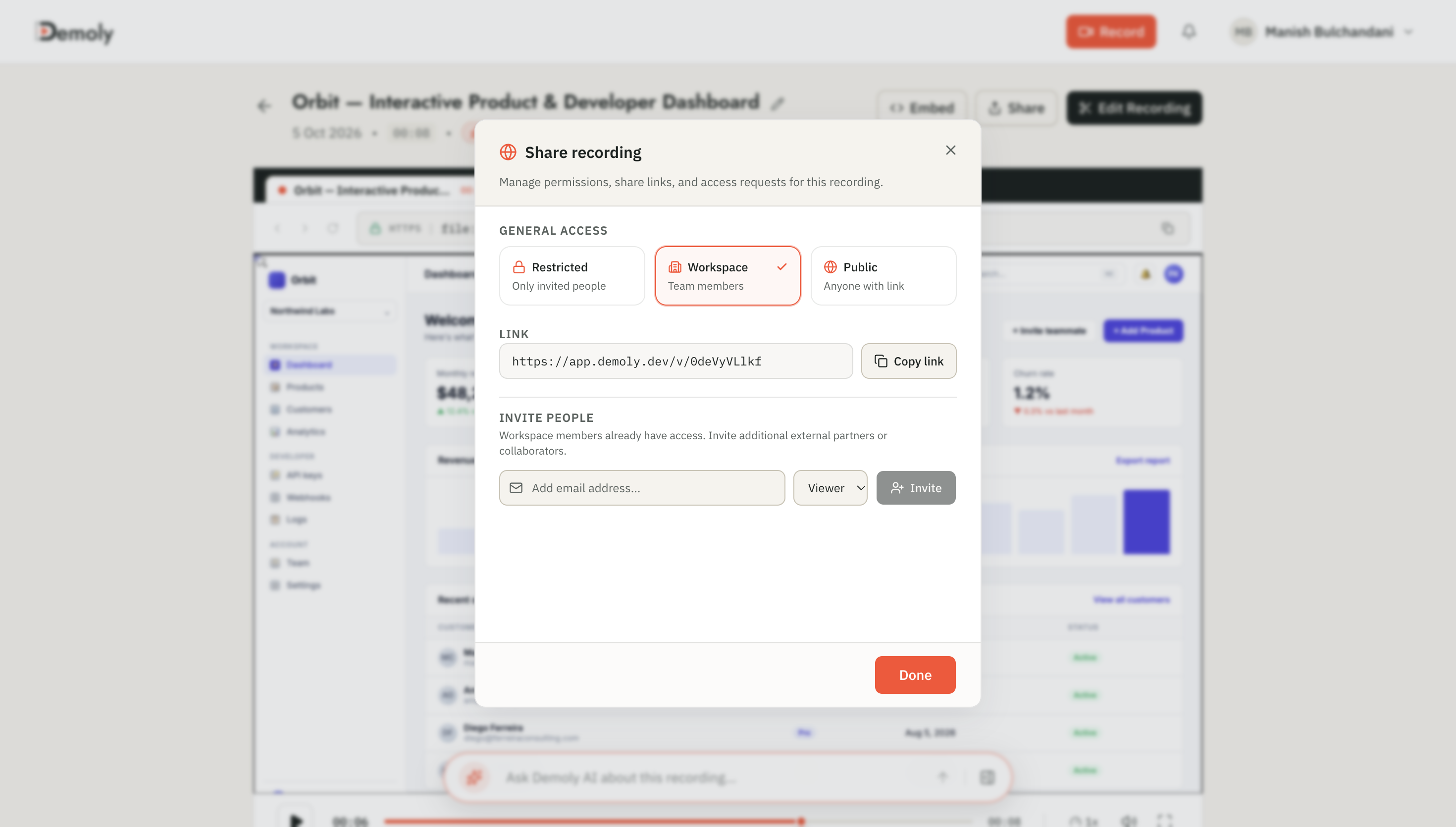
Set the permissions dropdown to Viewer Only. This allows the client and their team to watch all chapter recordings, search video contents, and leave time-anchored comments without editing your timeline cuts. Click Copy Link to grab the public workspace URL. For broader agency standards and enterprise delivery frameworks, review our comparative guide on the Best Tool for Client Project Handovers.
Step 5: Deliver the Self-Serve Handover Package and Close the Contract
Send the client your final delivery email containing the Demoly project link alongside their code repository access. Emphasize that the video walkthroughs are fully interactive and searchable.
When the client opens the link in their browser, they can interact with the documentation using Demoly's AI search drawer:
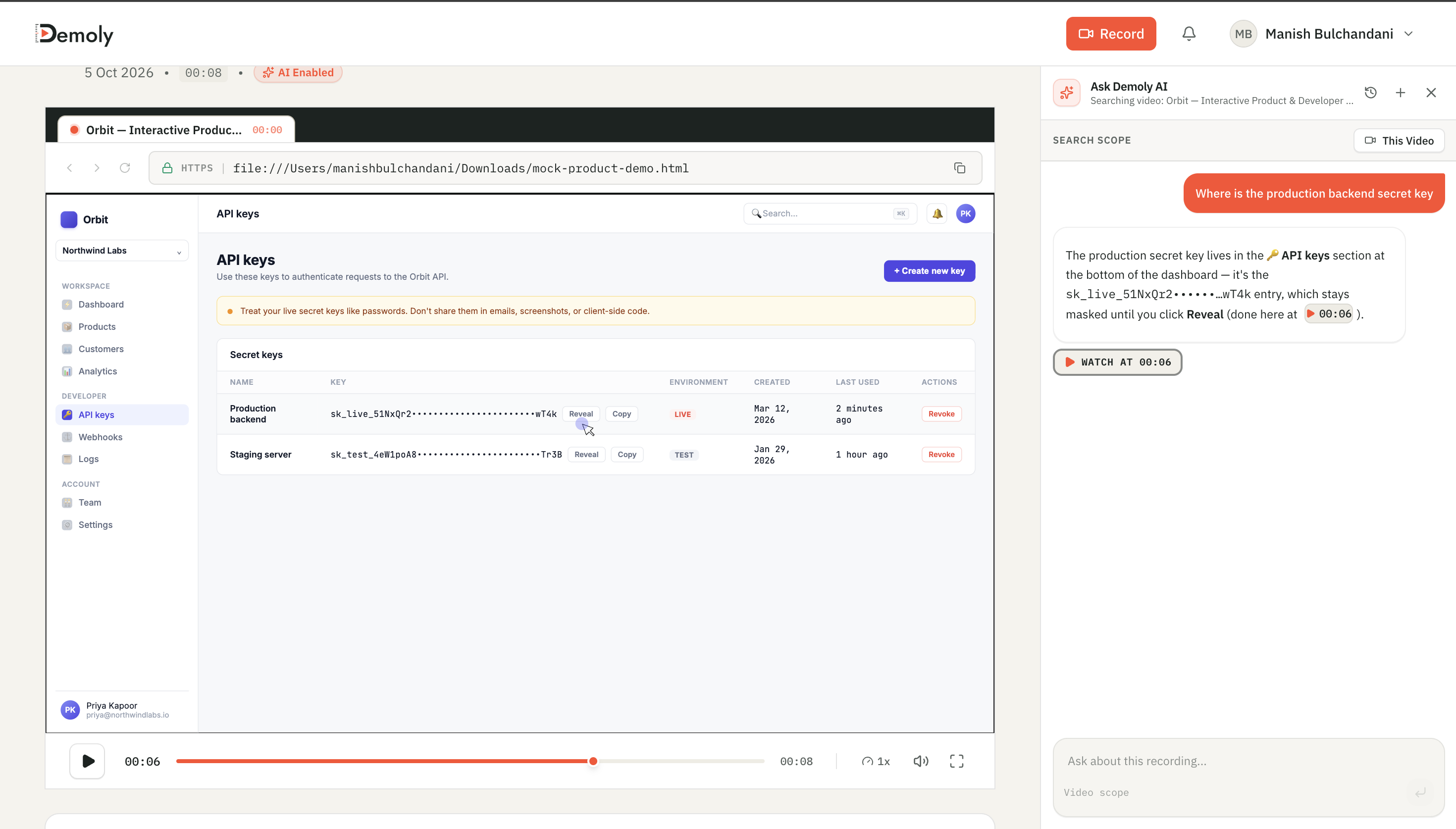
If a team member wonders, "Where do I add a new Stripe webhook endpoint?", they type the question directly into the search bar. Demoly analyzes both spoken narration and visible on-screen DOM elements, returning immediate timestamp citations (e.g., Jump to 02:14). Clicking the chip jumps the playhead to that exact second, allowing your client to self-serve operational answers without scheduling another follow-up call.
How to Verify It Worked
Perform a quick end-to-end audit before sending the handover link to your client:
- Open a new Incognito or Private window in Google Chrome.
- Paste your Demoly share link into the address bar and press Enter.
- Confirm that the video player loads immediately without requiring an account login or email capture.
- Type an unvoiced UI label from your recording (such as
"Environment Variables"or"API Tokens") into the search drawer to confirm that timestamp citations trigger properly. - Scrub to your redacted time range to verify that sensitive keys remain completely obscured.
Important Notes & Edge Cases
- Scope creep defense: Include a standard clause in your handover email stating: "All core infrastructure, deployment procedures, and CMS operations are documented in the interactive handover link above. Minor self-service questions can be searched directly inside the video player; additional feature requests outside this scope will be billed under our standard hourly advisory rate."
- Separate staging from production keys: When demonstrating environment configuration screens, populate fields with dummy or staging tokens whenever possible. If you must display production consoles, always apply Step 3 canvas redaction before copying the share link.
- Dynamic element scrolling: If you scroll through a long settings page while demonstrating features, anchor the redaction box to the specific parent container or pause scrolling while credentials are in view to prevent masking misalignments.
Troubleshooting
- Problem: Client claims they cannot view the recordings without logging into an account.
Fix: Open the project Share modal in your Demoly dashboard and ensure the link access toggle is set to Public - Viewer Only. If set to Private or Team Only, external viewers will be prompted for credentials.
- Problem: Microphone audio sounds muffled or drops out during tab transitions.
Fix: Ensure Google Chrome has system-level microphone permissions in macOS System Settings or Windows Privacy Settings. Avoid switching between external Bluetooth headsets and internal microphones mid-recording.
Practical Next Steps
You can now package and deliver professional client handovers solo in under 30 minutes, protecting your calendar from post-launch interruptions. Demoly provides full multi-tab recording, automated UI indexing, canvas redaction, and zero-login link sharing on its free plan ($0 forever, no credit card required).
Frequently asked questions
Commonly asked questions about this article.
01•Does my client need a Demoly account to watch the handover walkthroughs?
No. Clients open the shared project URL directly in any modern desktop or mobile browser. They can stream videos, query the AI search drawer, and review chapters without creating an account or logging in.
02•What if I accidentally show a live production database password?
You do not need to re-record the walkthrough. Open the video in Demoly's web editor, select the Redact tool, and draw a masking box over the credential. The redaction is burned permanently into the canvas layer.
03•How does the search drawer find buttons if I did not mention them aloud?
Demoly indexes the Document Object Model (DOM) and rendered text elements visible on the screen during capture. When clients search for specific button names or dashboard tabs, the engine matches the visual text directly to video timestamps.
04•Can I update or replace a video chapter later without breaking the client's link?
Yes. You can edit existing recordings, trim sections, or add new video walkthroughs to the client's project folder in your Demoly dashboard. The client's original share URL automatically reflects your latest updates.
05•Can clients leave feedback or ask questions directly inside the video player?
Yes. Clients can click anywhere on the video canvas to drop an element-pinned comment at a specific timestamp. You can review and answer their comments directly from your Demoly dashboard.
Demoly Team
Contributor
Related Dispatches
View all dispatches →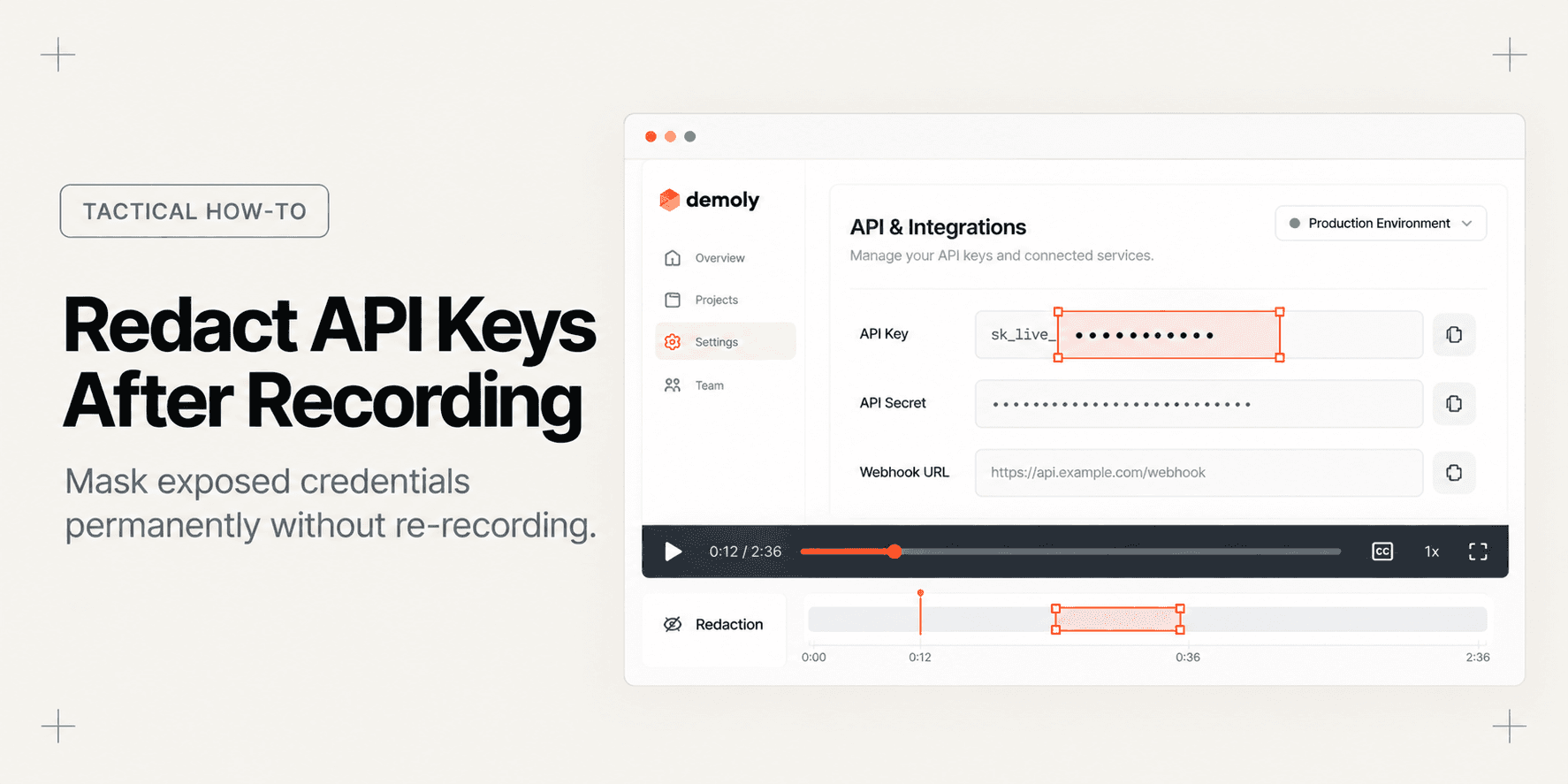
How to Redact an API Key From a Video After It's Already Recorded
Exposed a production API key or secret token in your walkthrough? Learn how to permanently redact sensitive credentials directly in the browser without re-recording.
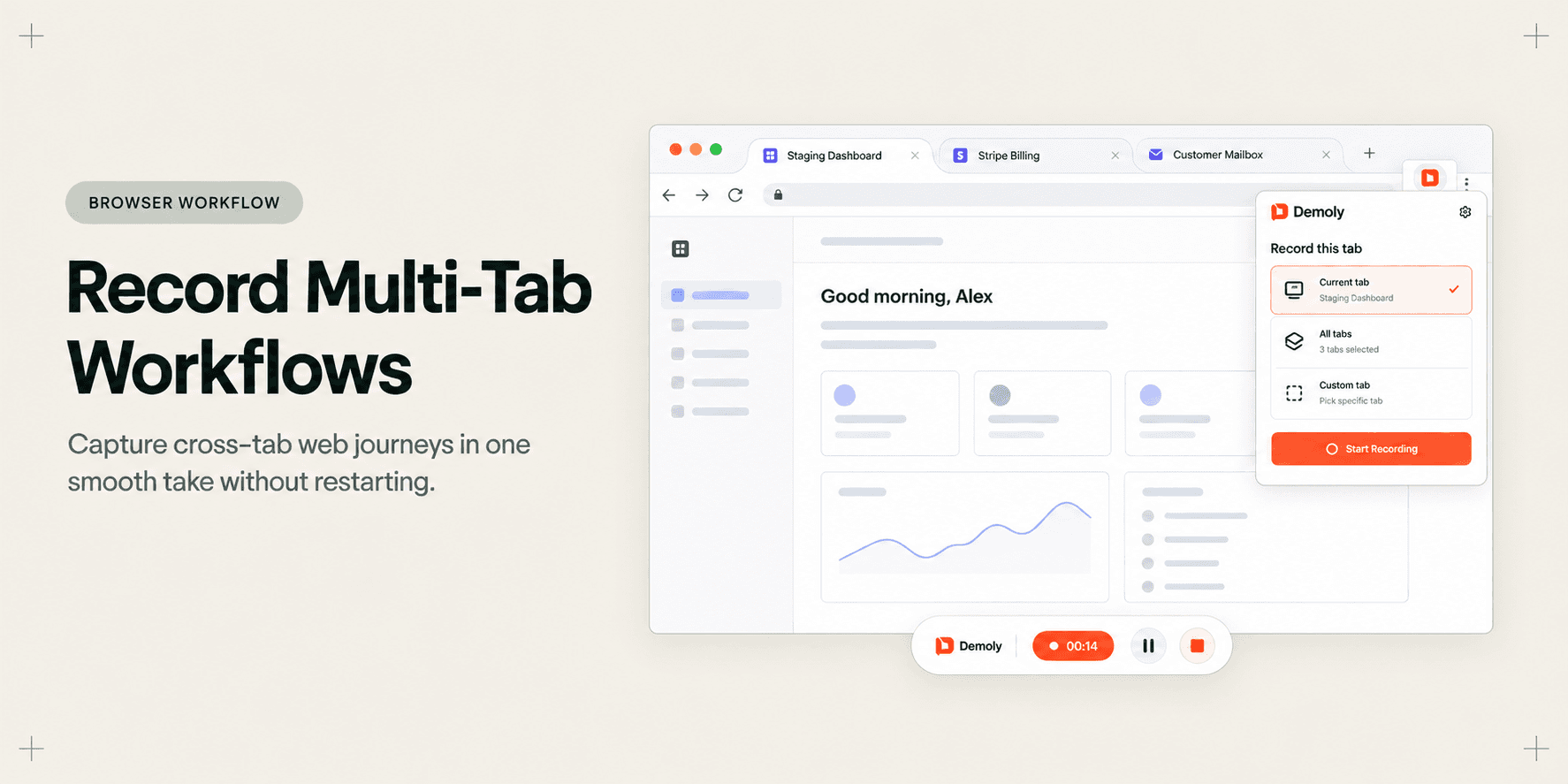
How to Record Smooth Multi-Tab Workflows in One Take
Recording multi-tab SaaS workflows often leads to messy restarts, dropped audio, and disjointed videos. Learn how to capture cross-tab browser journeys in one smooth take.
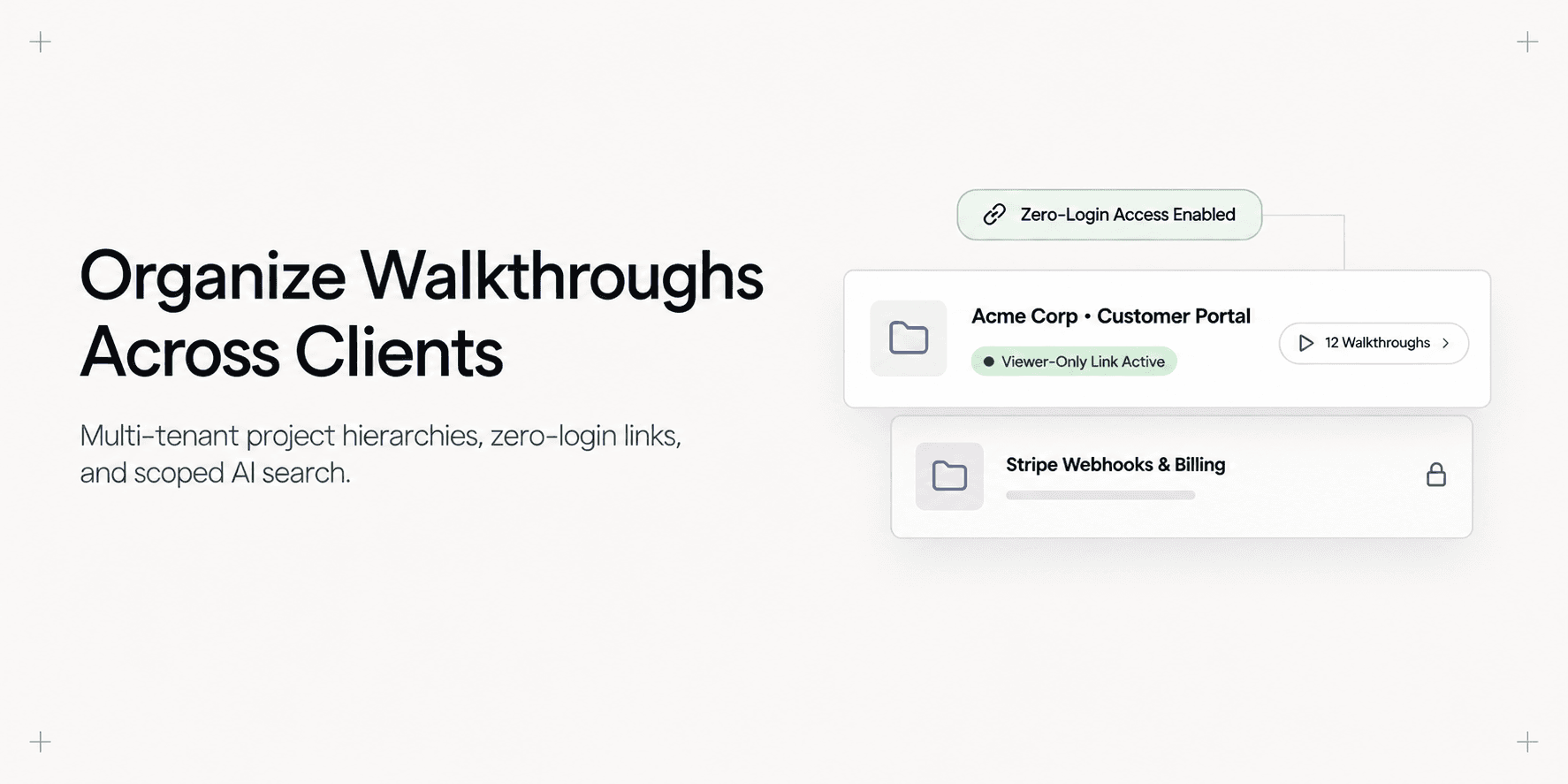
How to Organize Video Walkthroughs for Multiple Client Projects
Learn how web agencies structure, isolate, and organize video walkthroughs across multiple client projects with dedicated folders and AI search.
Try Demoly for your team
Create branchable, interactive demo recordings and deliverables in minutes with zero friction.